
The Excel Import tool in the Core module allows employers to upload employee information in bulk – such as personal information, pay details, payroll profiles, and emergency contacts – using the Excel templates provided.
Steps to Import Employee Details via Excel Import:
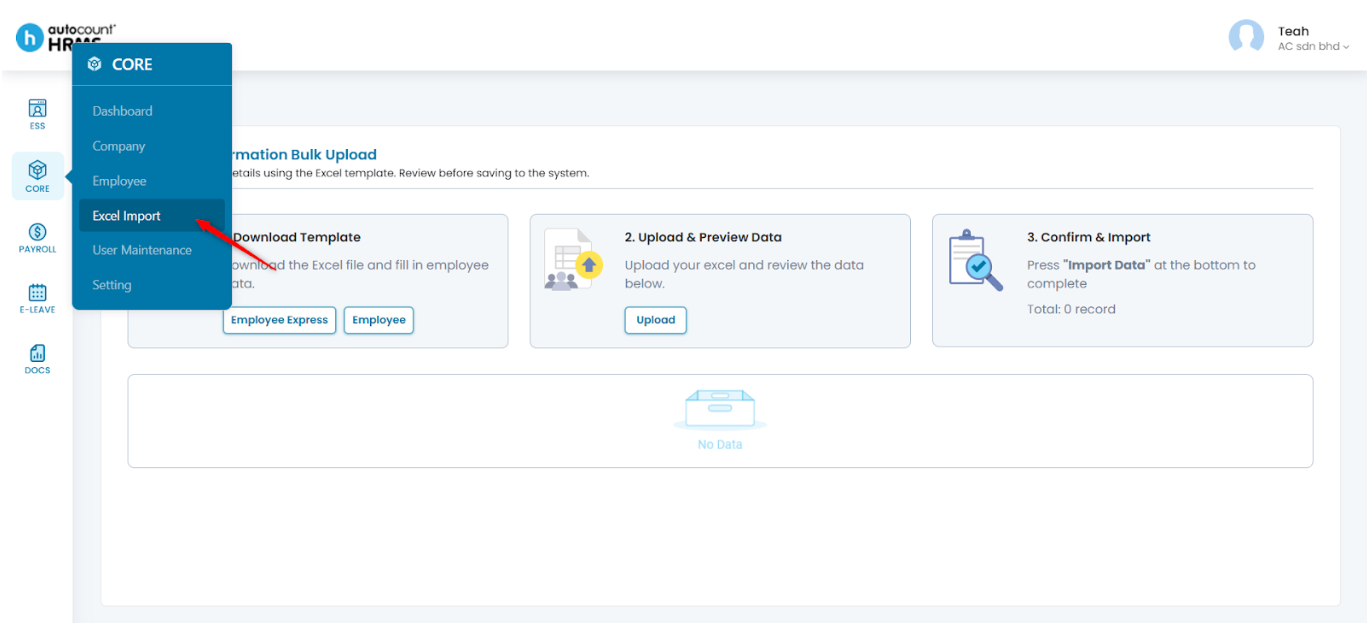
1. Go to Core > Excel Import.
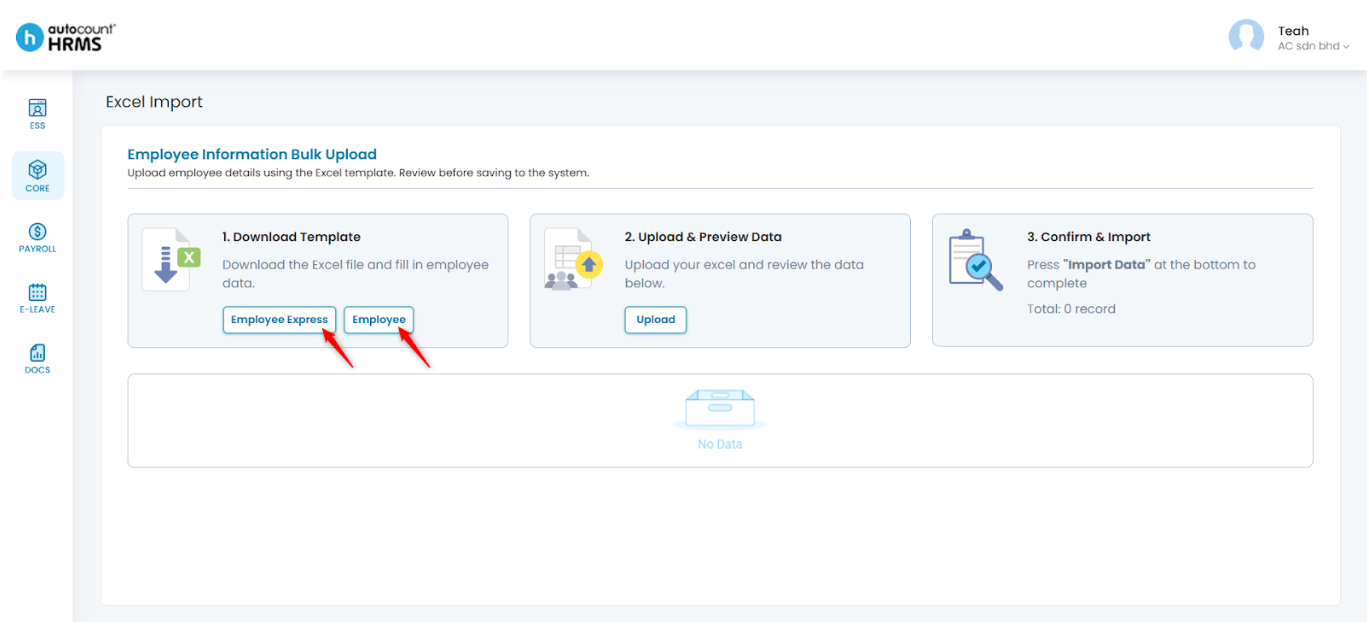
2. Download one of the following templates:
- Employee Express– Upload mandatory employee details only.
- Employee – Upload all employee details. This template contains six worksheets: Employee, Identification Info, Child Info, Emergency Contact, Working Experience and Education.
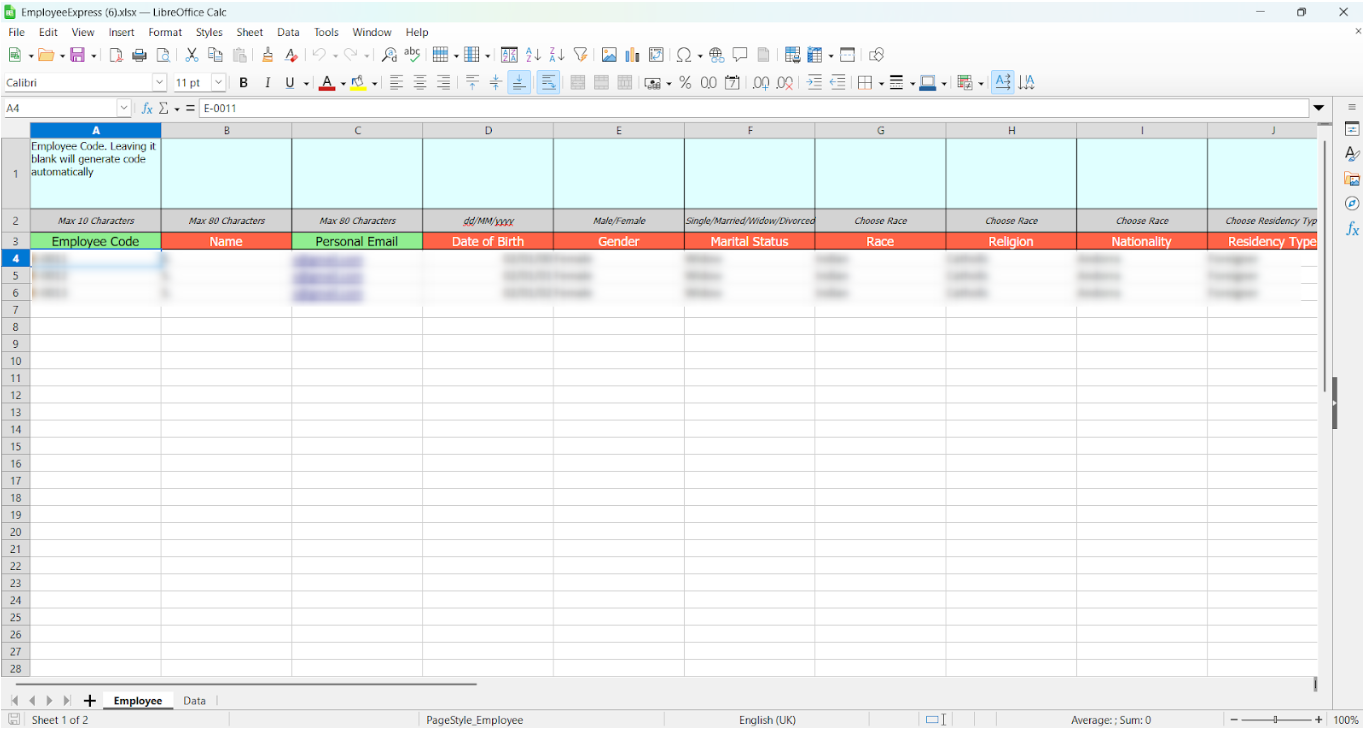
3. Enter the required information into the selected template. Then, save the completed file in Excel (.xlsx) format.
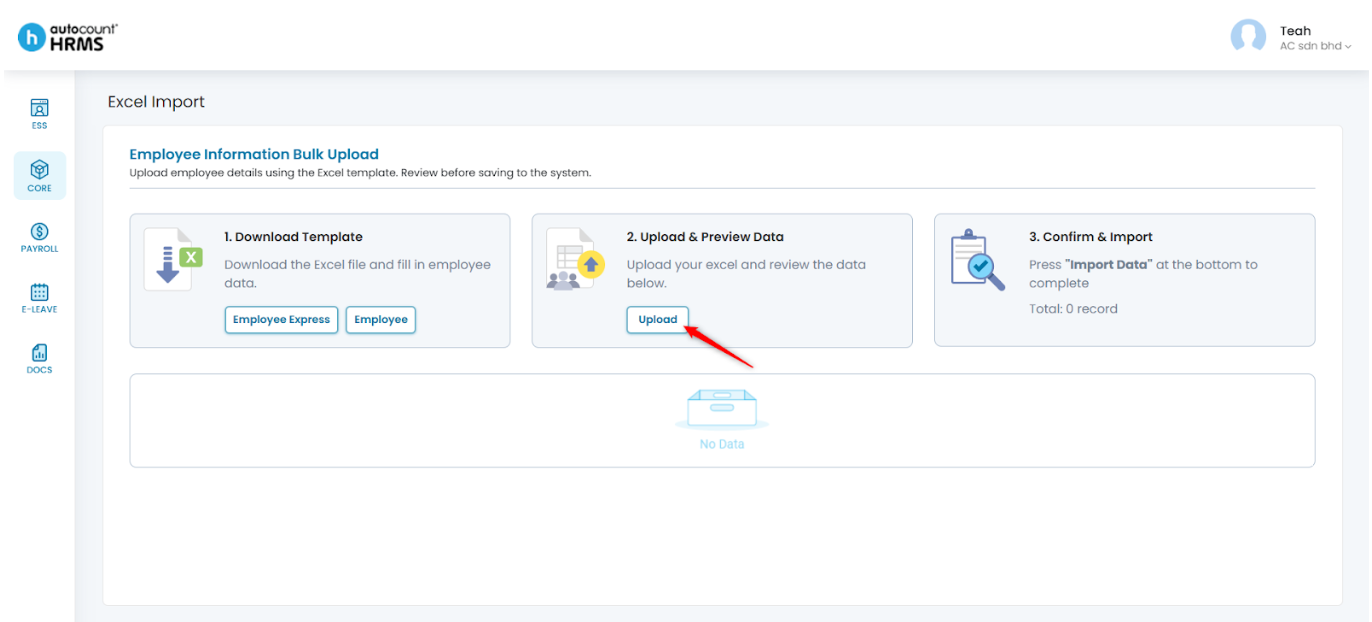
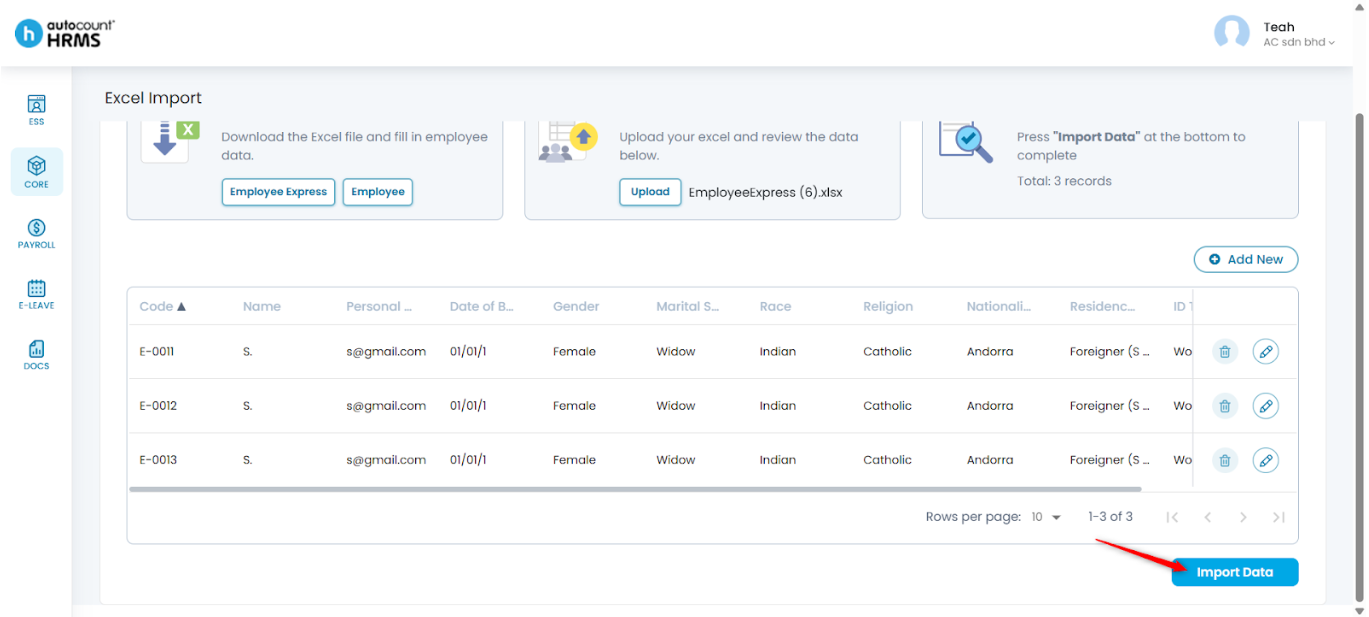
4. Click Upload, select the completed Excel file, then click Open.
5. Click Import Data to proceed.
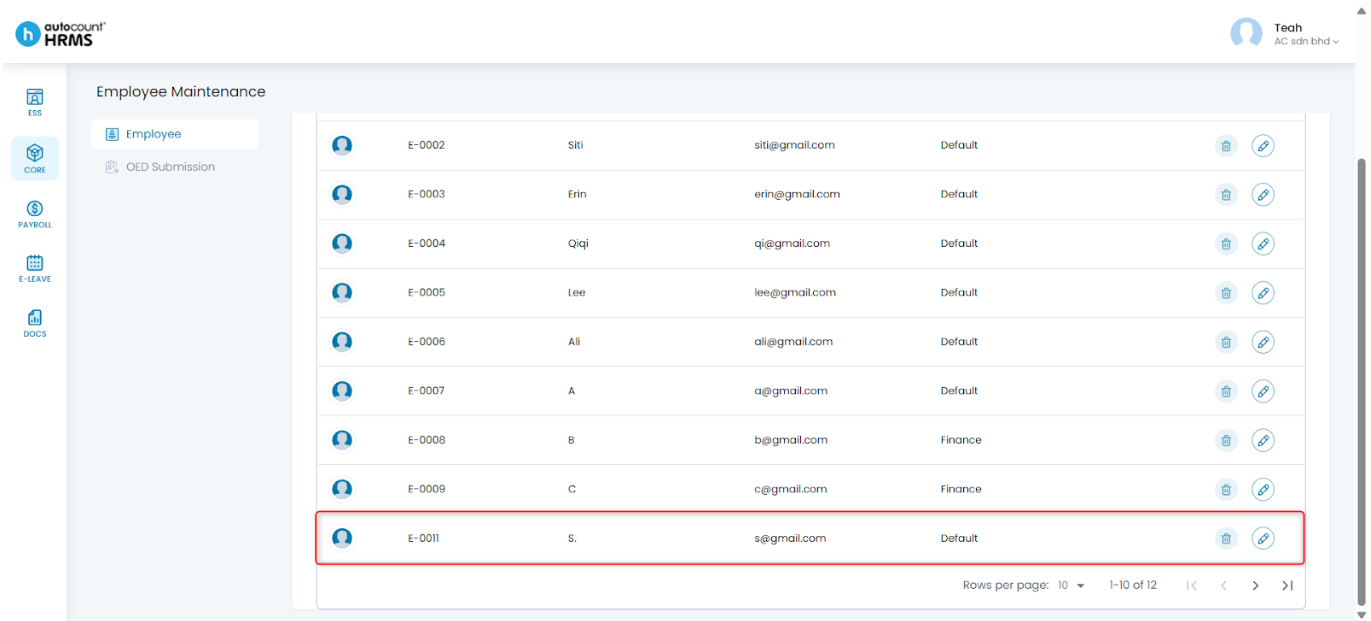
6. You can view and manage the employee records at Core > Employee.
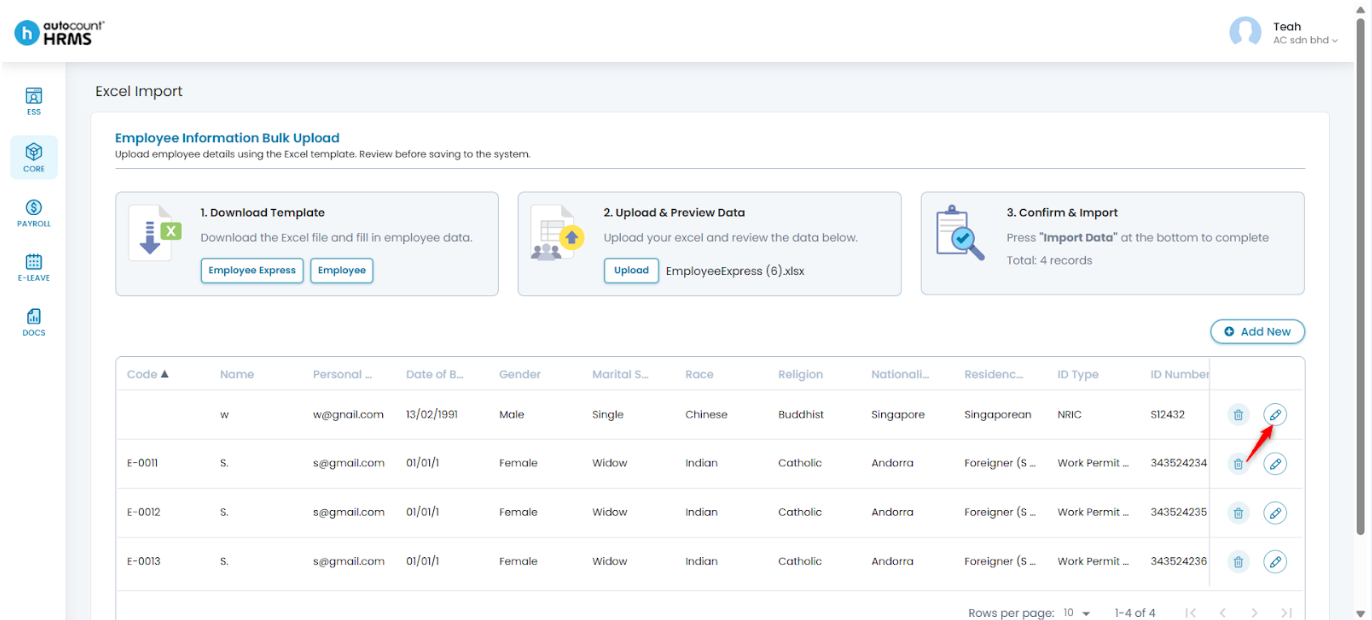
Steps to Edit an Employee’s Details before Importing:
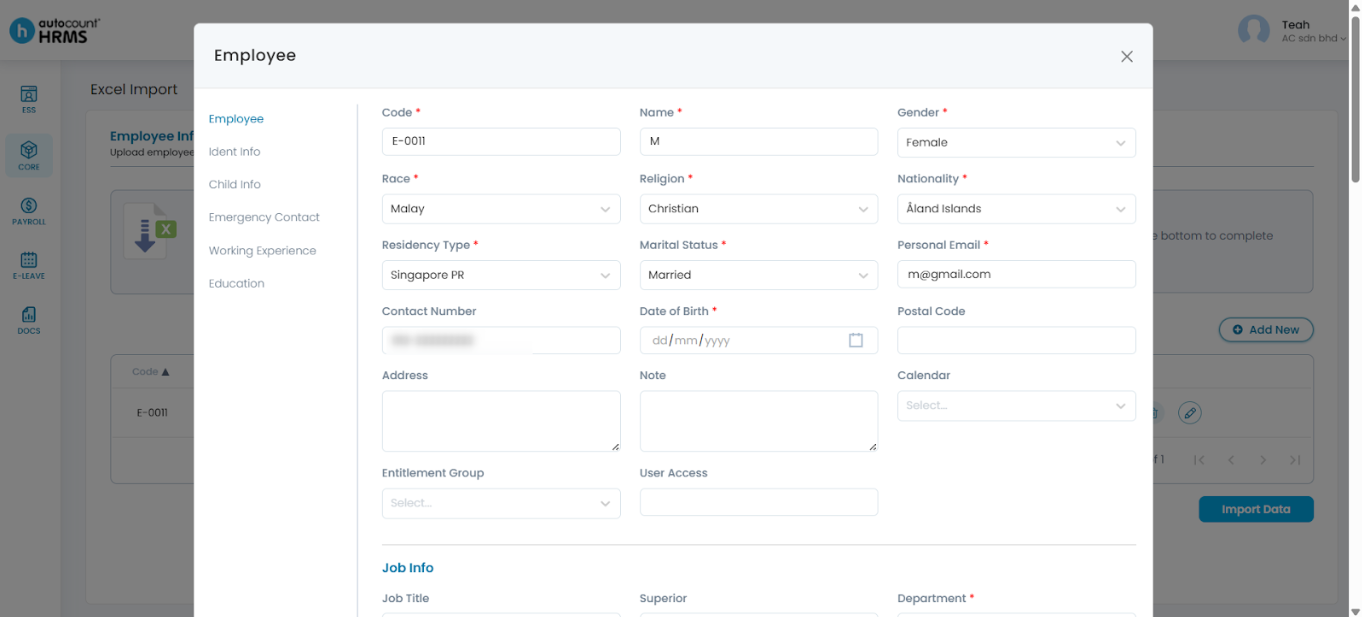
1. Click the pencil icon next to the employee record you want to edit.
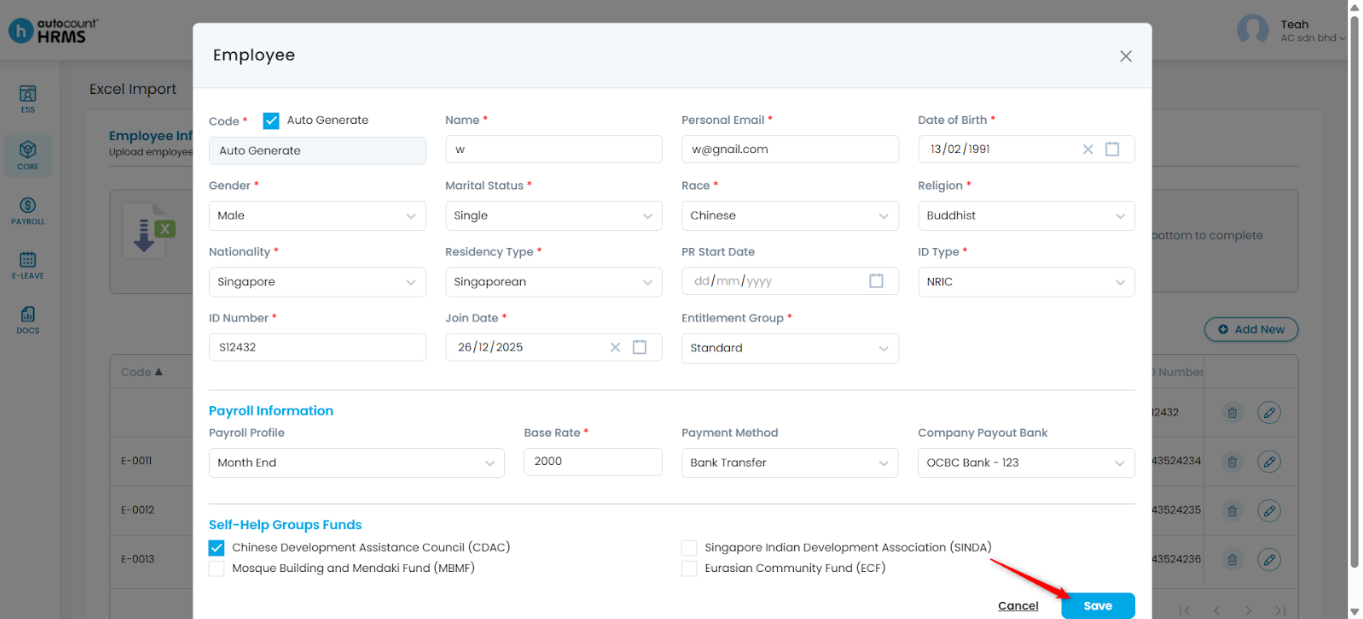
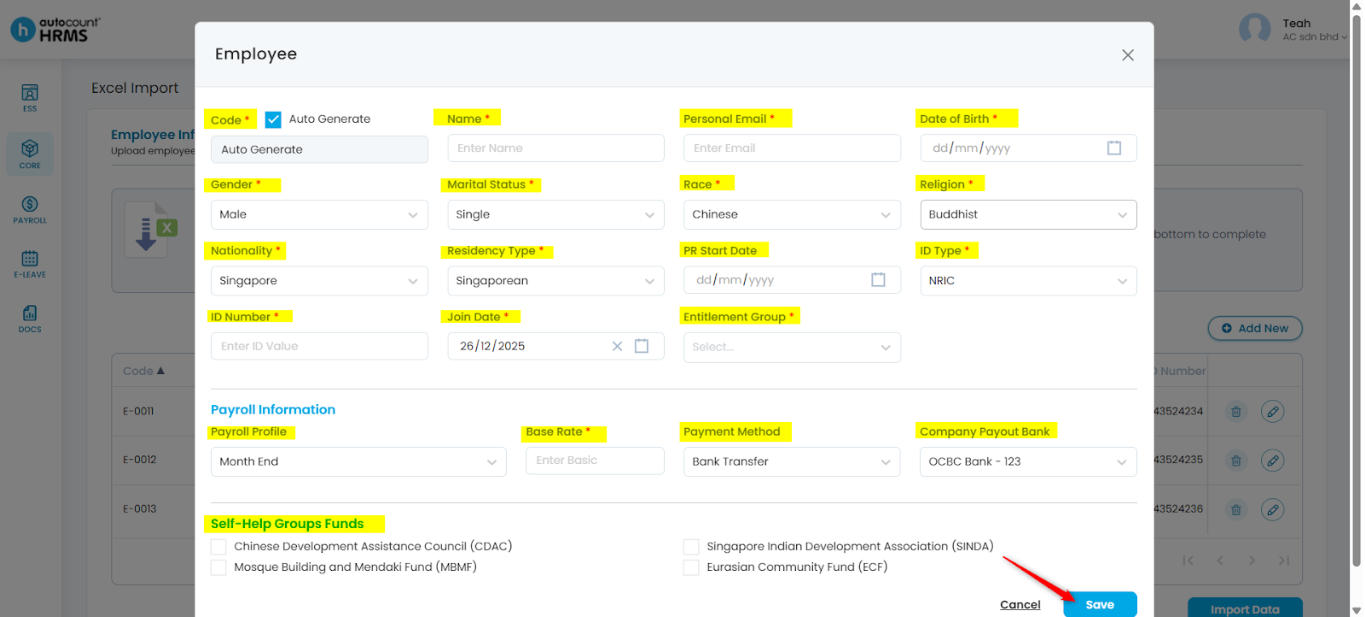
2. Make the necessary changes. Then, click Save.
Edit panel if upload via Employee Express template:
Edit panel if upload via Employee template:
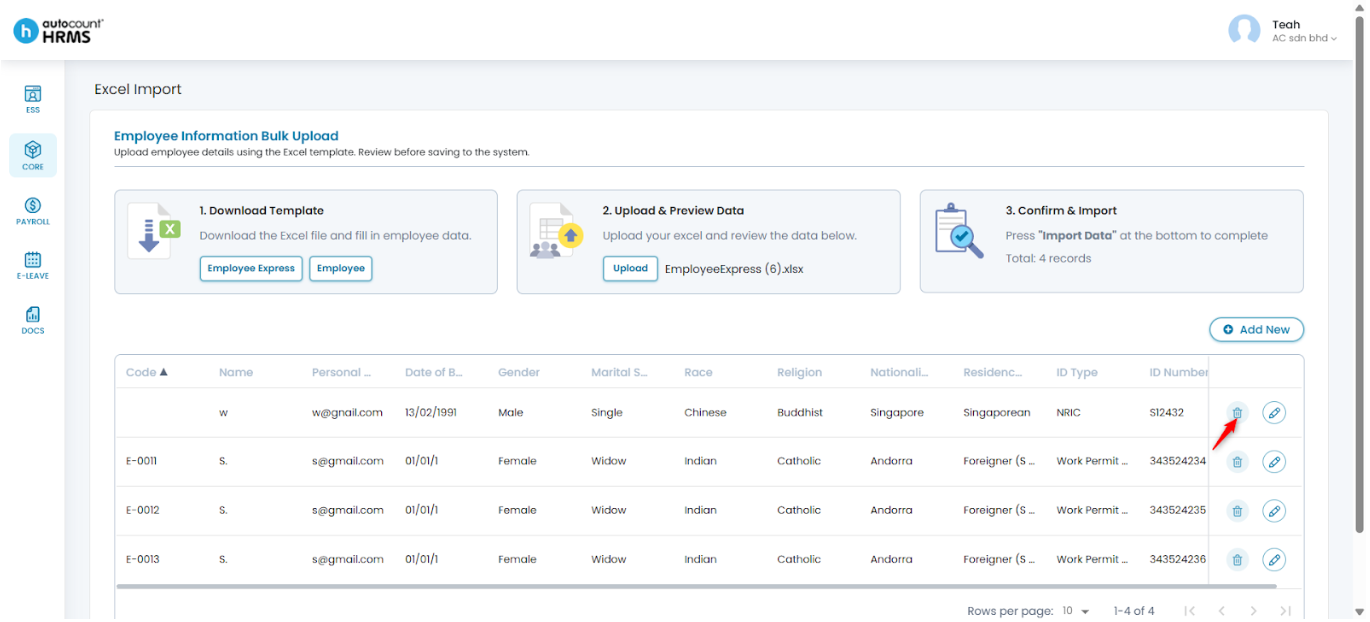
Steps to Delete an Employee Record before Importing:
1. Click the trash bin icon next to the employee record you want to remove.
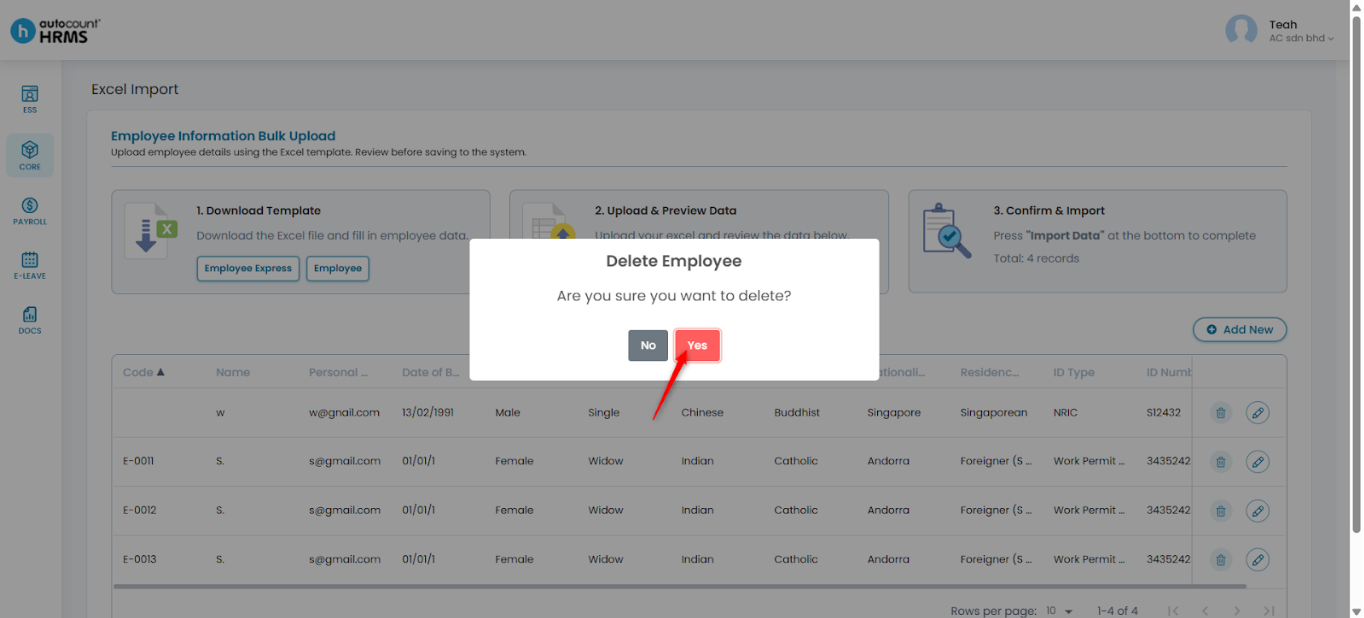
2. Click Yes to confirm deletion.
Steps to Add a New Employee before Importing:
1. Click Add (+) New.
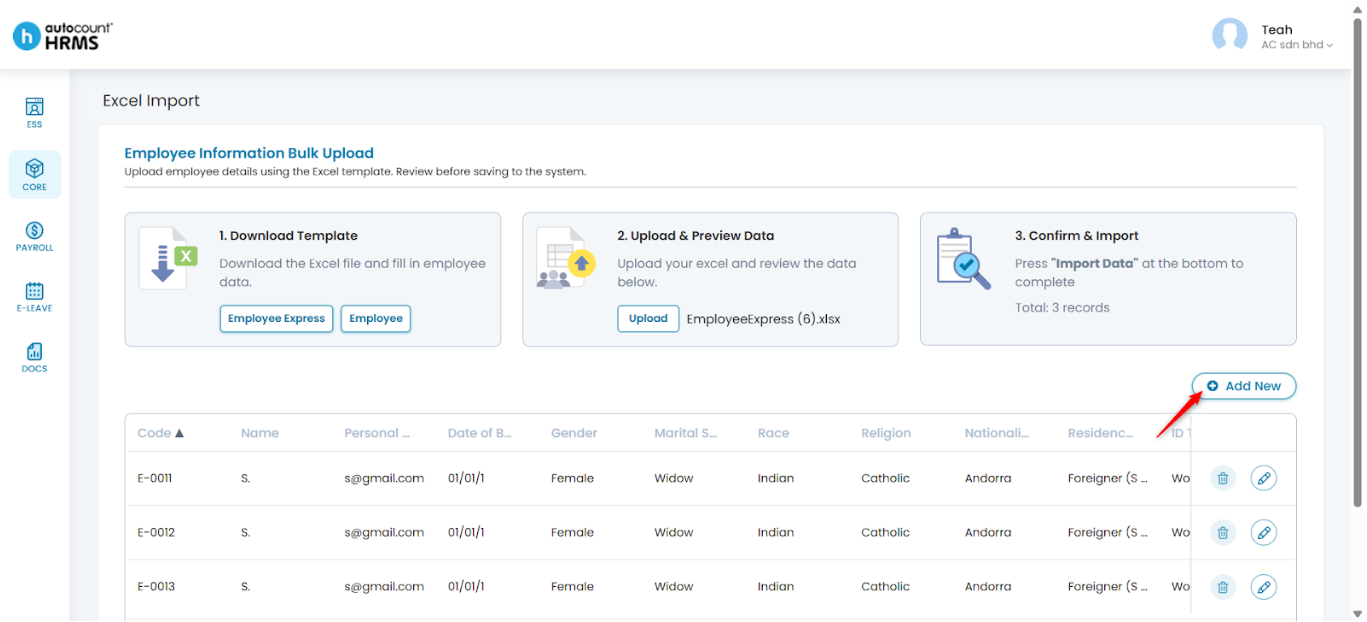
2. Enter the required details. Fields marked with an asterisk (*) are mandatory. Then, click Save.
Written by: Teah Rui Harn (20251226)
Reviewed by: Tek Ee Lin (20251226)