
Leave Encashment in AutoCount HRMS allows employees to convert their unutilized leave days into cash.
The encashed leave is processed through payroll and reflected as Paid Leave.
What is Unutilized Leave?
Unutilized leave refers to the portion of an employee's annual leave entitlement that has not been taken within the year.
Example:
- Annual leave entitlement for year 2025: 15 days
- Leave taken: 10 days
- Remaining balance: 5 days
The remaining 5 days are considered unutilized leave and may be encashed or carried forward, depending on company policy.
What is Leave Encashment?
Leave encashment is the process of converting unutilized leave days into cash.
In AutoCount HRMS, encashed leave is recorded as Paid Leave and paid out during January payroll process for the following year.
Step 1: Enable Leave Encashment for a Leave Type.
Before processing encashment, ensure the leave type allows encashment.
- Go to Tools > Leave Type
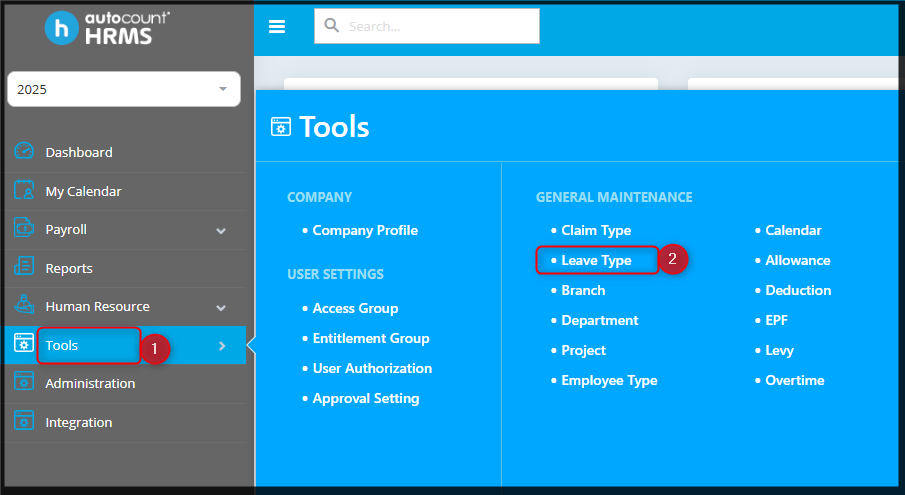
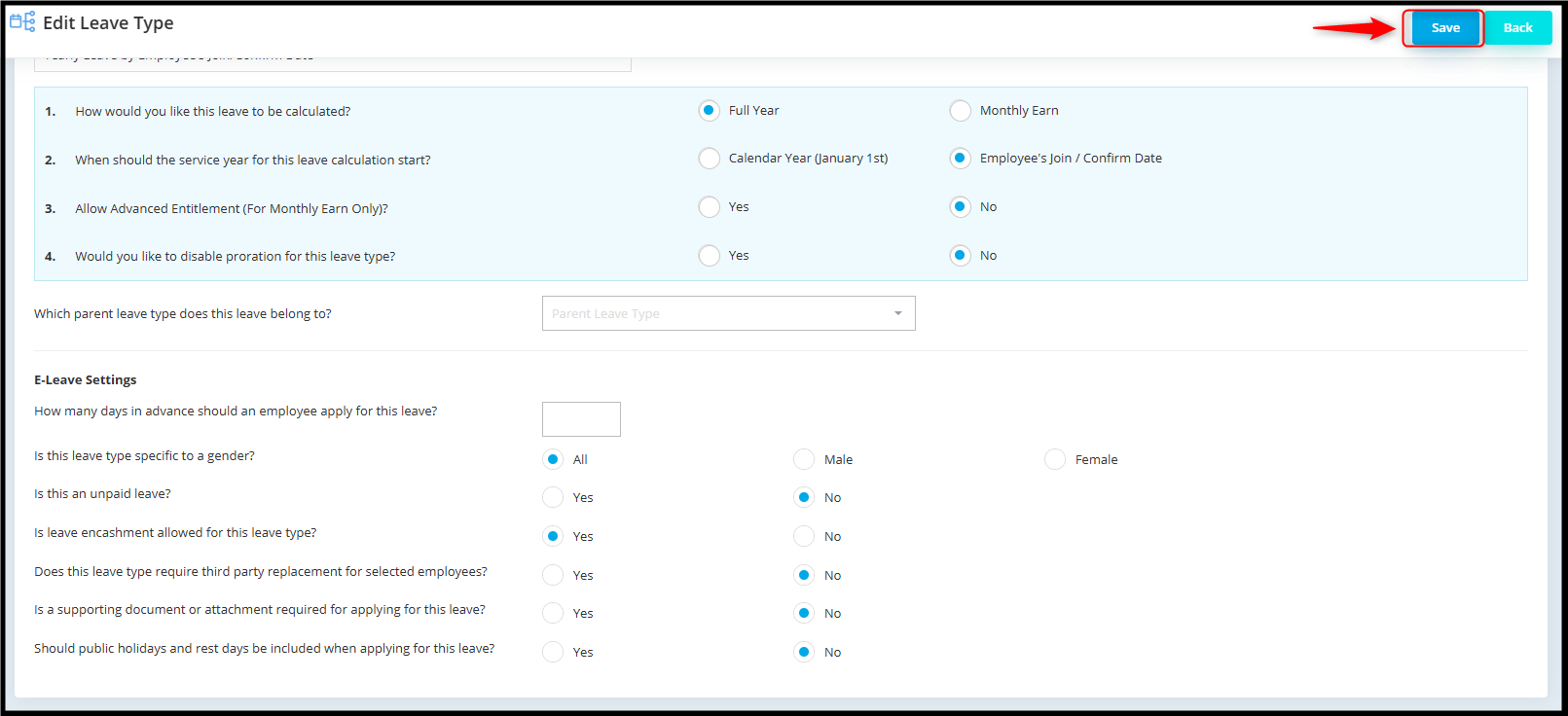
- Select or edit the relevant leave type (example Annual Leave)

- In the E-Leave settings, locate "Is leave encashment allowed for this leave type?"

- Select "Yes"

- Click "Save" to save the changes
Step 2: Create Leave Closing
Leave encashment is processed during Leave Closing.
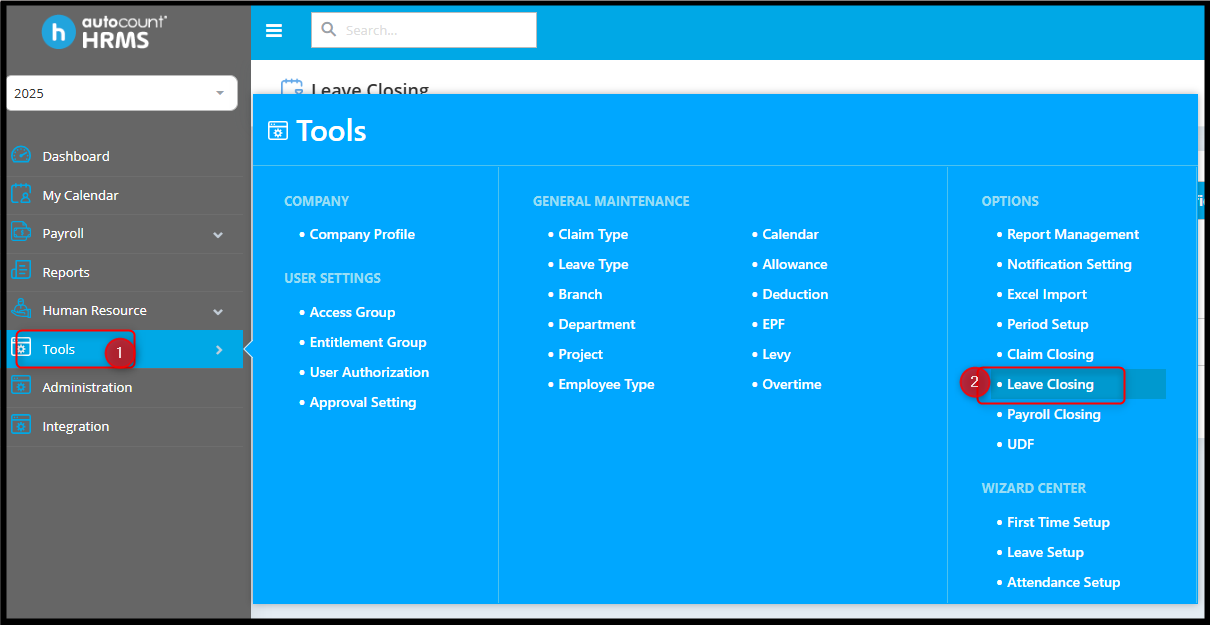
- Go to Tools > Leave Closing
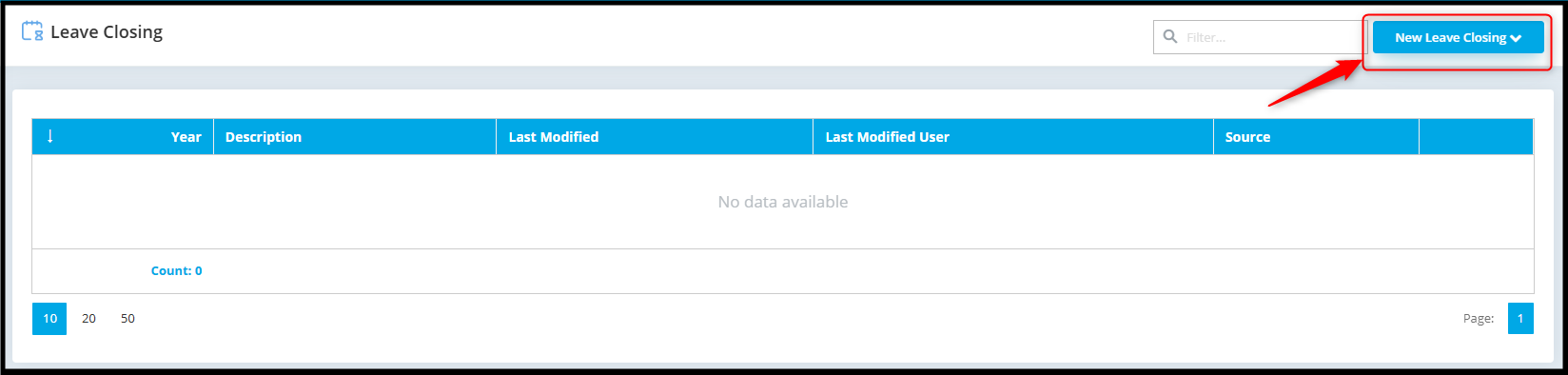
- Click "New Leave Closing"
Step 3: Select Leave Closing Method
Choose one of the following options:
i. December Cut-Off Date
- Captures leave balance up to the December payroll
- December payroll must be completed before selecting this options
ii. Real-Time Balance
- Captures leave balance up to the current date
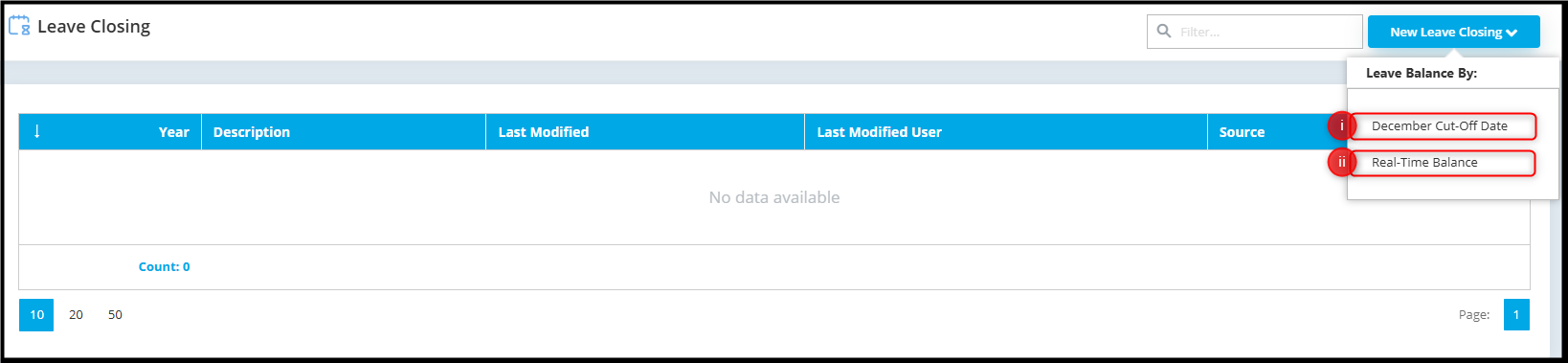
After selecting an option, the system will proceed to the Leave Closing Page.
Step 4: Check Pending Leave Transactions
- Review the pending Leave section
- Ensure "No data available" is shown
- If pending leave exists, "Approve or Reject" them before continuing
- Click "Next"
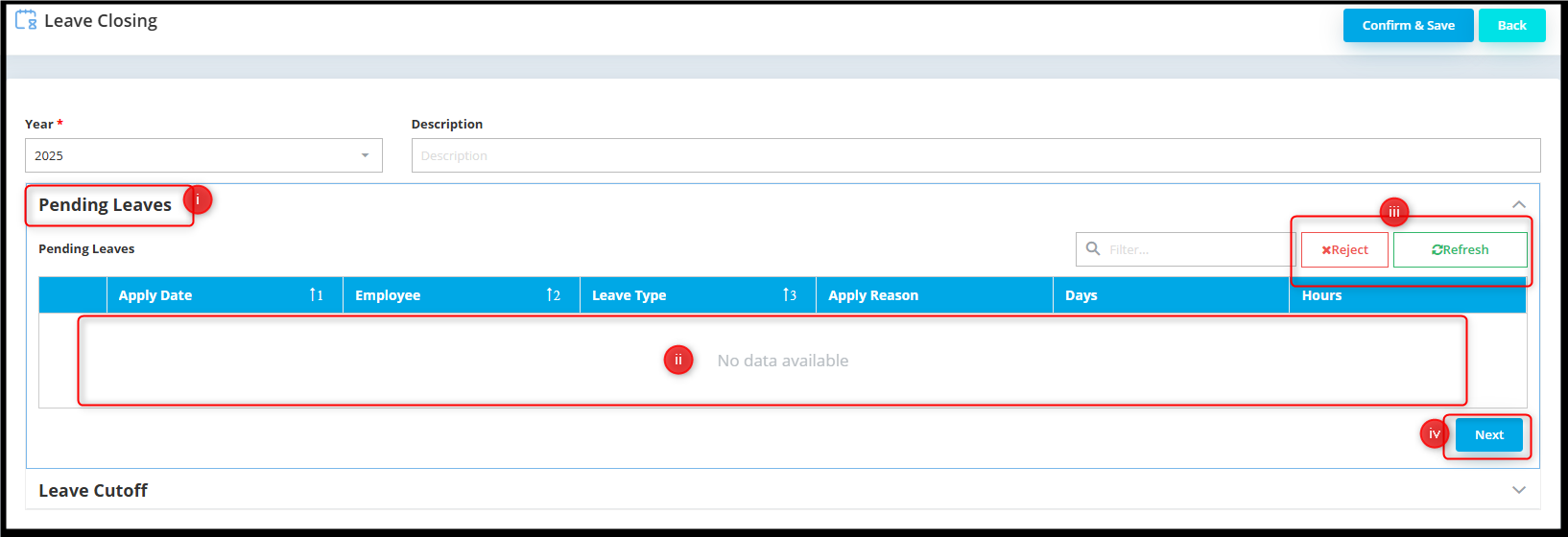
Step 5: Review Leave Cutoff Details
In the Leave Cutoff section, the system displays:
- Employee list
- Leave Details (Type, Entitled, Taken, Available, Service Year, Max BF, etc.)
- Encashment column, indicating the number of days eligible for encashment
Review all information carefully to ensure accuracy.

The remaining 5 days are considered unutilized leave and will be encash.
Another scenario: Leave Encashment with Carry Forward Leave
(Applicable only if carry forward leave is allowed)
If company policy allows carry forward leave, the system will calculate leave encashment after applying the maximum carry-forward limit.
How it works:
- The system determines the employee's total unutilized leave
- The maximum carry forward limit is applied (The setting is maintain at "Refer Leave Carry Forward Setup")
- Any leave exceeding the carry forward limit becomes eligible for encashment
Example
- Annual Leave Entitlement: 15 days
- Leave Taken: 8 days
- Unutilized leave: 7 days
- Maximum carry forward leave: 3 days
Result:
- Leave carried forward: 3 days
- Excess leave: 4 days
- Leave encashed: 4 days

Only the excess leave will appear in the encashment column and be paid as Paid Leave in payroll.
Note: No manual calculation is required. System automatically applies the carry forward limit during Leave Closing.
Step 6: Save the Leave Closing
Once confirmed all the details are correct, then proceed by click on "Confirm & Save".

Click Yes if you wish to double confirm, else No.
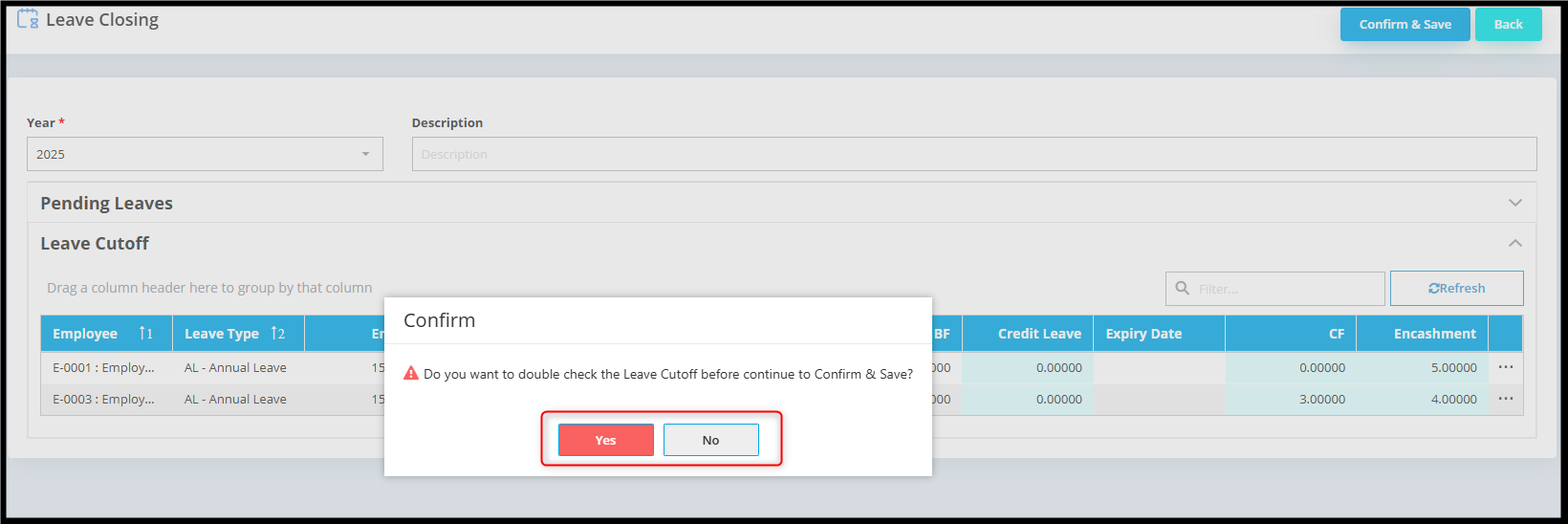
Another confirmation prompt, select Yes to continue, else No.
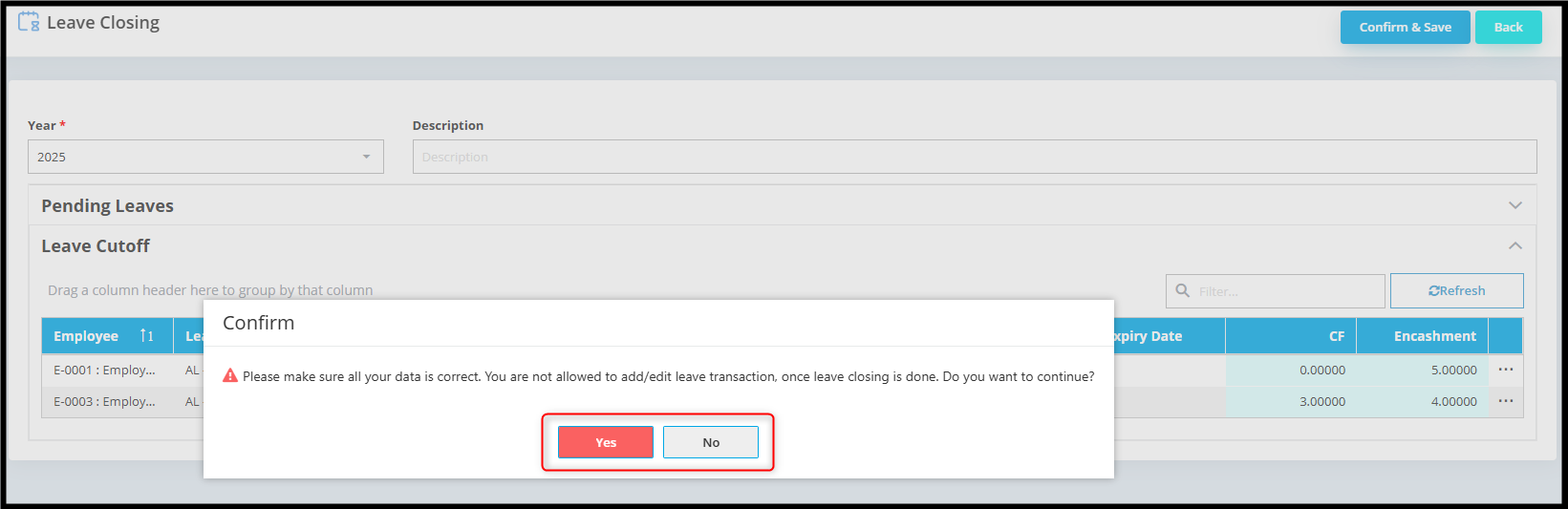
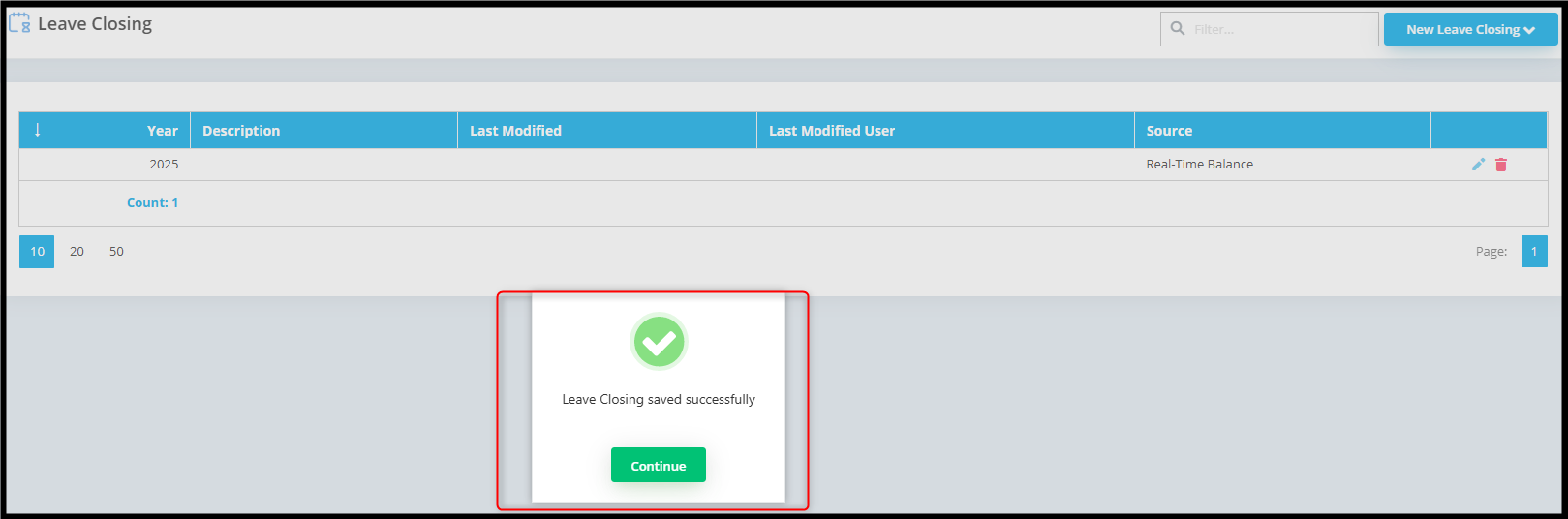
Leave Closing saved successfully.
Step 7: Process Payroll for Encashment
After leave closing is completed:
- Go to Payroll > Process Payroll

- Run payroll for January (following year), e.g. January 2026
- Select the relevant employee
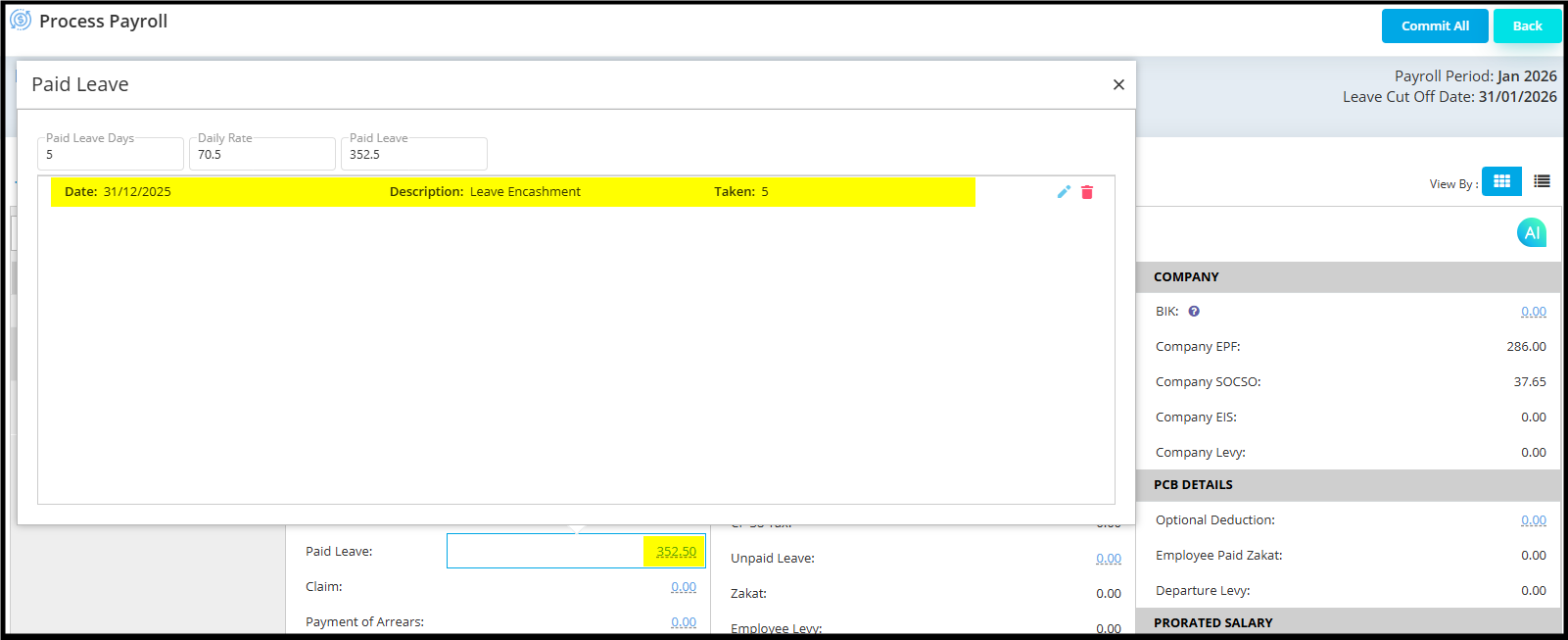
- The encashed amount will appear in the Paid Leave column.

- Click the Paid Leave amount to view the encashed leave details.
Important Notes:
- Only unutilized leave within company policy limits can be encashed
- Carry forward limits must be configured correctly for accurate calculation
- Ensure all leave balances and transaction are finalized before Leave Closing
- Leave encashment rules may vary by company, including:
- Carry forward limits
- Employee eligibility > Payroll payout timing
By Azirah 251222