
User Maintenance allows employers to invite employees to become HRMS users. Invited users can log in to their HRMS account using the registered email.
HRMS supports different user types and roles to control access and permissions based on job responsibilities.
- Employee User – Access to the ESS (Employee Self Service) module and may be assigned as a Leave Approver to approve or reject leave requests.
- Payroll User – Typically assigned to managers, supervisors, or HR personnel. Can be assigned as a Leave Approver, has access to ESS (Employee Self Service), payroll processing and selected company maintenance functions, depending on the assigned role.
- Admin – Full access to all system functions.
- HR Senior – Access to all system functions except subscription management and payment settings.
- HR Junior – Access to limited system functions.
Steps to Invite an Employee as HRMS User:
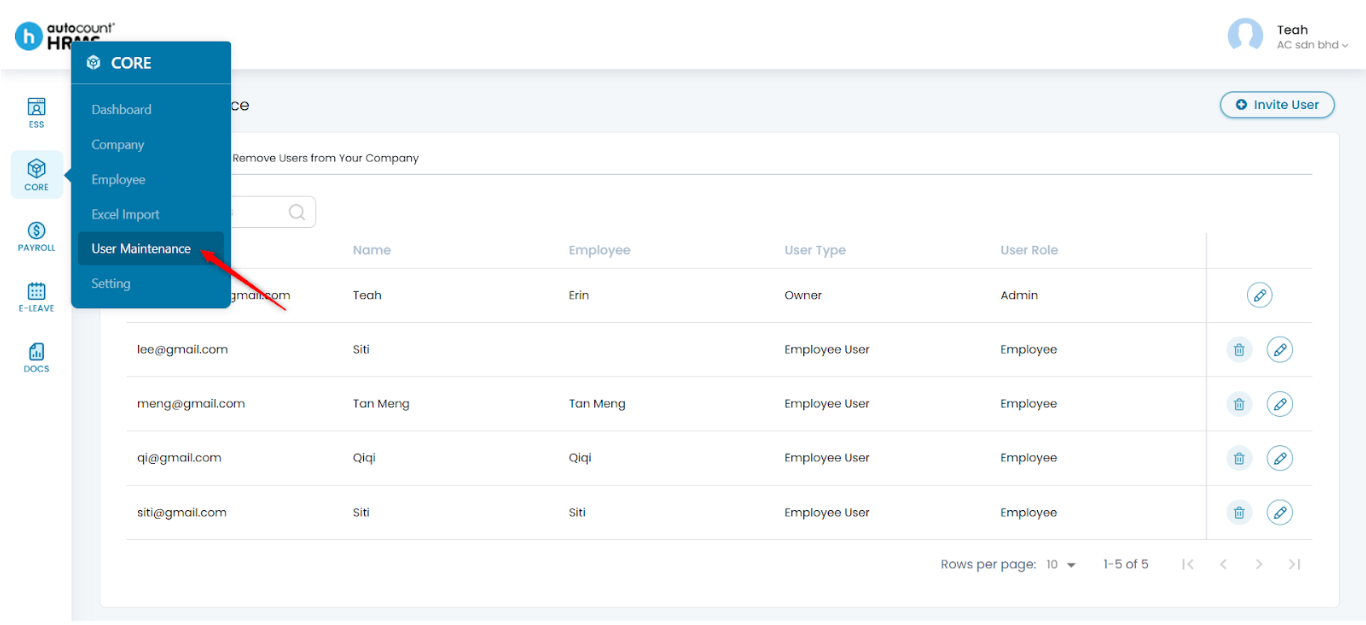
1. Go to Core > User Maintenance.
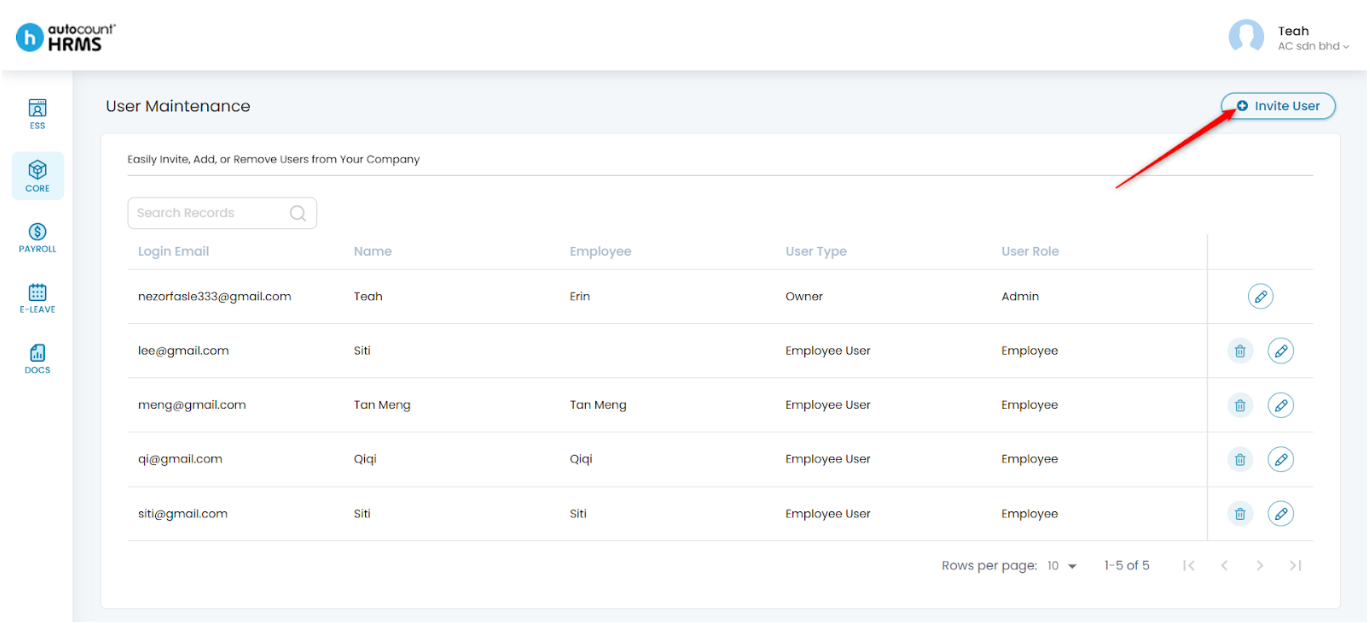
2. Select Invite User.
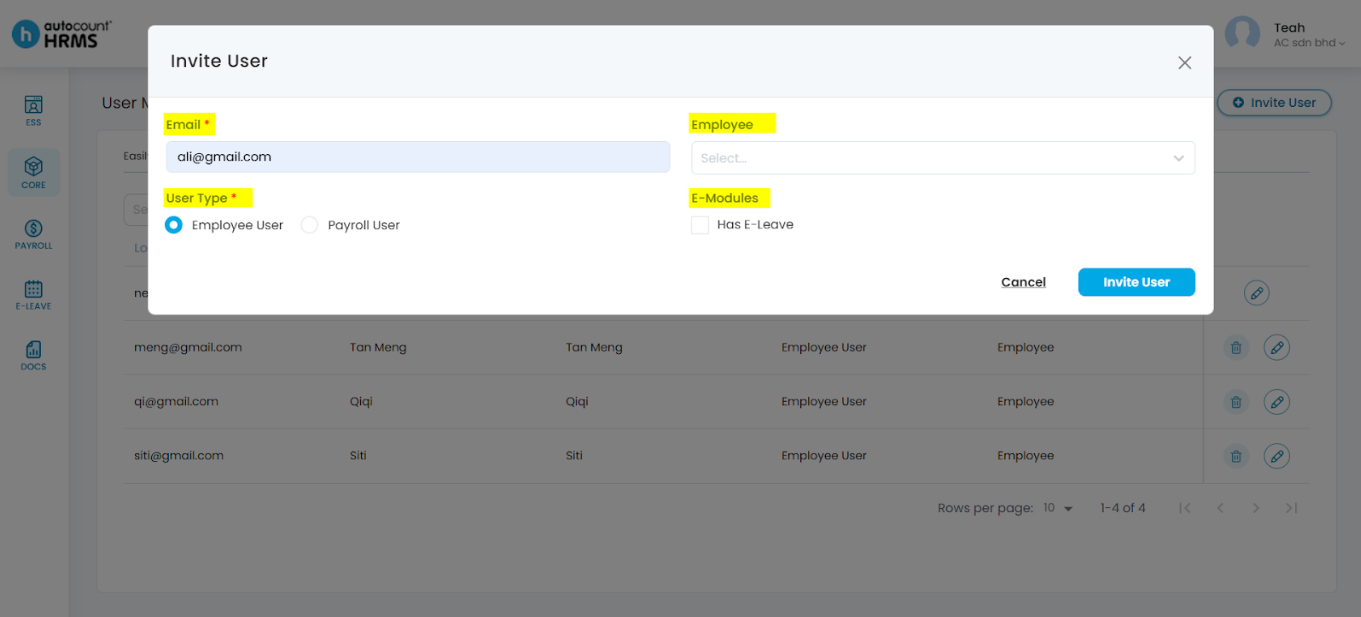
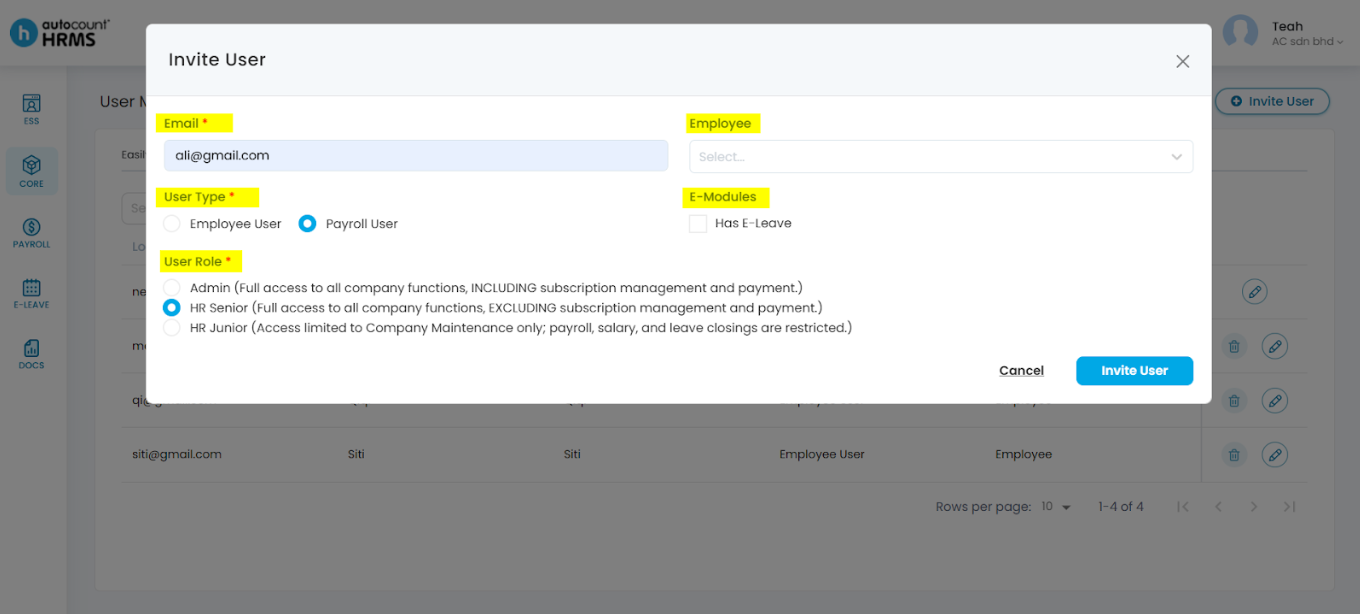
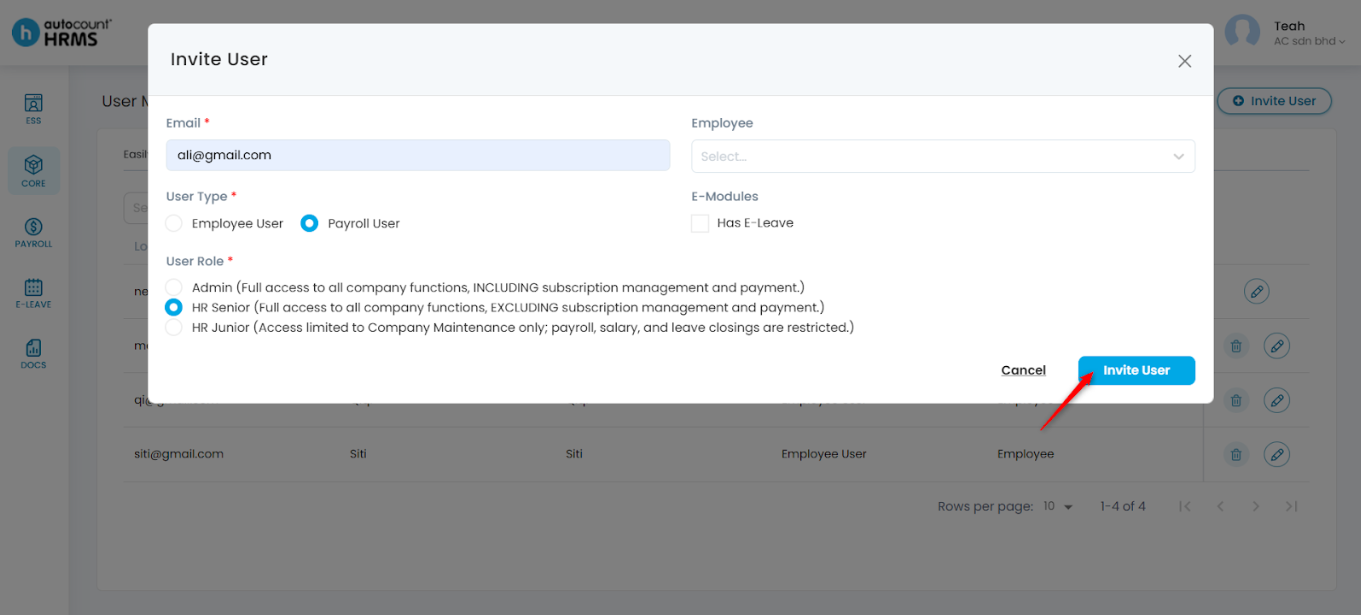
3. Enter the required information:
- Email – Enter the user’s email address.
- Employee – Select the employee record to be linked to this user. (Optional)
- User Type – Choose Employee User or Payroll User.
- If Payroll User is selected, choose the appropriate User Role.
- E-Modules – Tick E-Leave to allow the employee to apply for leave through their own account.
Employee User User Type panel:
Payroll User User Type panel:
4. Click Invite User.
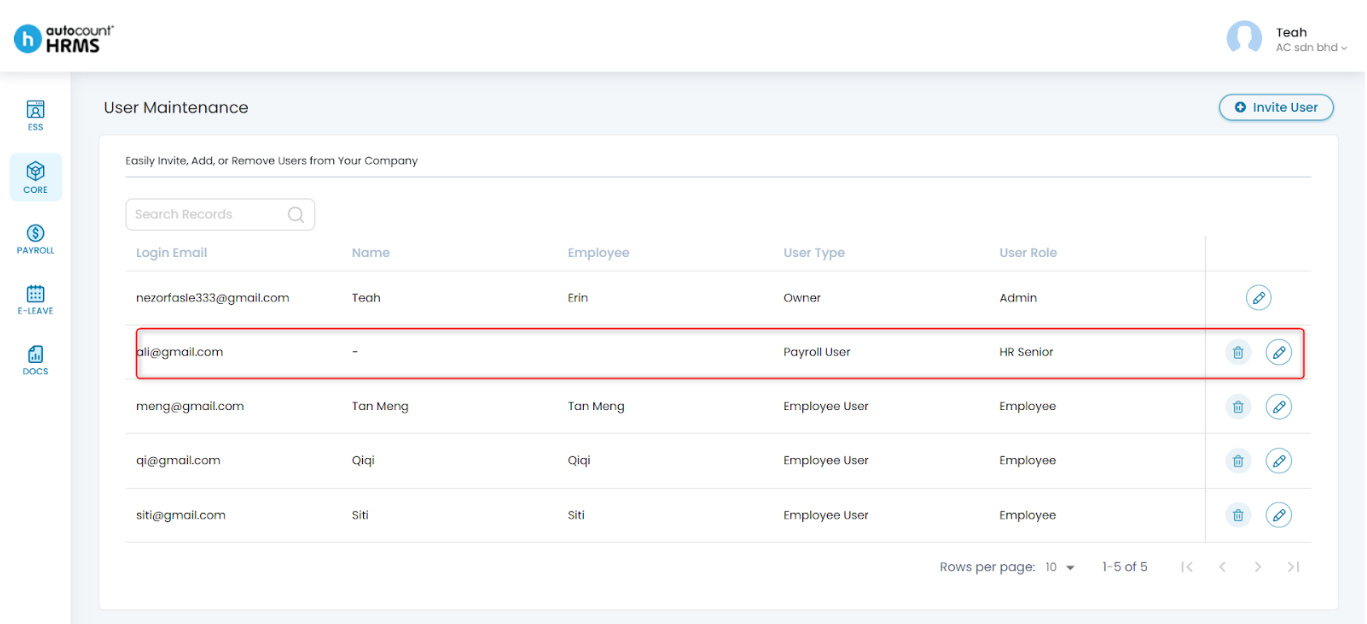
5. Invited users will appear in the list.
- To edit a user, click the pencil icon, make the necessary changes, and click Save.
- To delete a user, click the trash bin icon, then click Yes to confirm.
Written by: Teah Rui Harn (20251226)
Reviewed by: Tek Ee Lin (20251226)