
The Calendar feature allows employers to define working days, rest days, and public holidays, and assign them to employees. A properly configured work calendar provides clear visibility of work schedules, supports accurate attendance and payroll calculations, and serves as a reference for leave and overtime management.
Steps to Setup a Work Calendar:
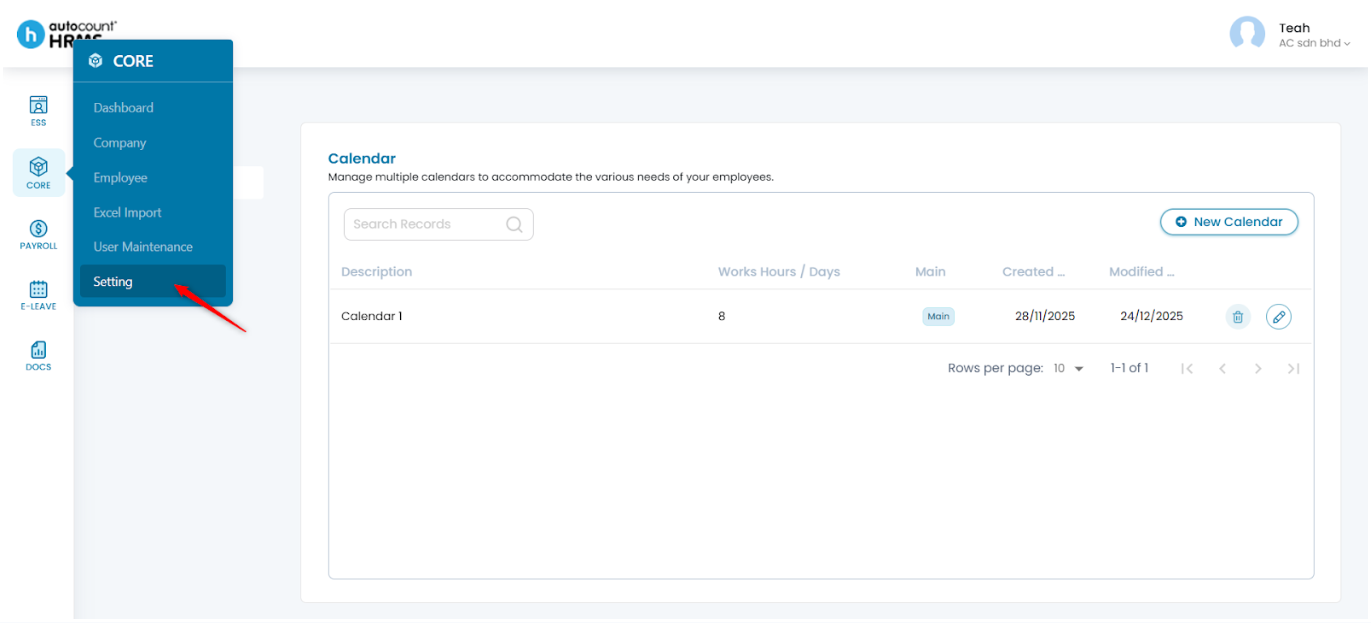
1. Go to Core > Setting.
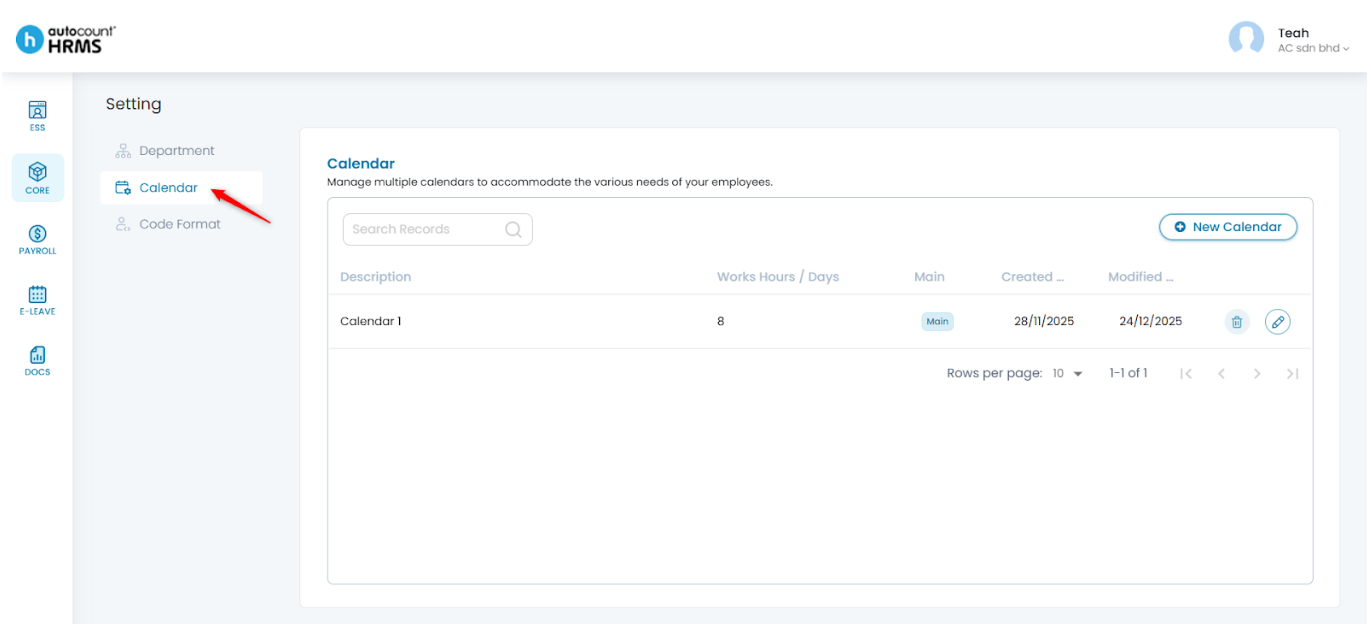
2. Under Setting, select Calendar.
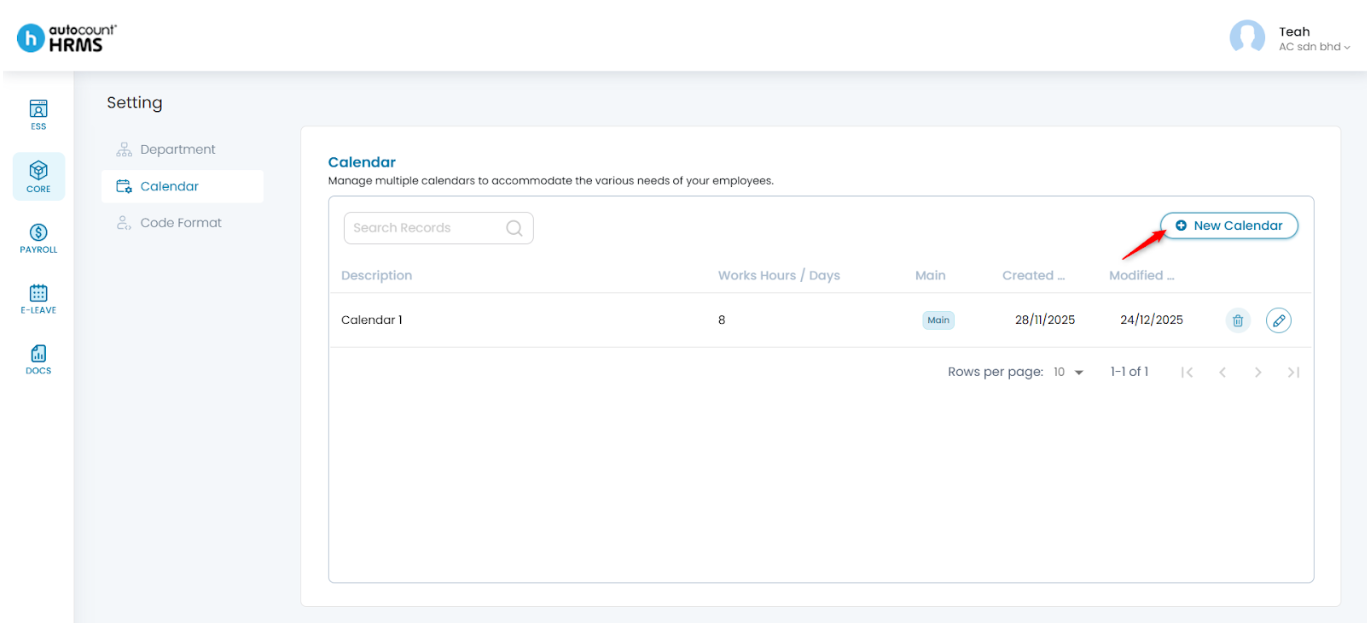
3. Click New Calendar.
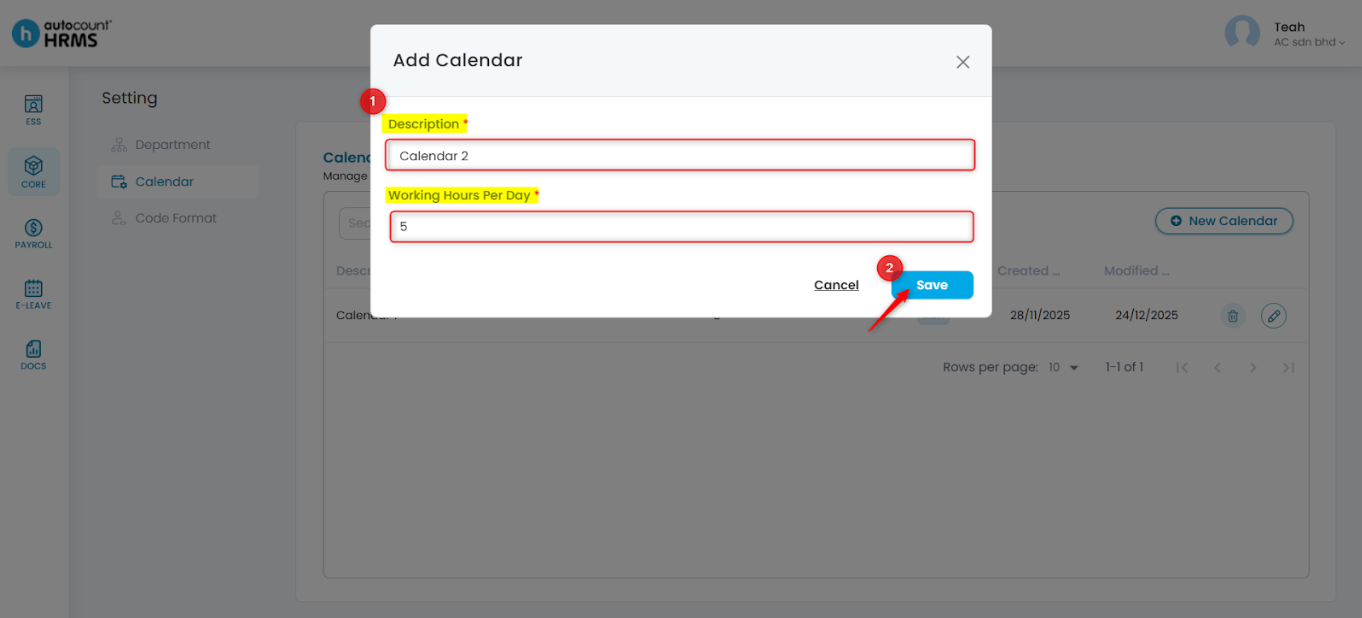
4. Enter the Calendar Description and Working Hours per Day. Click Save.
5. Apply Public Holidays:
- From the public holiday list, tick the holidays to apply to the calendar.
- Selected dates will be highlighted in yellow.
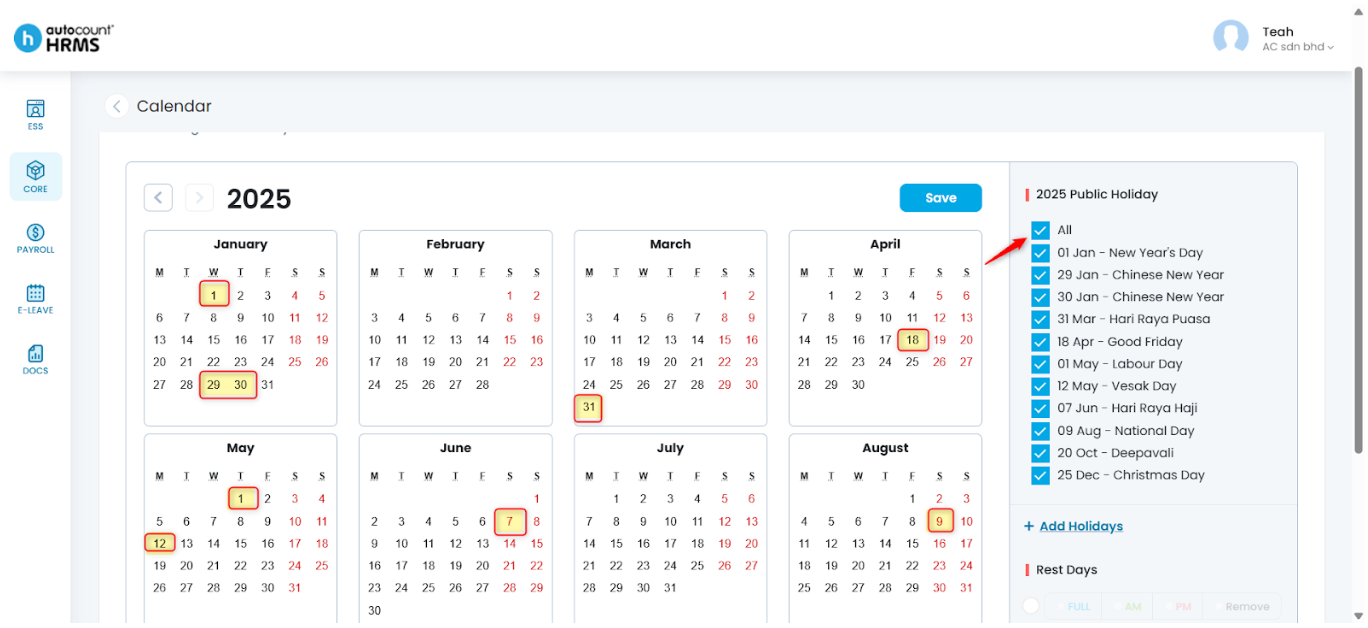
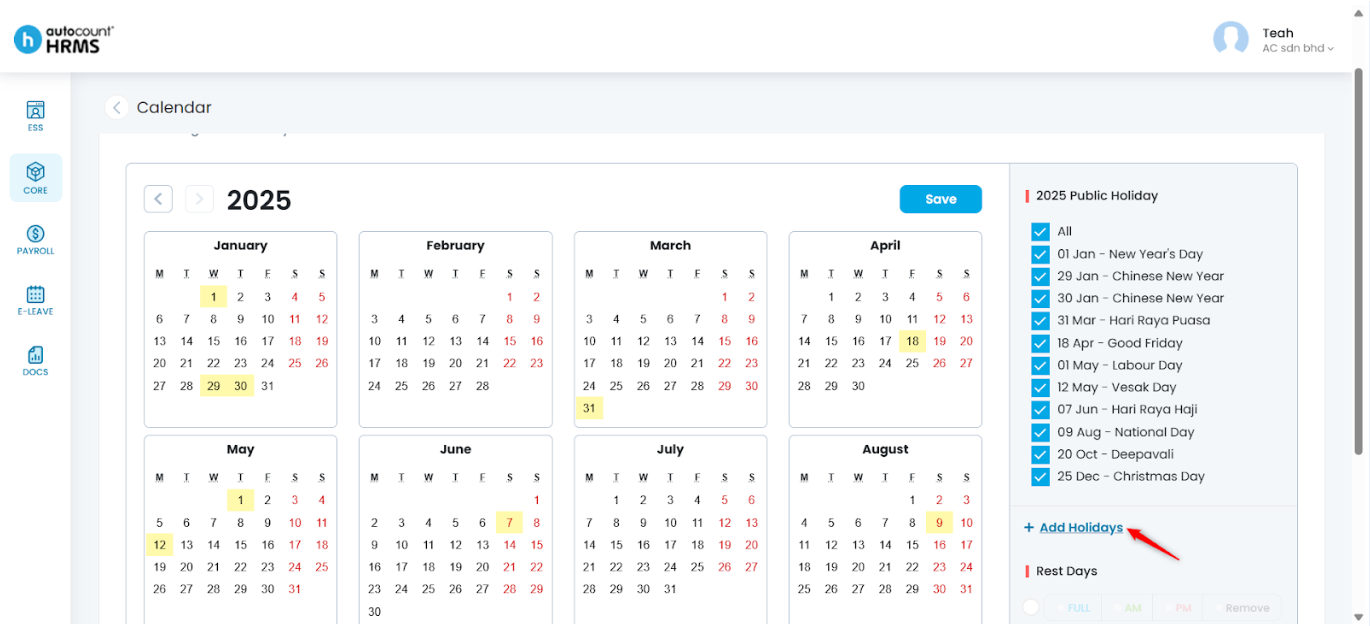
6. Add Additional Holidays:
i. Click Add Holidays.
- Date Picker – Select from the calendar.
- Description – Enter the holiday remark.
- Add Holiday to All Calendars – Tick to apply the holiday across all work calendars if applicable.
iii. Click Save.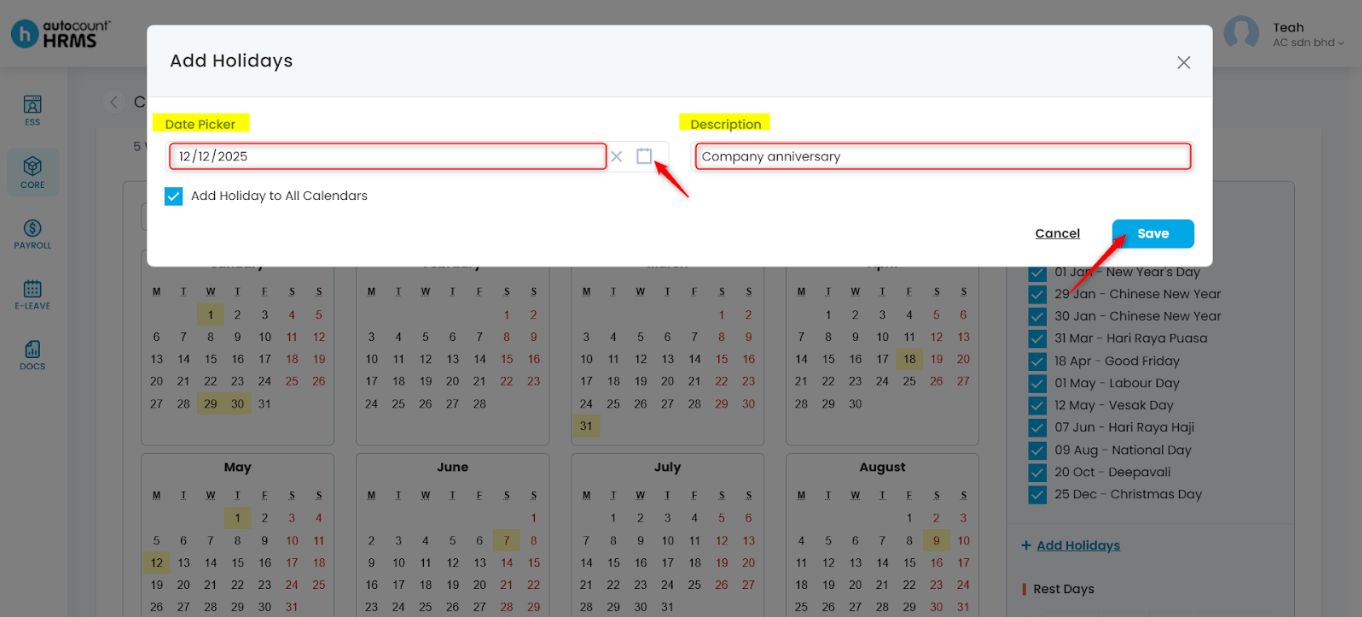
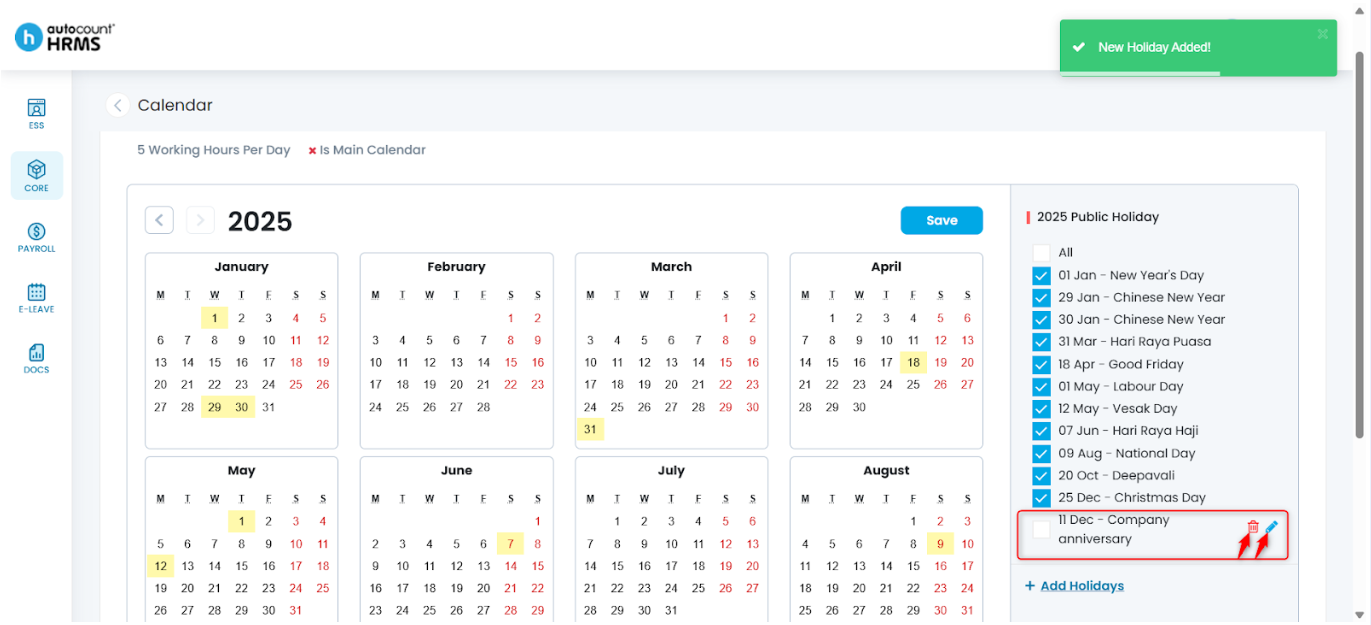
iv. The newly added holiday will appear in the list. Tick to apply it to the work calendar.
- To edit, click the pencil icon, make changes, then click Save.
- To delete, click the trash bin icon, then click Yes to confirm.
7. Apply Rest Days:
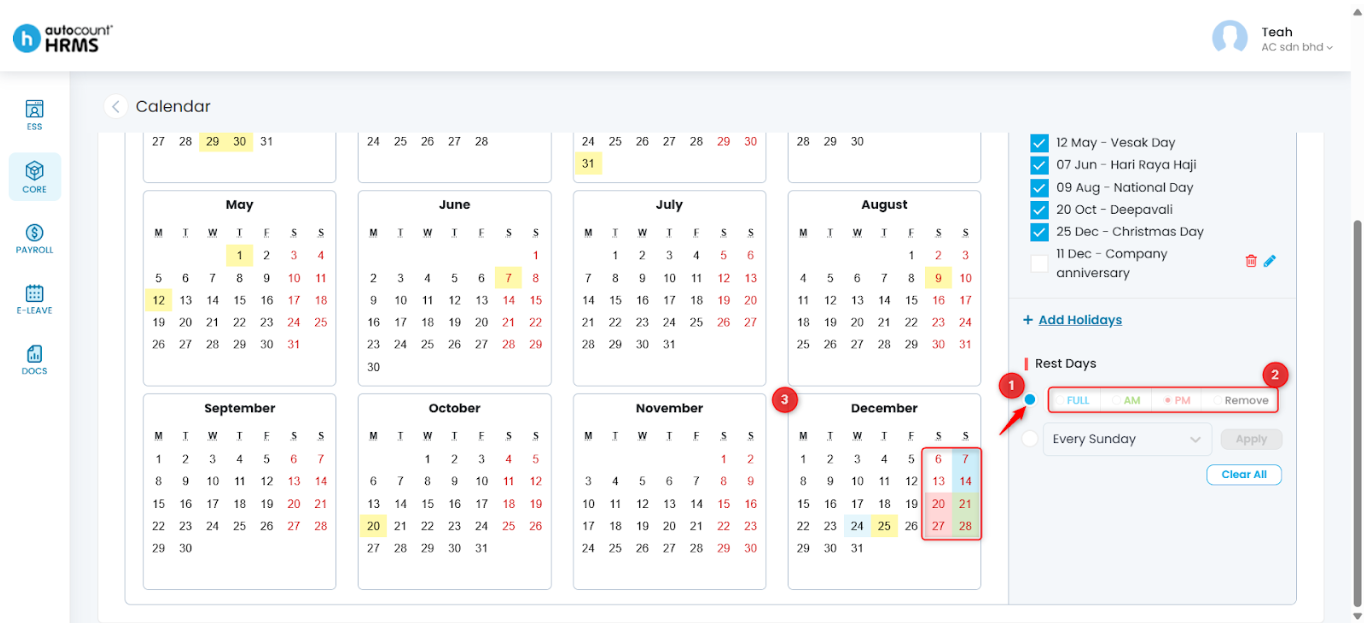
- Option 1: Custom Rest Days -
i. Select the first selection.
ii. Choose the rest day type:
- Full – Full-day rest
- AM – Morning session rest
- PM – Afternoon session rest
- Remove – Reset to a working day
iii. Click the dates on the calendar to apply rest days accordingly.
- Option 2: Weekly Rest Days –
i. Select the second option.
ii. Choose the rest day(s) (e.g., every Sunday) from the dropdown list.
iii. Click Apply.
iv. Repeat the steps to add additional weekly rest days if required.
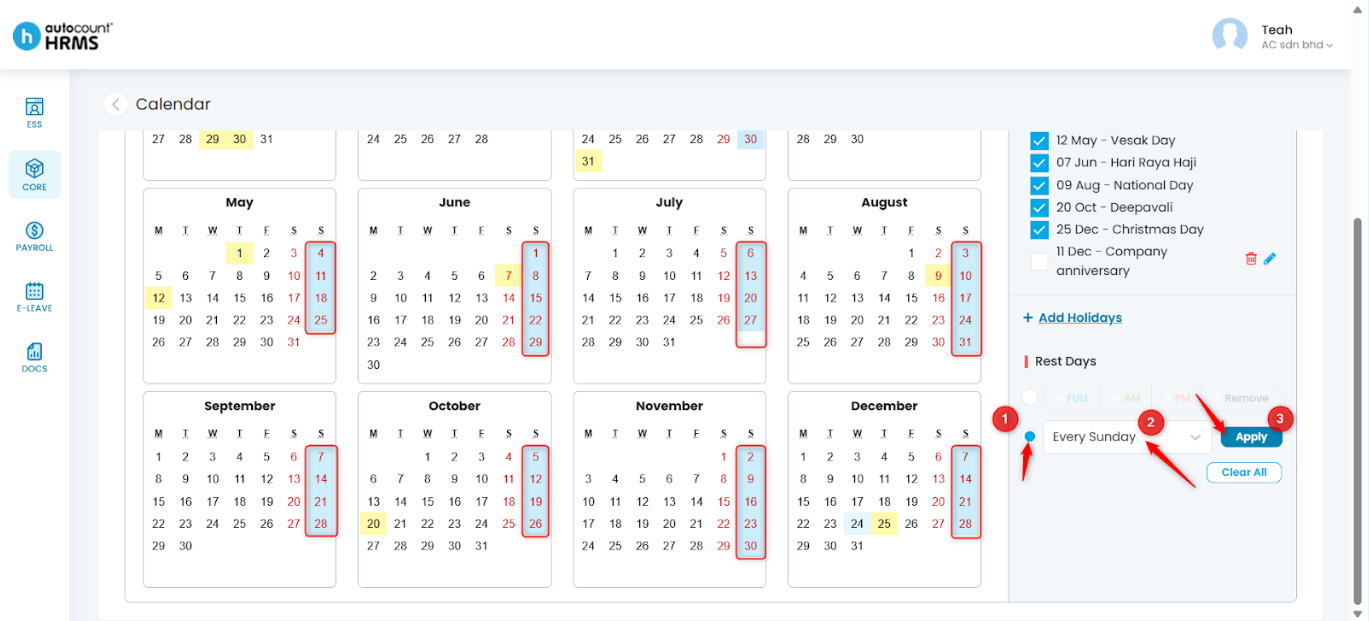
- Clear All Rest Days – Click Clear All to remove all applied rest day settings.

Note: Calendar colour differs from the rest days type:
- Blue – Full-day rest
- Green – Half-day rest (morning)
- Red – Half-day rest (afternoon)
- Yellow – Public holiday
- White – Working day
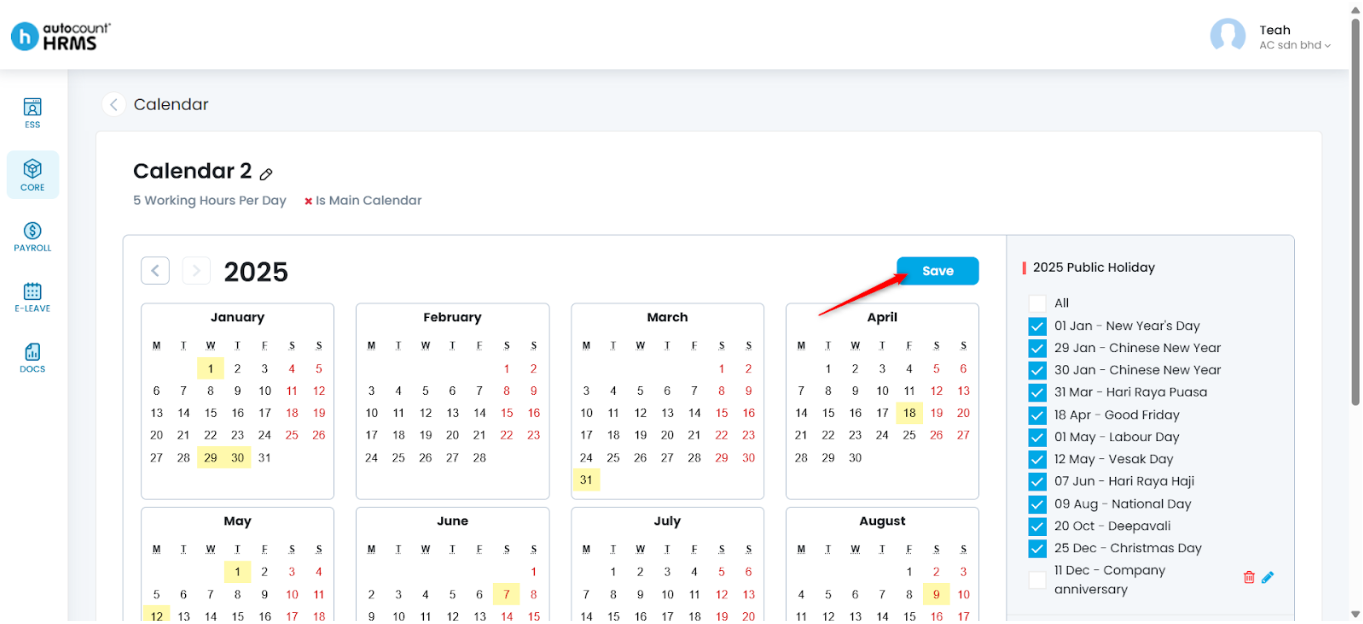
8. Click Save to save the new calendar.
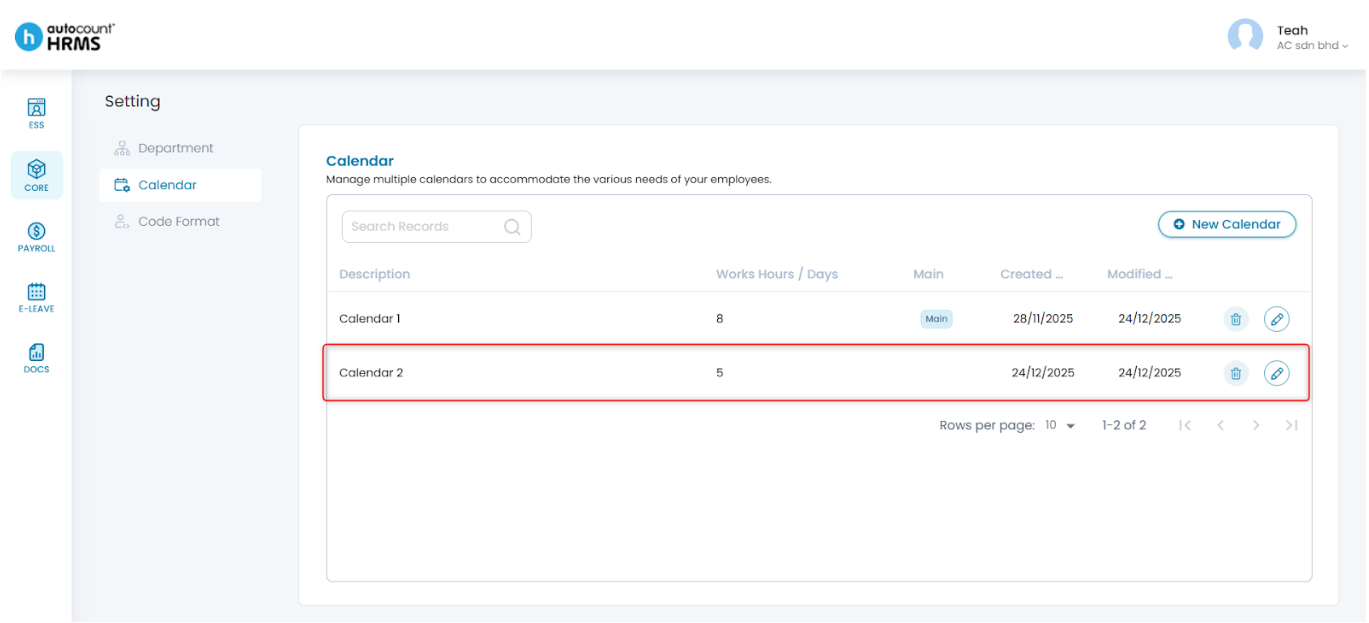
9. View the newly created calendar at the list.
- To edit, click the pencil icon, make changes and click Save.
- To delete, click the trash bin icon, click yes to confirm deletion.
Steps to Set a Calendar as the Main Calendar:
1. Click the pencil icon next to the calendar name.
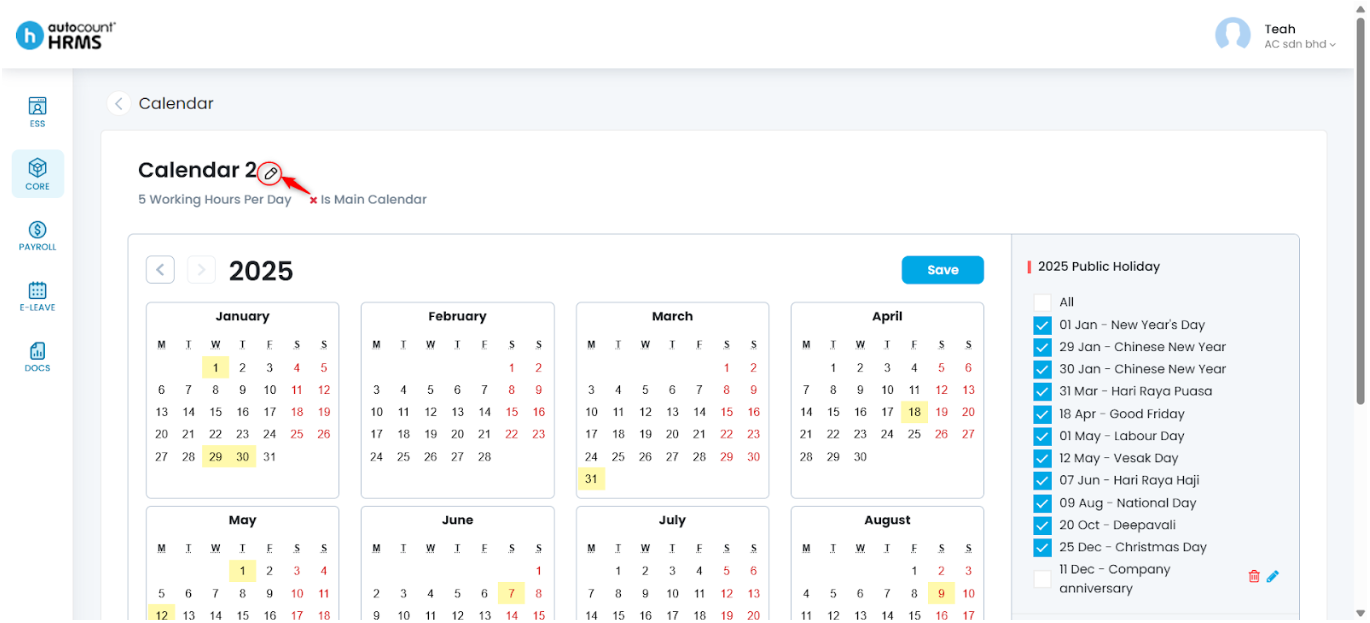
2. Tick Main. Update the description or working hours if required. Click Save.
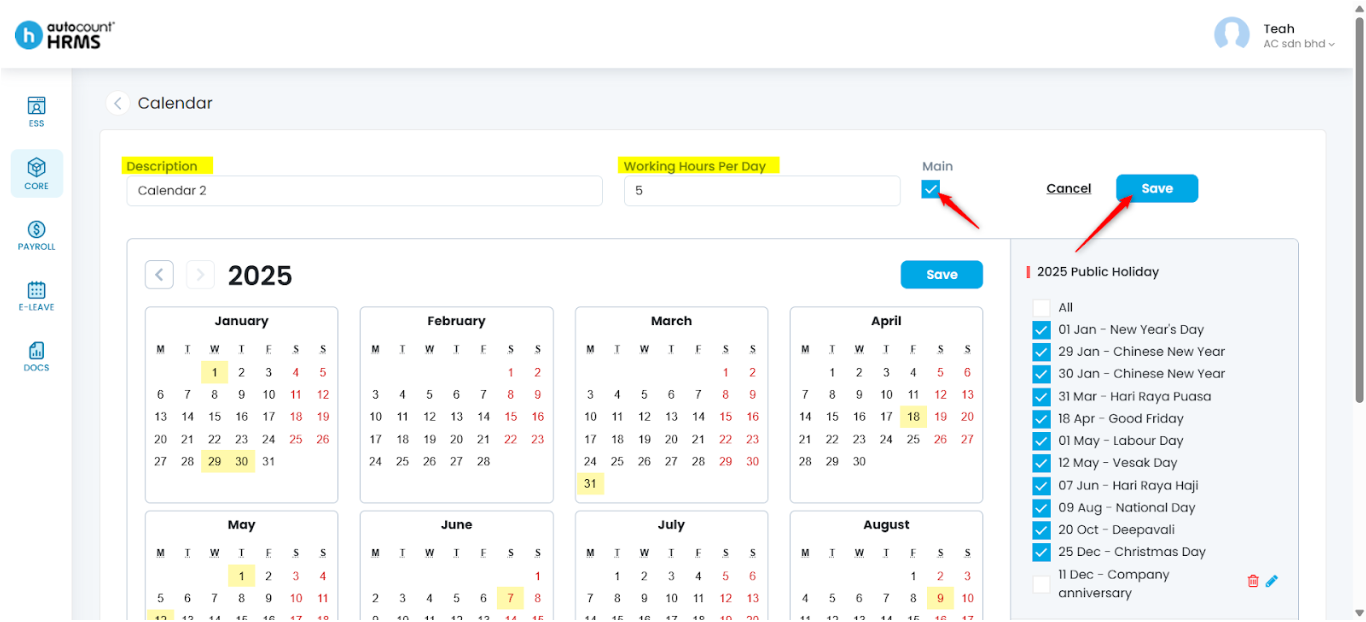
Note: Only one calendar can be set as the Main Calendar. When a new main calendar is selected, the previous main calendar will automatically become a secondary calendar.
Written by: Teah Rui Harn (20251226)
Reviewed by: Tek Ee Lin (20251226)