
This guide explains how to set up, disable, and manage Two-Factor Authentication (2FA) for your account.
Set Up Two-Factor Authentication
- Go to Profile Name > Profile.
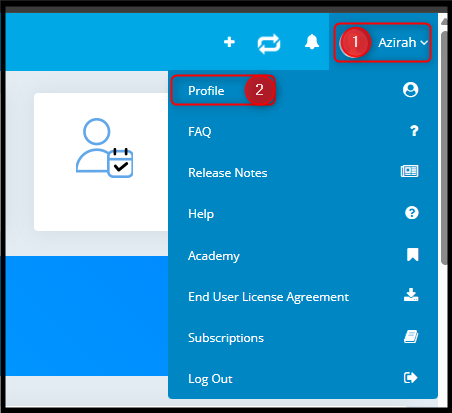
- Select the Two-Factor Authentication.
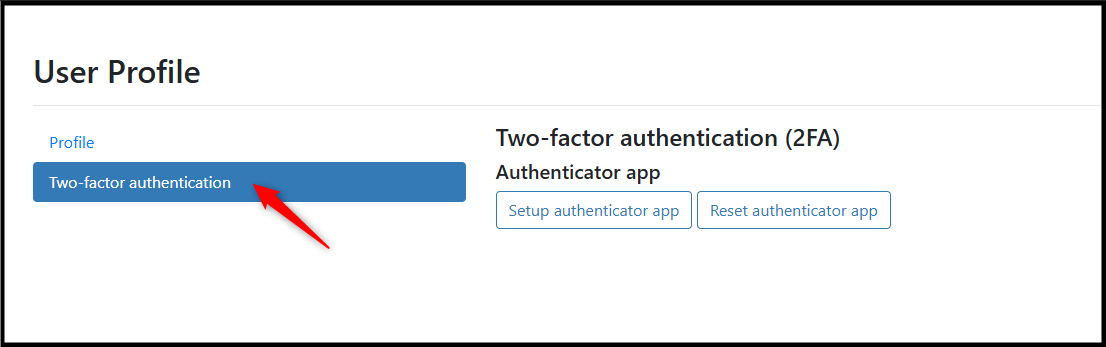
- Click on Setup authenticator app.
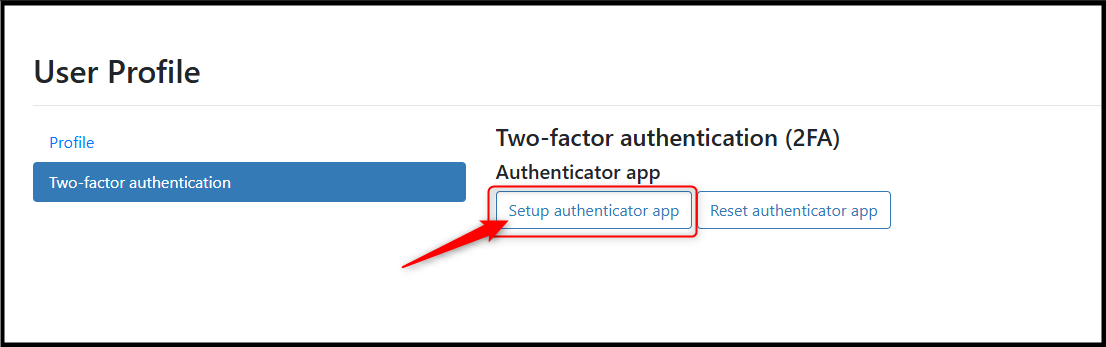
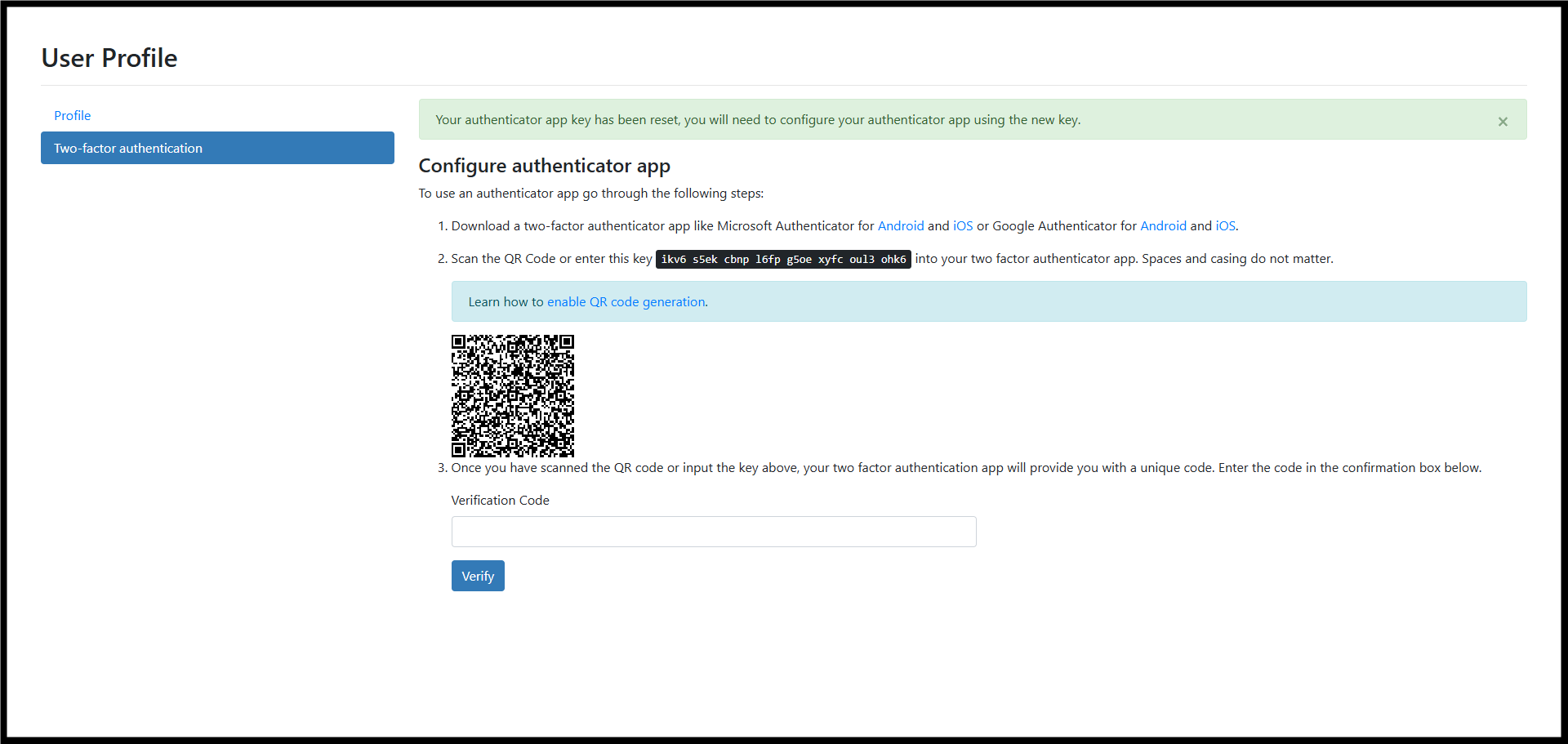
- The system will display instructions to configure the authenticator app.
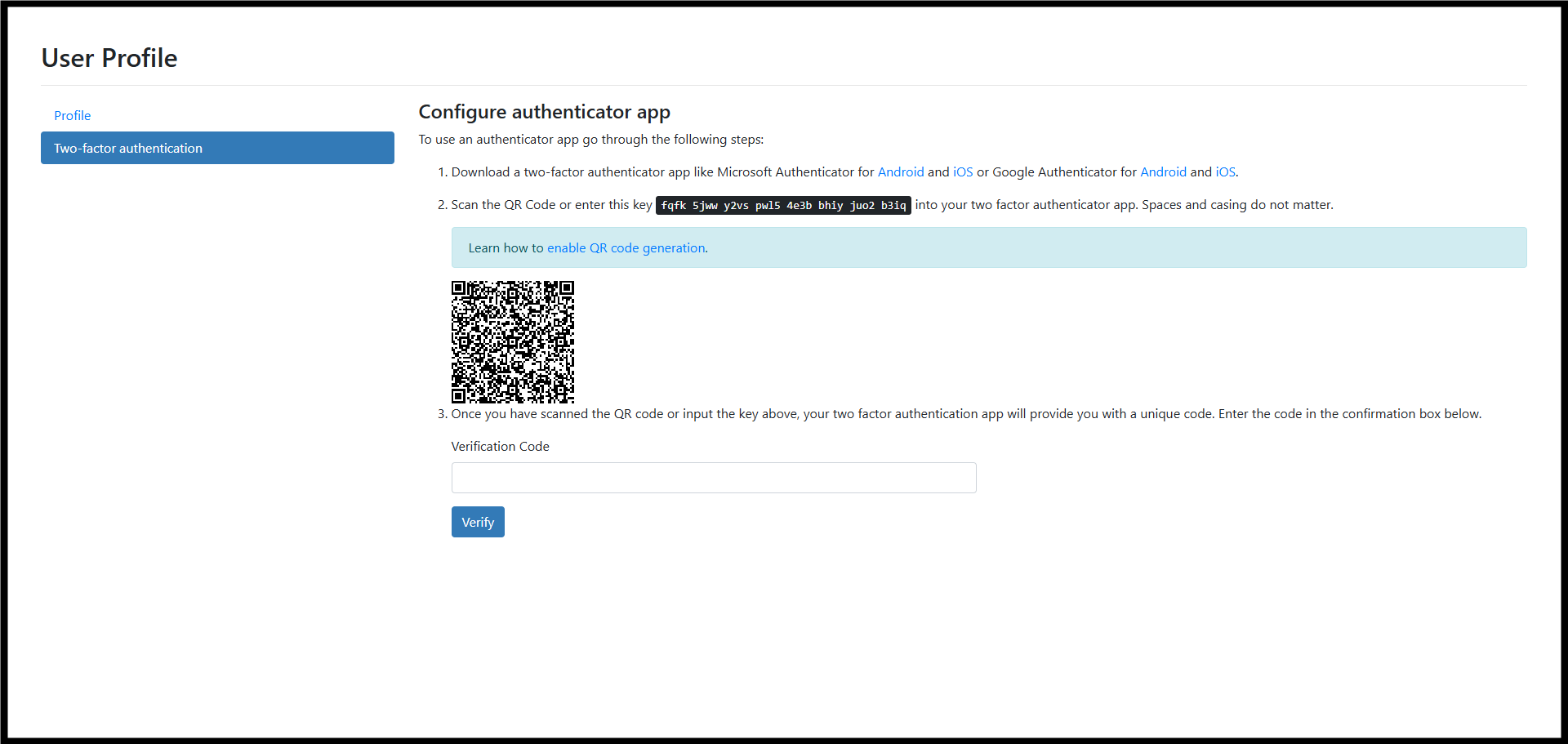
- Download a two-factor authenticator app on your mobile device:
i. Microsoft Authenticator (Android / iOS)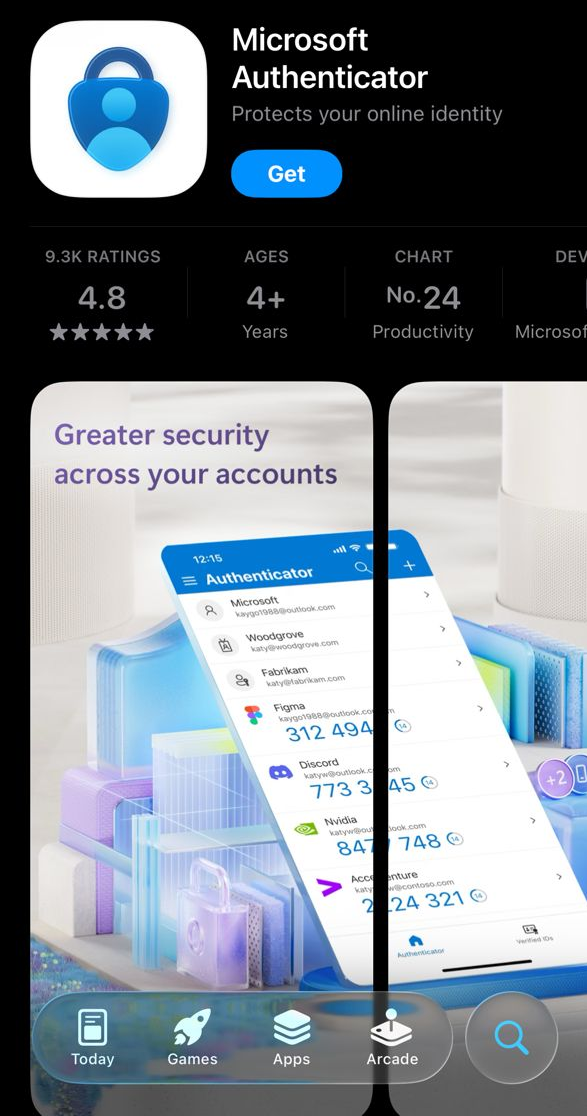
ii. Google Authenticator (Android / iOS)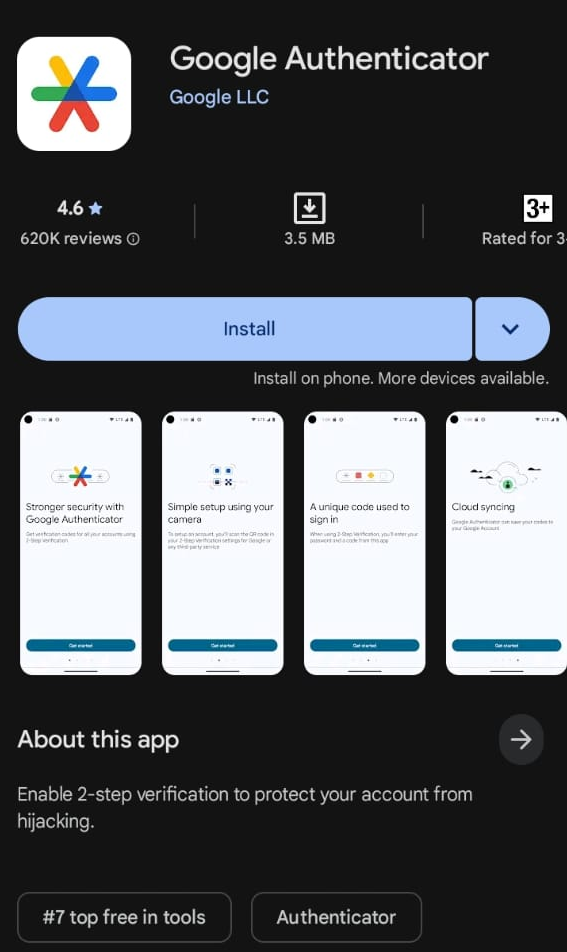
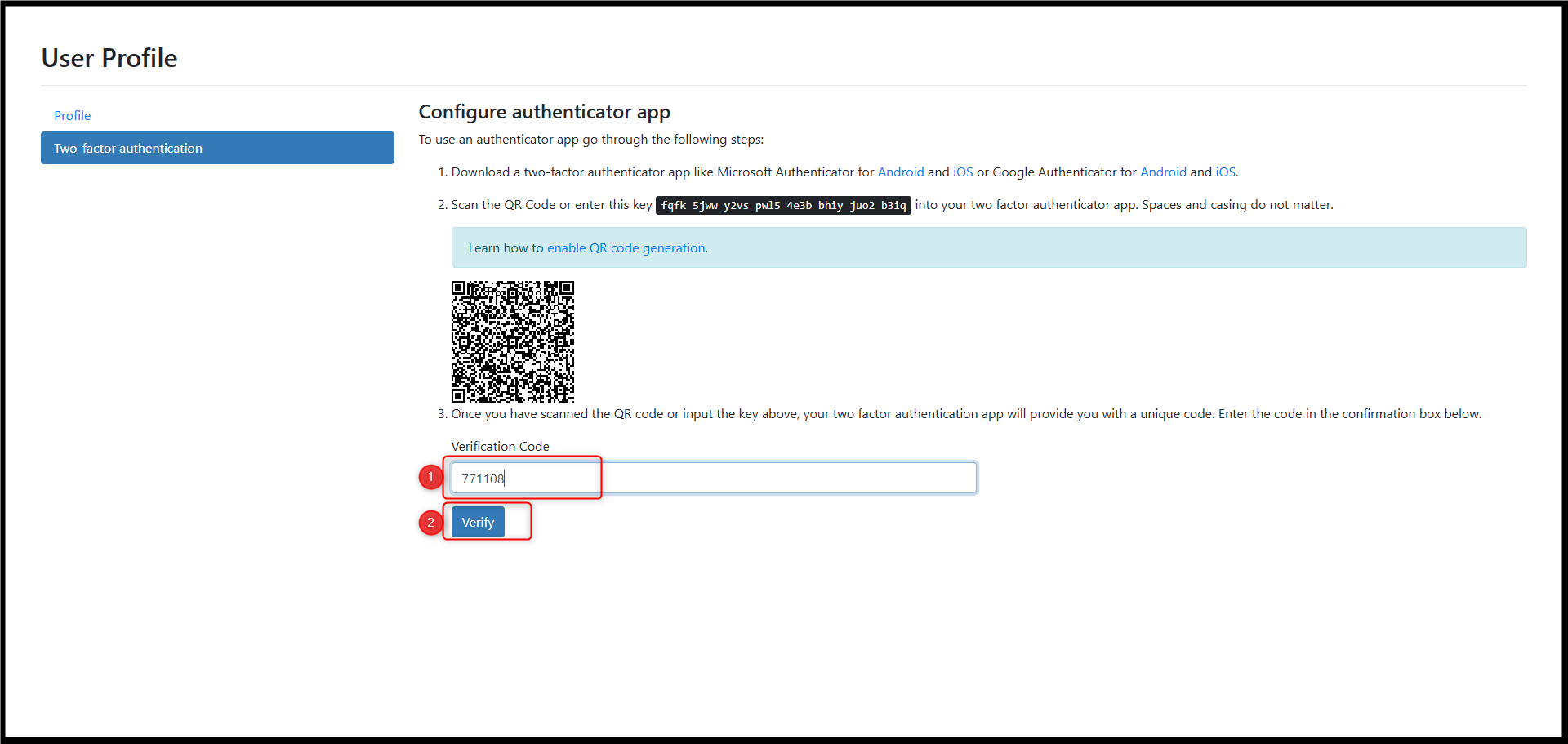
- Configure the authenticator app using one of the following methods:
i. Scan the QR code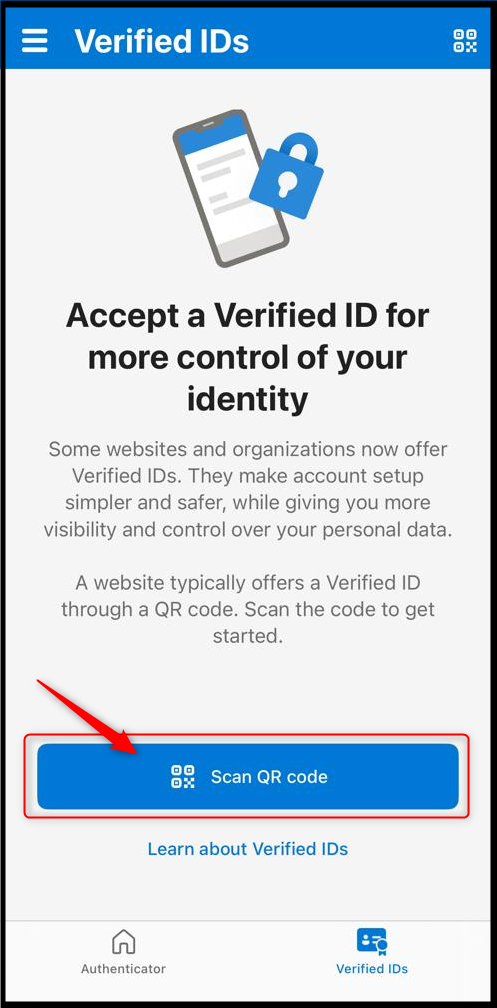
ii. Manually enter the setup key shown on the screen (Spaces and letter casing do not matter)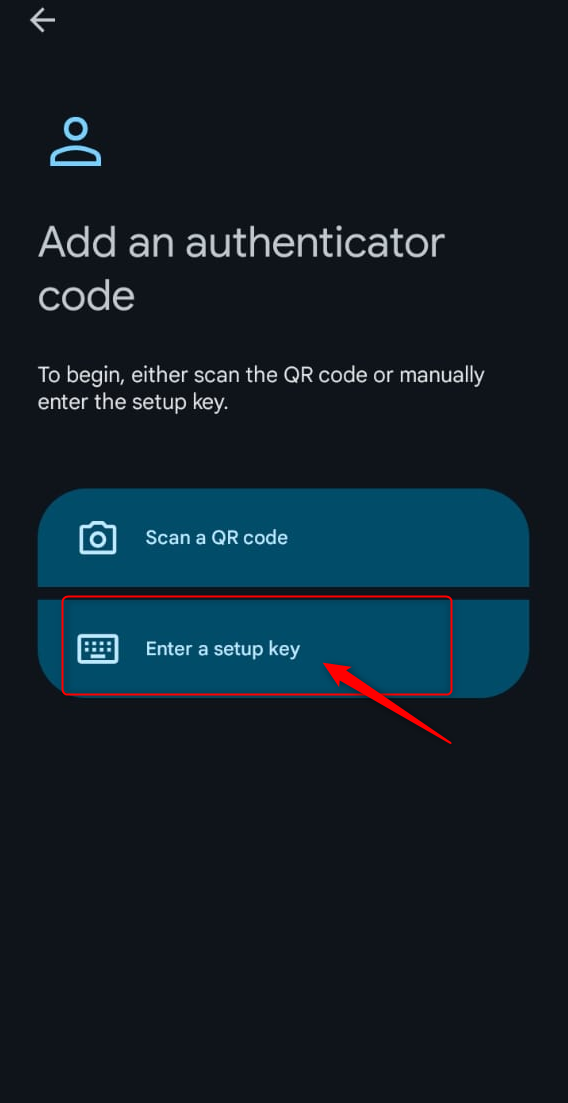
- After scanning the QR code or entering the key, the authenticator app will generate a 6-digit verification code.
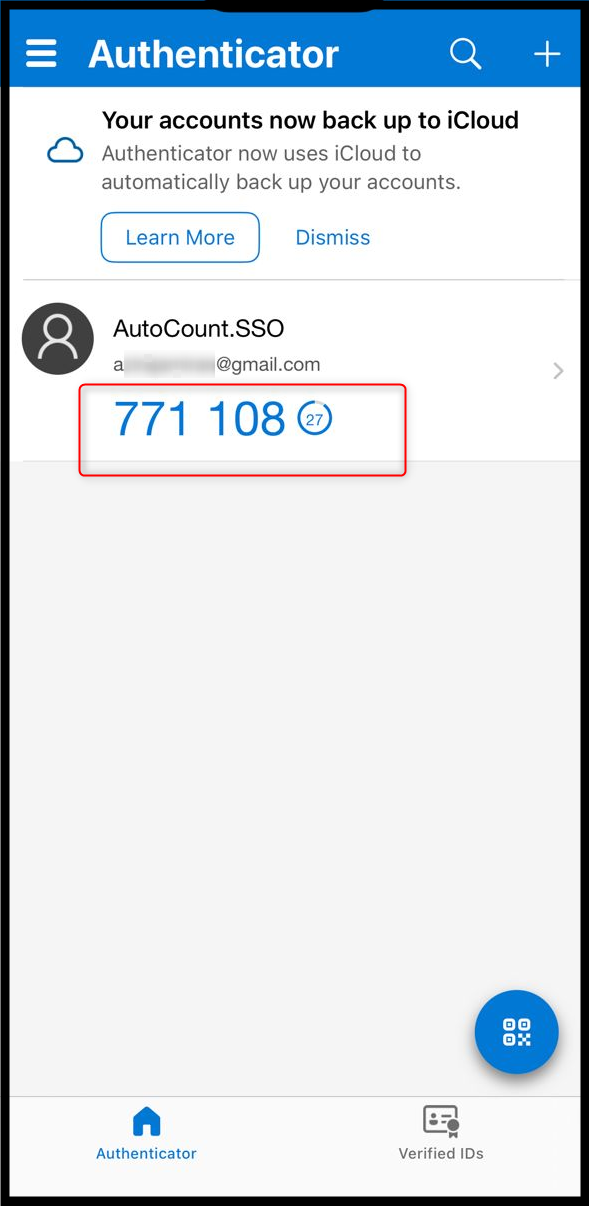
8. Enter the verification code in the Verification Code field and click Verify.
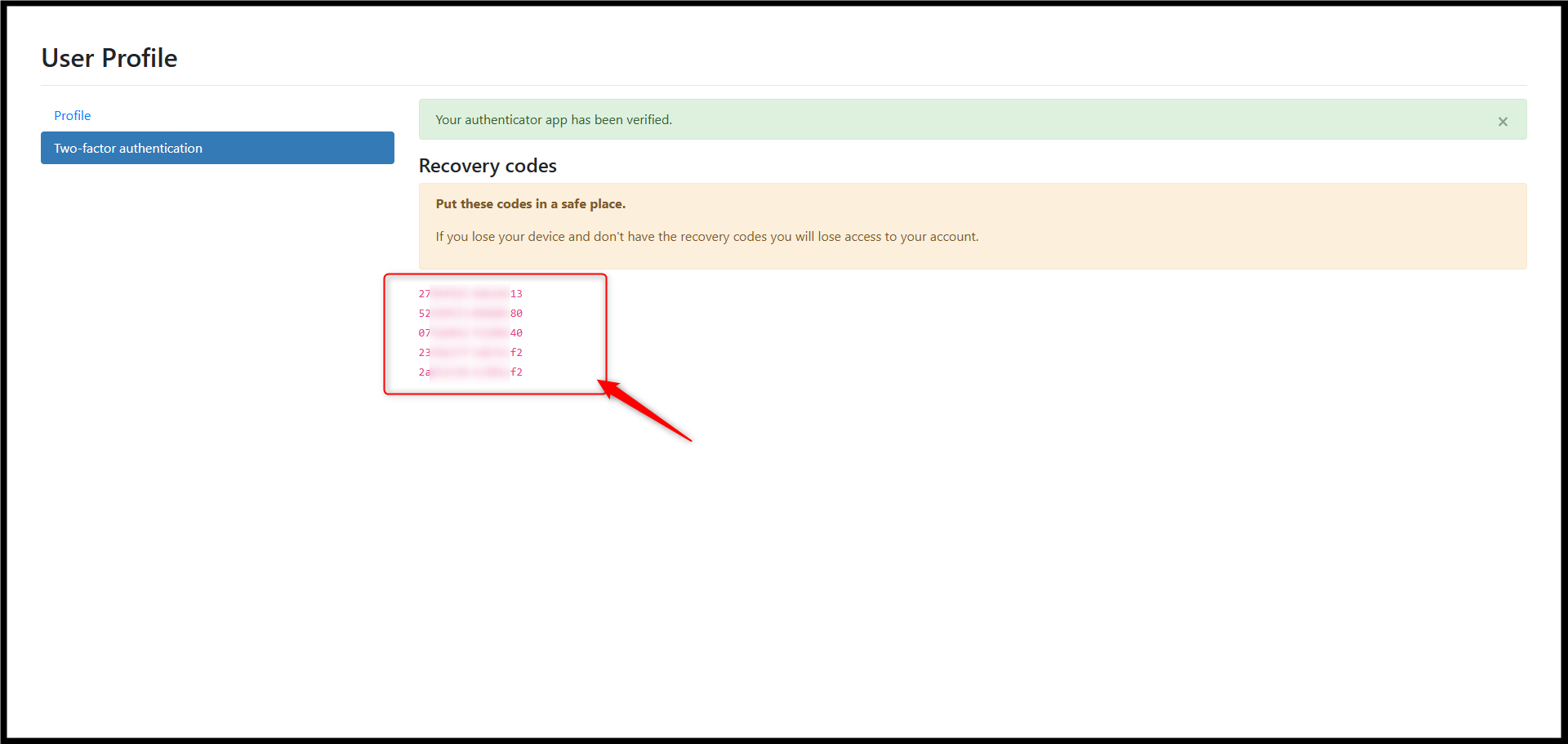
9. Recovery codes will be displayed.
- Important: Save these recovery codes in a secure place.
- Recovery codes are required if you lose access to your authenticator device.
- If you lose both your device and recovery codes, you may permanently lose access to your account.
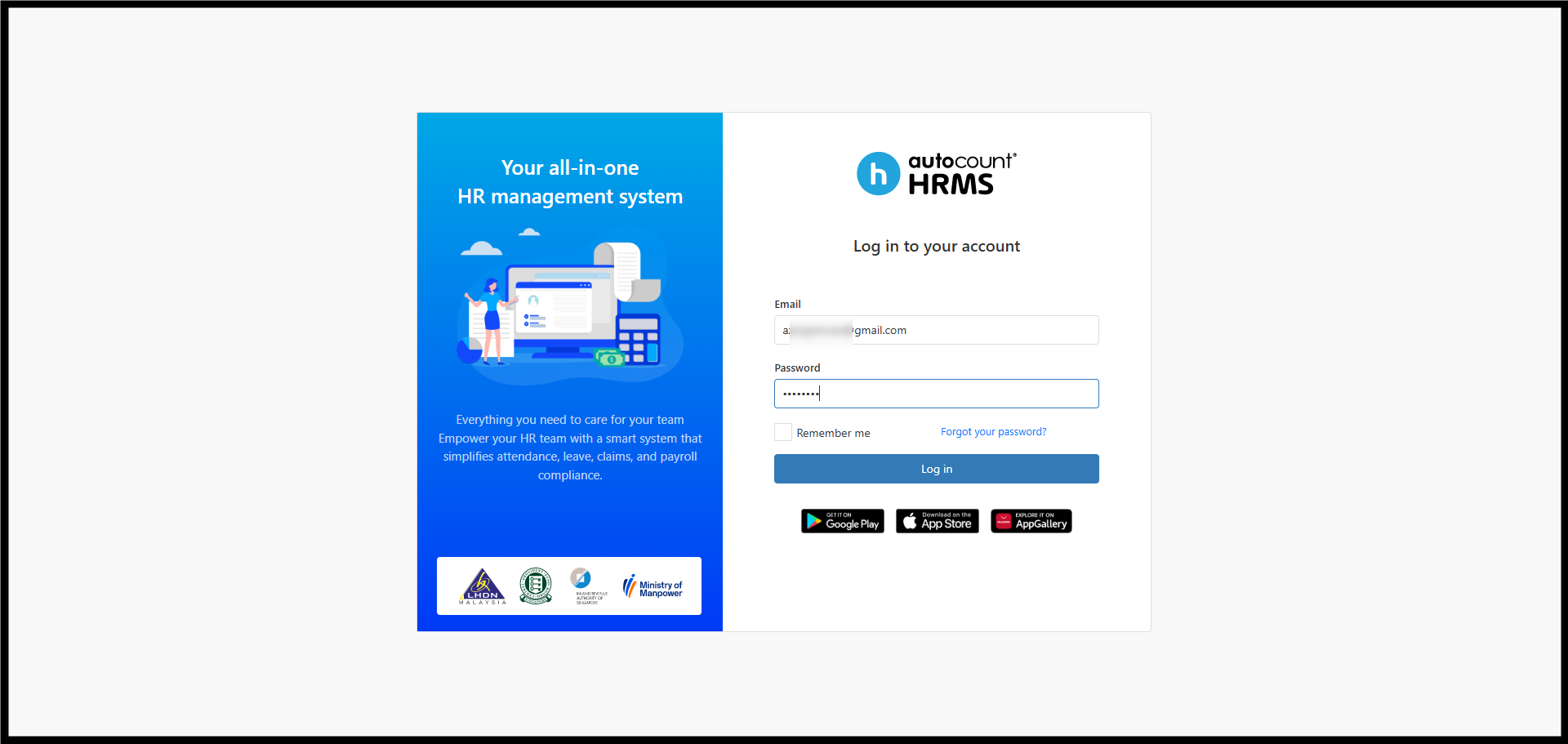
Login using Two-factor authentication
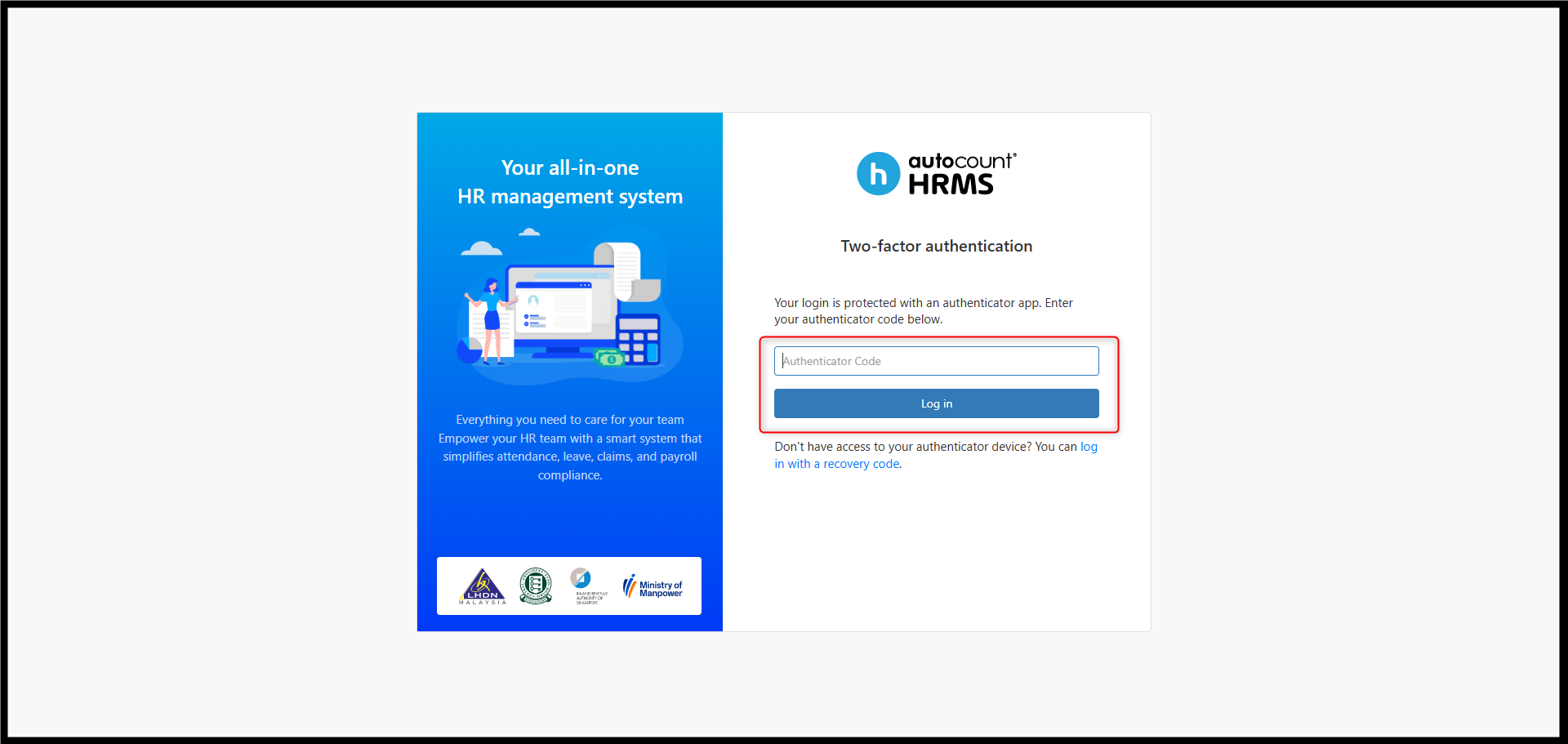
When Two-Factor Authentication is enabled, the system prompts an additional verification window after the user clicks Log in on the login page.
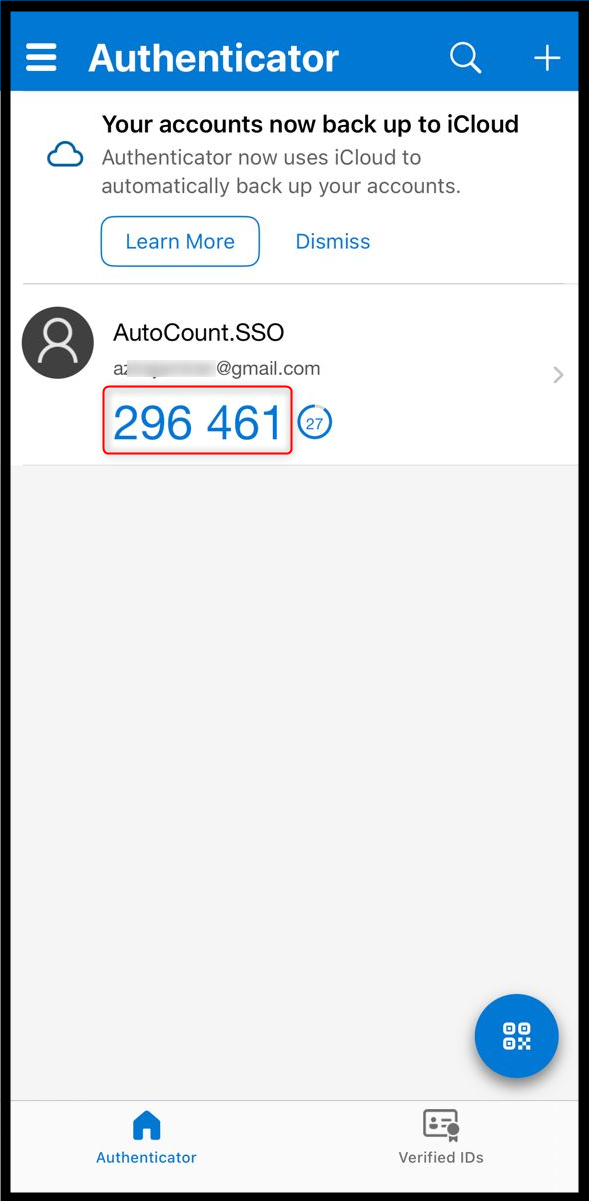
Then need to open the authenticator apps, and get the code.
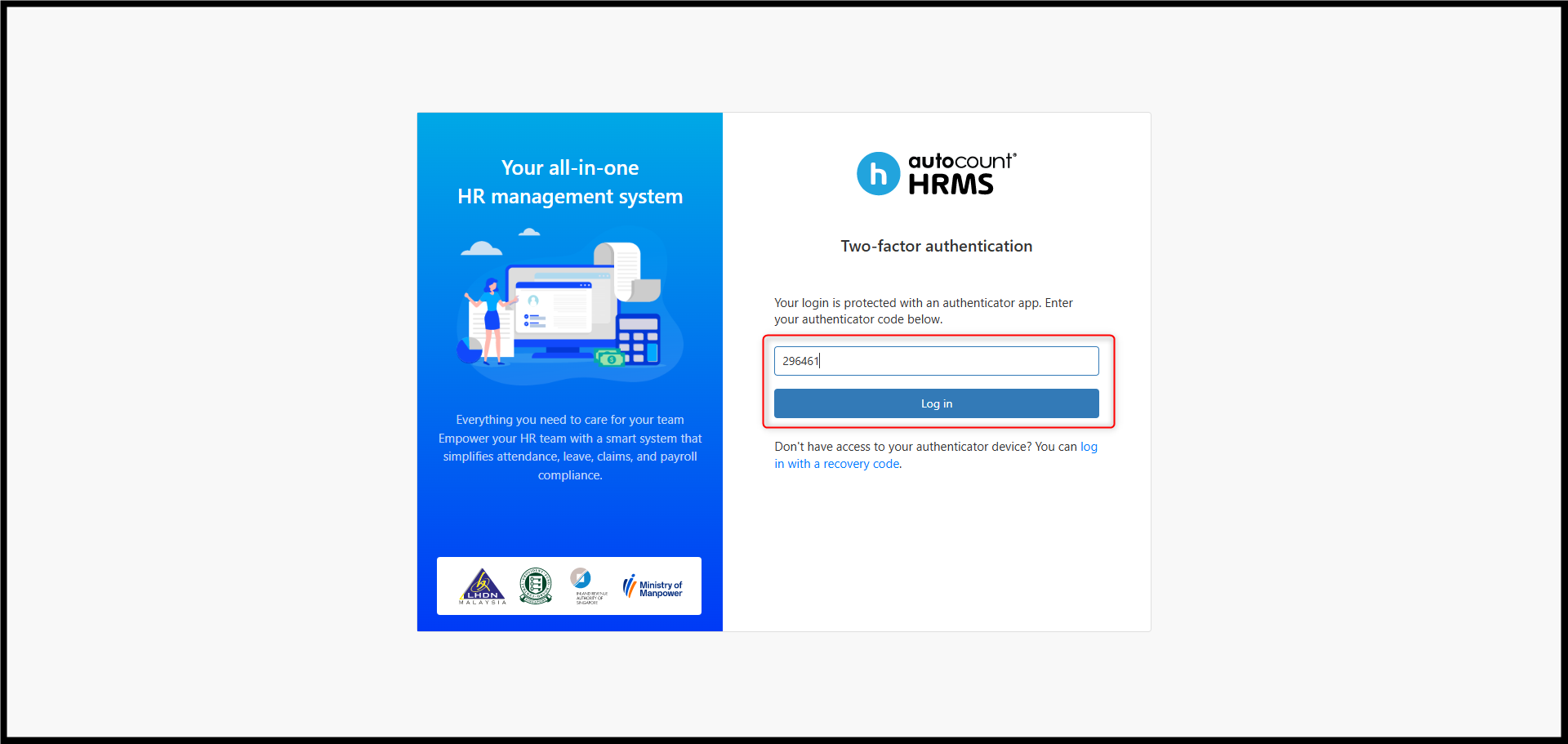
Paste the code to the login page and click Login.
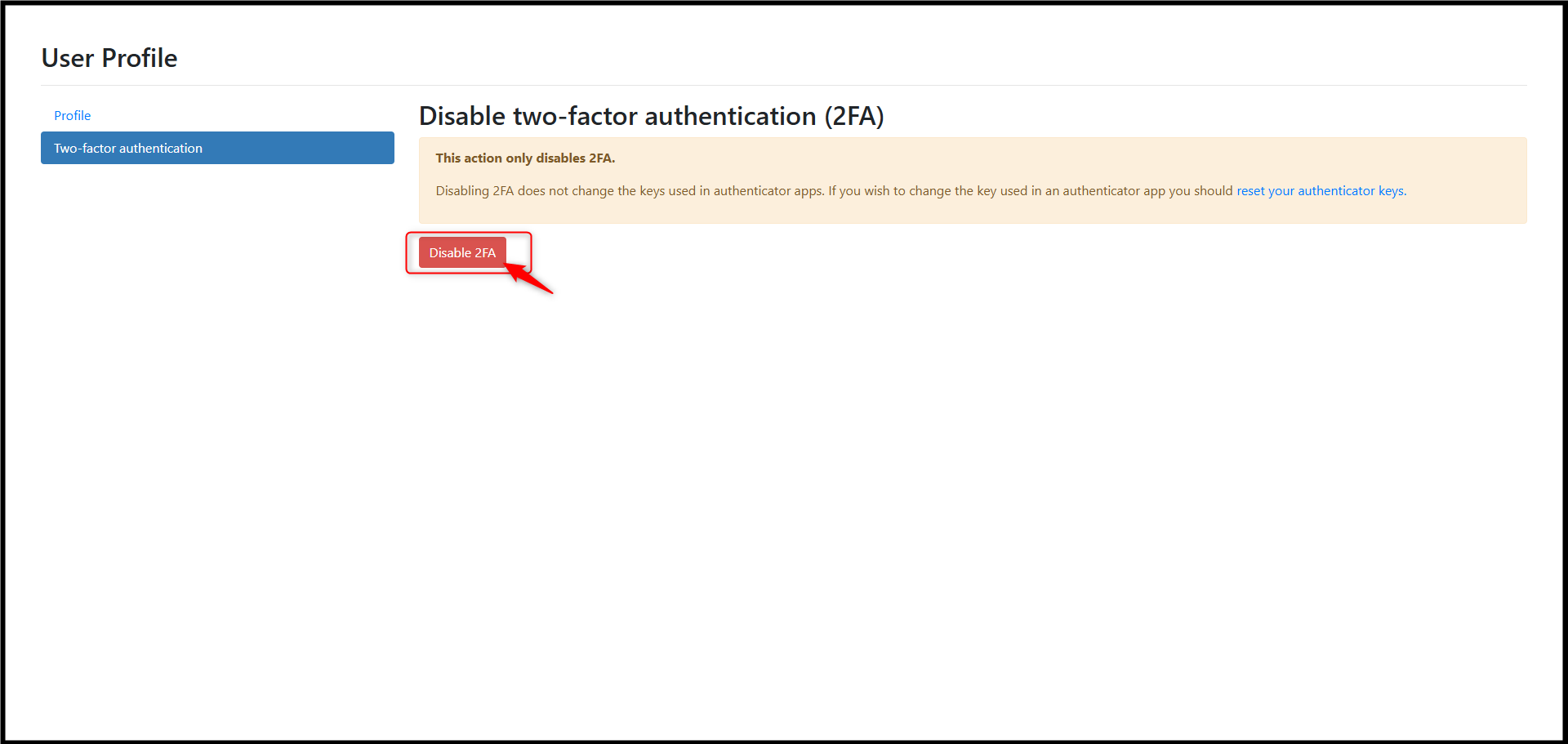
Disable Two-factor authentication:
1. Go to Profile Name > Profile, then select Two-Factor Authentication.
2. Click on Disable 2FA.
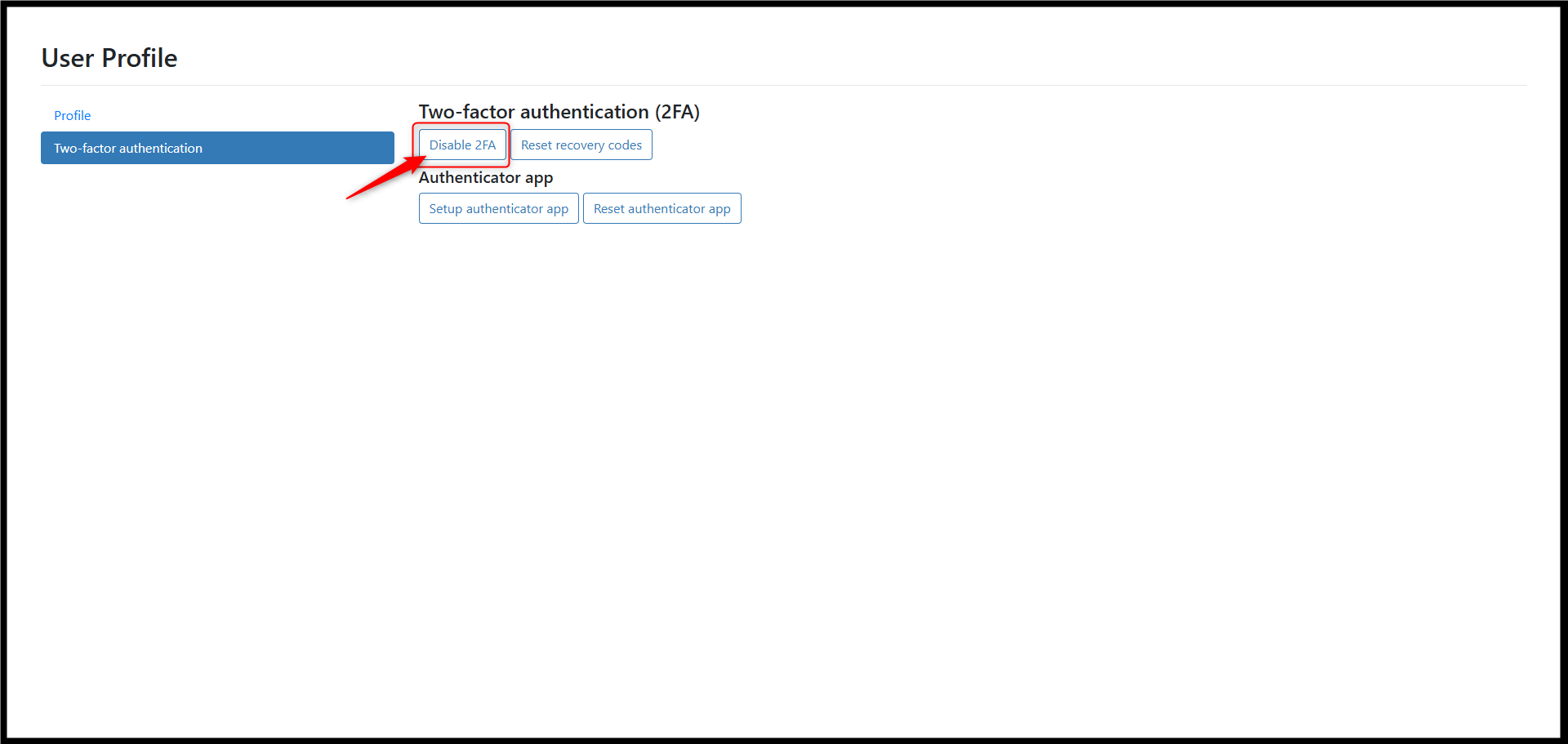
3. Confirm by clicking Disable 2FA again.
Note:
i. Disabling 2FA only turns off verification.
ii. It does not change the authenticator app’s secret key.
Iii. To change the key, you must reset the authenticator app.
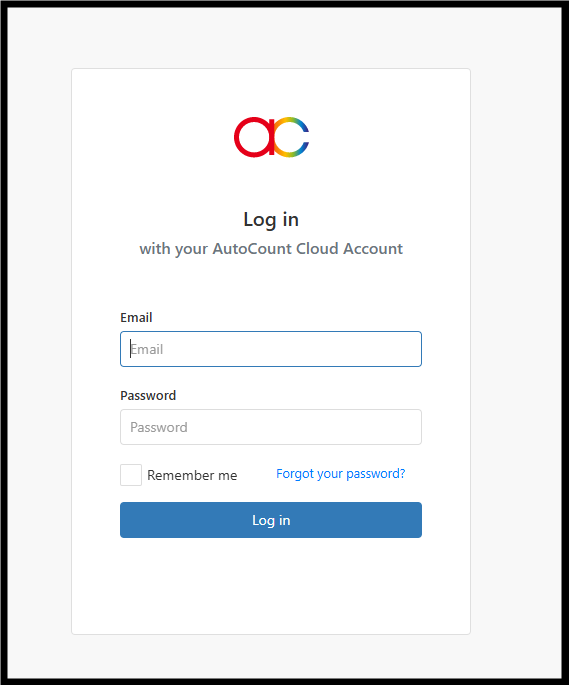
4. You will be prompted to log in again.
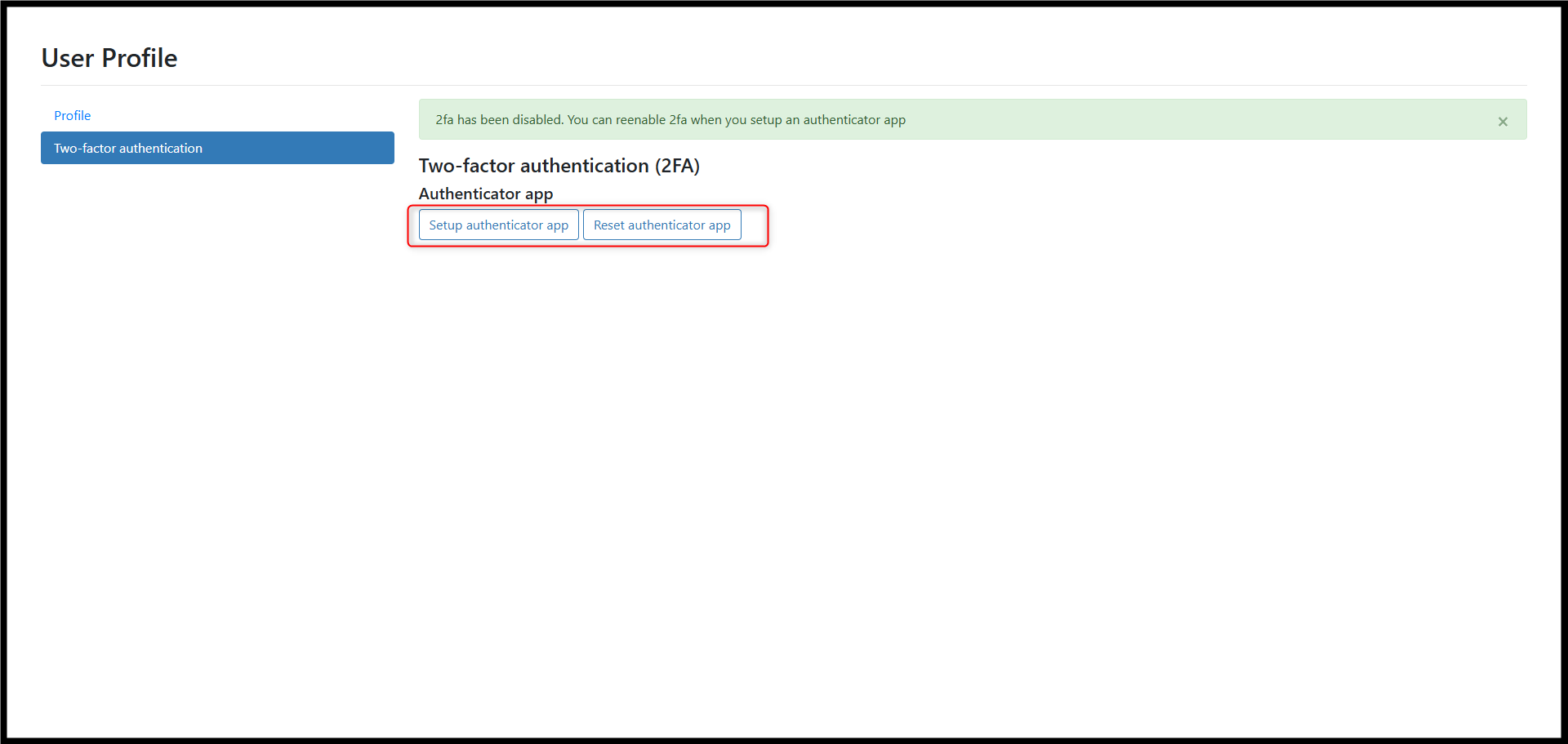
5. After logging in, you may set up or reset the authenticator app if needed.
Reset Recovery Codes
1. Go to Profile Name > Profile, then select Two-Factor Authentication.
2 . Click Reset recovery codes.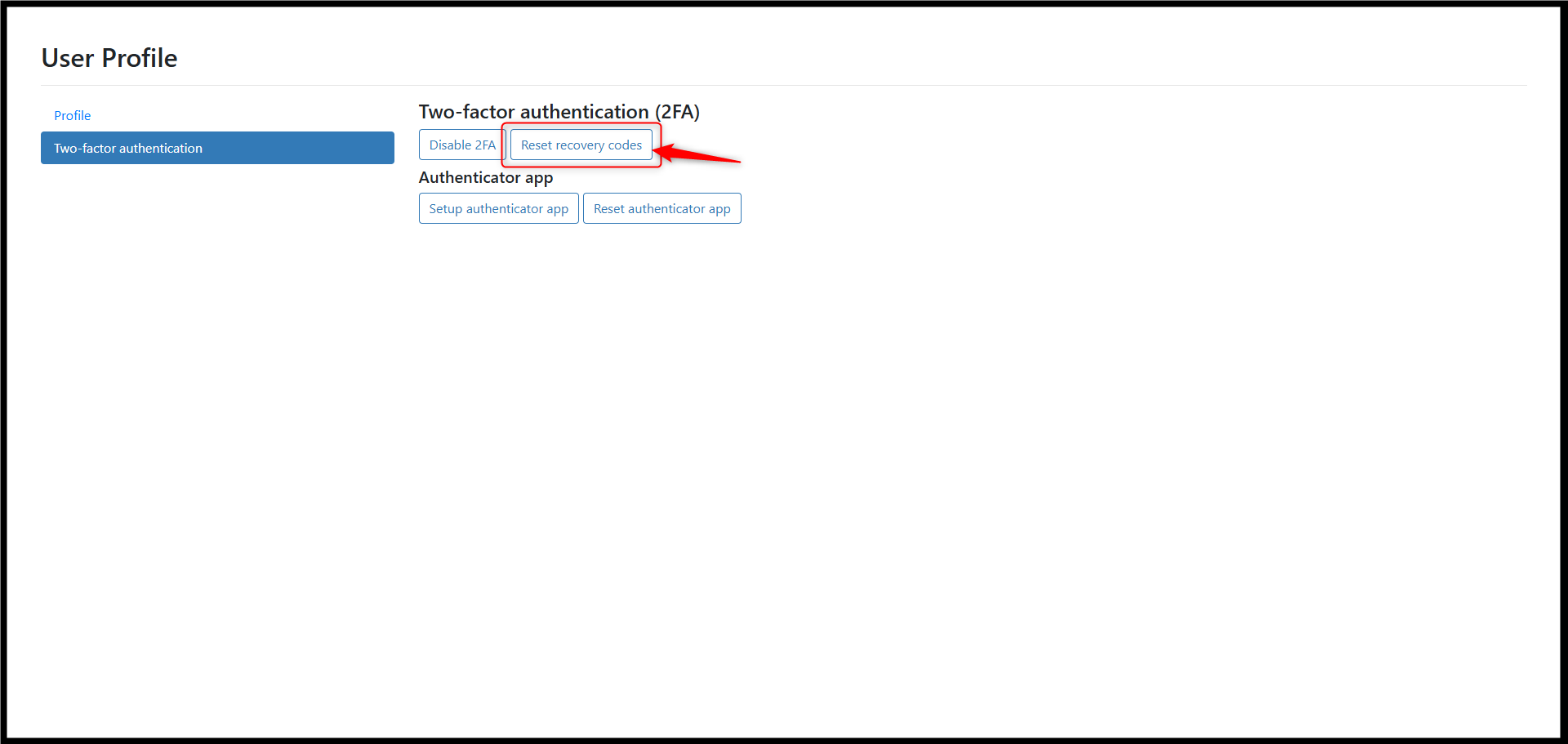
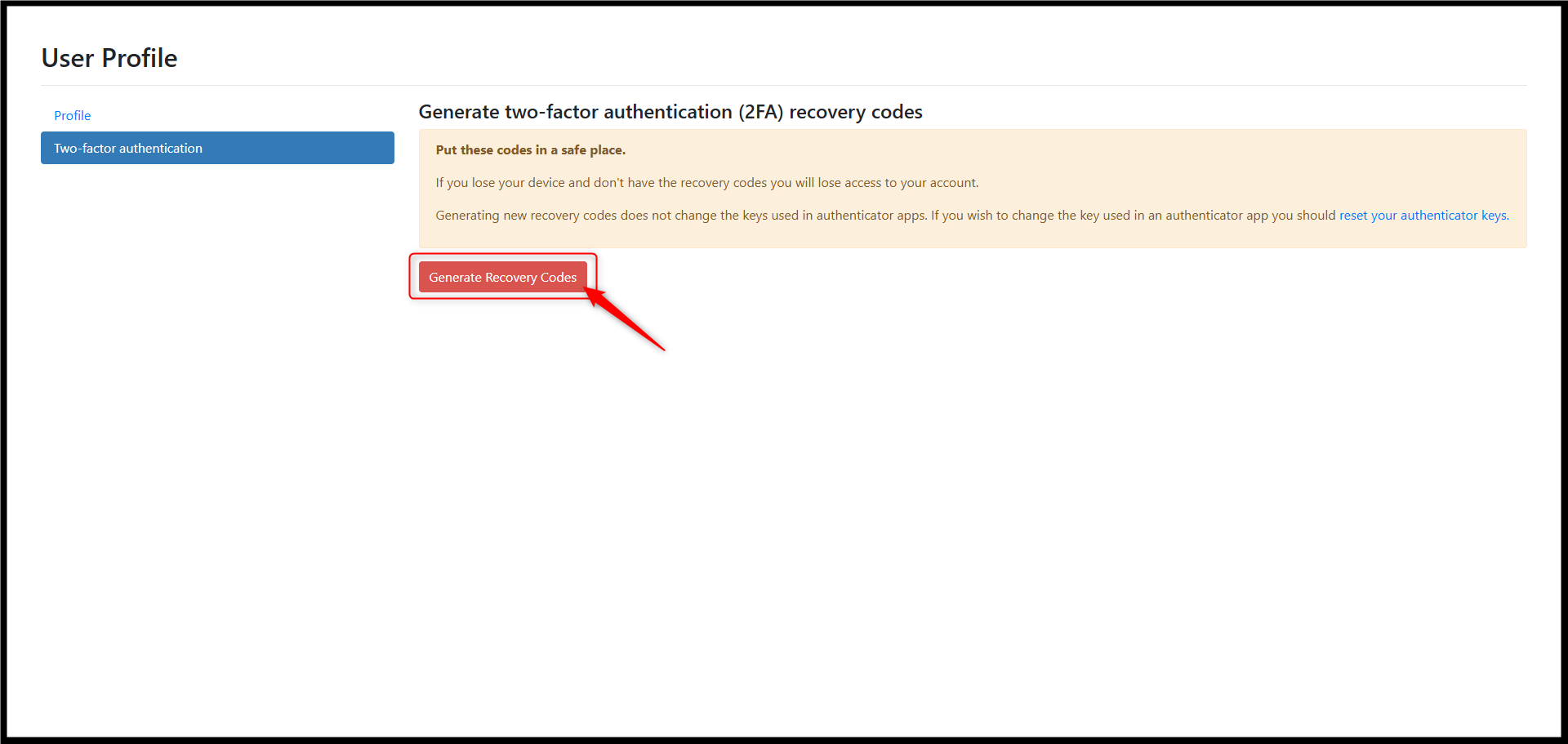
3. Click Generate Recovery Codes.
Note:
- If you lose your device and do not have recovery codes, you will lose access to your account.
- Generating new recovery codes does not change the authenticator app key.
- To change the key, reset the authenticator app.
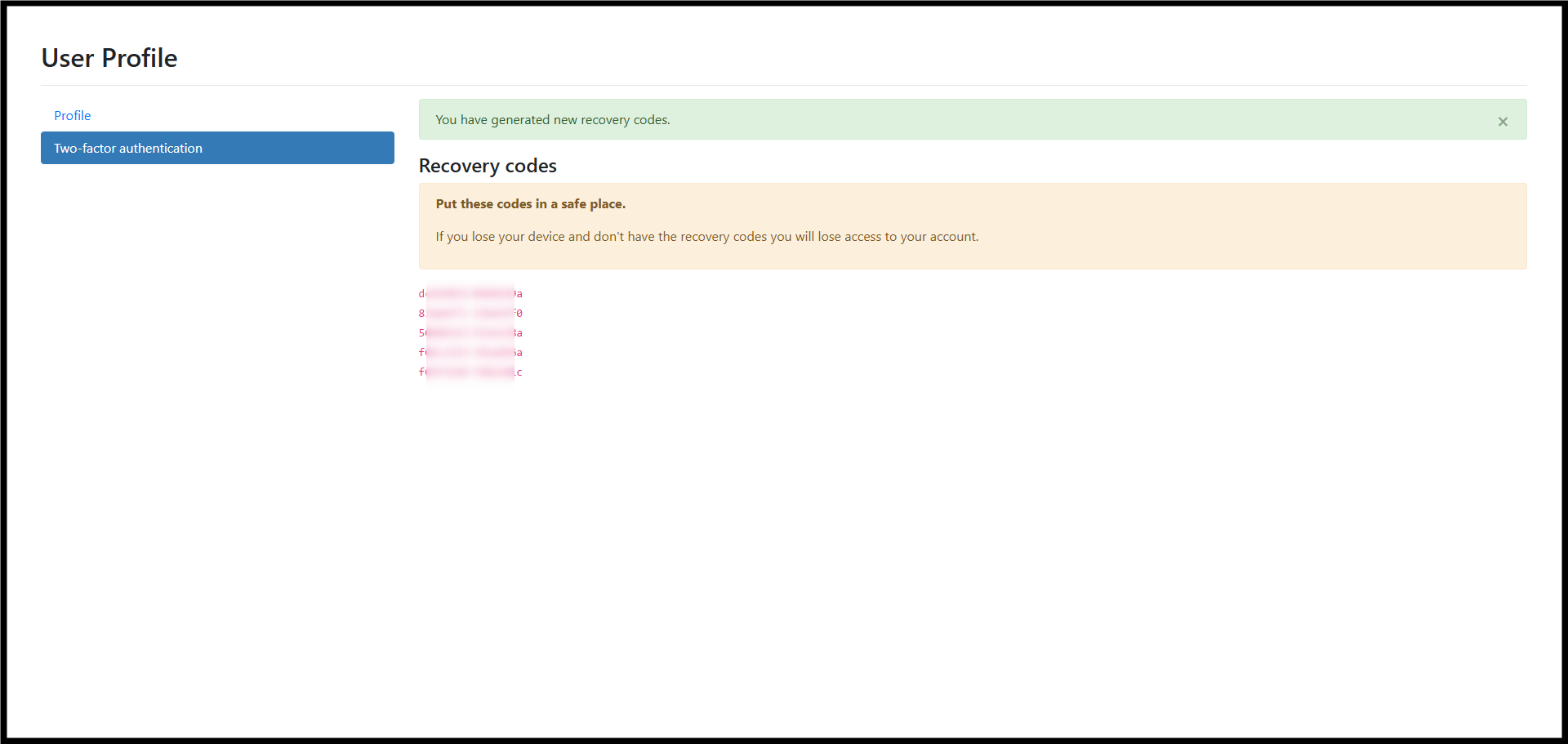
4. New recovery codes will be generated. Save them securely.
Reset authenticator app:
1. Go to Profile Name > Profile, then select Two-Factor Authentication.
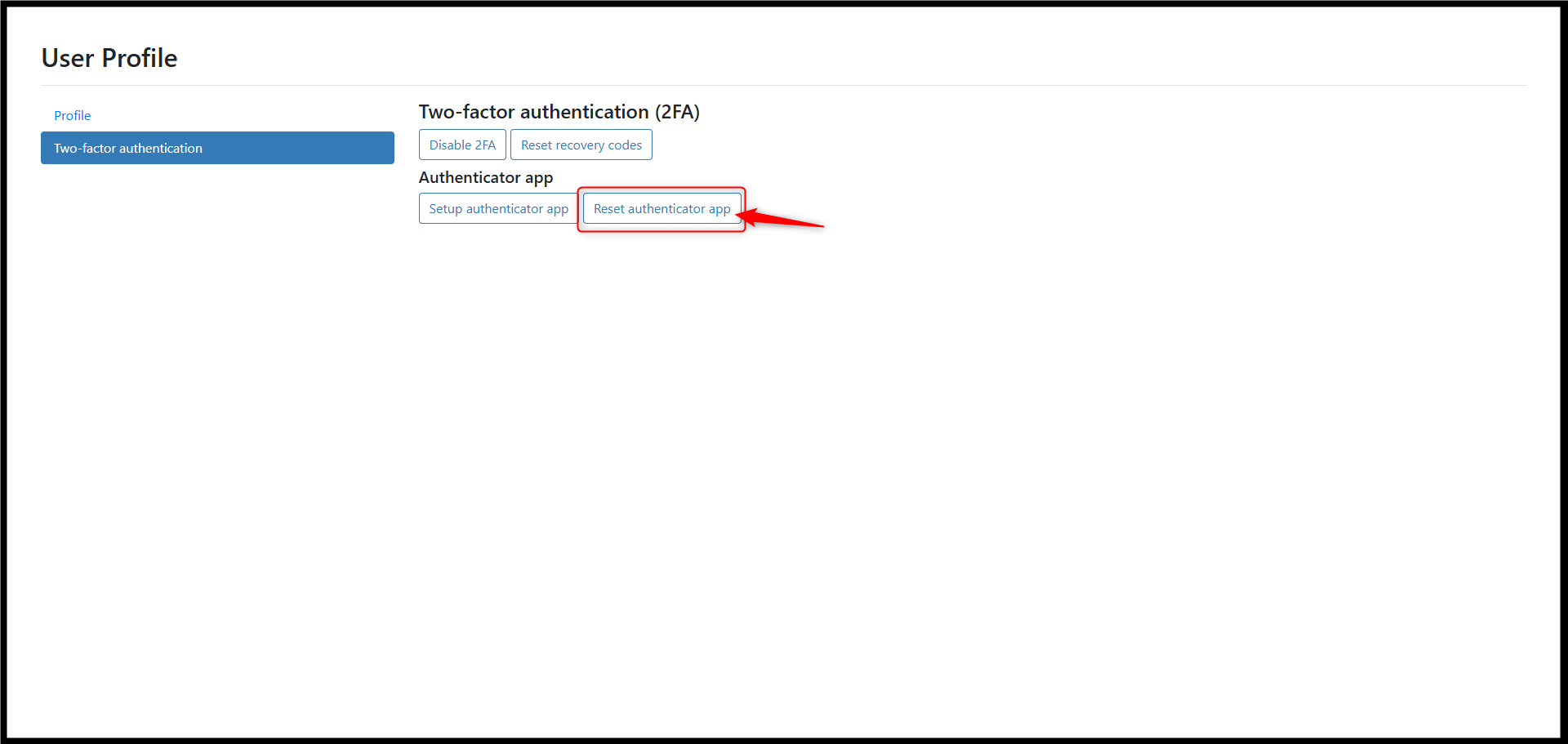
2. Click Reset authenticator app.
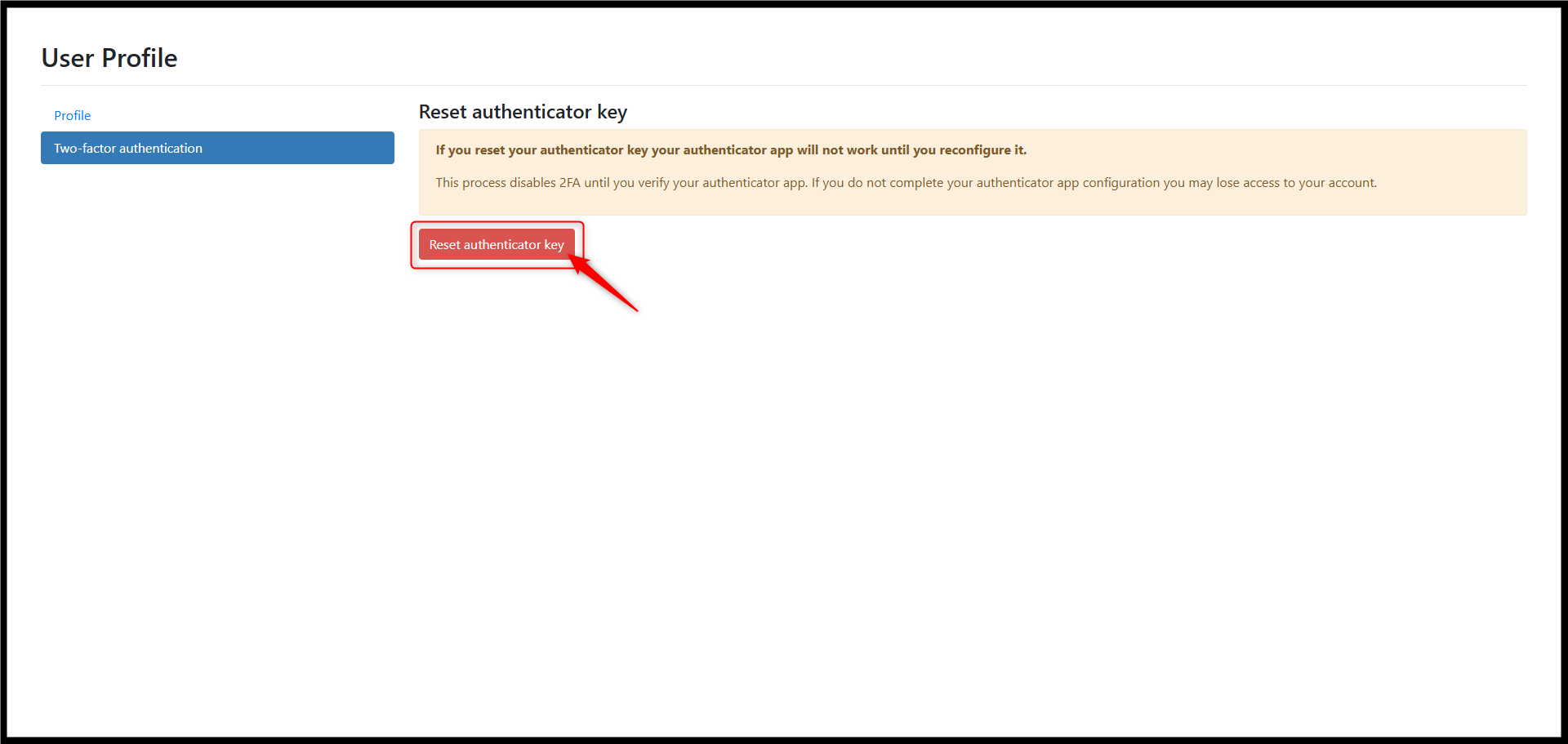
3. Click Reset authenticator key.
Note:
- Resetting the authenticator key will cause your existing authenticator app to stop working.
- This action temporarily disables 2FA until the new authenticator setup is completed.
- If you do not complete the setup, you may lose access to your account.
4. Configure your authenticator app again using the new key provided.
By Azirah 260126