
To continue using AutoCount HRMS without interruption, you must renew your subscription before it expires. Subscriptions can be renewed monthly or yearly, depending on your selected billing cycle.
Steps to Go to the Subscription Renewal Page:
Method 1:
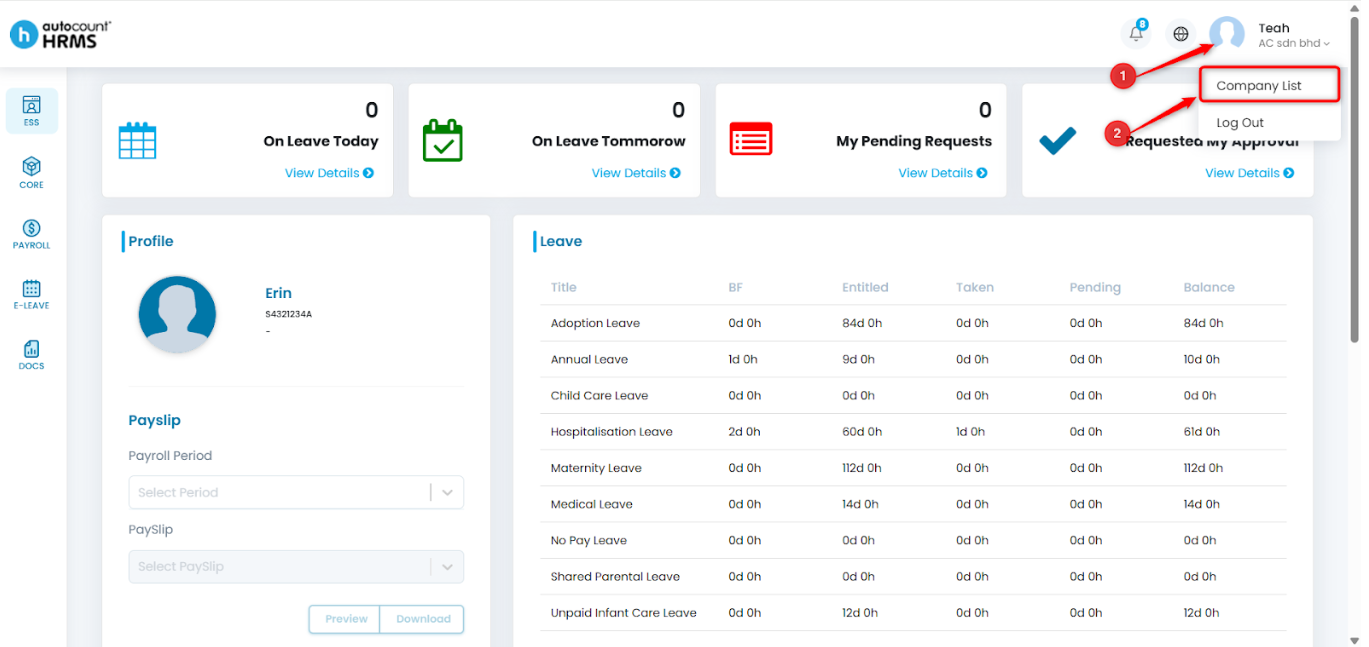
1. Click your Profile at the top-right corner, then select Company List.
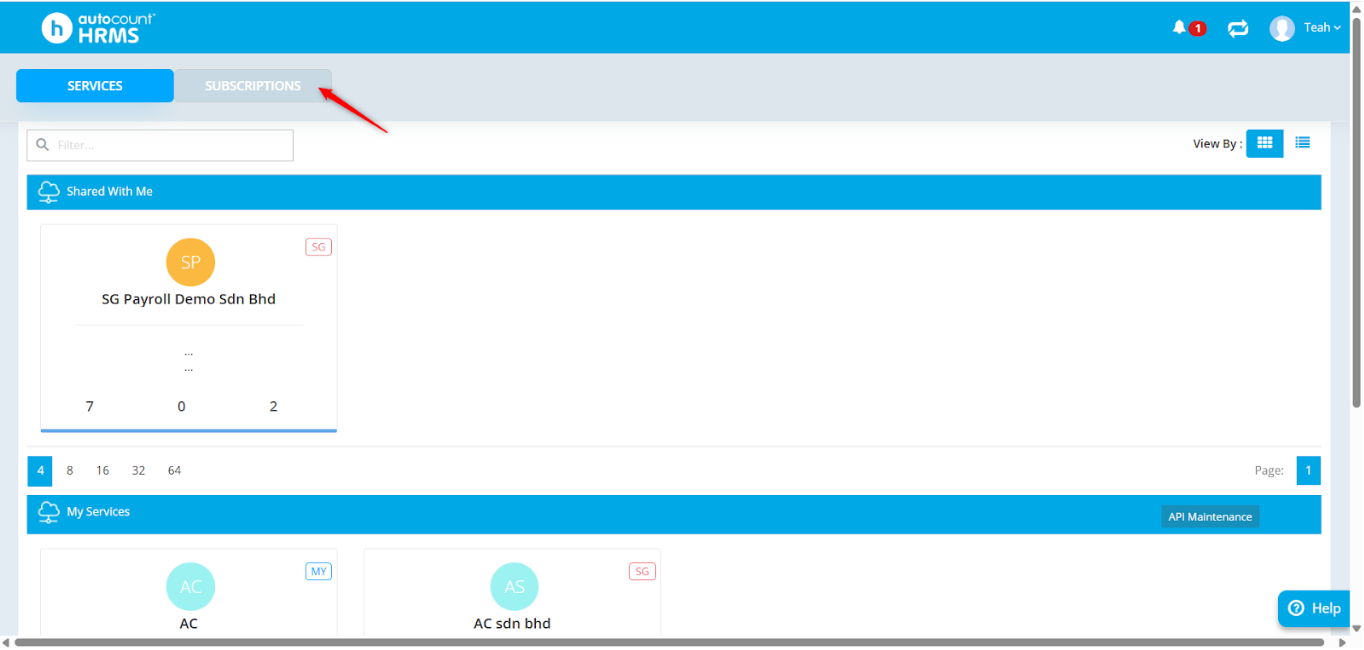
2. Go to Subscriptions.
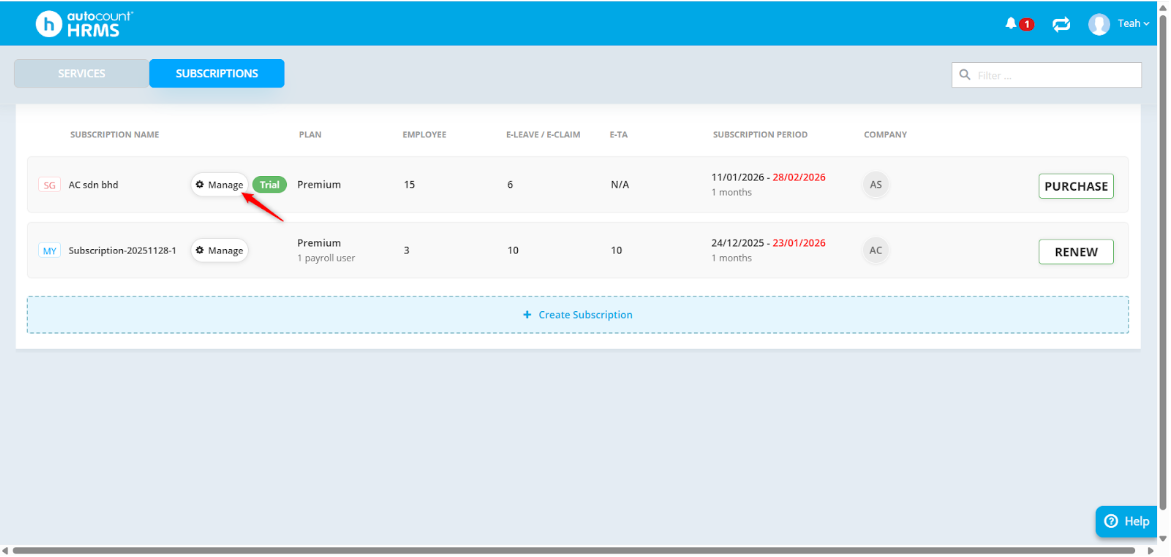
3. Click Manage.
Method 2:
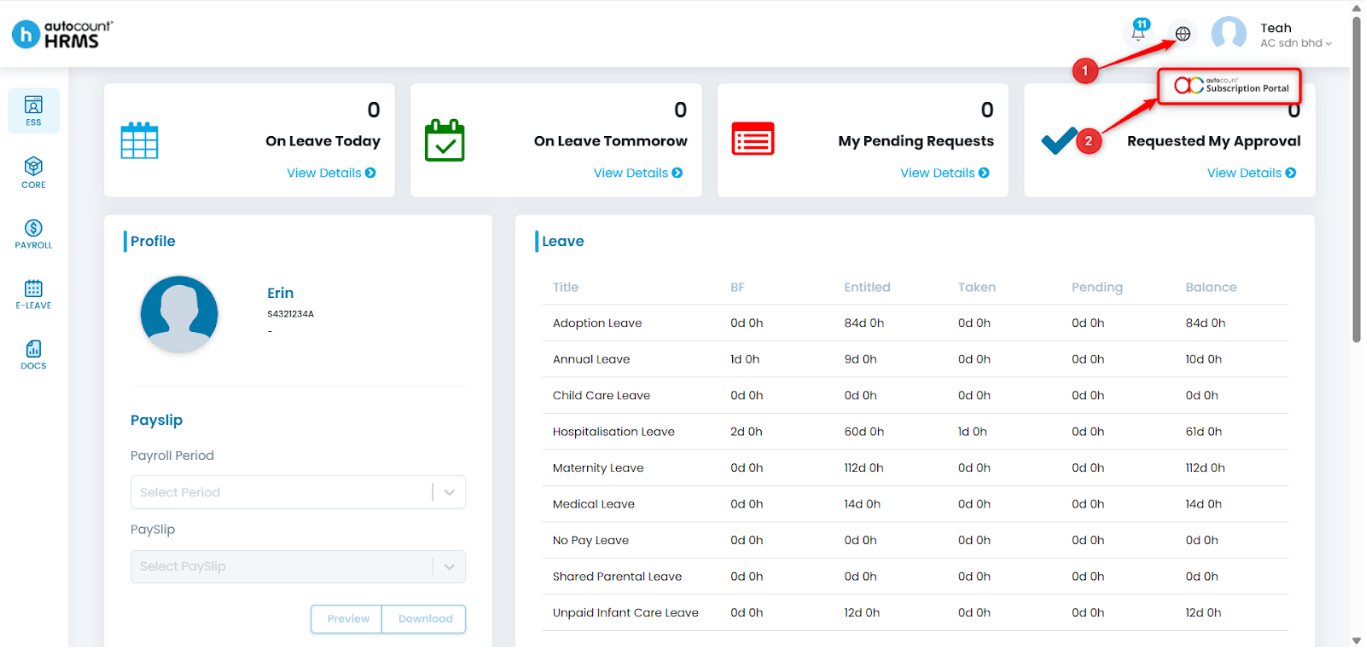
1. Click the Globe icon and select Subscription Portal.
2. Click Manage next to the subscription you want to renew.
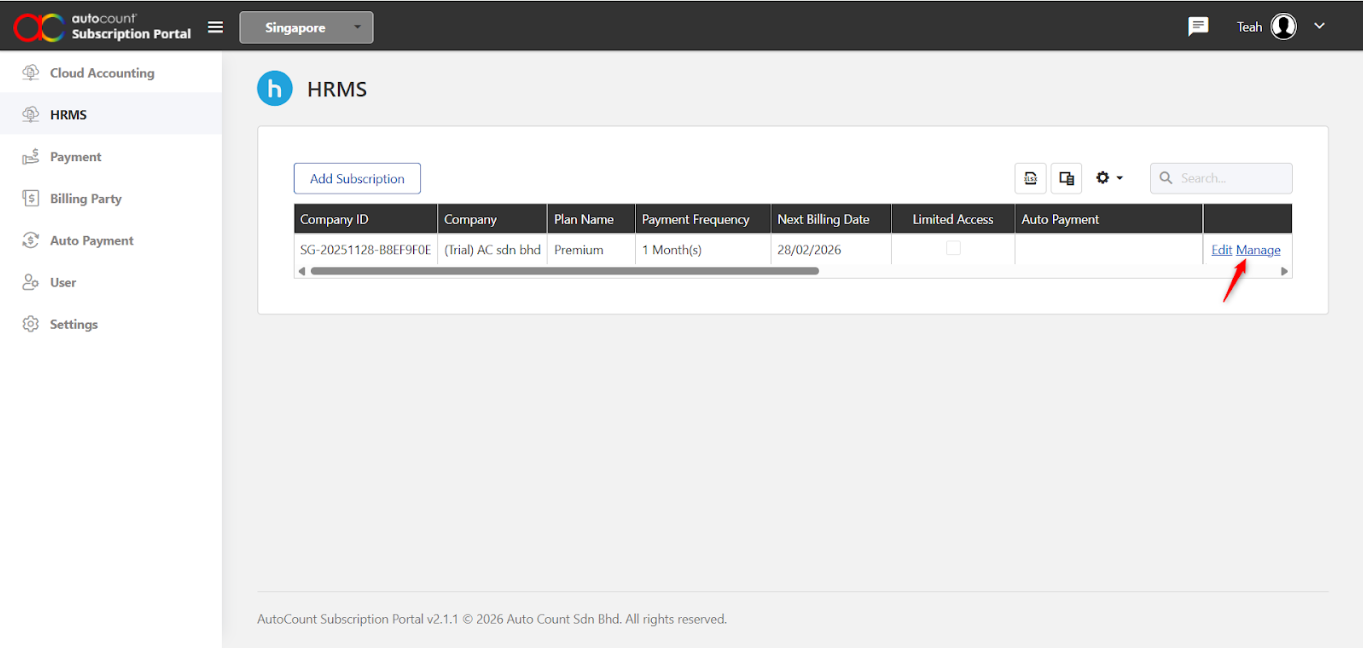
Steps to Renew Your Subscription:
1. Click Renew.
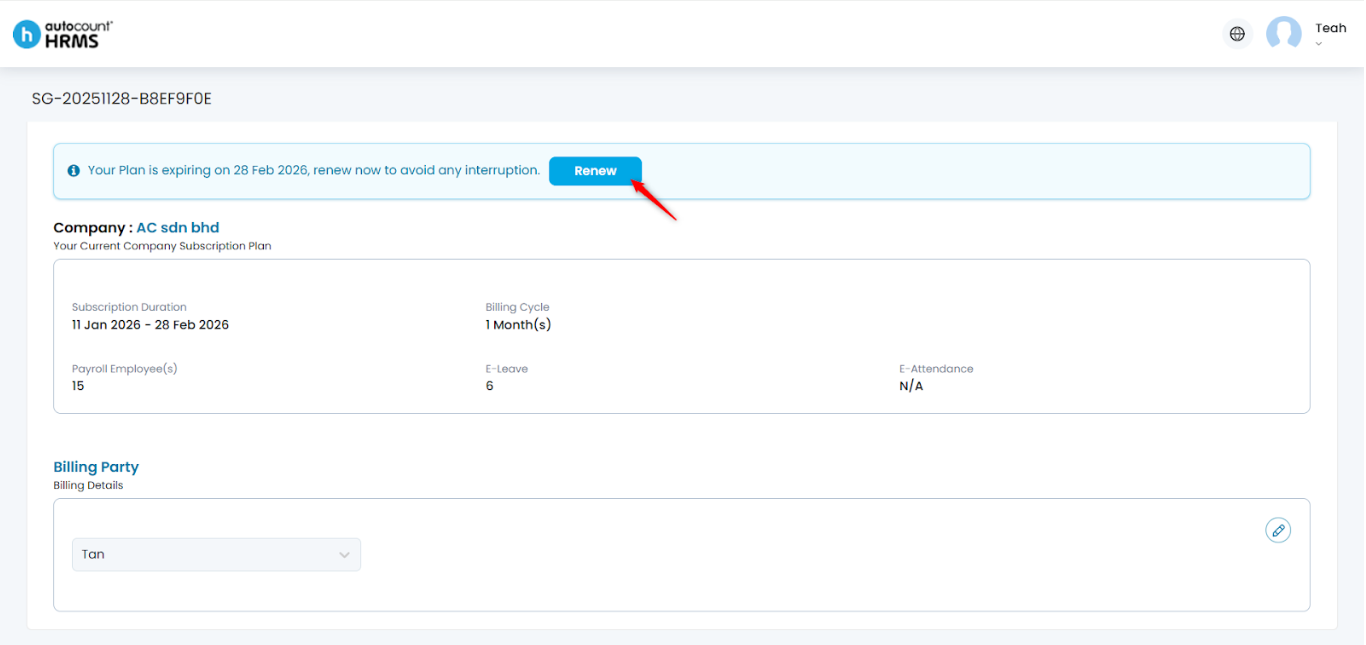
2. Choose a Renewal Method:
- Option 1: Renew with Current Plan Settings– Renew subscription using the existing plan, headcount, and billing cycle.
i. Select Renew with Current Plan Settings.
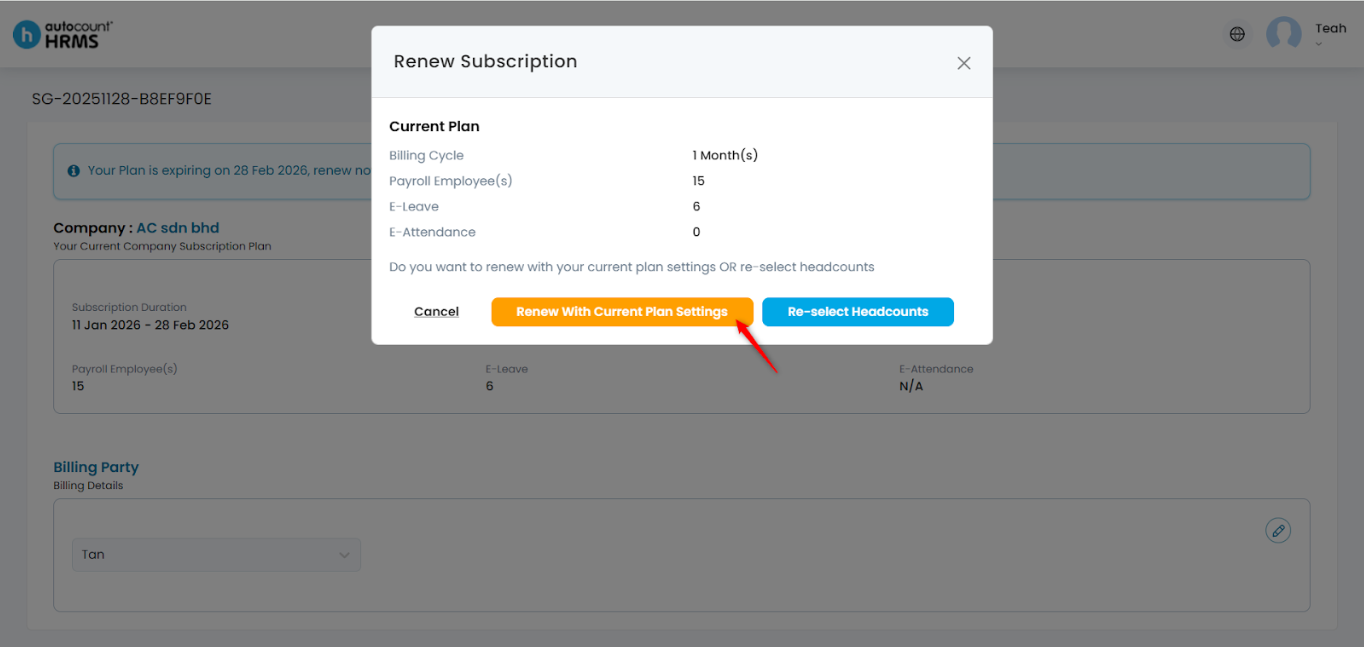
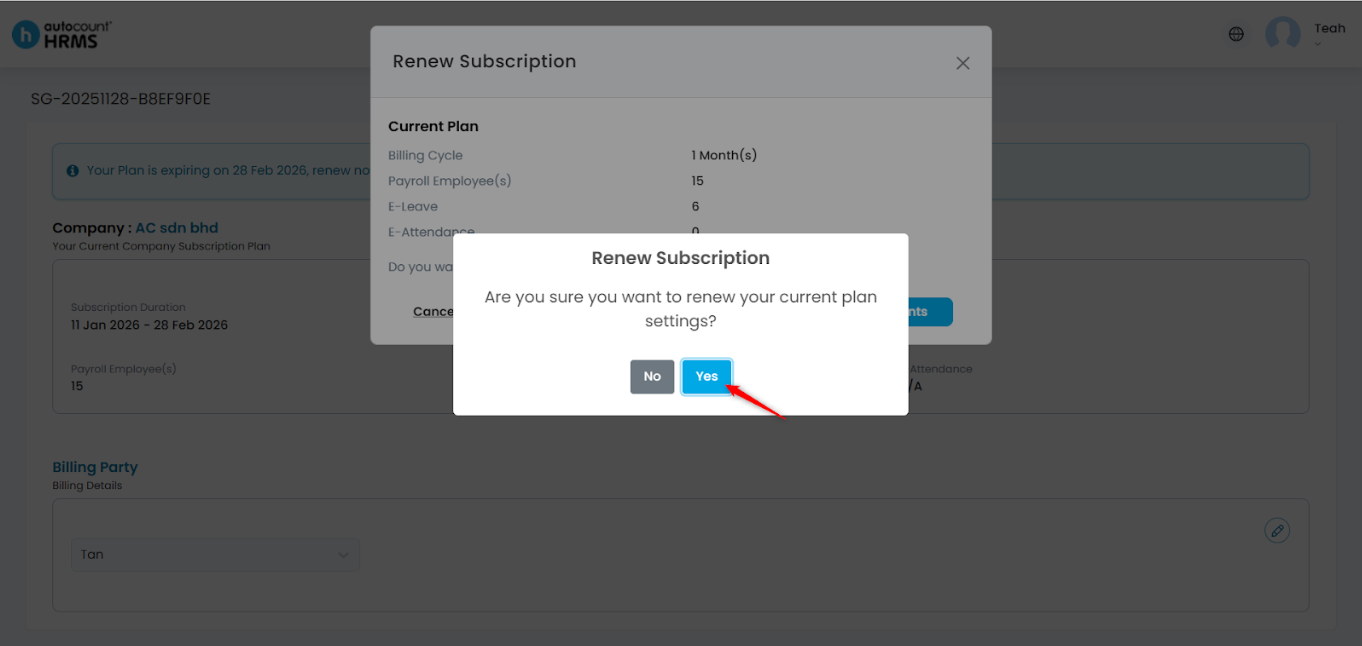
ii. Click Yes to confirm.
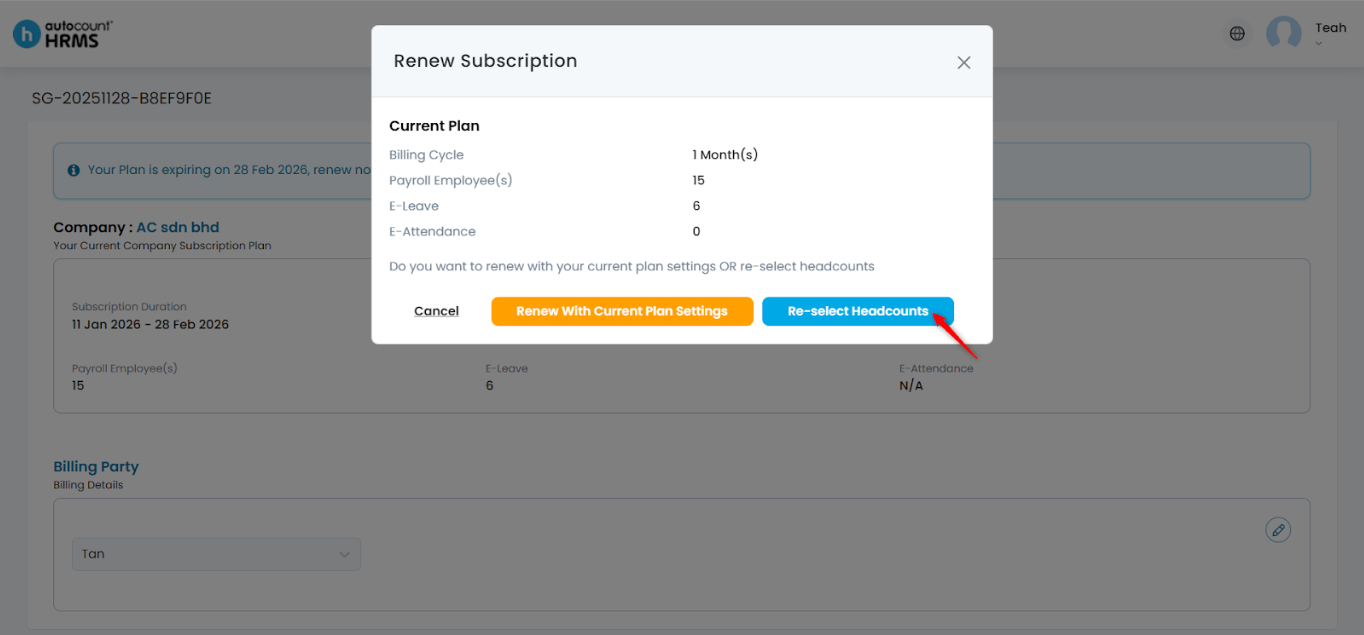
- Option 2: Re-select Headcounts – Edit your headcount and billing cycle before renewal.
i. Select Re-select Headcounts.
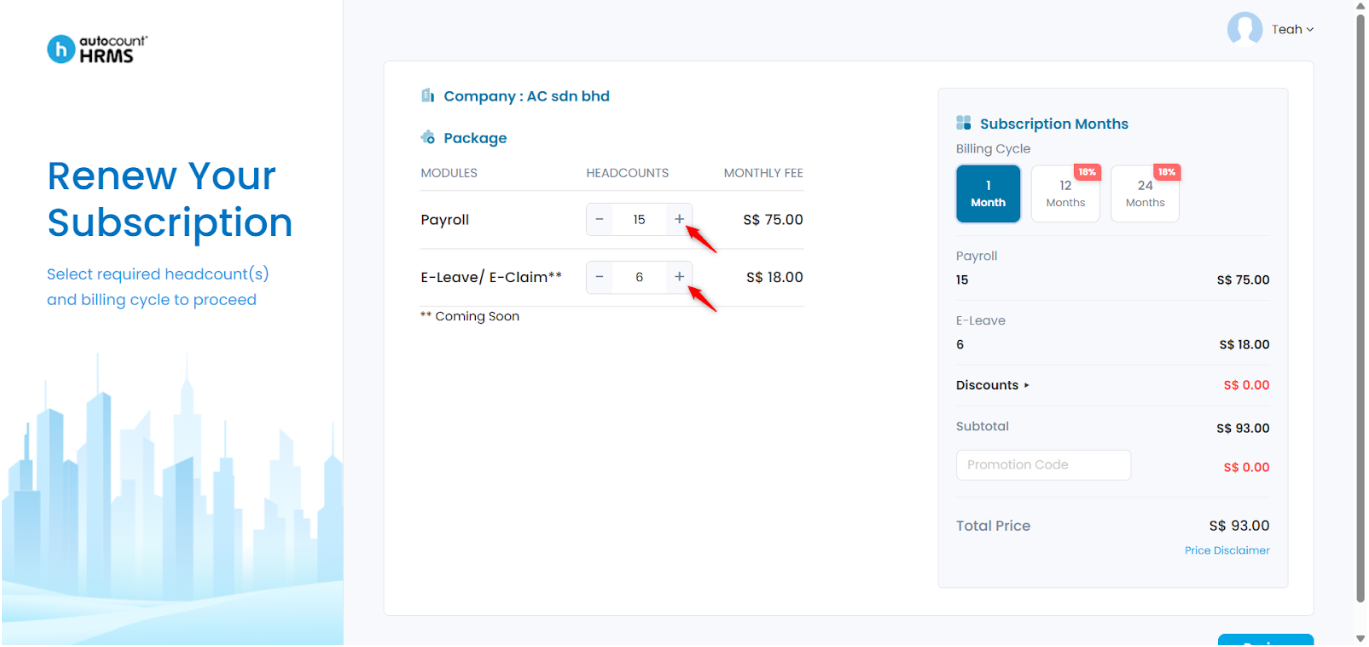
ii. Adjust the headcounts as needed:
- Click + to increase.
- Click - to decrease.
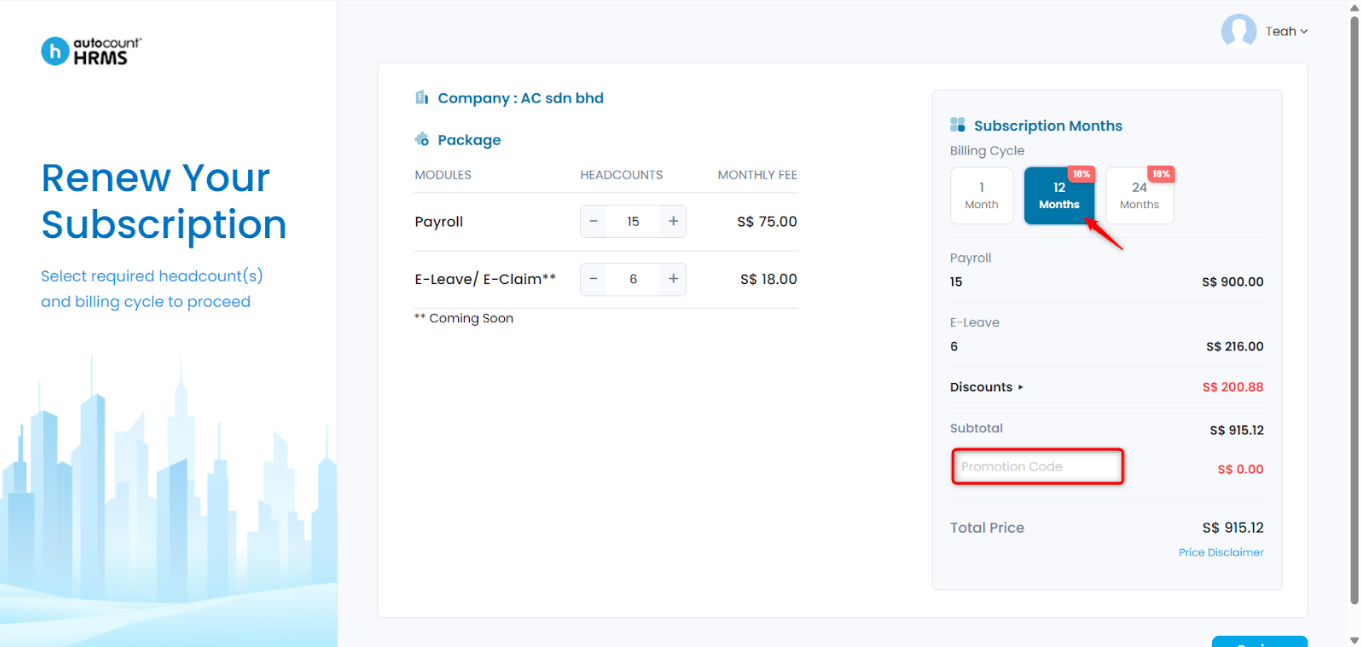
iii. Select your subscription billing cycle (1 month, 12 months, or 24 months). Payment amount will be calculated accordingly. Enter a Promotion Code, if applicable.
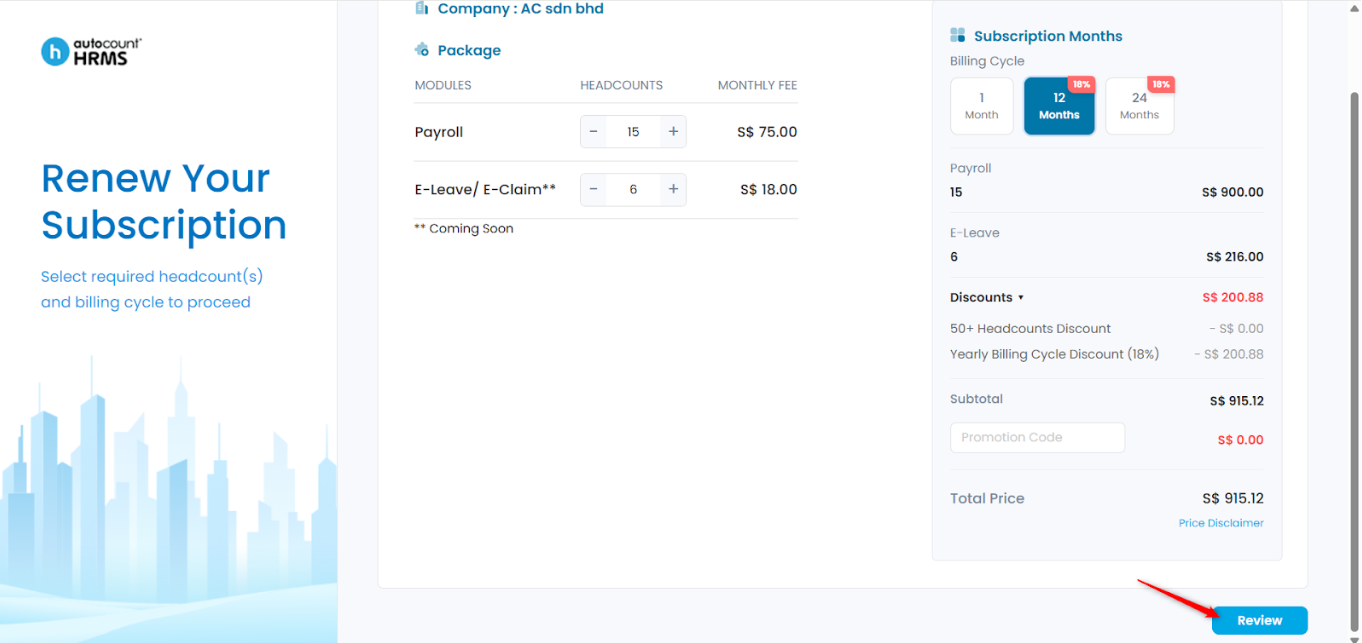
iv. Click Review.
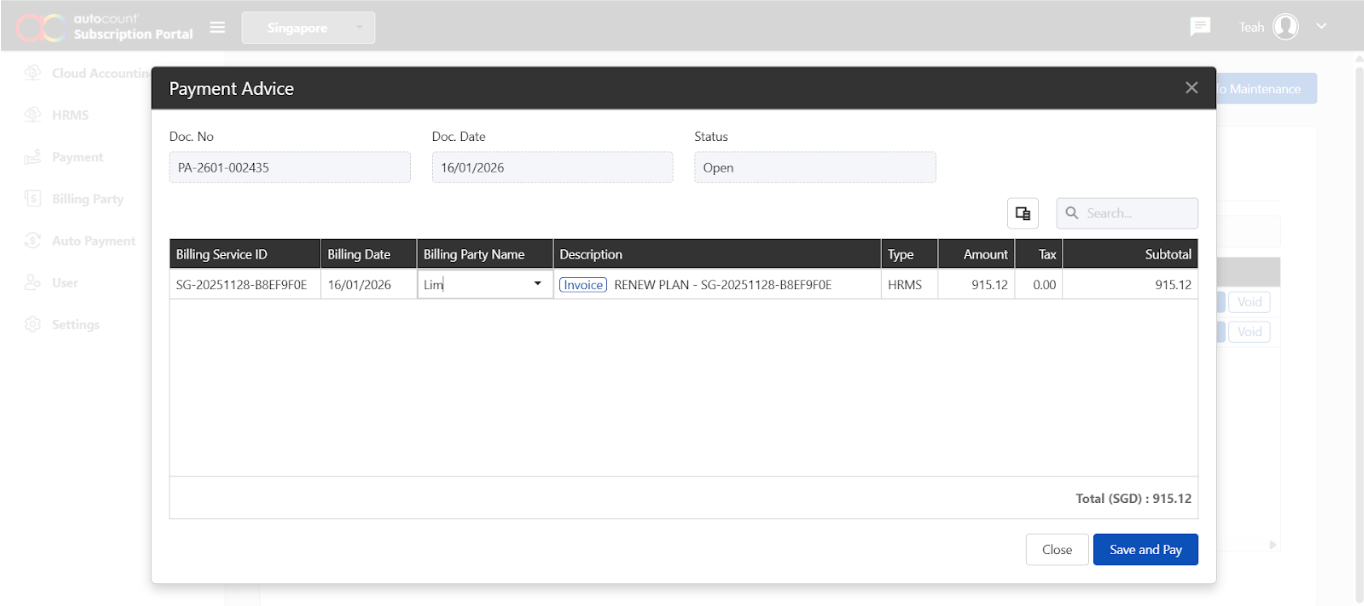
v. Select a billing party from the drop-down list or click +Add New Billing Party. (Refer Update Billing Party for field details)
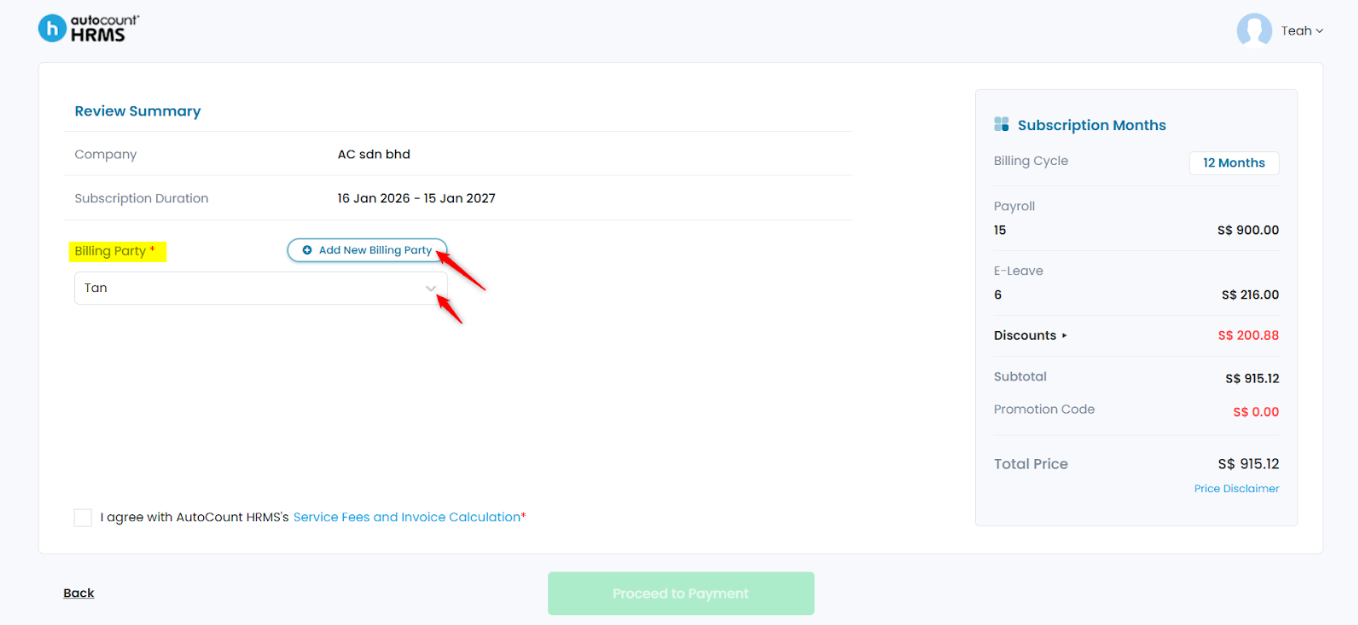
vi. Review the subscription summary and tick I agree with AutoCount HRMS Service Fees and Invoice Calculation.
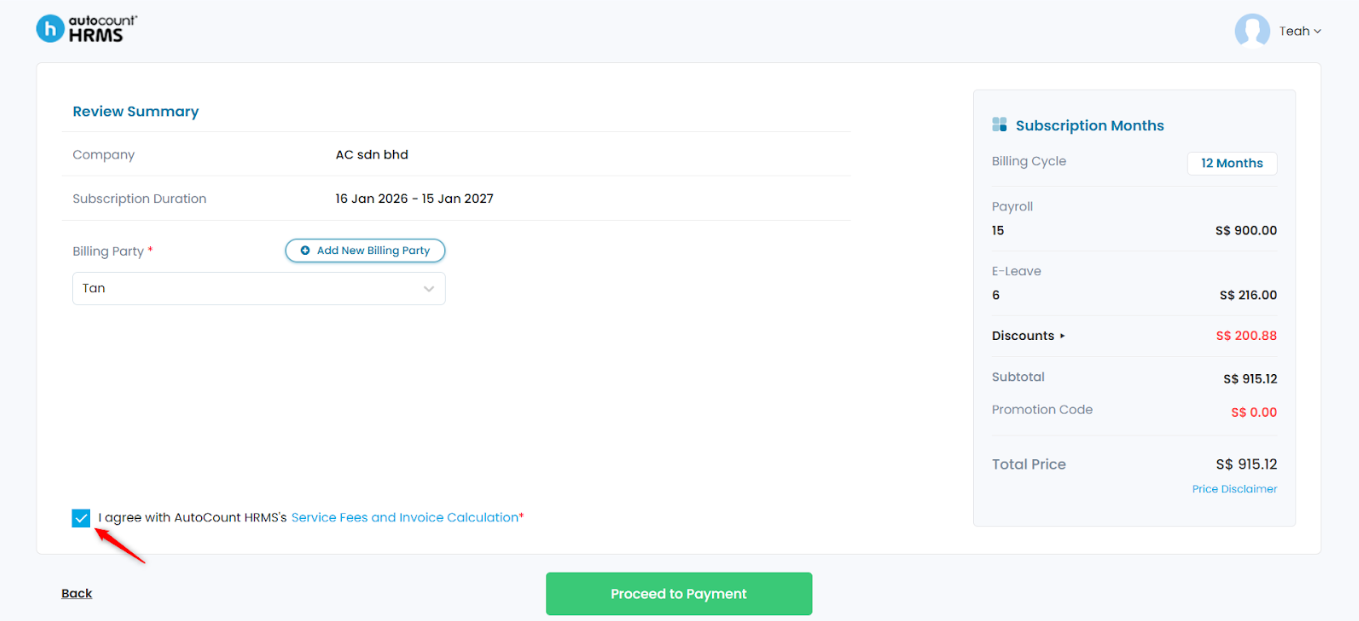
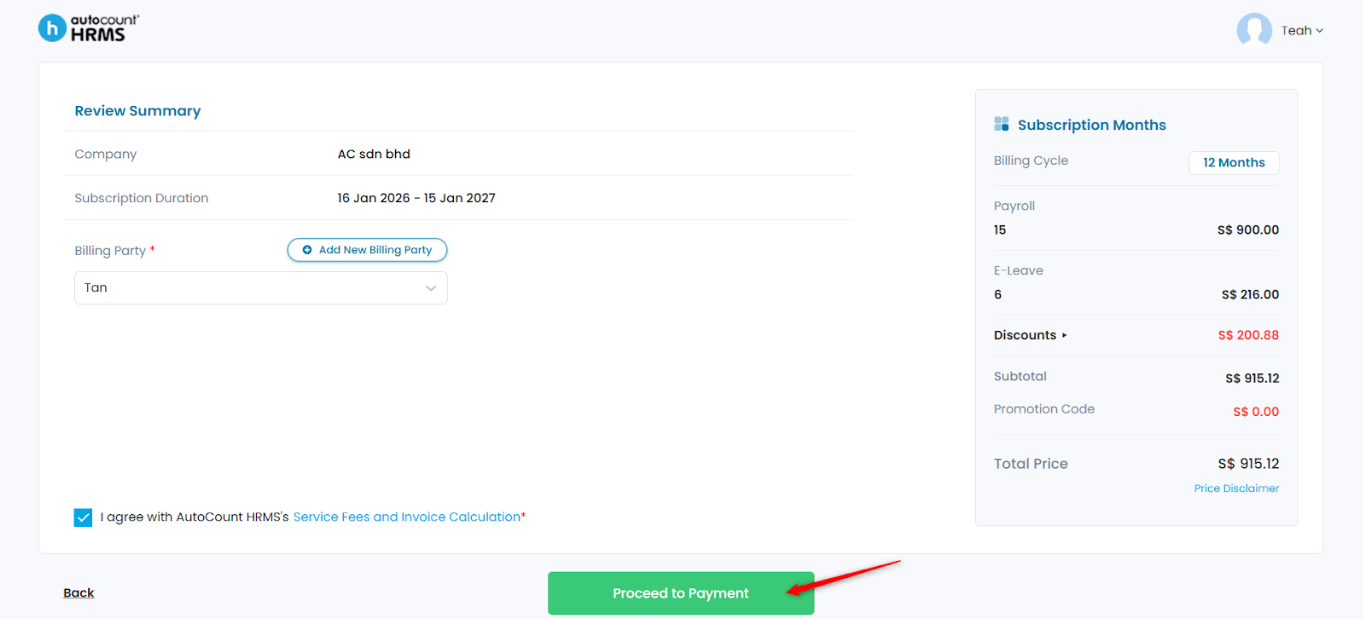
vii. Click Proceed to Payment.
viii. Click Yes to confirm.
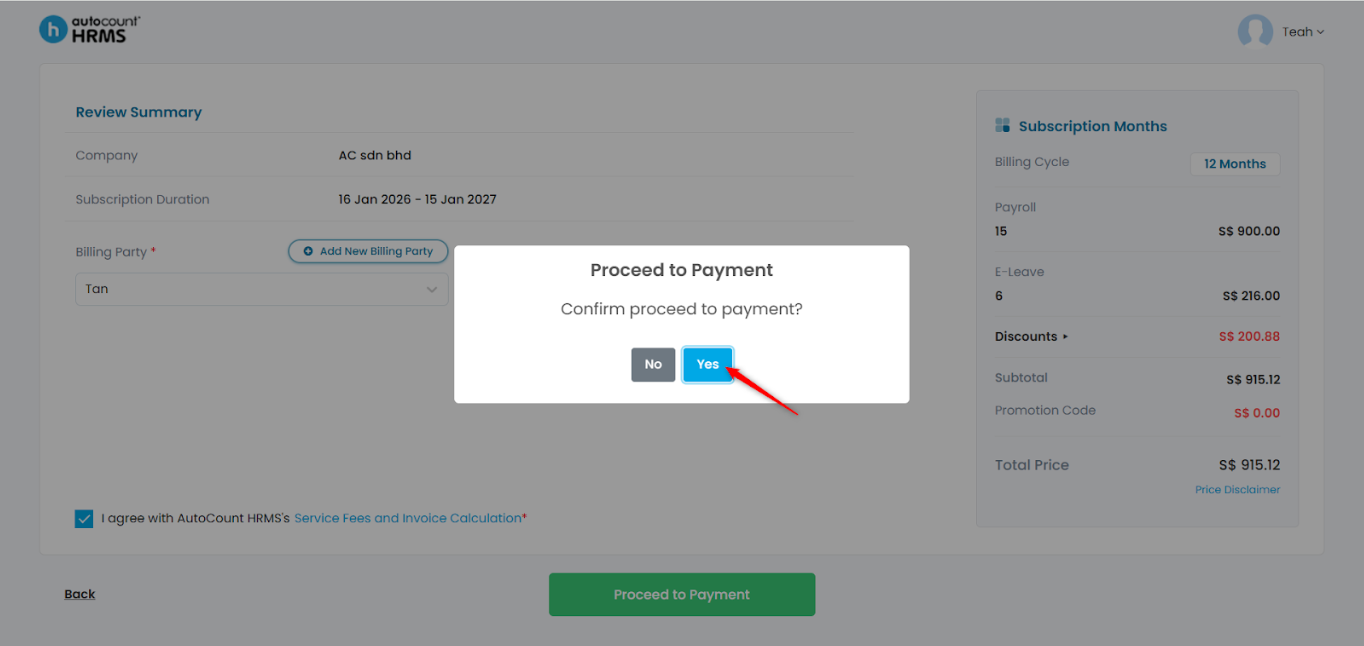
3. You will be redirected to the payment page to proceed with payment.
Written by: Teah Rui Harn (20260116)
Reviewed by: Tek Ee Lin (20260120)