
A Payroll Item represents an individual component of an employee’s total compensation and is used to calculate the final paycheck. By configuring each payroll item’s type—along with its amount or formula—the system can automatically compute the total value in the employee’s payslip when processing payroll.
Payroll items are grouped into two categories:
- Additions – Items that increase an employee’s pay, such as commission, internet allowance and percentage bonus.
- Deductions – Items that reduce an employee’s compensation, such as lateness penalties and unpaid leave.
Steps to Create a New Payroll Item:
1. Go to Payroll > Settings.
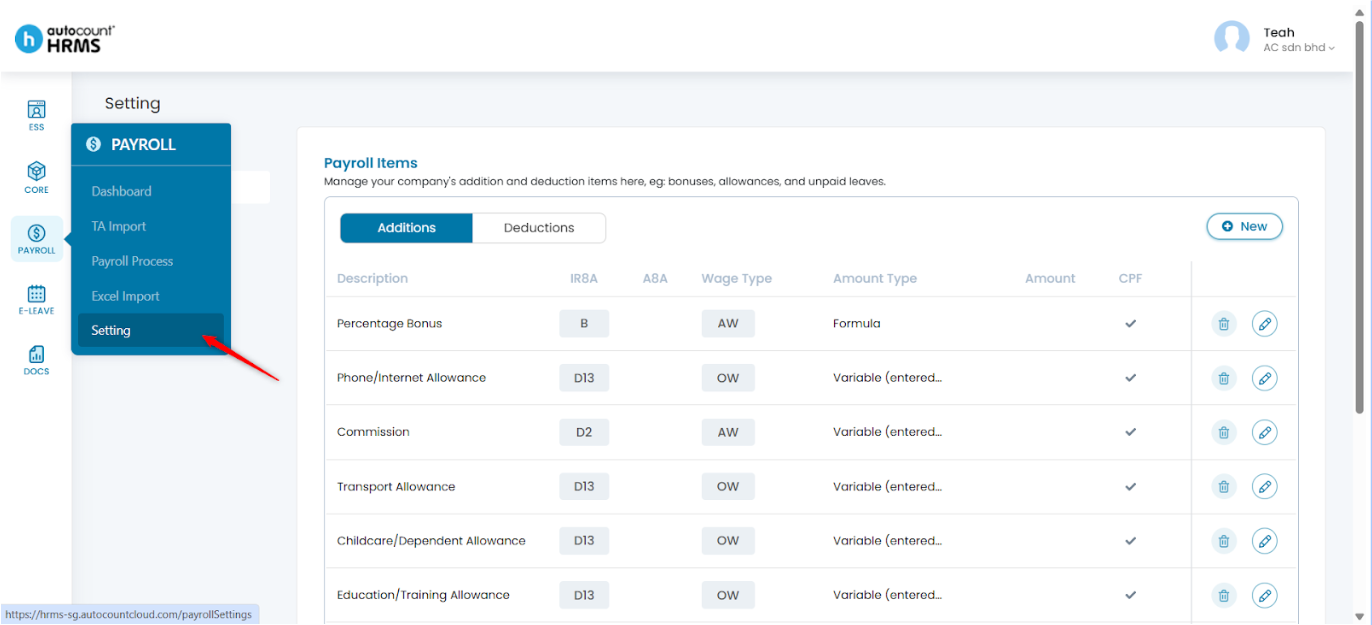
2. Under Setting, select Payroll Items. Choose the category you want to add (Additions or Deductions) and click New at the top right corner.
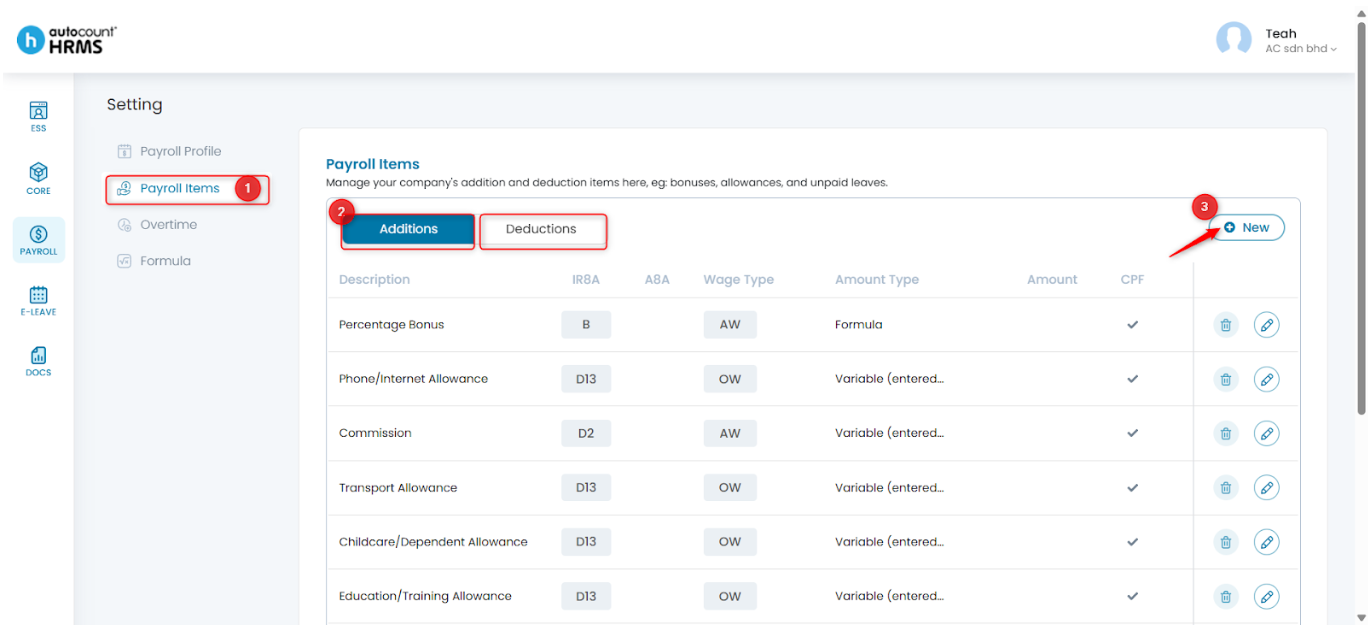
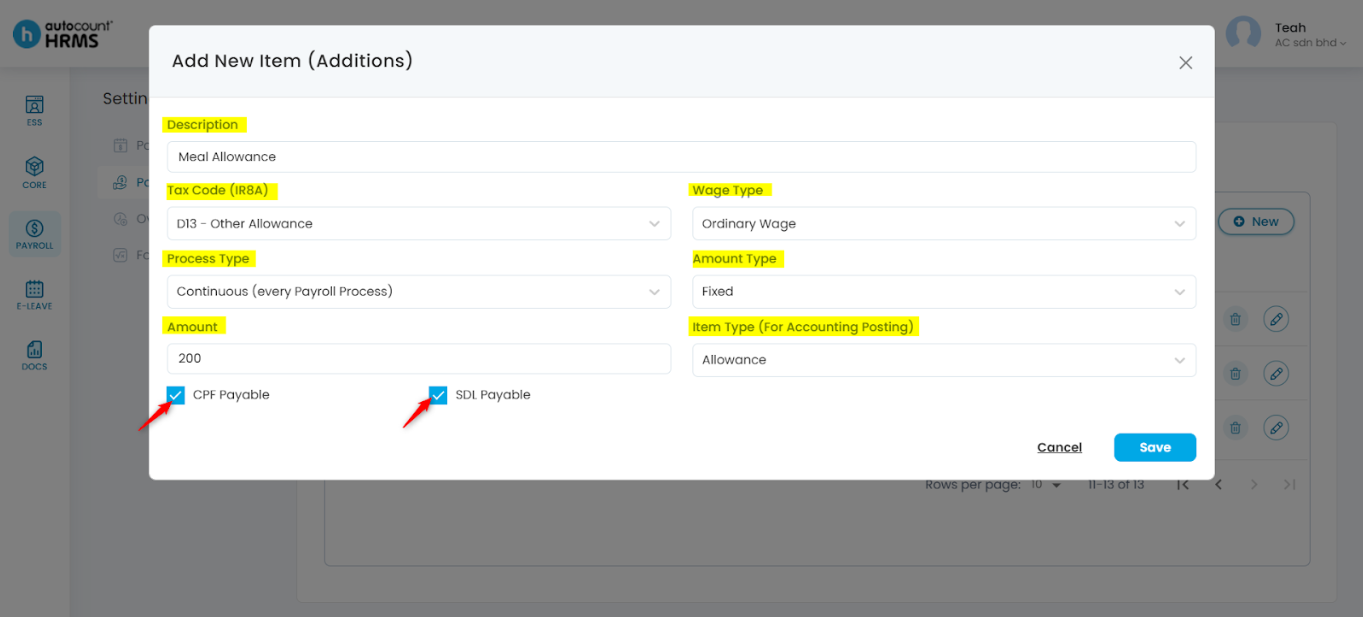
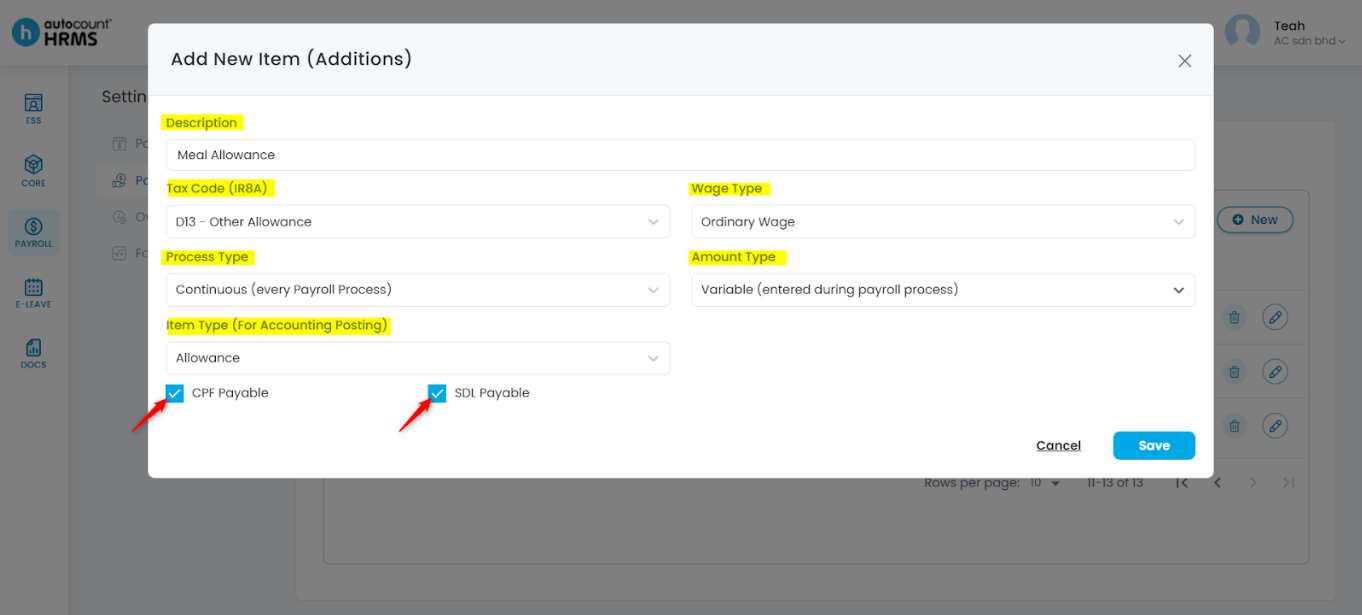
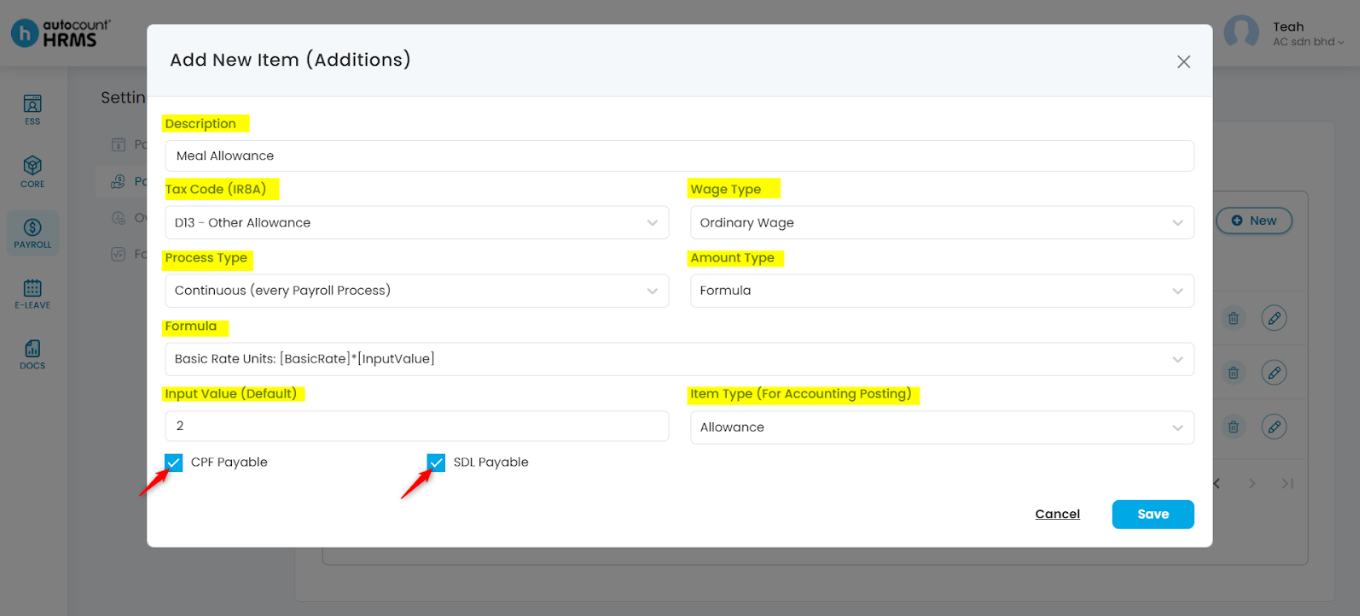
3. An Add New Item (Addition or Deduction) panel will appear. Complete the following fields:
- Description – Enter a short description of the payroll item.
- Tax Code (IR8A) – Select the appropriate tax code. This corresponds to reporting requirements under IR8A, submitted annually to IRAS to report employees’ income details.
- Process Type – Choose when the item should be processed.
- Month End – Included only in the final payroll run of the month.
- Continuous – Included in every payroll process.
- Item Type (For Accounting Posting) – Select the relevant accounting category (e.g., Allowance, Commission, Overtime). (Optional)
- Wage Type –
- Ordinary Wage (OW) – Regular, recurring wages forming part of the employee’s monthly salary.
- Additional Wage (AW) – Non-recurring or supplemental payments.
- Amount Type – Determines how the item amount is calculated.
- Fixed – Same amount for every payroll. After selecting, enter the Amount.
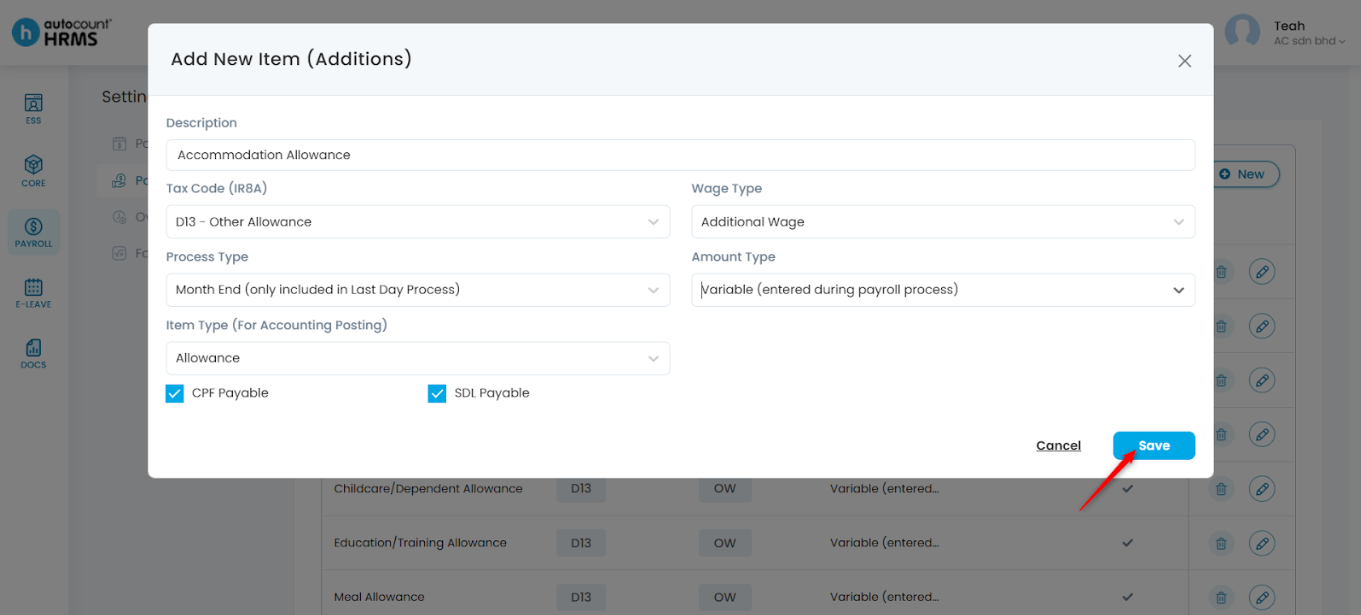
- Variable – Amount is entered manually during payroll processing.
- Formula – System calculates the amount using a formula. After selecting, choose the Formula and enter the Input Value.
- CPF Payable – Tick if the item is subject to CPF.
- SDL Payable – Tick if the item is subject to SDL.
Fixed amount type:
Variable amount type:
Formula amount type:
4. Click Save to create the item.
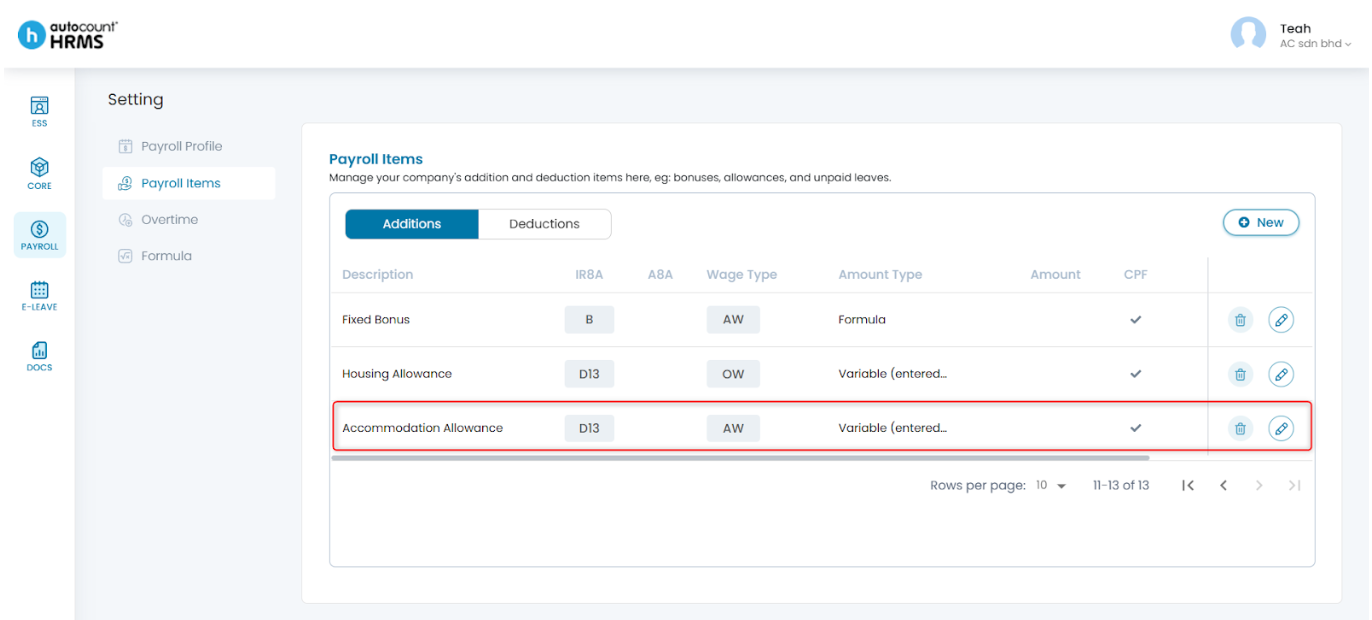
5. Once saved, the payroll item will appear in the list and can be used during payroll processing.
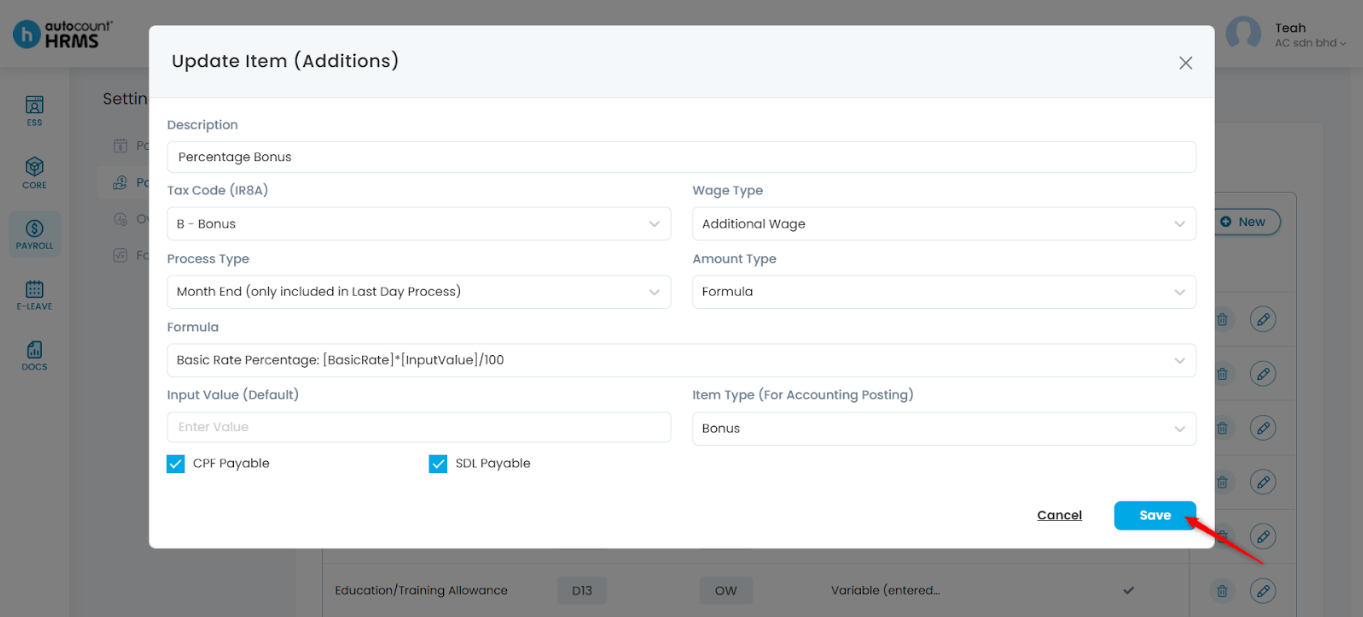
Steps to Edit a Payroll Item:
1. Click on the pencil icon.
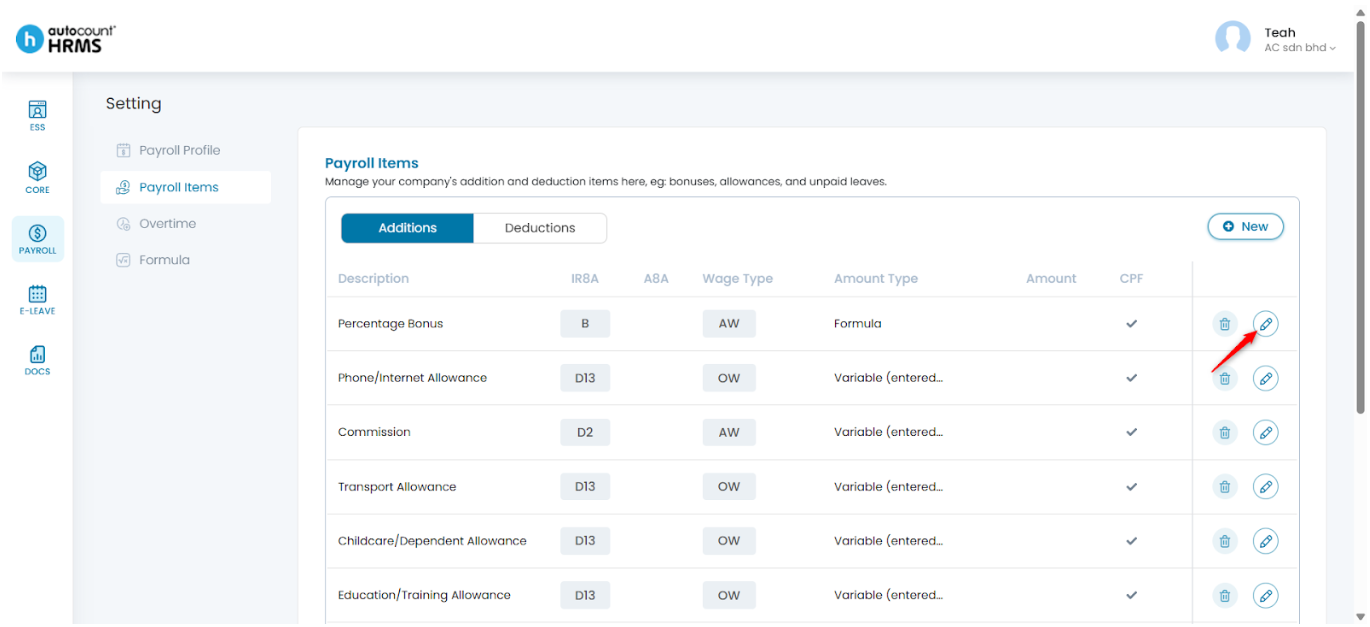
2. An Update Item panel will appear. Edit the item details, then click Save.
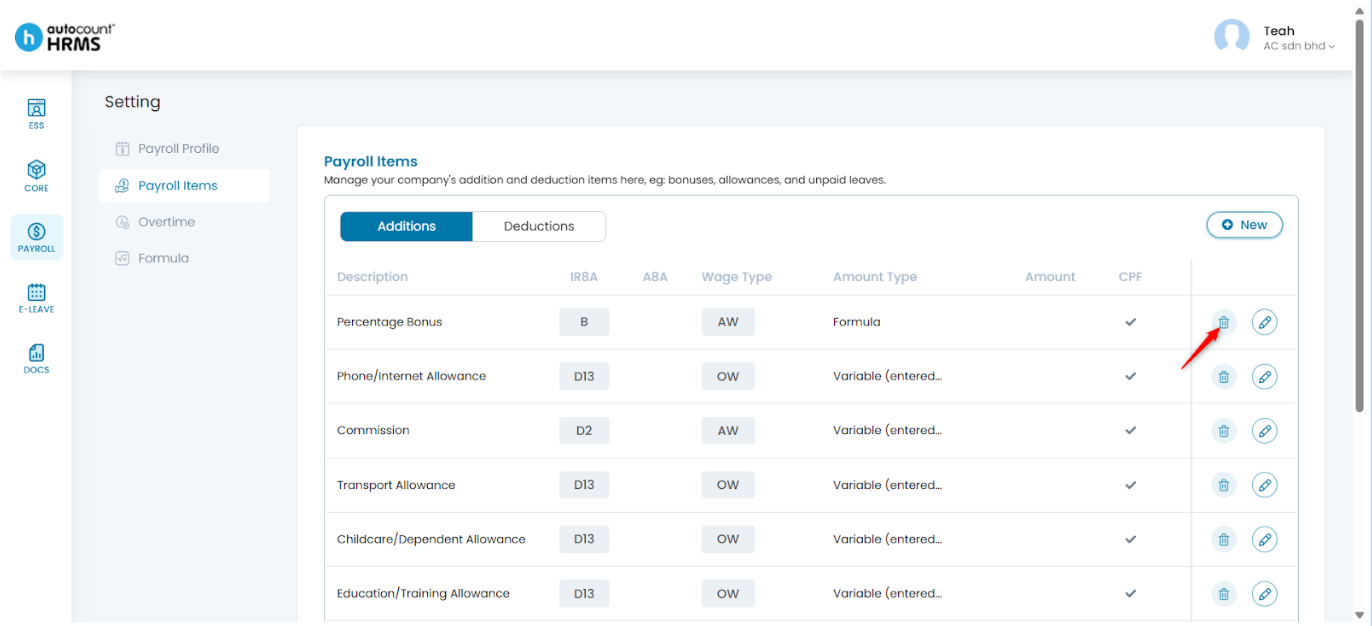
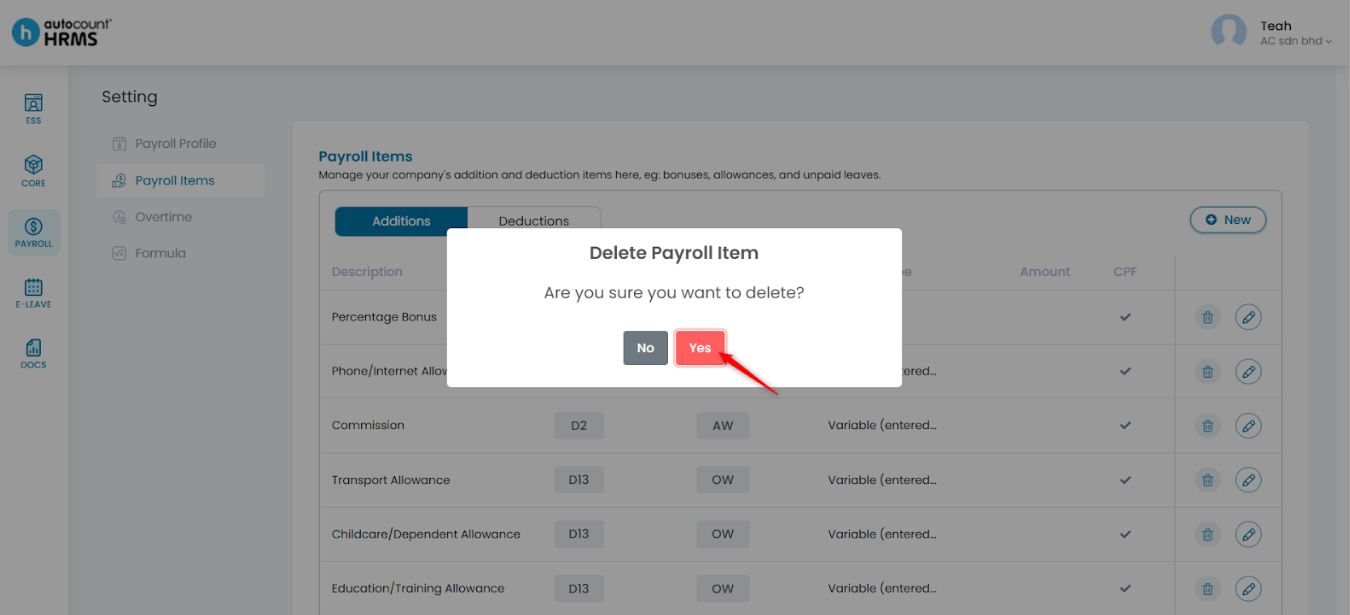
Steps to Delete a Payroll Item:
1. Select the trash bin icon.
2. Click Yes to confirm deletion.
Written by: Teah Rui Harn (20251203)
Reviewed by: Tek Ee Lin (20251204)