
Overtime items are used to manage and calculate payments for additional hours worked by employees beyond their standard working schedule. HRMS allows employers to automate overtime calculations using formulas. Formulas in accordance with the Ministry of Manpower (MOM) Singapore requirements are available for use or create customised formulas based on company policy.
Steps to Create a New Overtime Item:
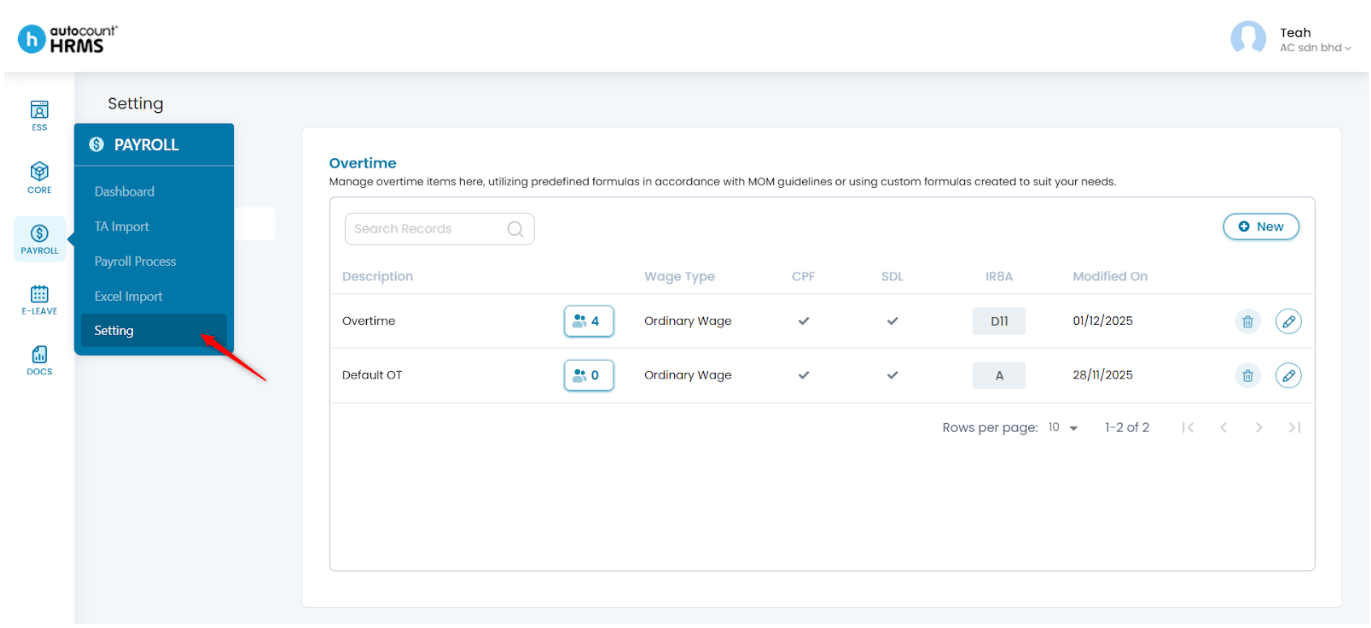
1. Go to Payroll > Settings.
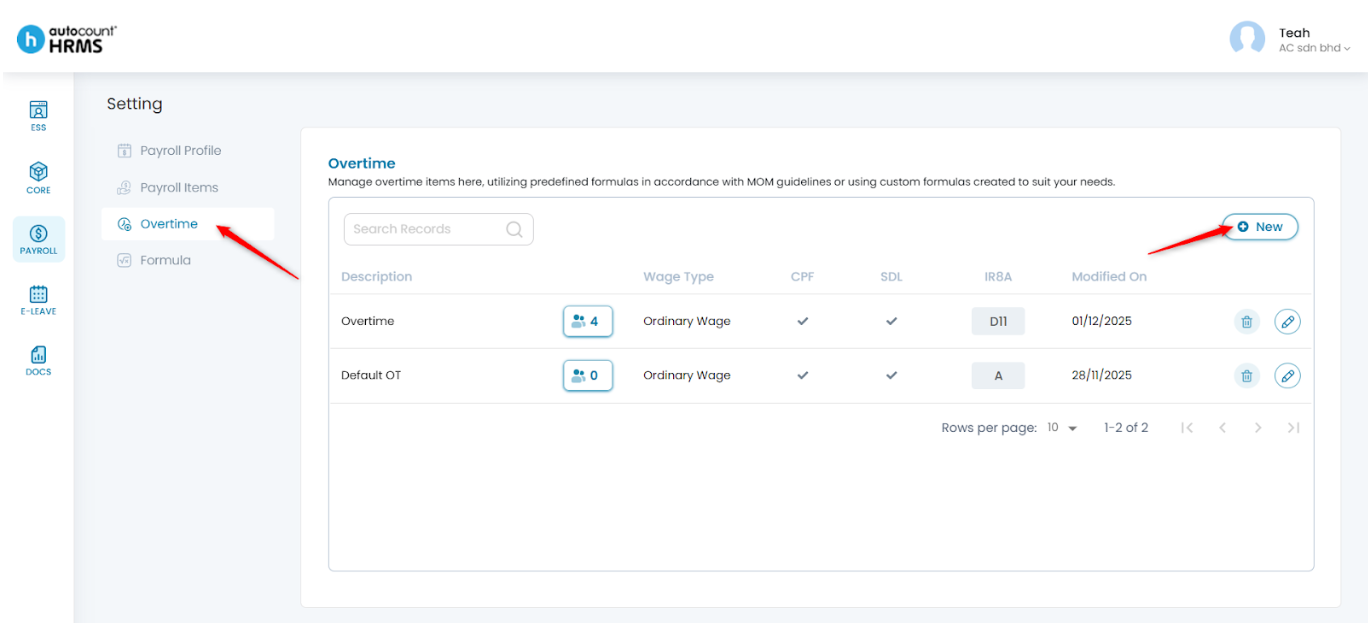
2. Under Settings, select Overtime and click New at the top right corner.
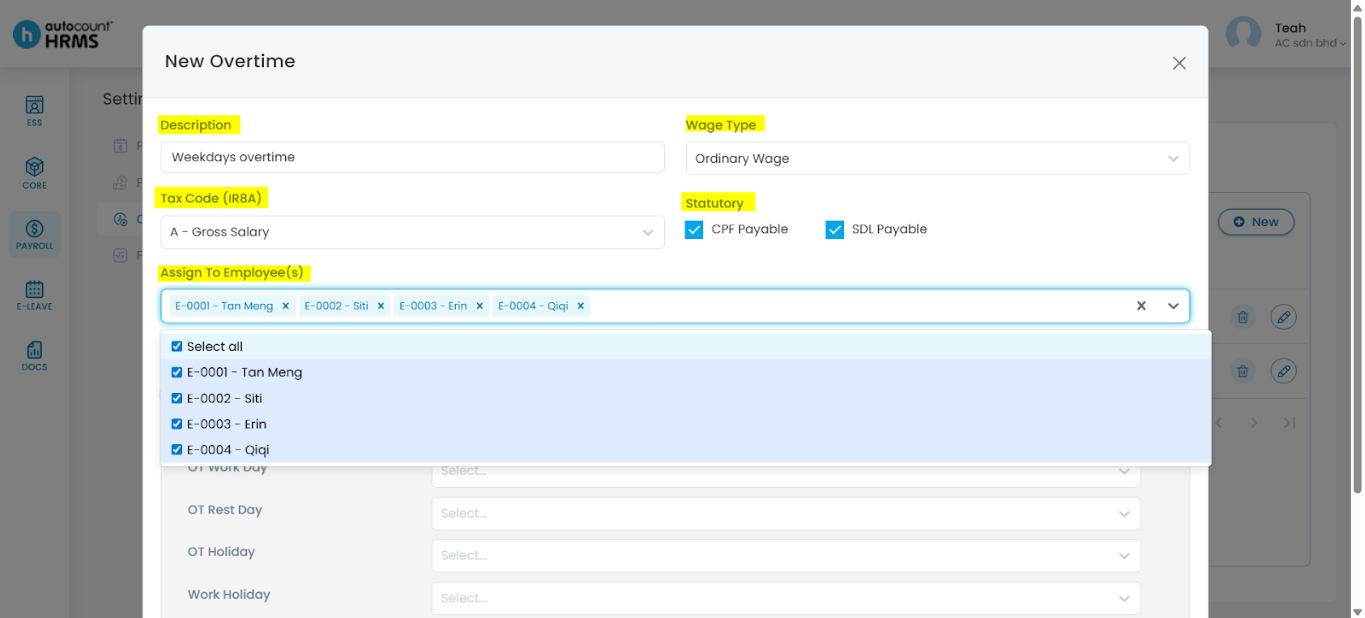
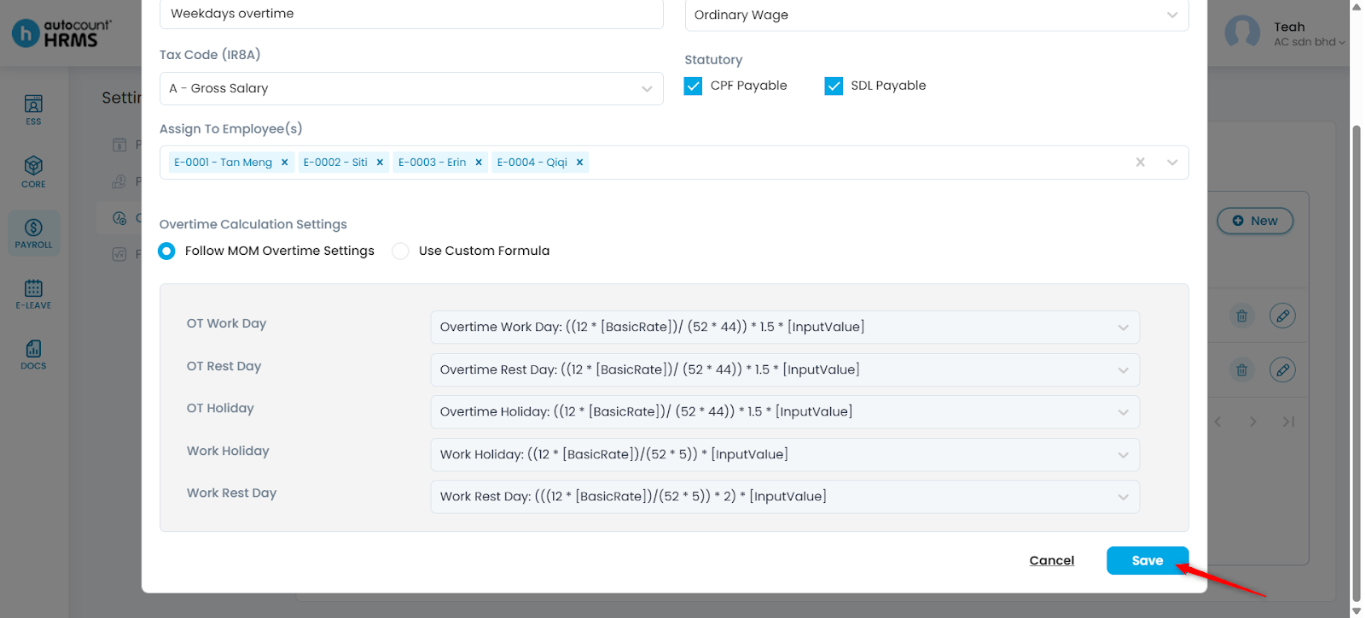
3. A New Overtime panel will appear. Complete the following fields:
- Description – Enter a short description.
- Wage Type –
- Ordinary Wage (OW) – Regular, recurring wages forming part of the employee’s monthly salary.
- Additional Wage (AW) – Non-recurring or supplemental payments.
- Tax Code (IR8A) – Select the appropriate tax code (e.g. B – Bonus, D11 – Transport). This corresponds to reporting requirements under IR8A, submitted annually to IRAS to report employees’ income details.
- Statutory – Tick the box if the item is CPF Payable and/or SDL Payable.
- Assign To Employee(s) – Select employees who are eligible for this overtime item. (Optional, cannot be edited once assigned.)
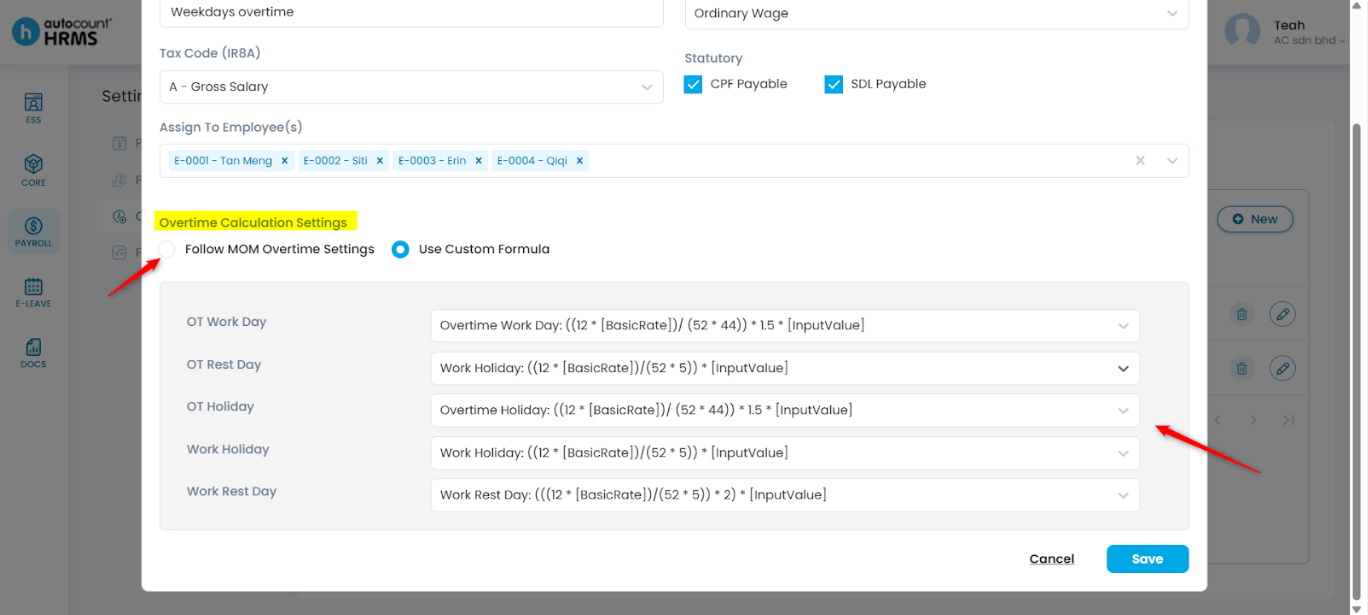
4. Choose one of the Overtime Calculation Settings:
- Follow MOM Overtime Settings – Uses MOM-required calculations; the formula cannot be edited.
- Use Custom Formula – Select a formula from the dropdown list for each field based on your company policy.
5. Click Save.
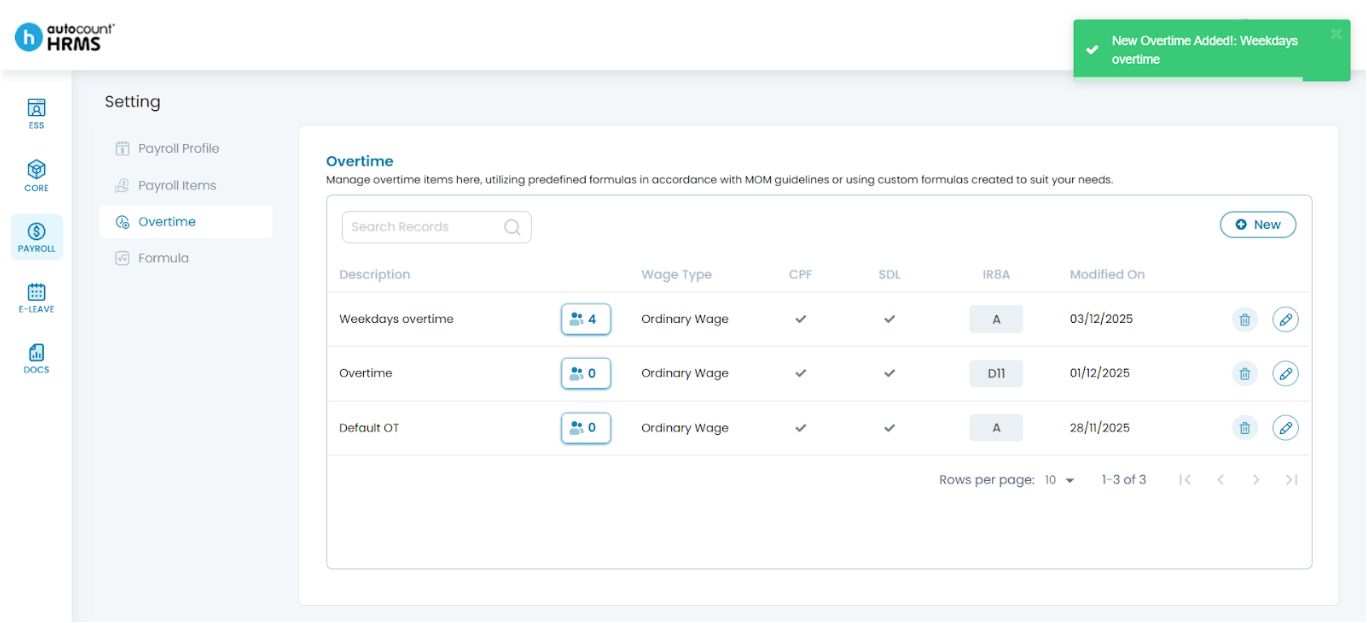
6. Once saved, the overtime item will appear in the list and can be used during payroll processing.
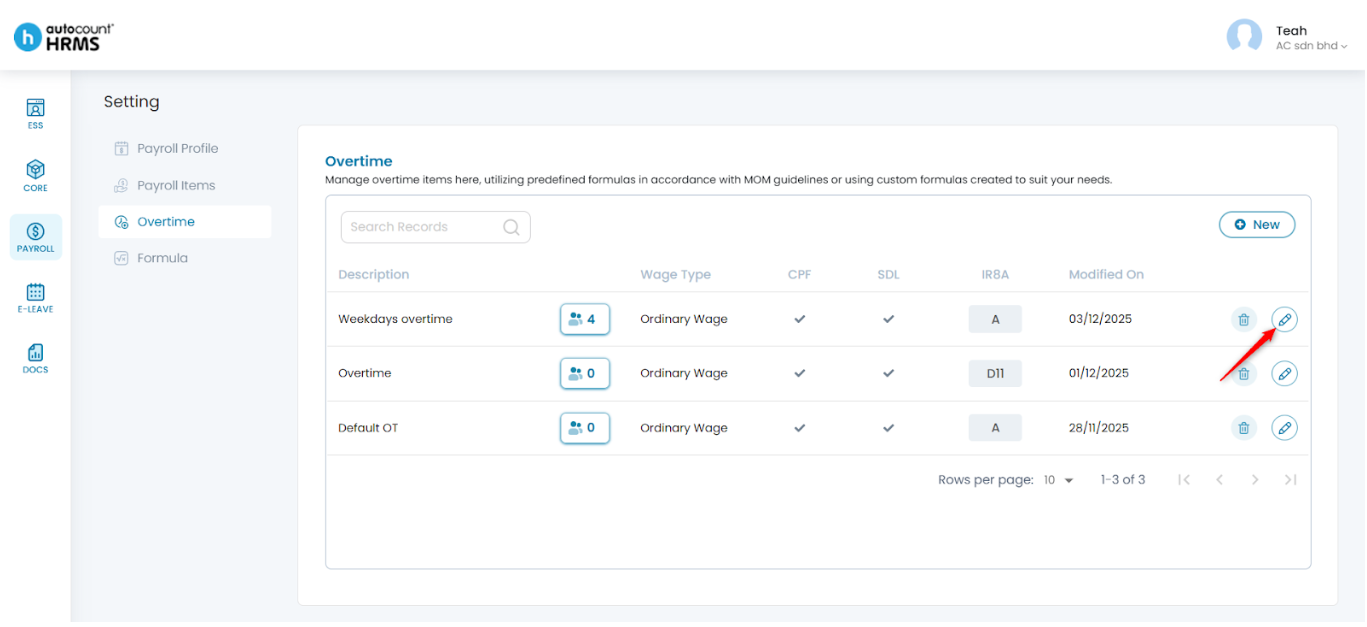
Steps to Edit an Overtime Item:
1. Click the pencil icon next to the overtime item.
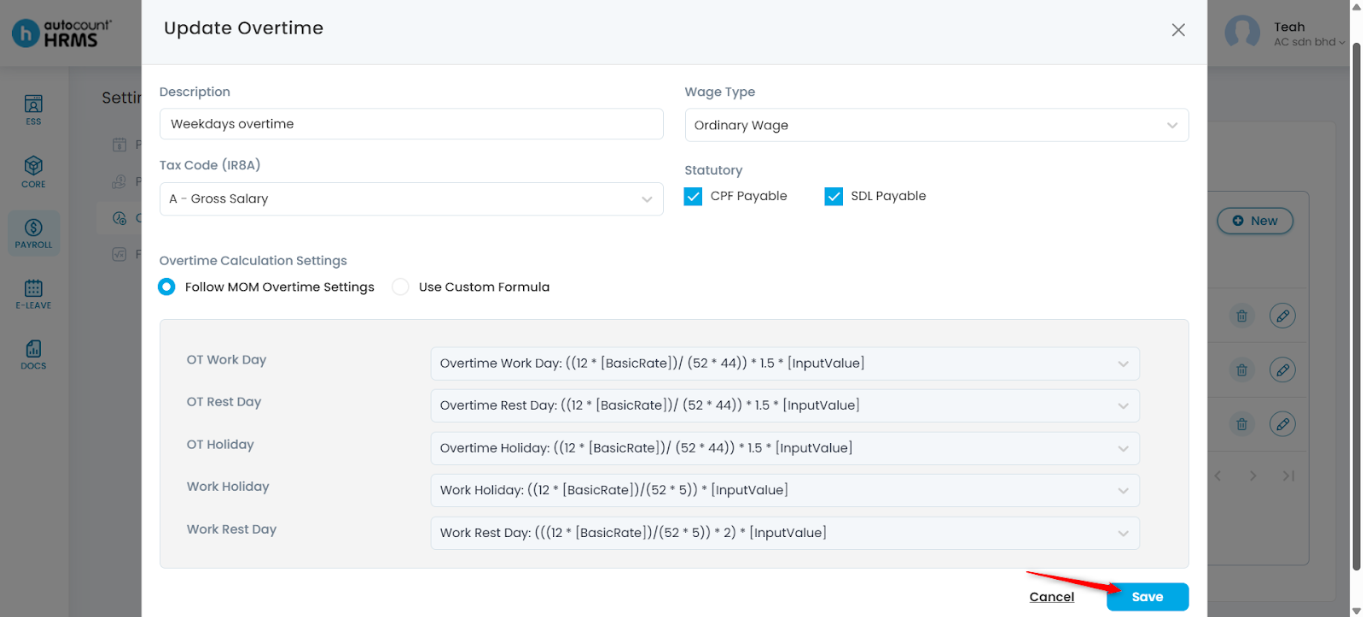
2. An Update Overtime panel will appear. Edit the required details and click Save.
Steps to Delete an Overtime Item:
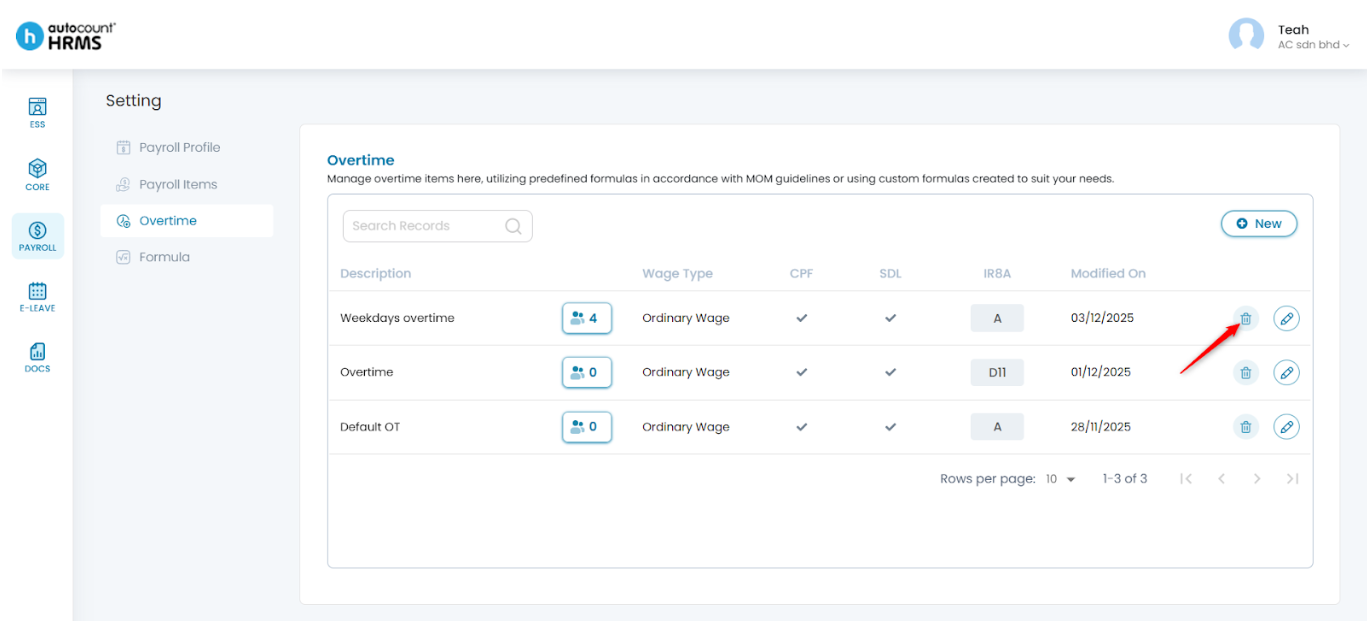
1. Click the trash bin icon next to the overtime item.
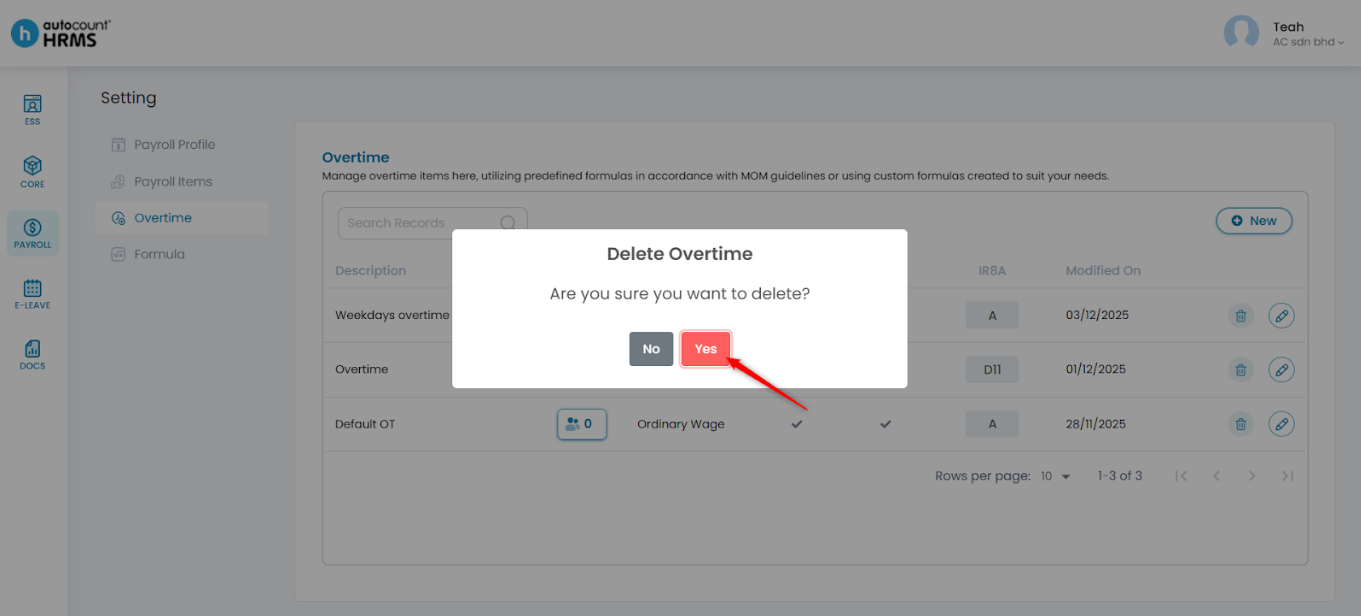
2. Click Yes to confirm the deletion.
Written by: Teah Rui Harn (20251203)
Reviewed by: Tek Ee Lin (20251208)