
An Entitlement Group allows employers to bundle multiple Leave Types and assign them to employees based on eligibility or company policy. Employees assigned to an Entitlement Group can only apply for the leave types included in that group.
Each employee can be assigned only one entitlement group.
Steps to Add a New Entitlement Group:
1. Go to E-Leave > Setting.
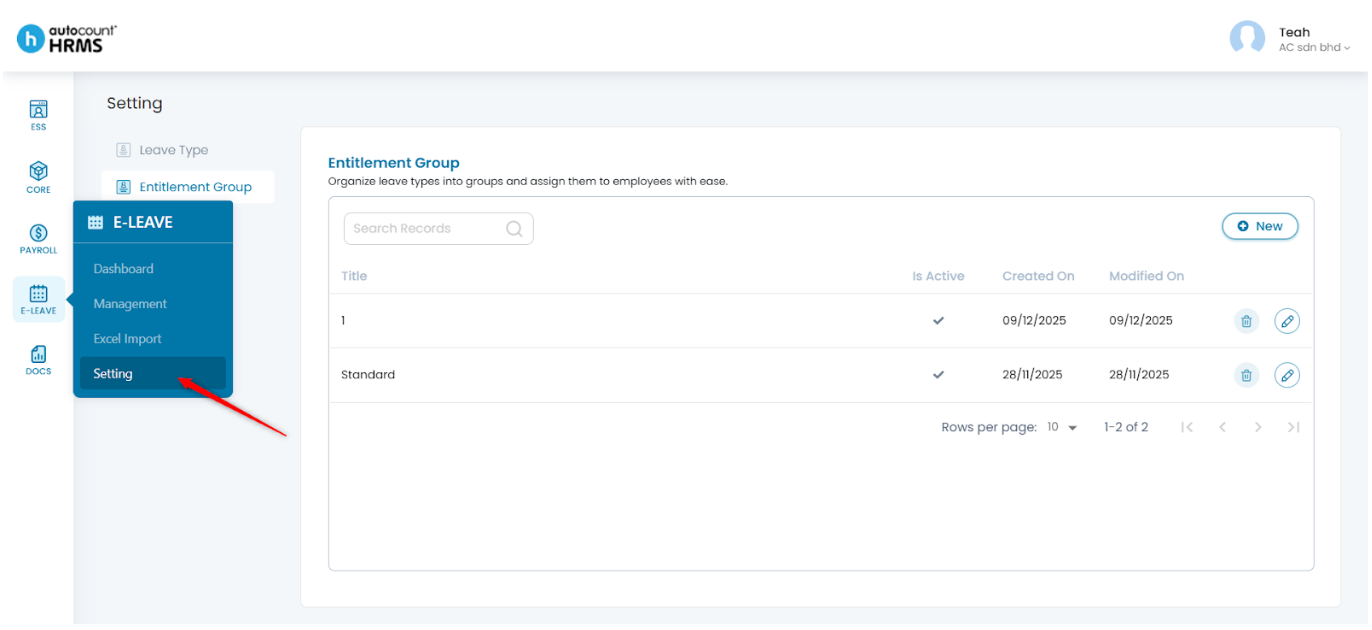
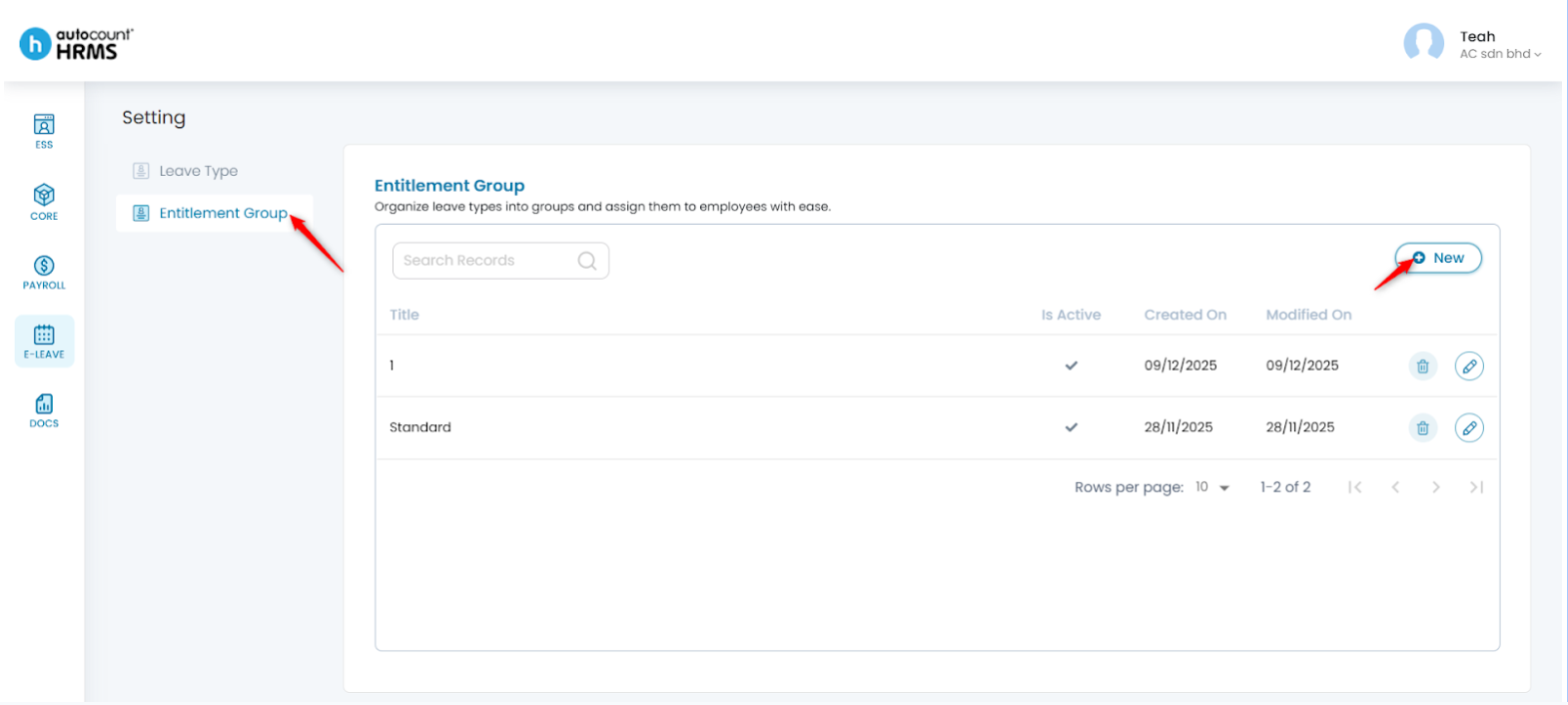
2. Under Setting, select Entitlement Group, then click New.
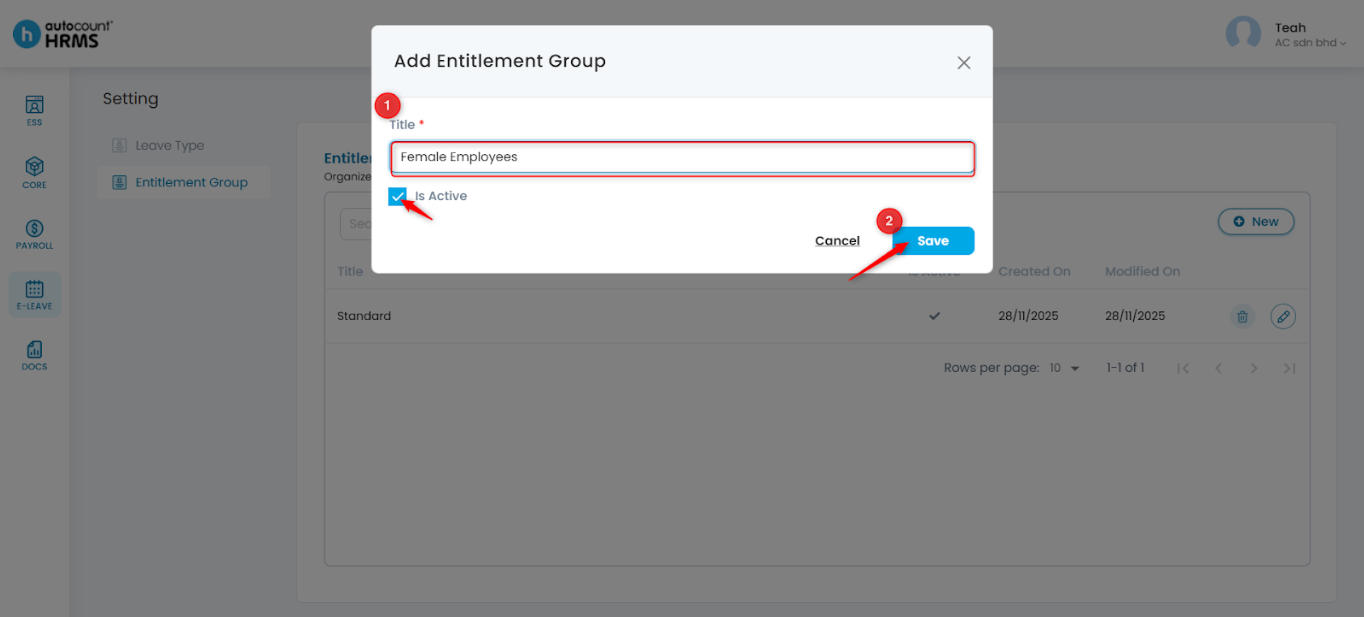
3. Enter the Group Title, tick Is Active and click Save.
4. You will be redirected to the group details page. Enter the required details:
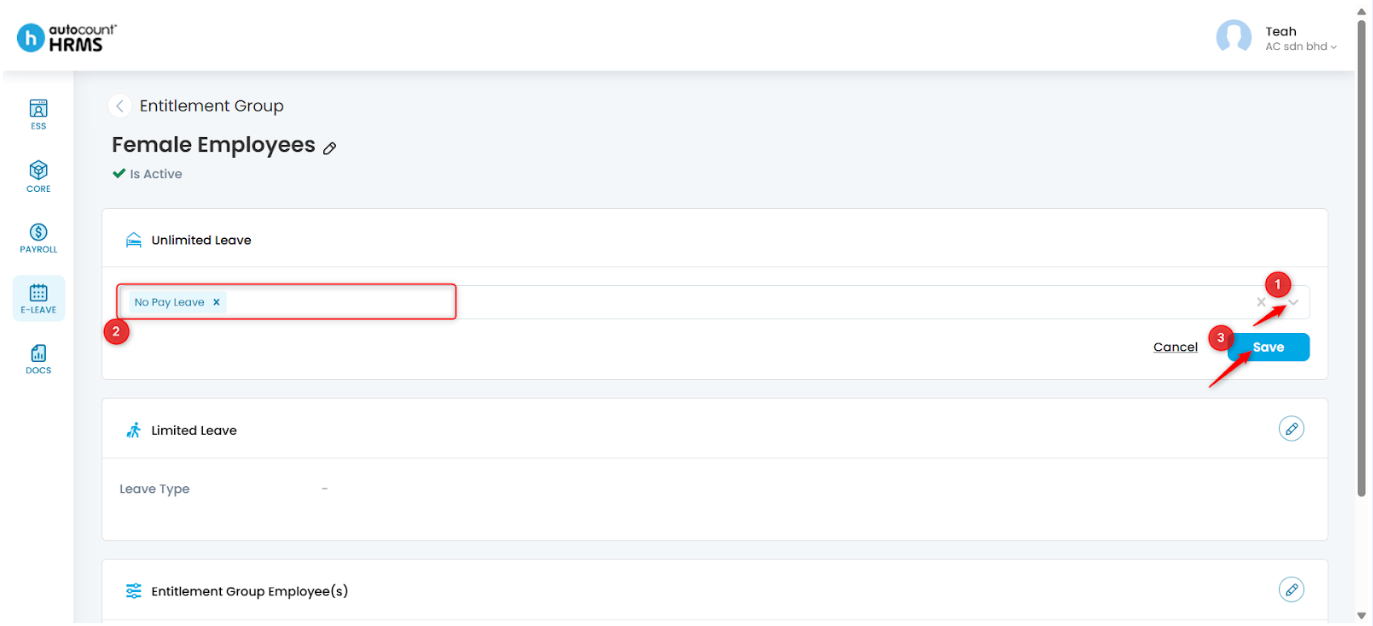
- Unlimited Leave –
i. Click the pencil icon next to Unlimited Leave.
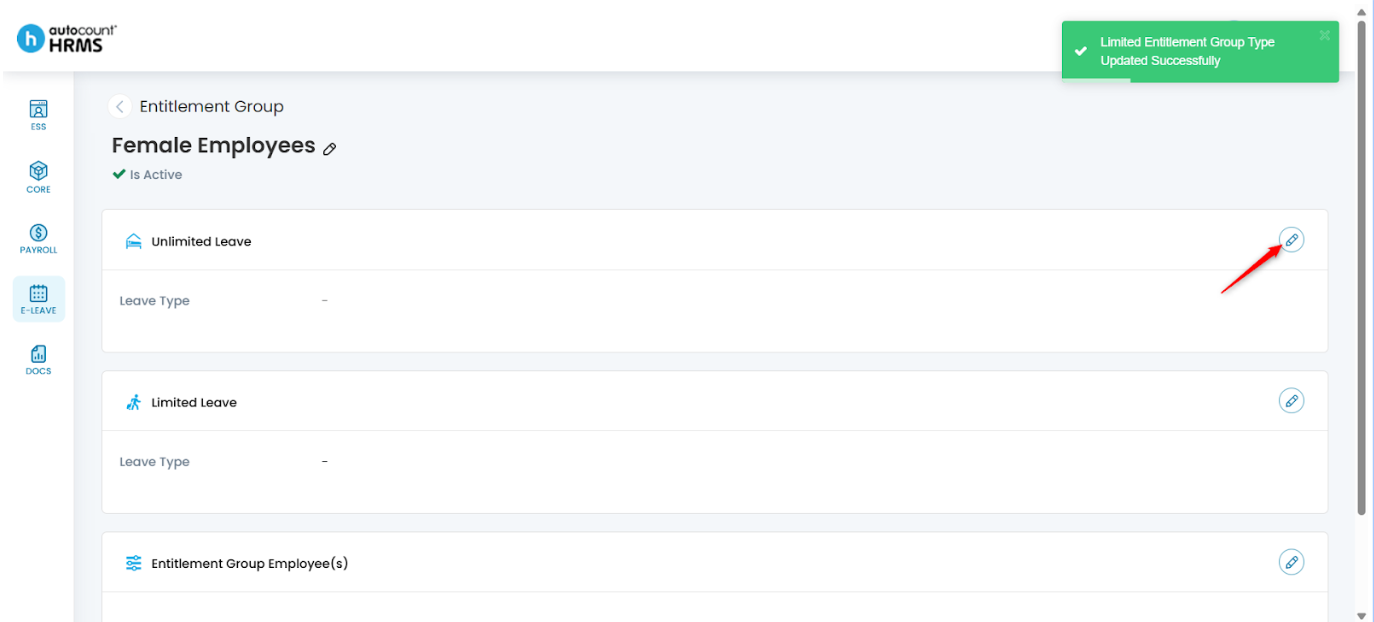
ii. Select Leave Type(s) from the dropdown list (e.g., No Pay Leave). Then, click Save.
- Limited Leave –
i. Click the pencil icon next to Limited Leave.
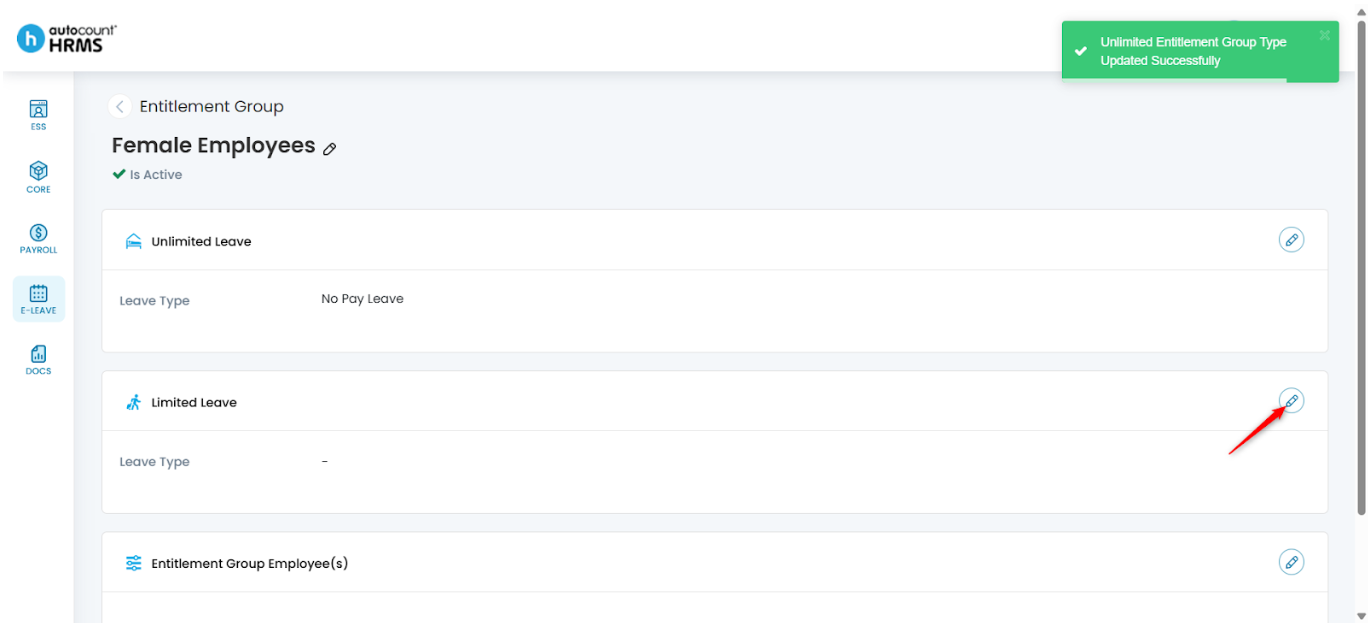
ii. Select the applicable Leave Type(s) from the dropdown list.
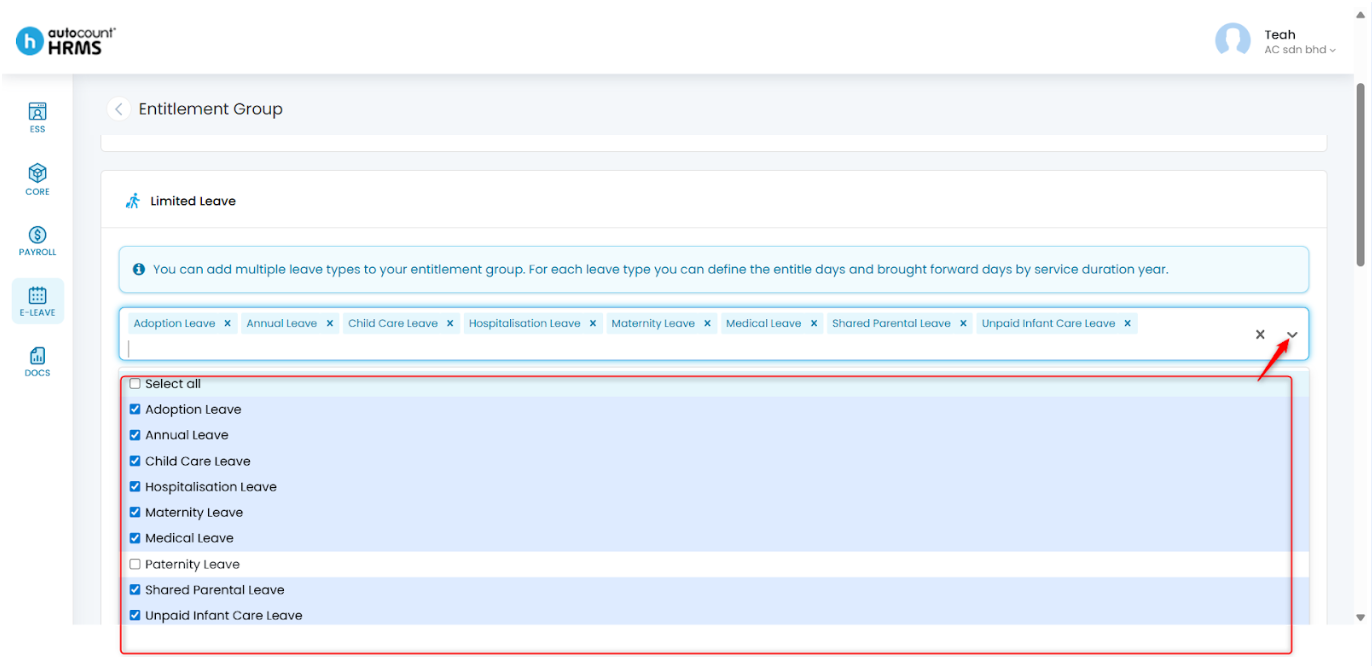
iii. For each limited leave type, click New to define the entitlement details.
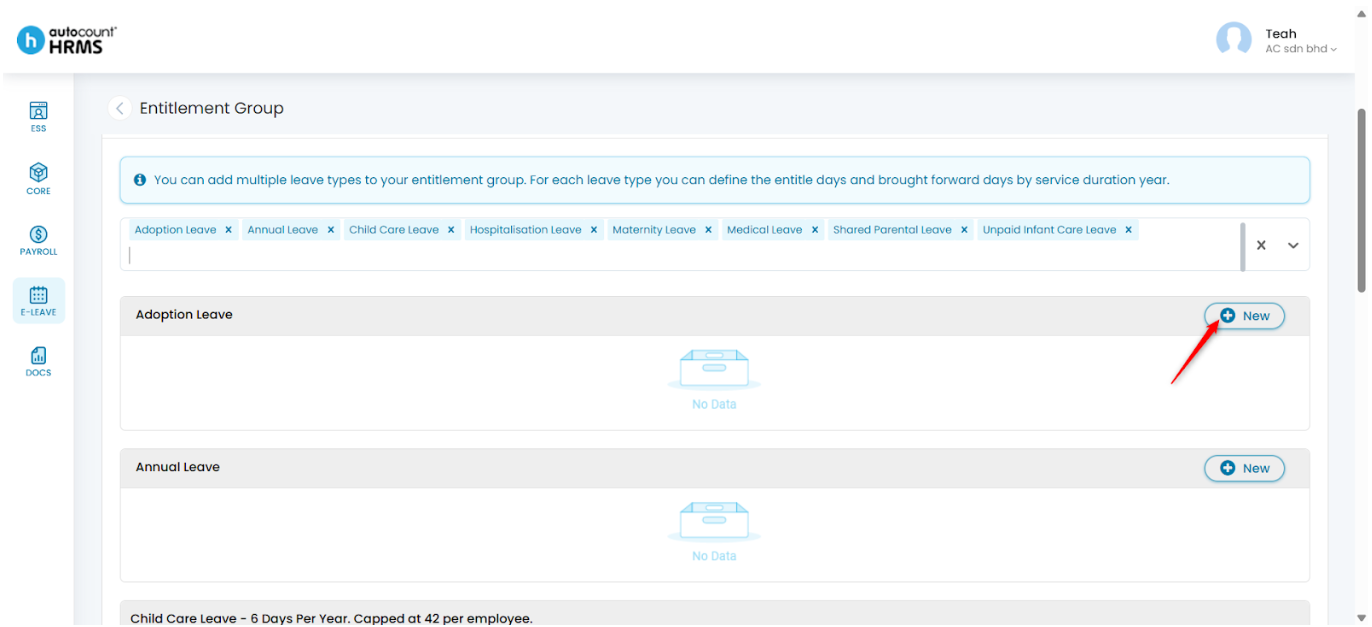
iv. Fill in the following details, then click Update:
- Service Year From > – The starting year the employee becomes eligible.
- Service Year To < = – The final year the employee remains eligible.
- Entitled Days – Number of days allowed for the leave type.
- BF Days – Number of unused days that can be brought forward.
- Expired Date – Final date to utilise brought forward leave.
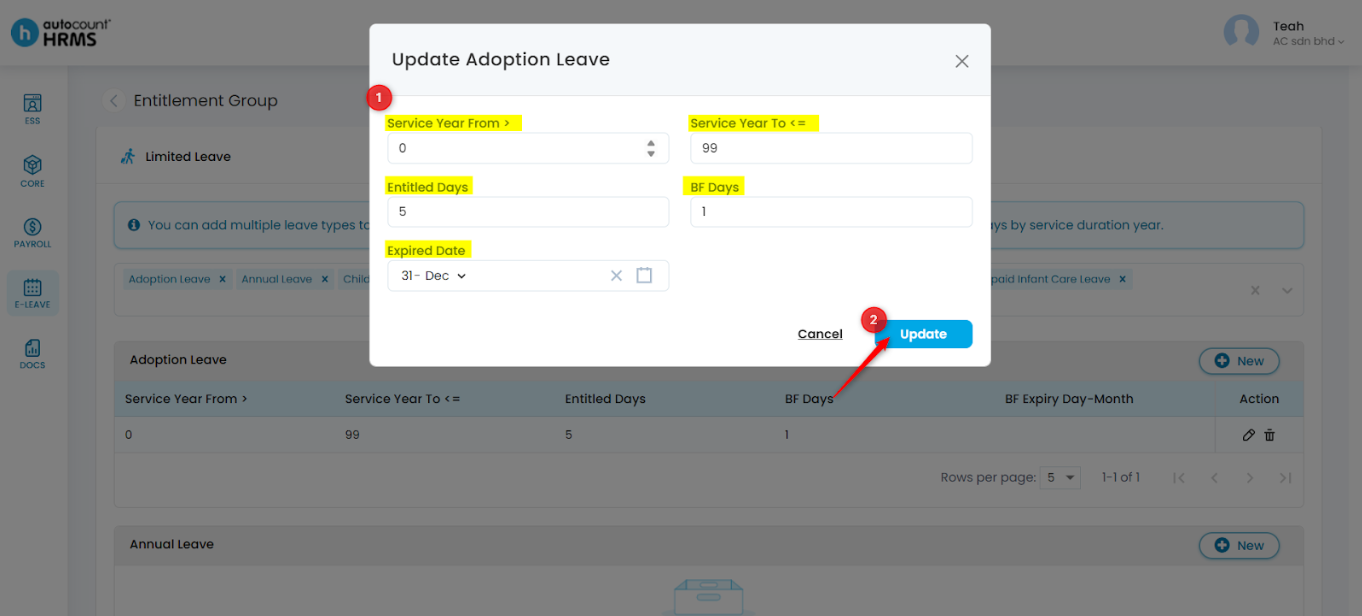
v. You may preview the entries:
- To edit, click the pencil icon.
- To delete, click the trash bin icon.
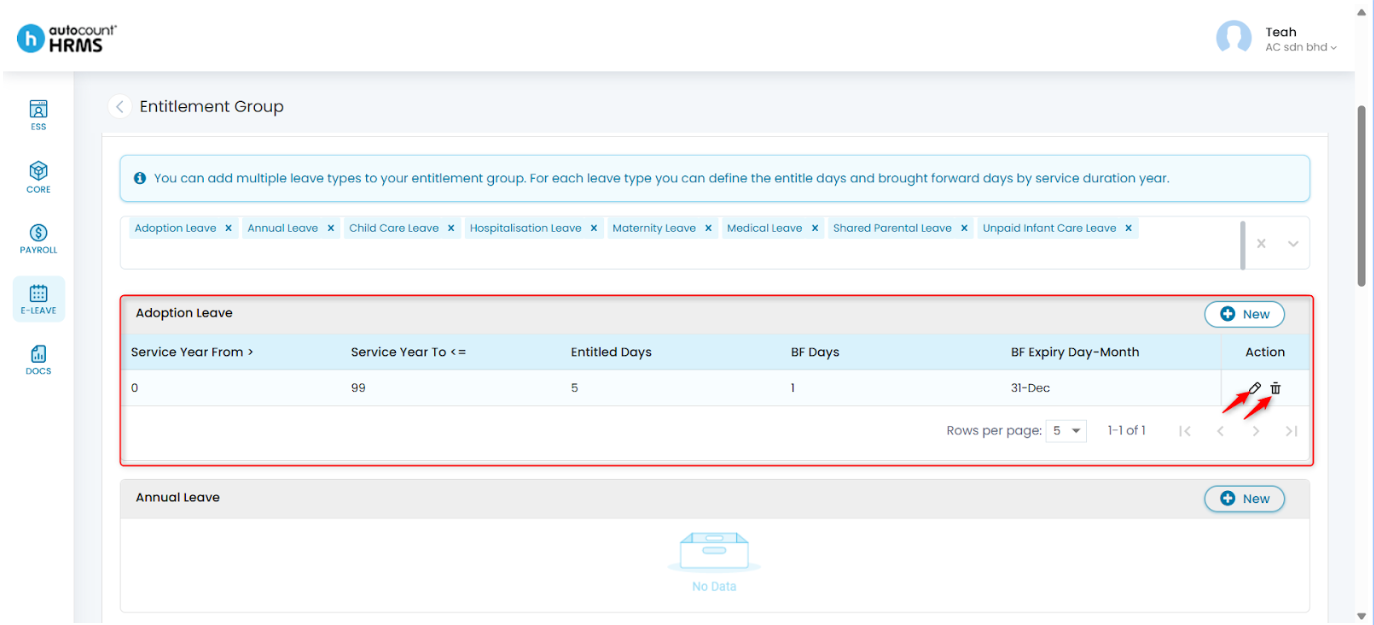
vi. Click Save once all configurations are completed.
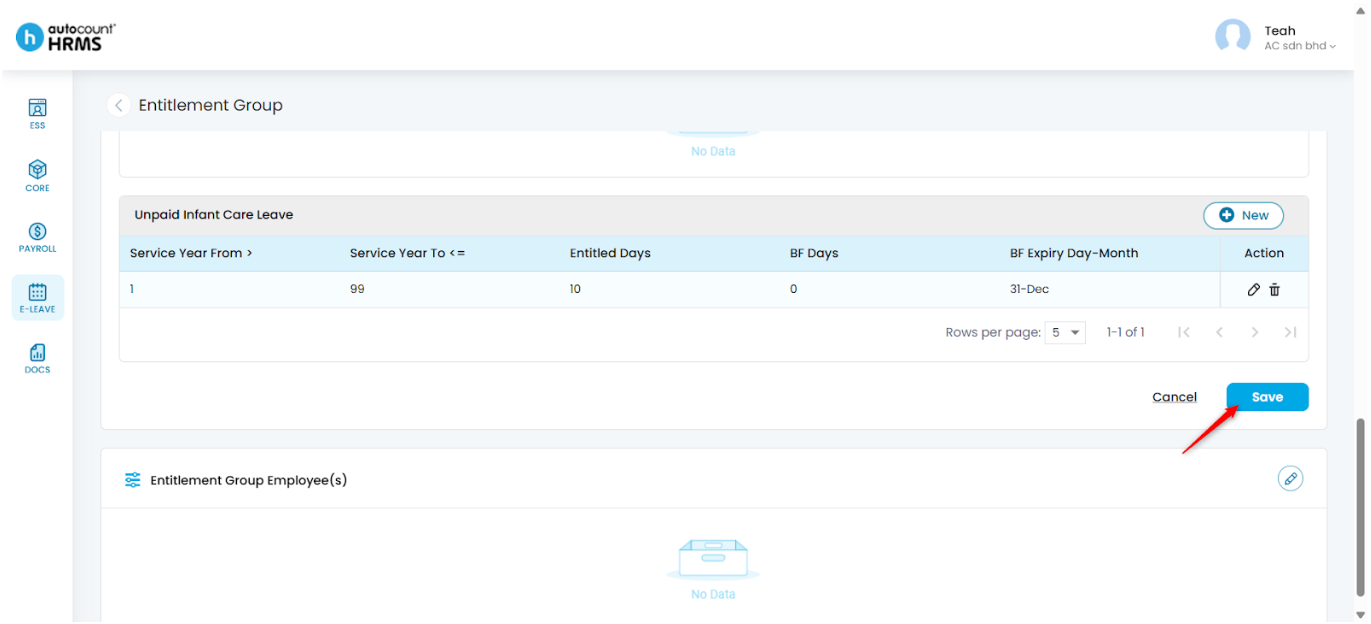
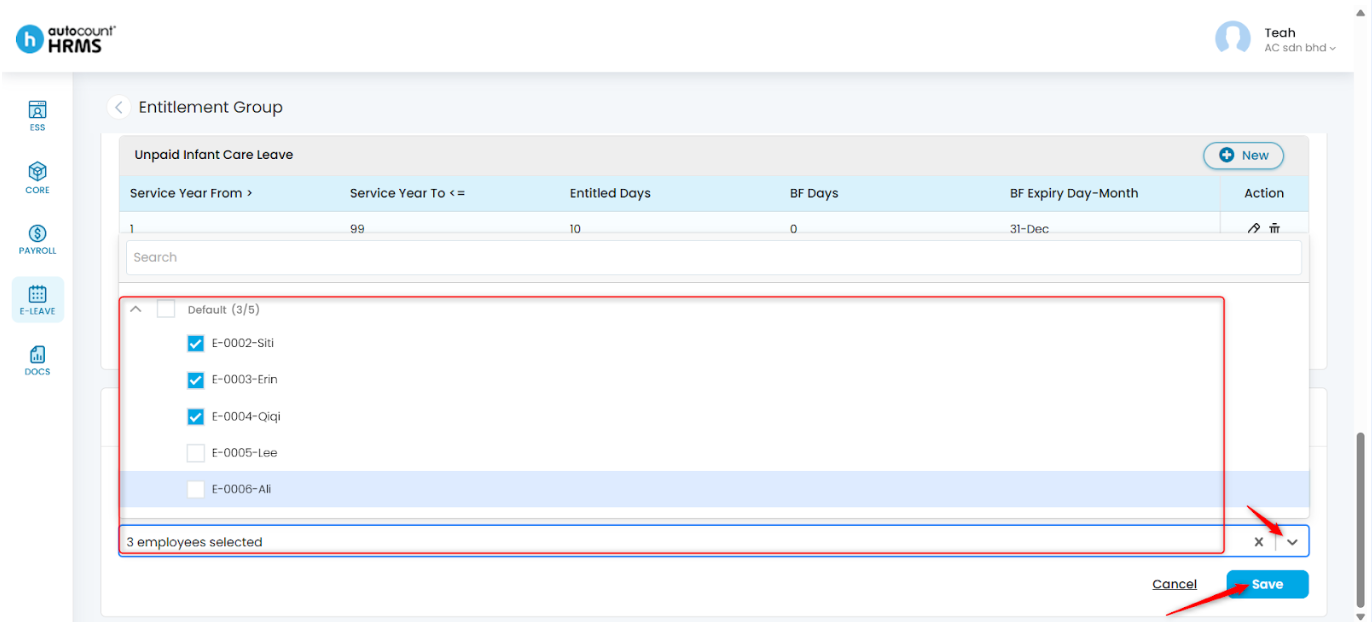
- Entitlement Group Employee(s)
i. Click the pencil icon next to Entitlement Group Employee(s).
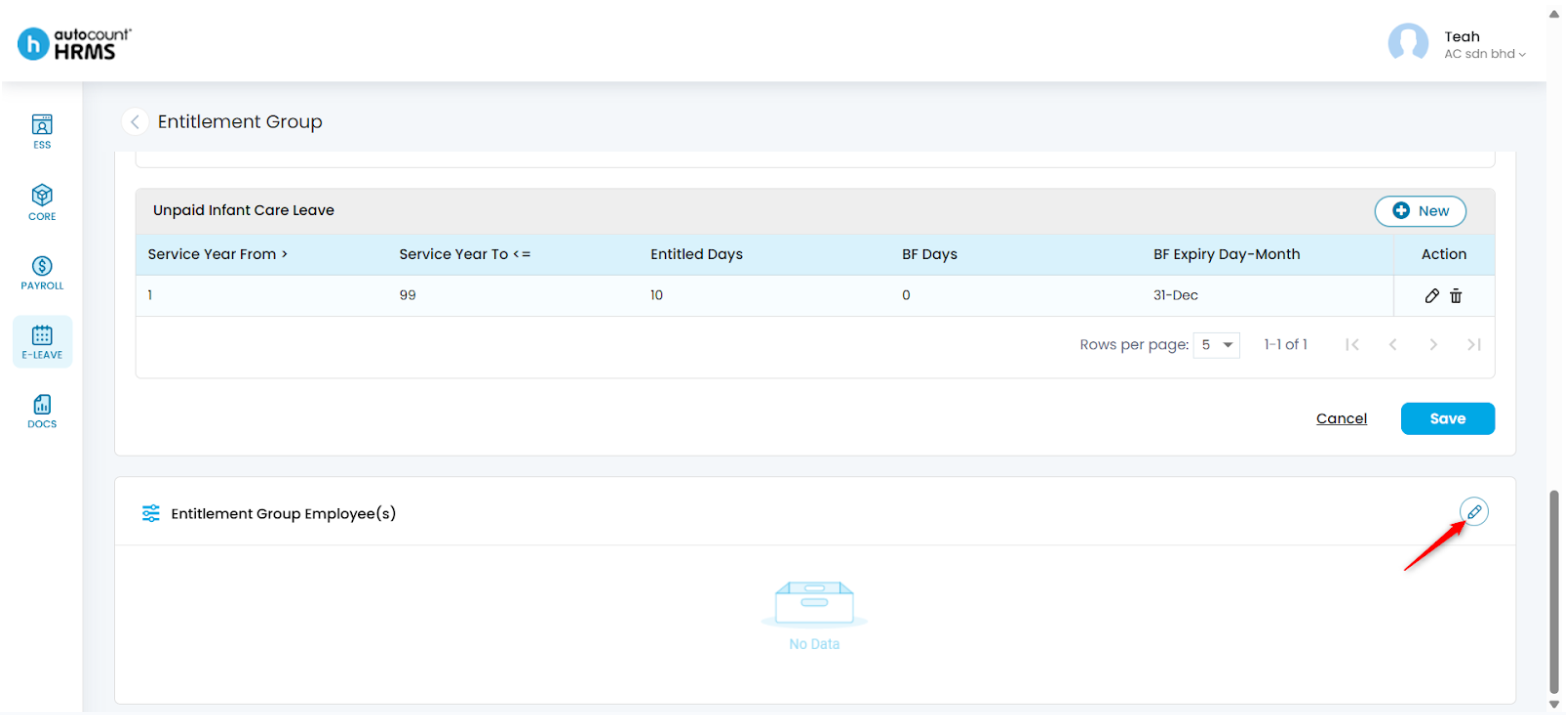
ii. Select the employee(s) to be assigned to this group. Click Save.
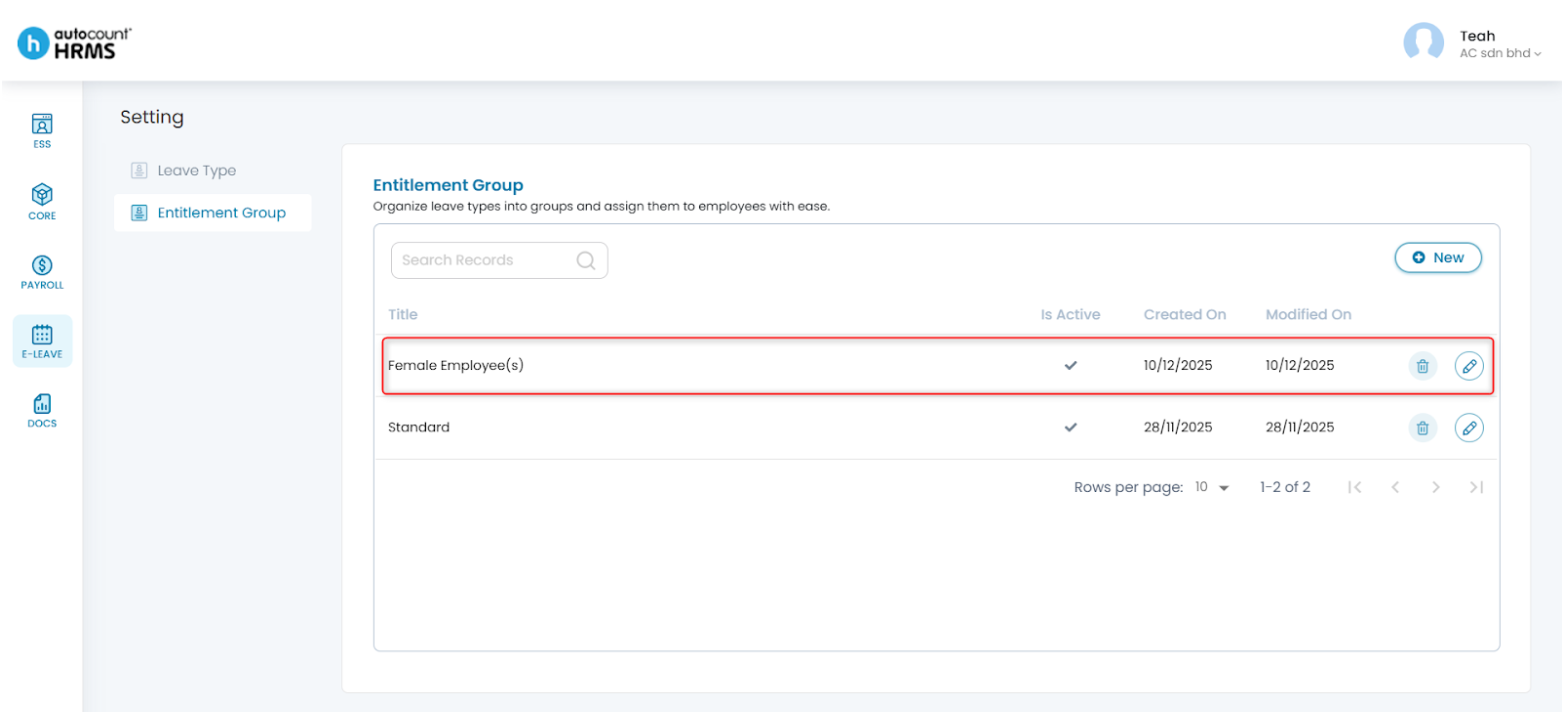
5. Return to the Entitlement Group page to review the newly created group. To edit the group, click the pencil icon, make the adjustments, and click Save.
Note: To add or remove Leave Types within the Limited or Unlimited categories, go to E-Leave > Setting > Leave Type. (See Leave Type)
You may update the field “How would this leave entitlement be calculated?” to adjust the leave type category (Limited or Unlimited).
Steps to Delete an Entitlement Group:
Note: Entitlement Groups that are assigned to an employee cannot be deleted.
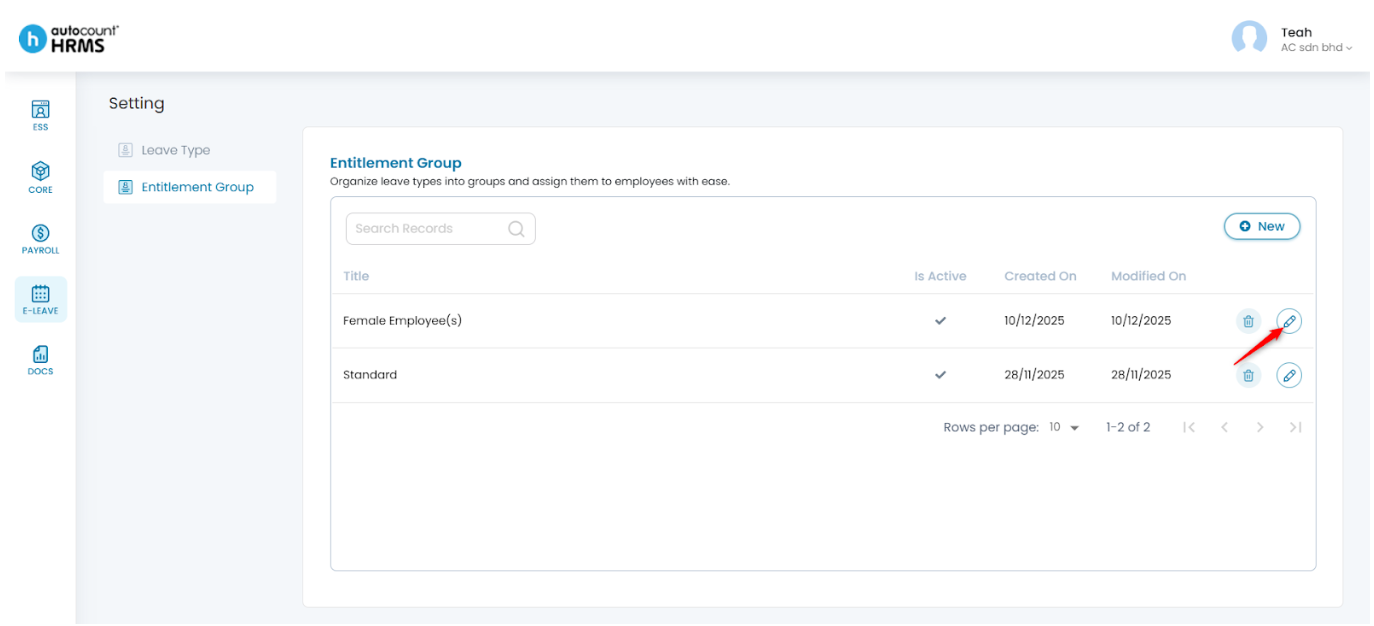
- Click the pencil icon to open the group.
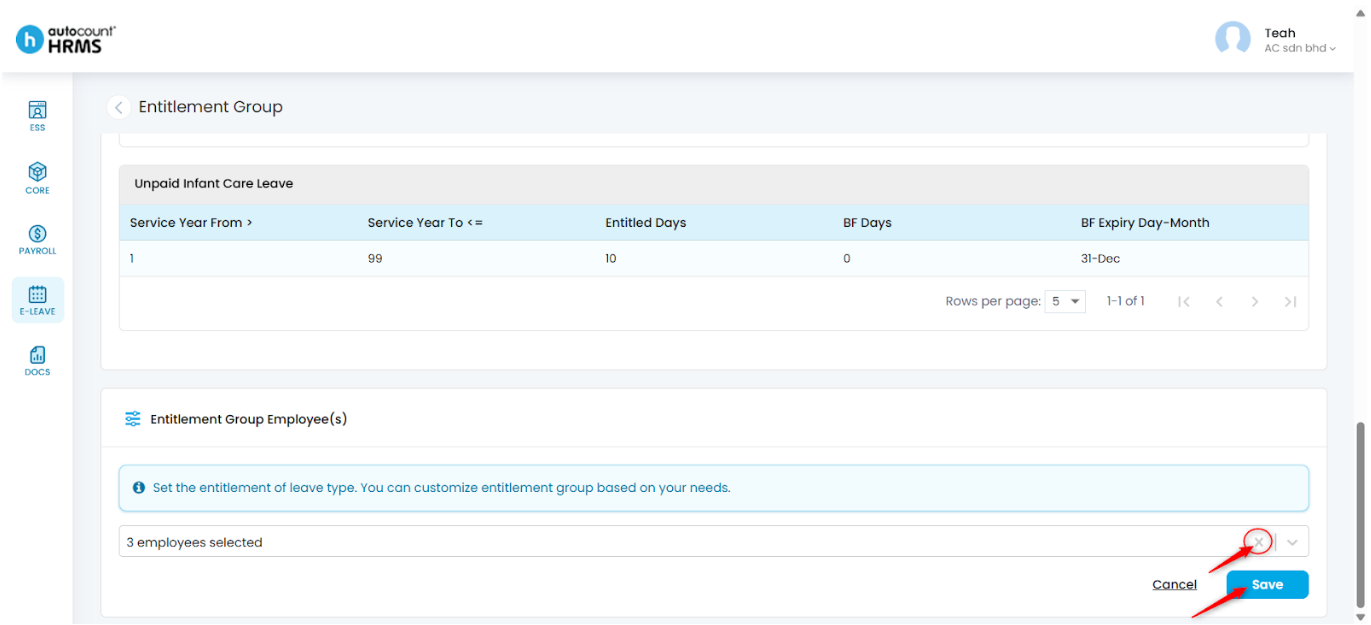
2. Under Entitlement Group Employee(s), click the pencil icon.
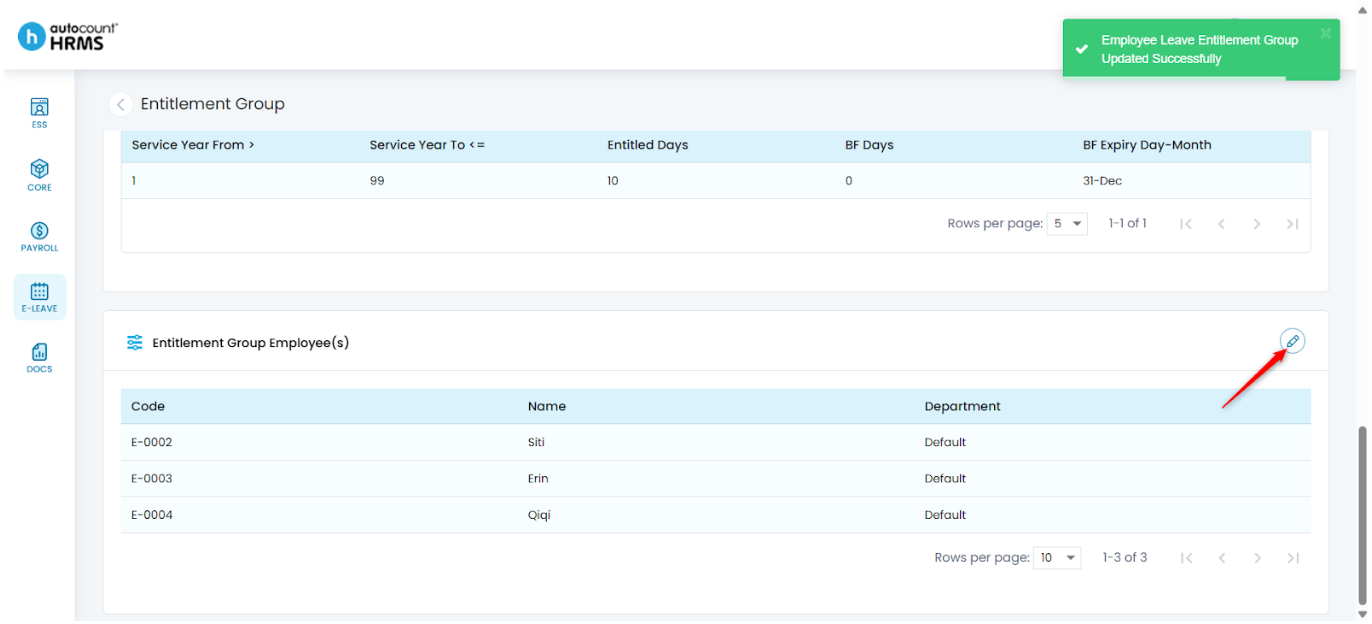
3. Click the cross icon to remove the assigned employee(s), then click Save.
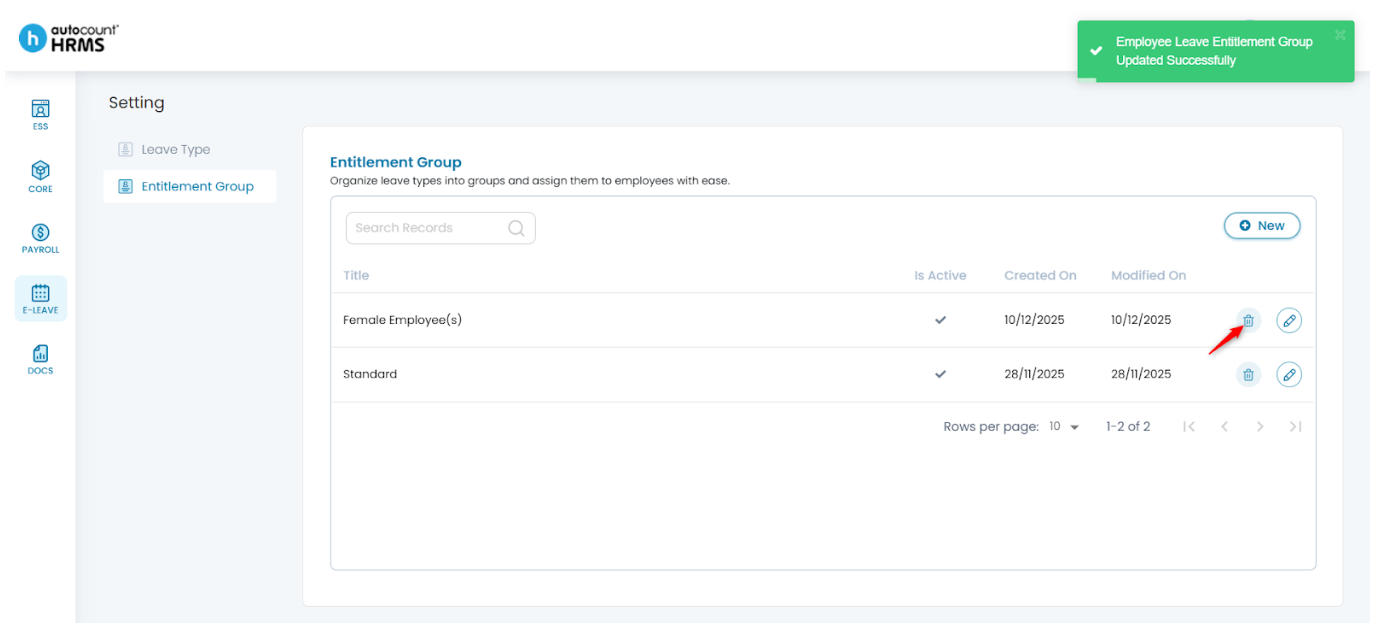
4. Return to the Entitlement Group page and click the trash bin icon.
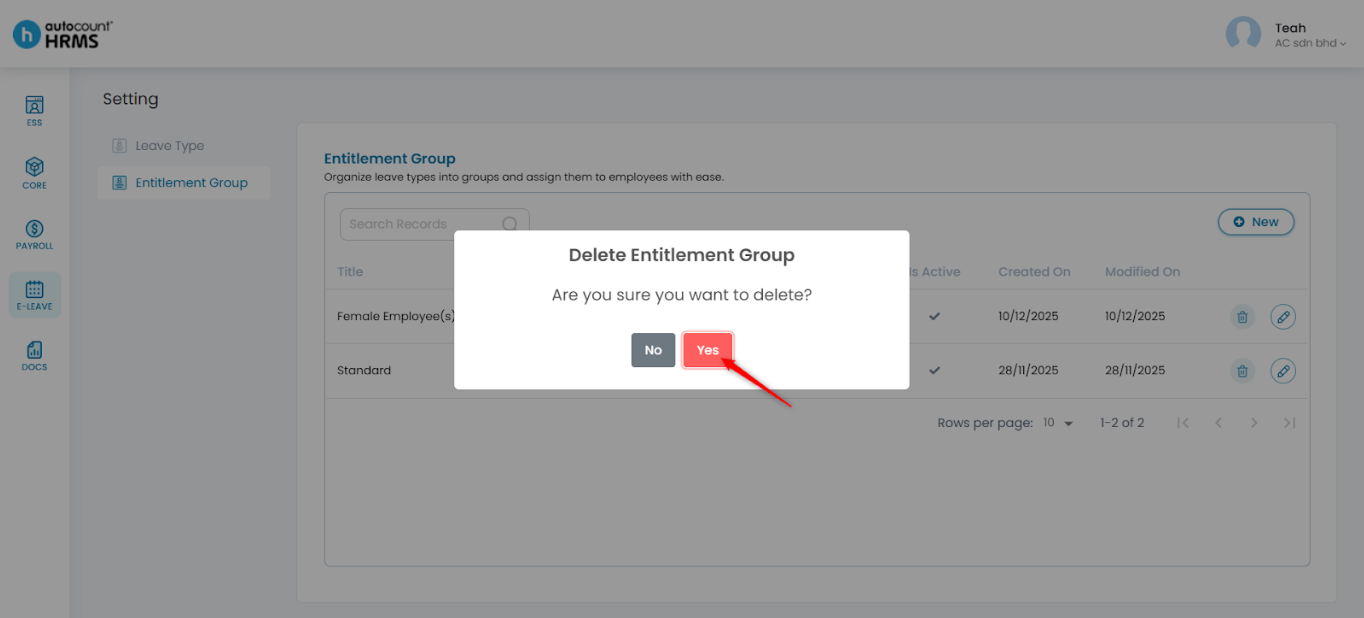
5. Click Yes to confirm deletion.
Written by: Teah Rui Harn (20251211)
Reviewed by: Tek Ee Lin (20251212)