
After selecting a HR letter template, employers can customise the letter using the toolbar options described below.
A. File
Use the File tab to manage HR letters and forms.
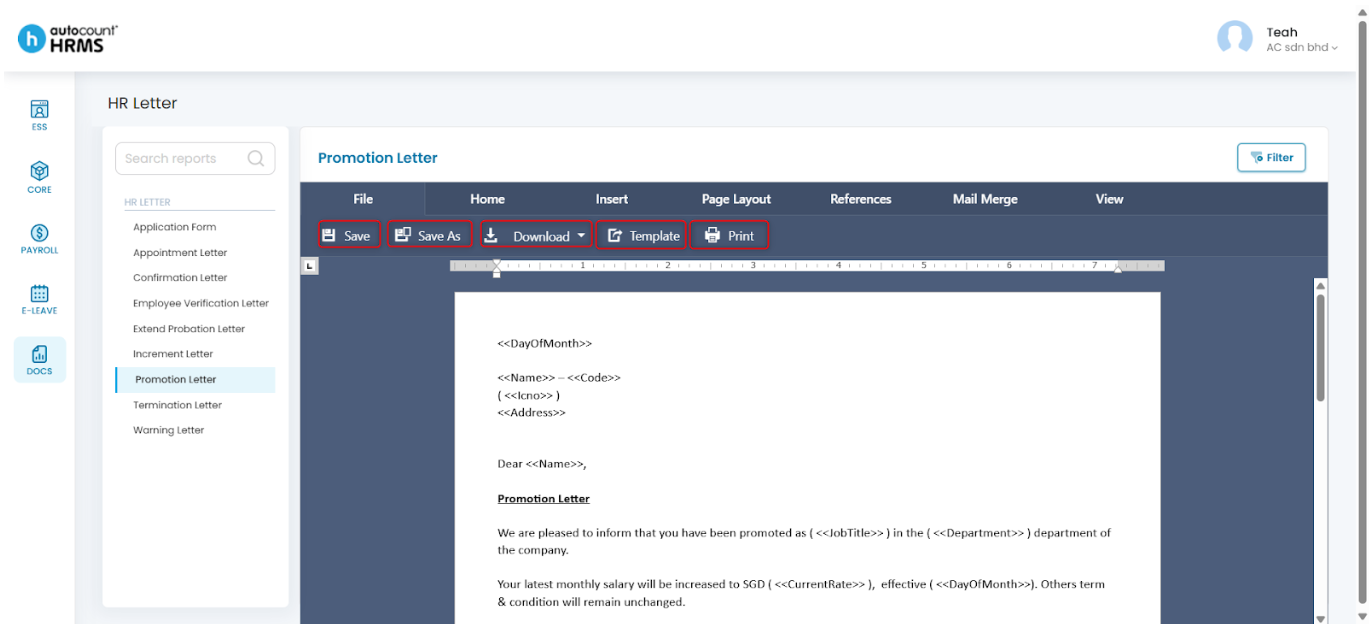
- Save – Save changes made to edited letters or forms.
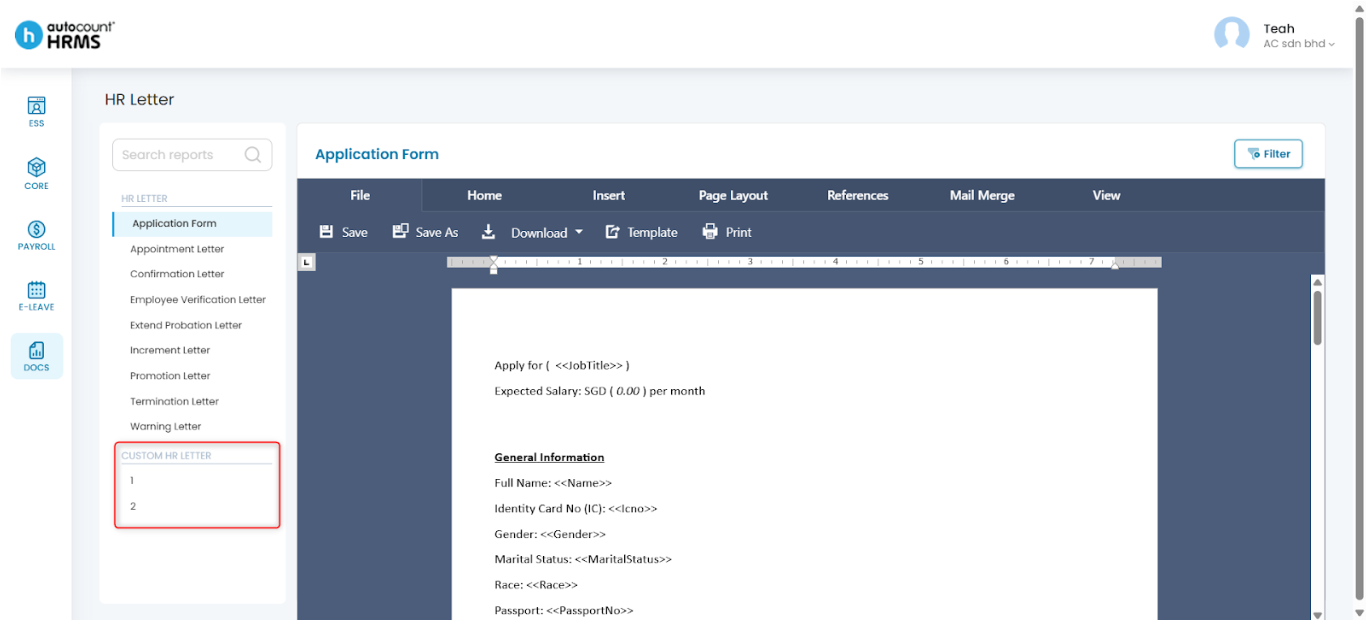
- Save As – Enter a new HR letter name and click Save. The letter will be stored under the HR Letter selection and at Docs > Report Management.
- Download – Download the letter as a Word document (*.docx) or PDF (*.pdf).
- Template – Download template.
B. Home
Use the Home tab to format text and perform basic editing tasks.
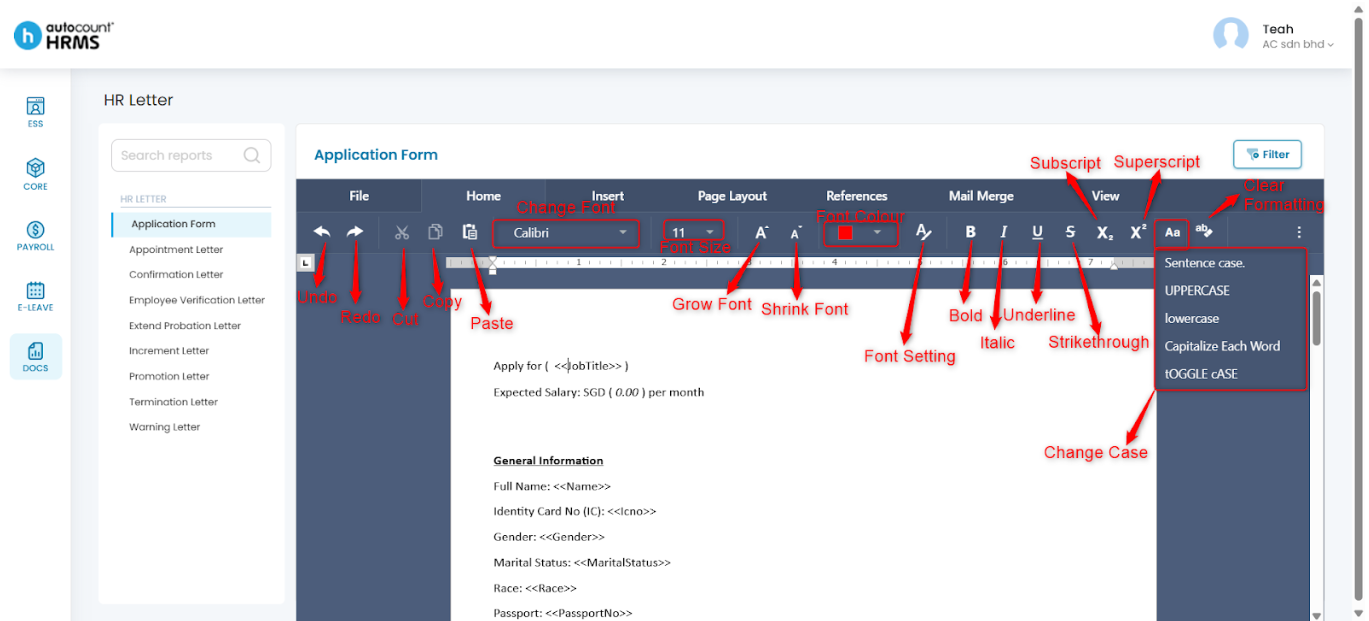
- Text case options (Aa):
- Sentence case – Capitalises only the first letter of the sentence.
- UPPERCASE – Converts all letters to uppercase.
- lowercase – Converts all letters to lowercase.
- Capitalize Each Word – Capitalises the first letter of every word.
- tOGGLE cASE – Switches between uppercase and lowercase characters.
- Erase Formatting –Restores the text to its default style.
C. Insert
Use the Insert tab to add elements and further customise the letter.
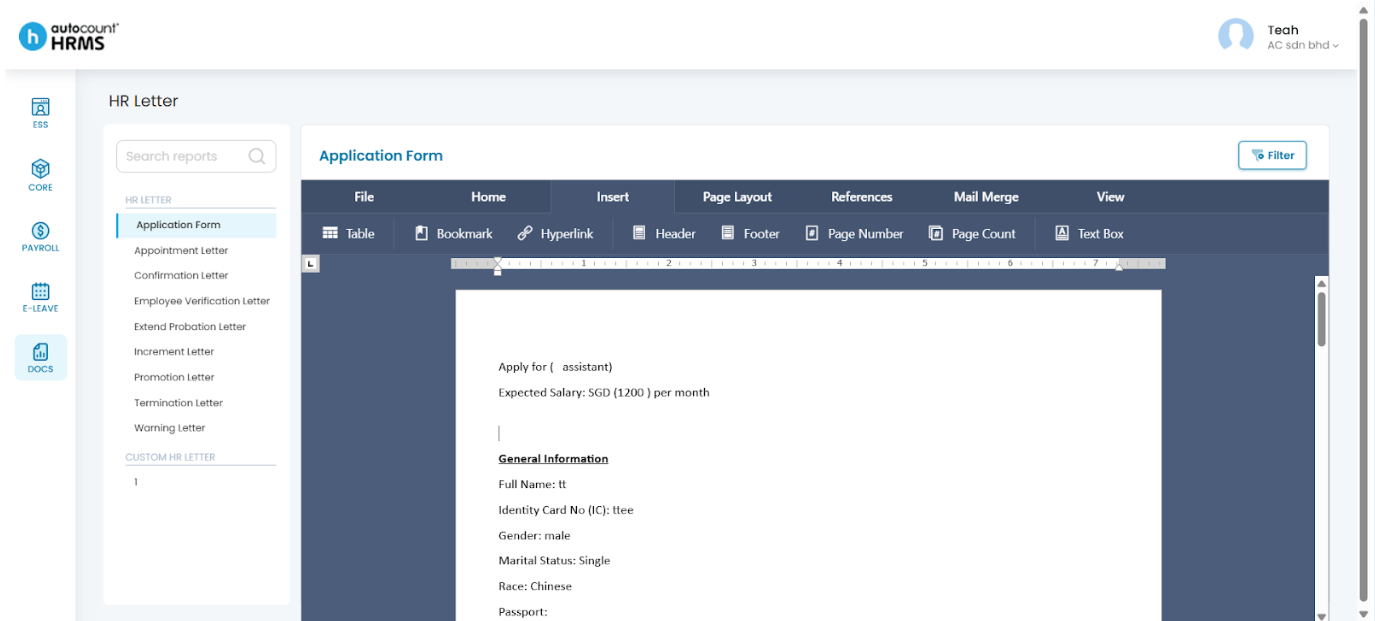
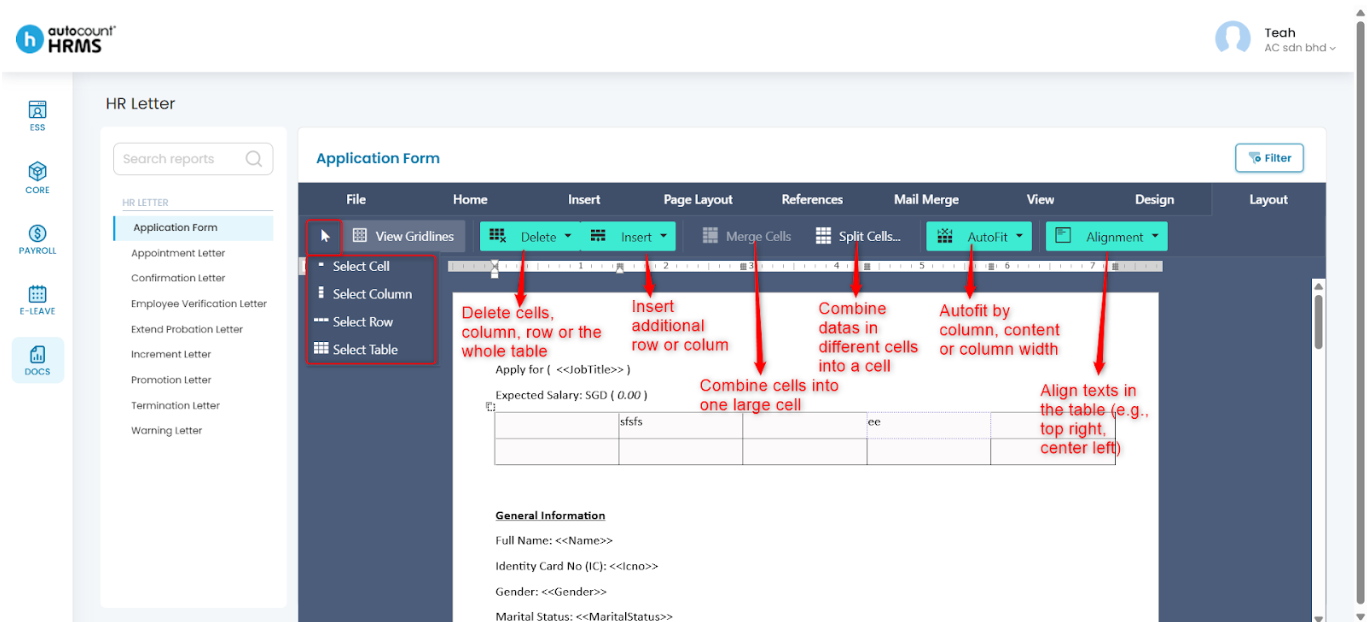
- Table – Specify the number of rows and columns, then click OK. After insertion, you may customise the table using the Table Design and Table Layout panels.
Table Design panel:
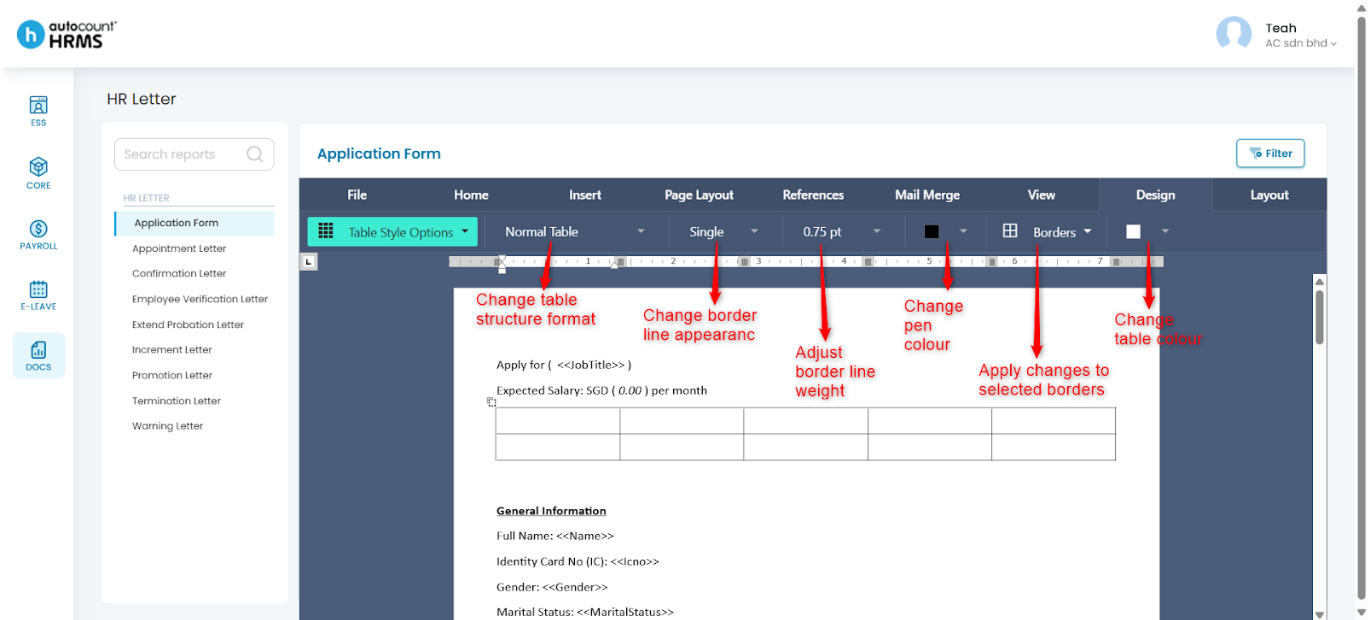
Tip: Click Borders to apply selected border settings.
Table Layout panel:
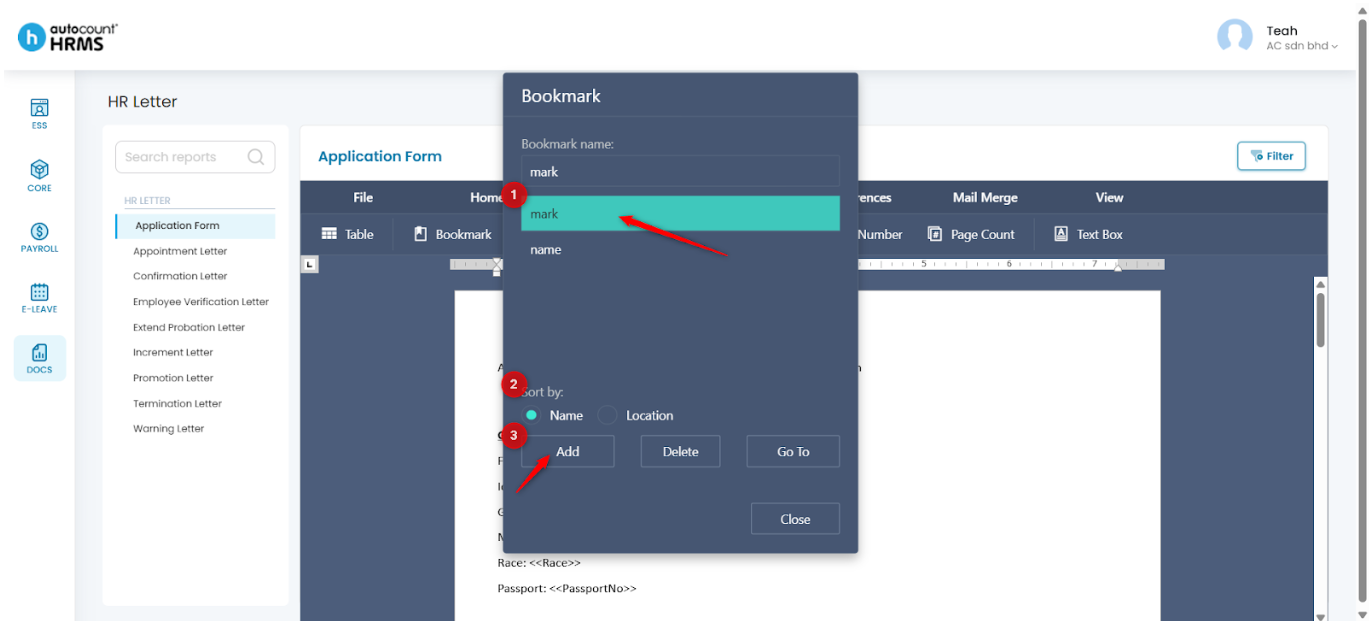
- Bookmark – Mark specific text for reference or navigation. Enter a bookmark name and choose to sort by Name or Location.
- Add – Create or update a bookmark.
- Delete – Remove a bookmark.
- Go To – Navigate to the bookmarked section.
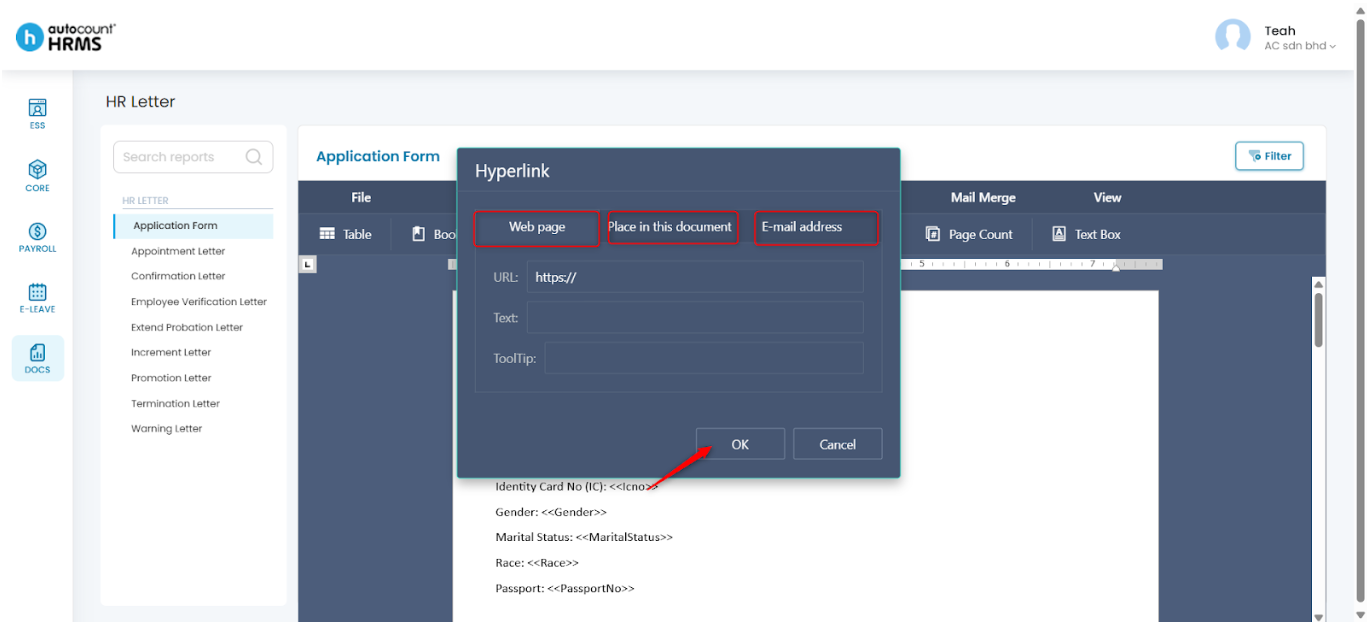
- Hyperlink – Insert links to:
- Web Page – Enter URL, display text, and tooltip.
- Place in This Document – Link to an existing bookmark.
- E-mail Address – Insert an email link.
- Header and Footer – Edit headers and footers using the Header Footer panel.
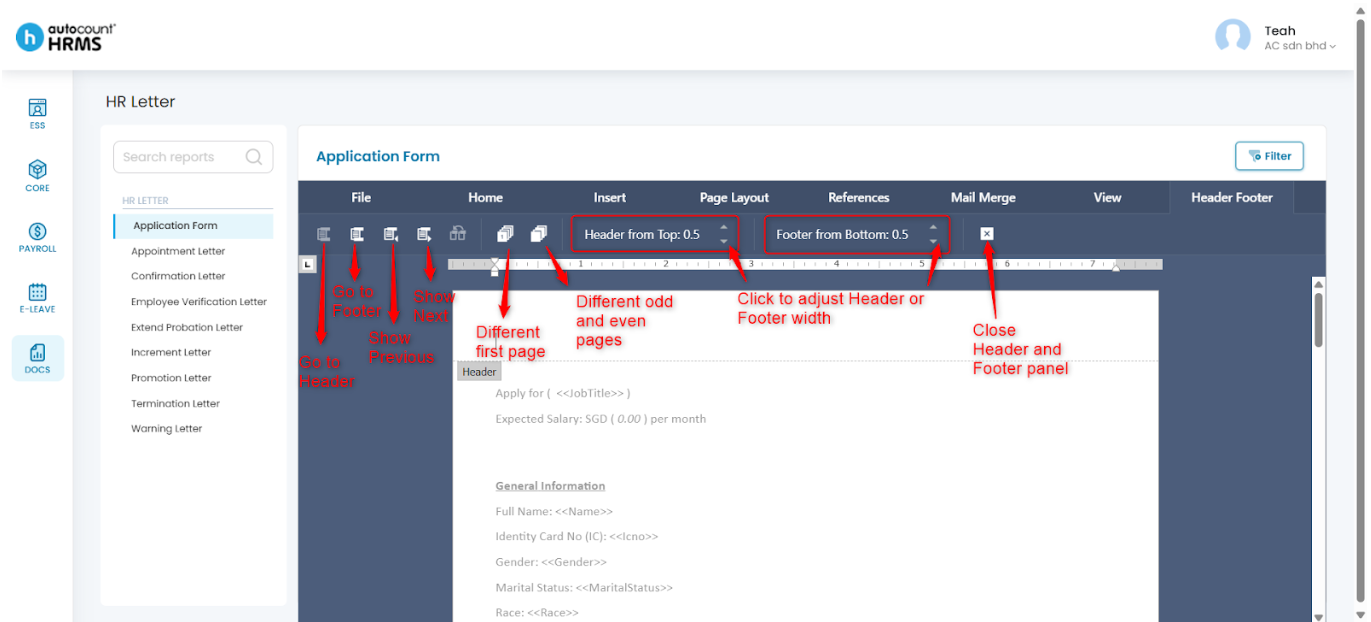
- Page Number – Place the cursor at the desired location, then insert page number.
- Page Count – Insert the total number of pages at the cursor location.
- Text Box – Format text boxes using the Format panel.
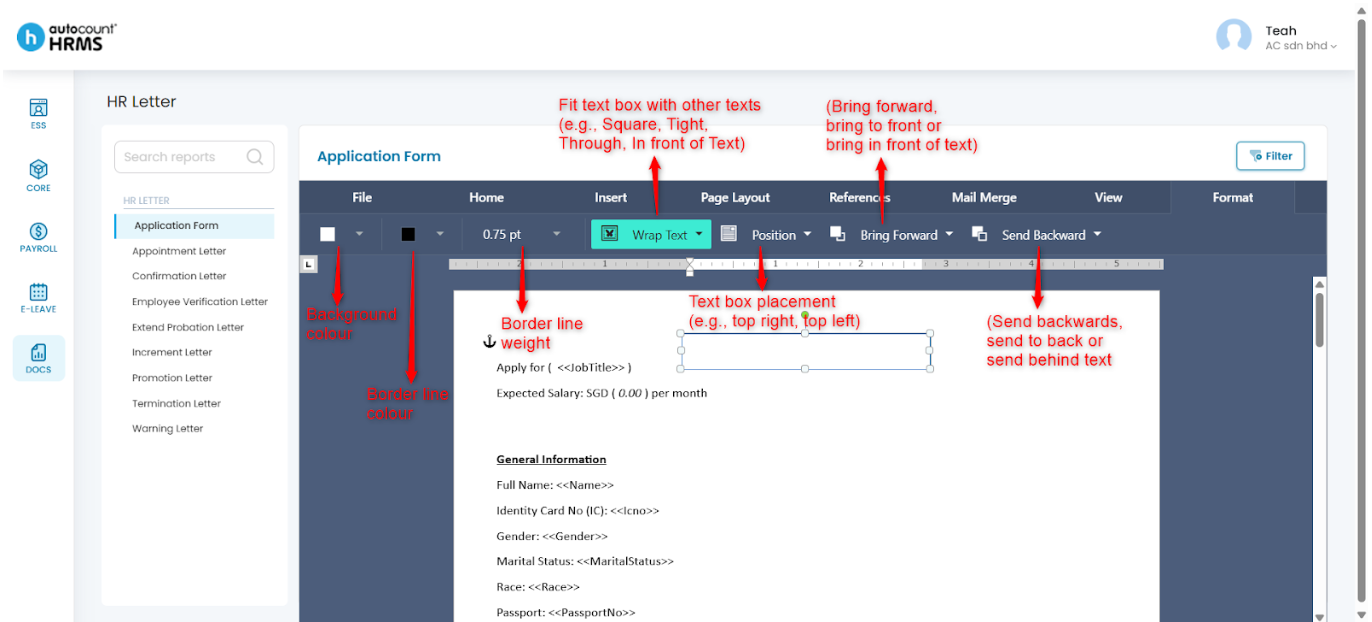
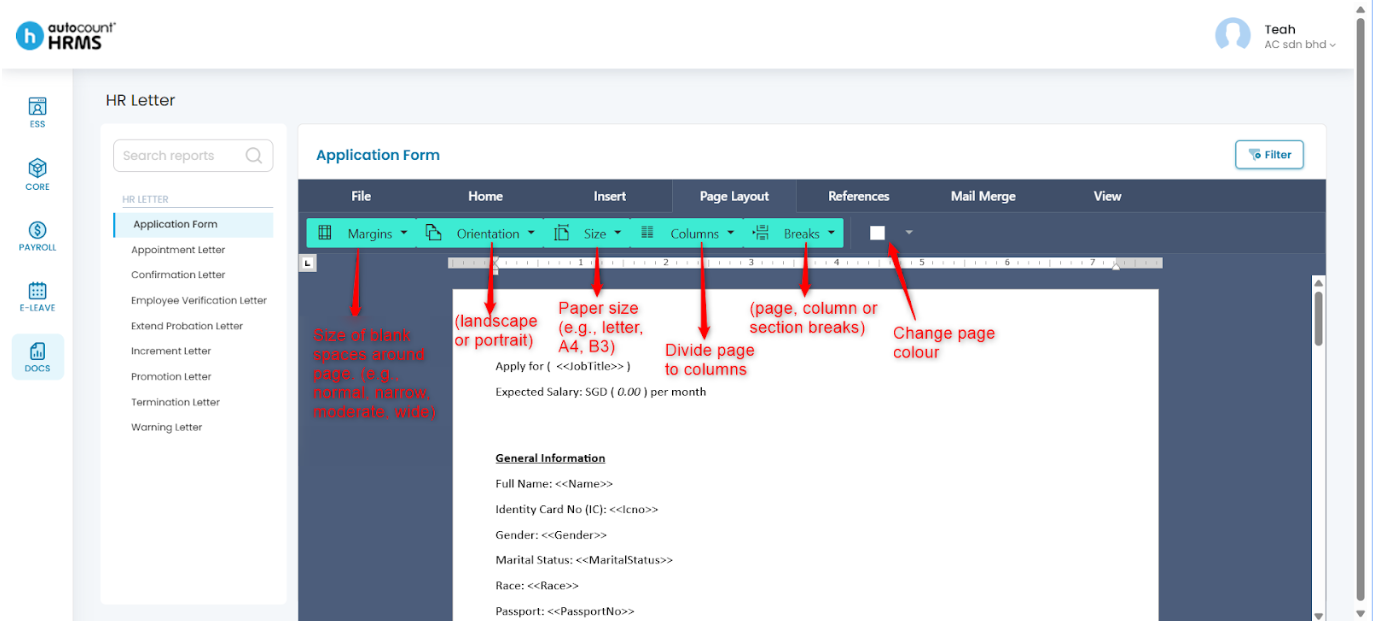
D. Page Layout
Use the Page Layout tab to adjust page formatting and organise content layout.
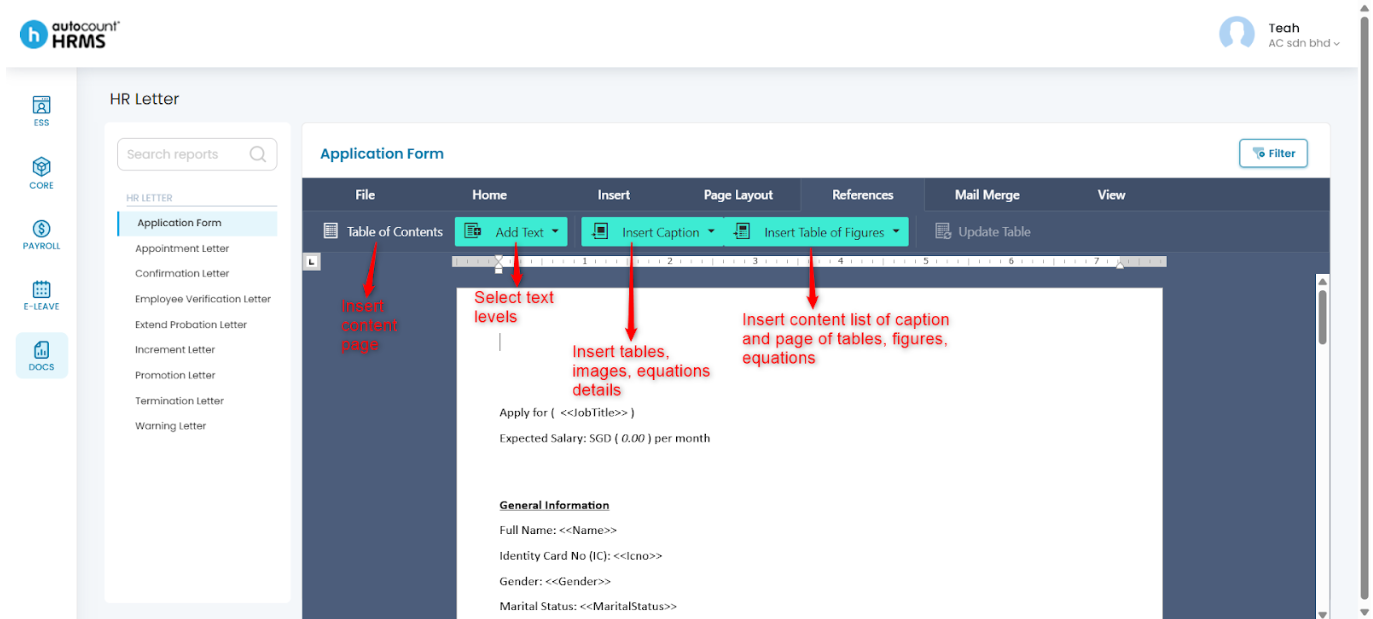
E. References
Use the References tab to manage reference-related elements when required.
F. Mail Merge
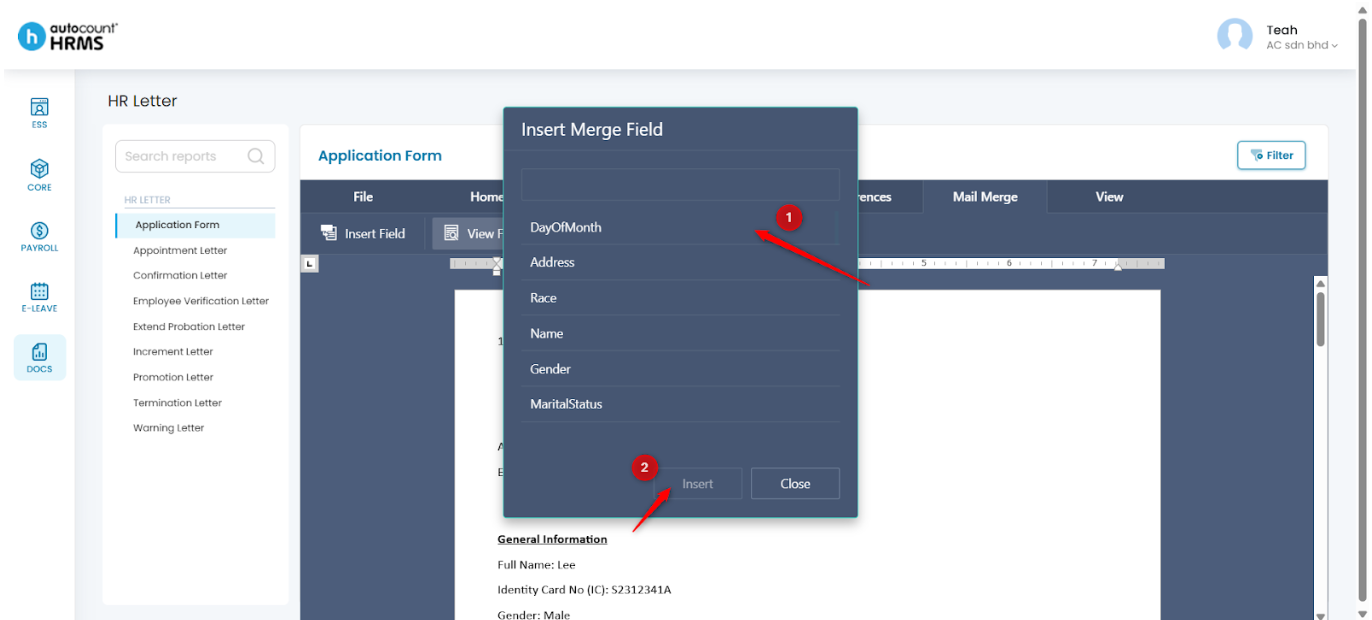
Use Mail Merge to automatically populate employee information into HR letters.
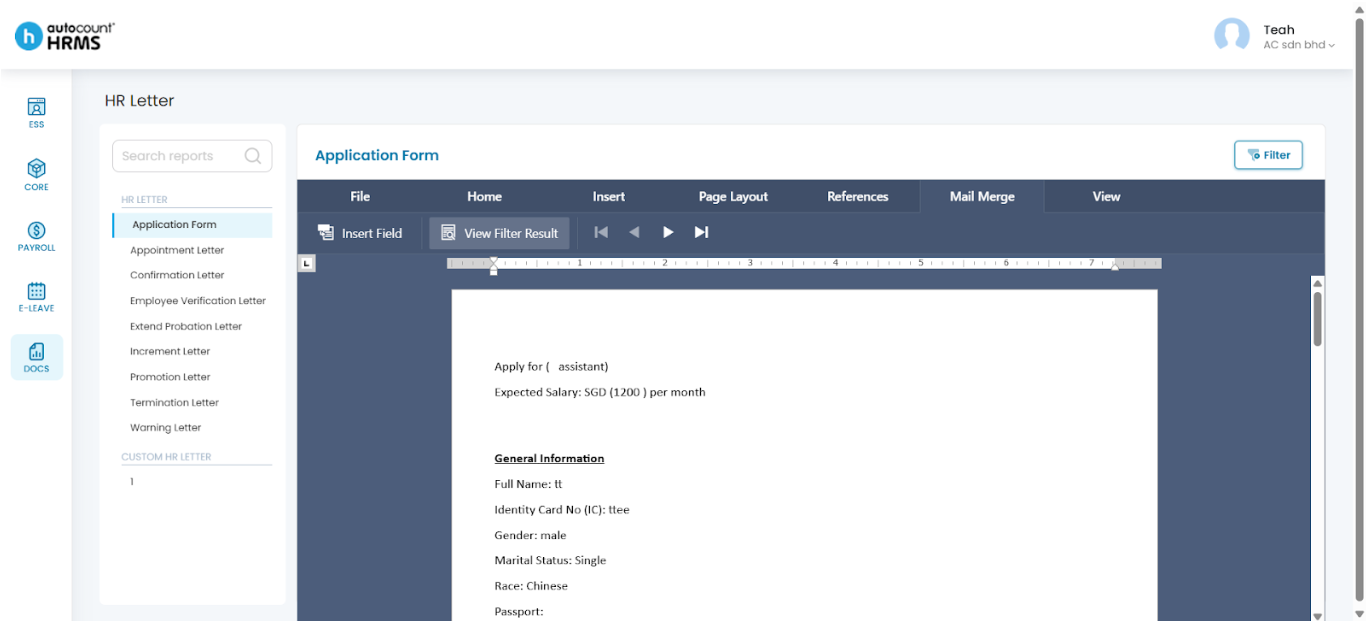
- Insert Field – Insert fields such as employee name, address, or date.
- View Filter Result – Apply employee data automatically. Refer to HR Letter.
G. View
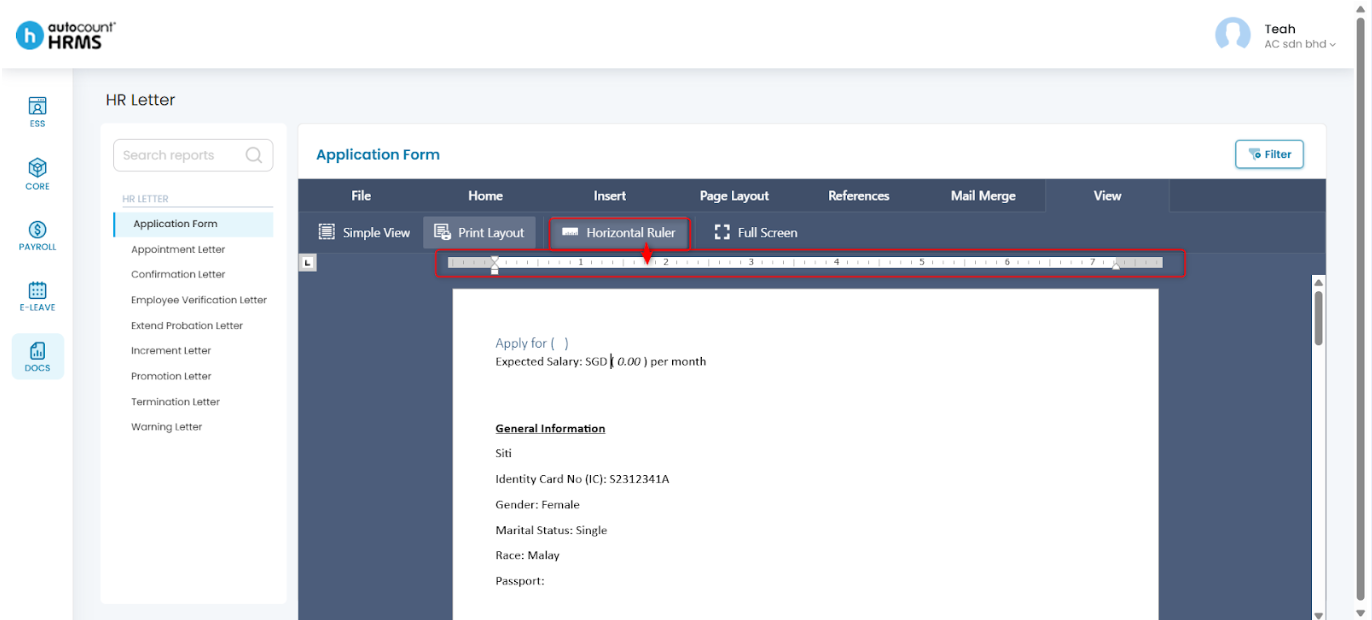
Use the View tab to adjust document viewing settings.
Written by: Teah Rui Harn (20251217)
Reviewed by: Tek Ee Lin (20251222)