The Calendar feature enabled employers to define working days, rest days, and public holidays, and assign them to employees. A work calendar provides clear visibility of work schedules, lists holidays, and serves as a reference for leave and overtime management.
Steps to Create a New Working Calendar:
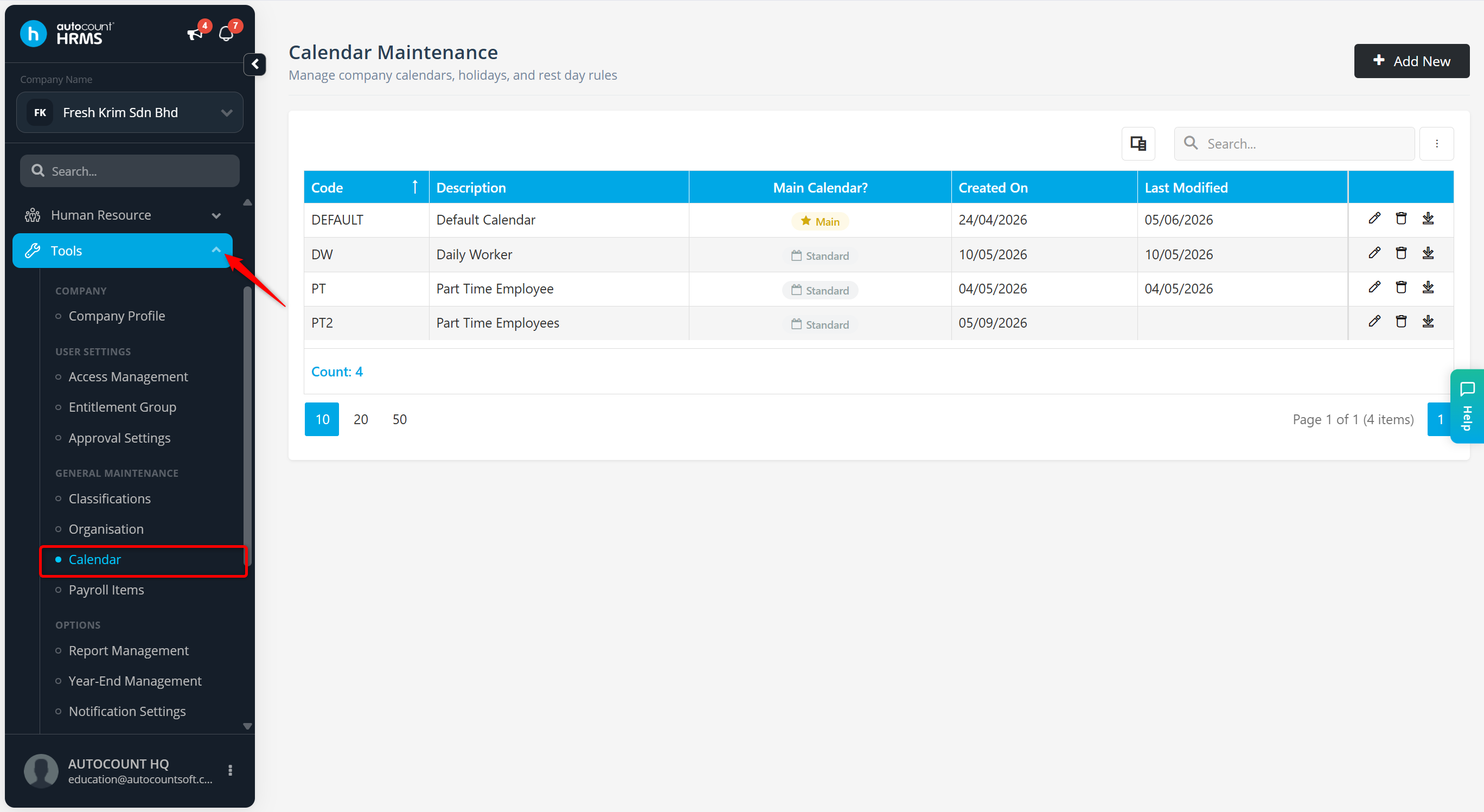
Go to Tools > Calendar.
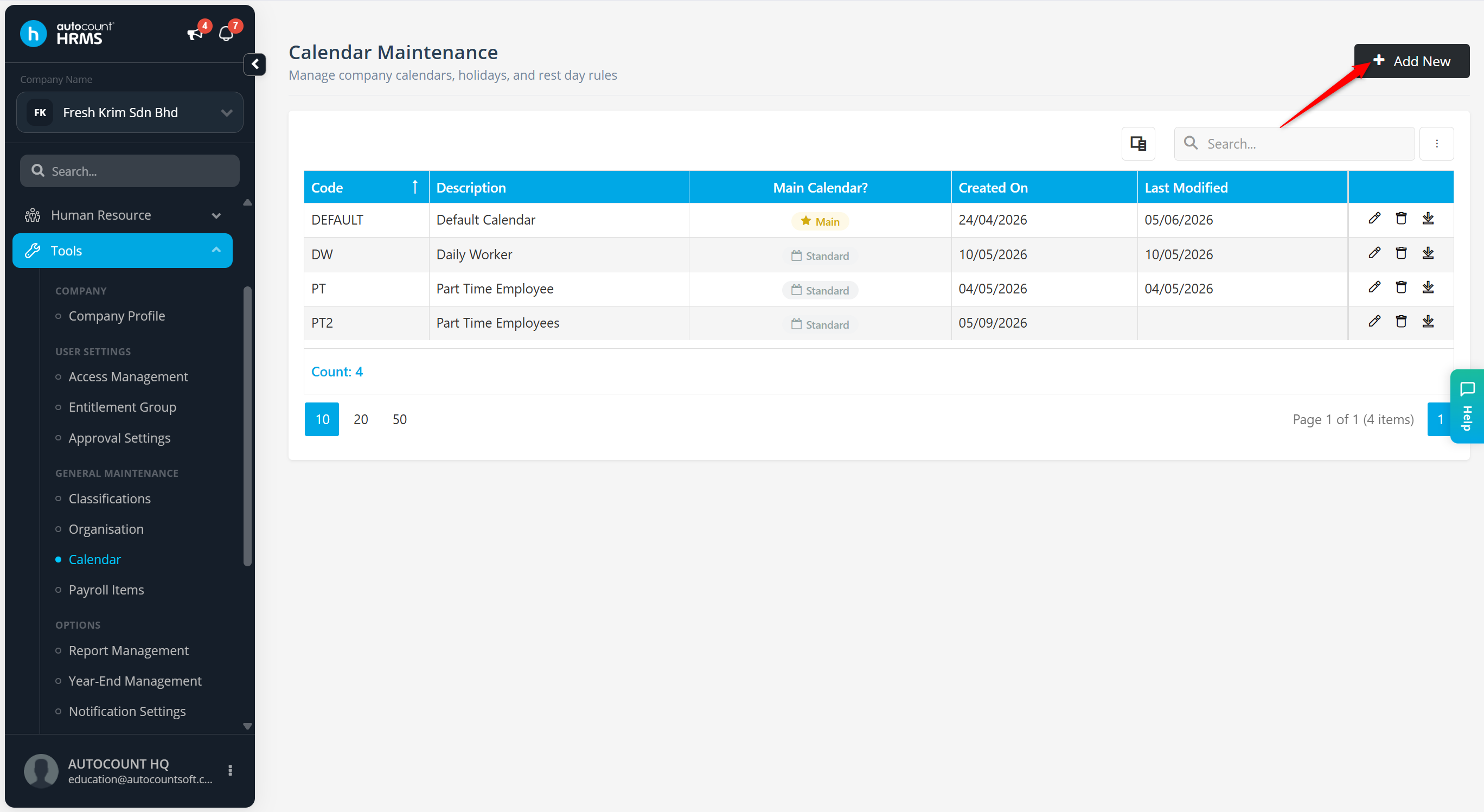
Click Add New.
Enter the Code and Description. Tick the box of Is Main Calendar to set it as the default calendar.
Configure the calendar year by clicking + Add Year. You may click the trash bin icon next to the year to remove it or click the pencil icon to edit the name of the Year.
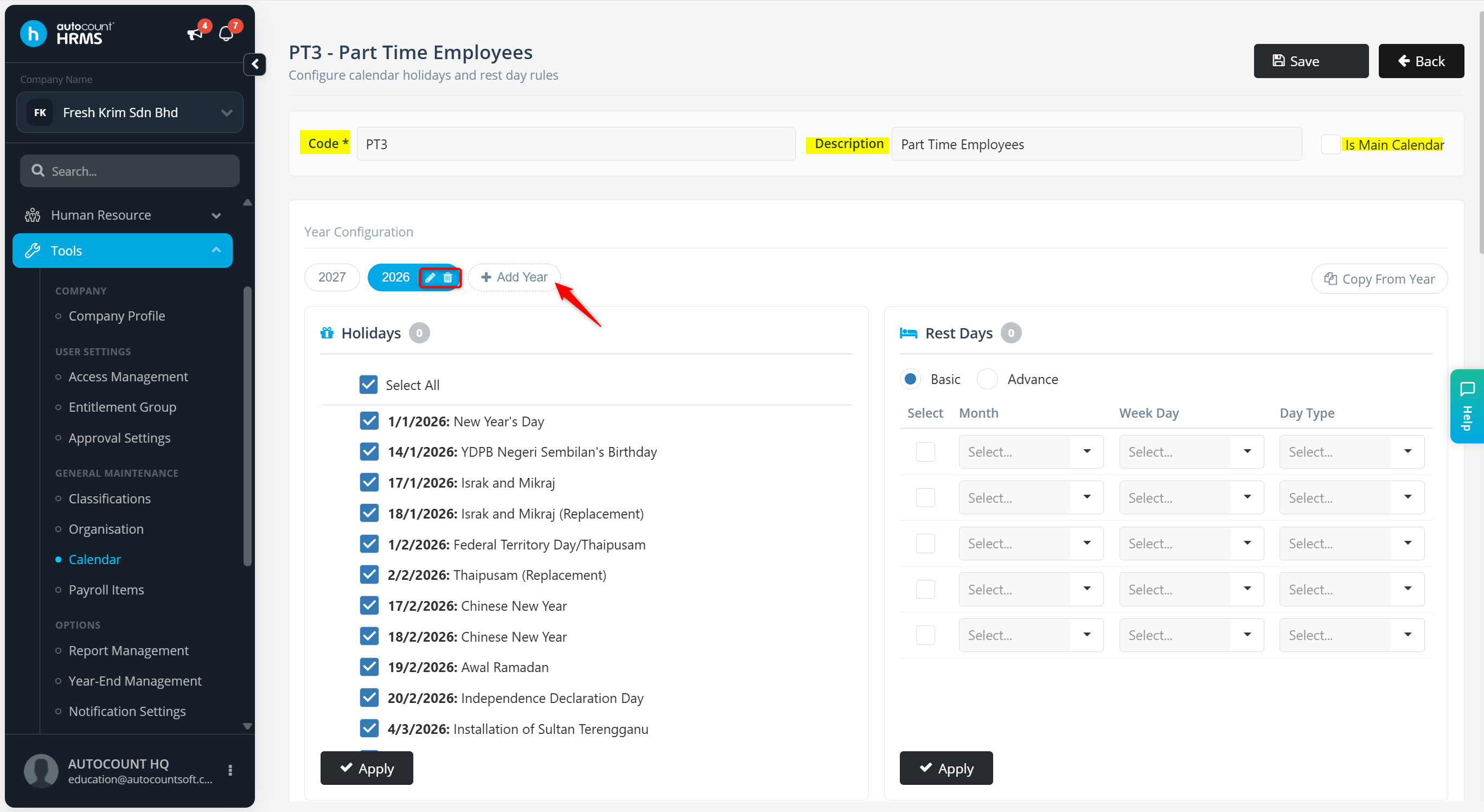
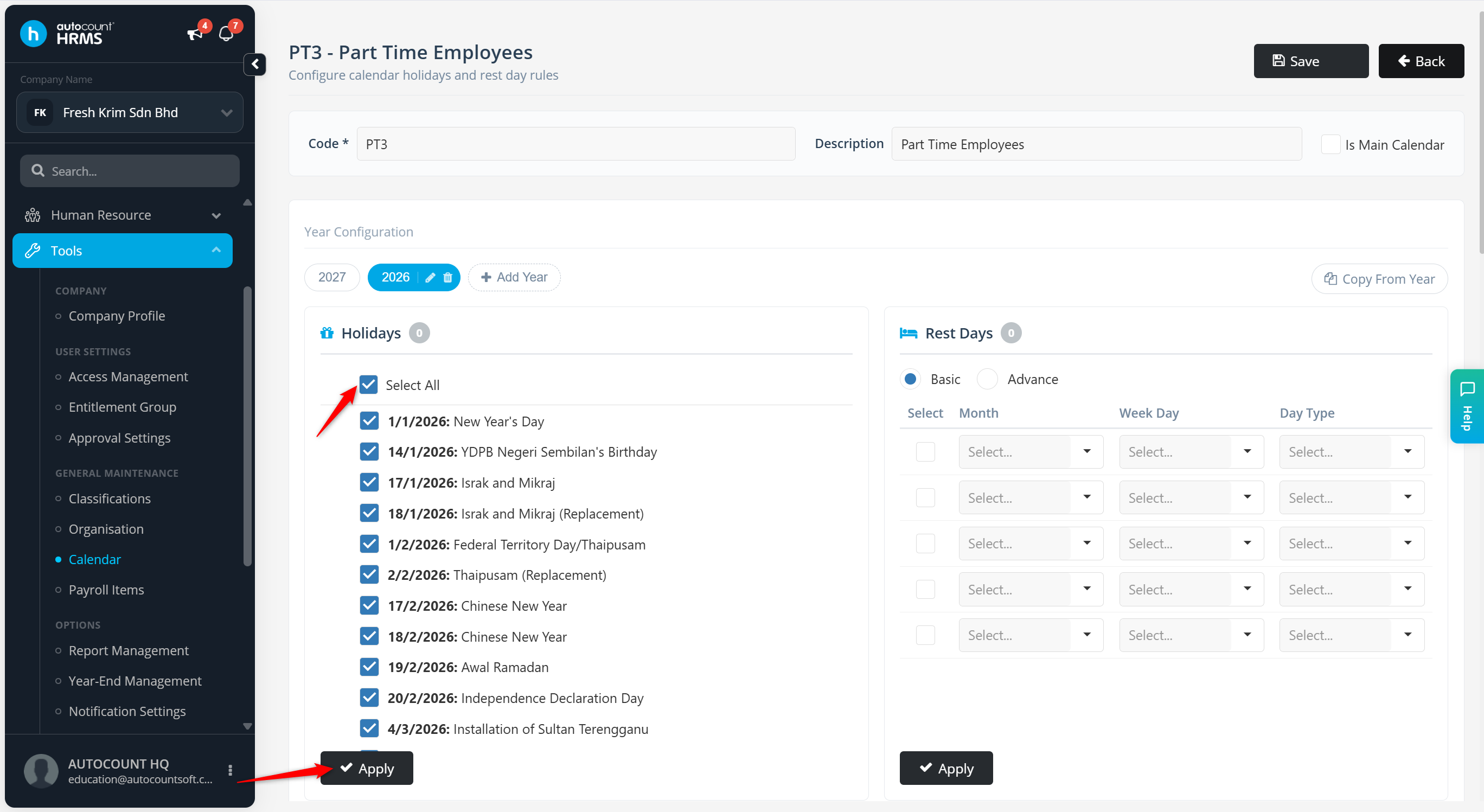
Tick the public holidays applicable for the work calendar and click Apply.
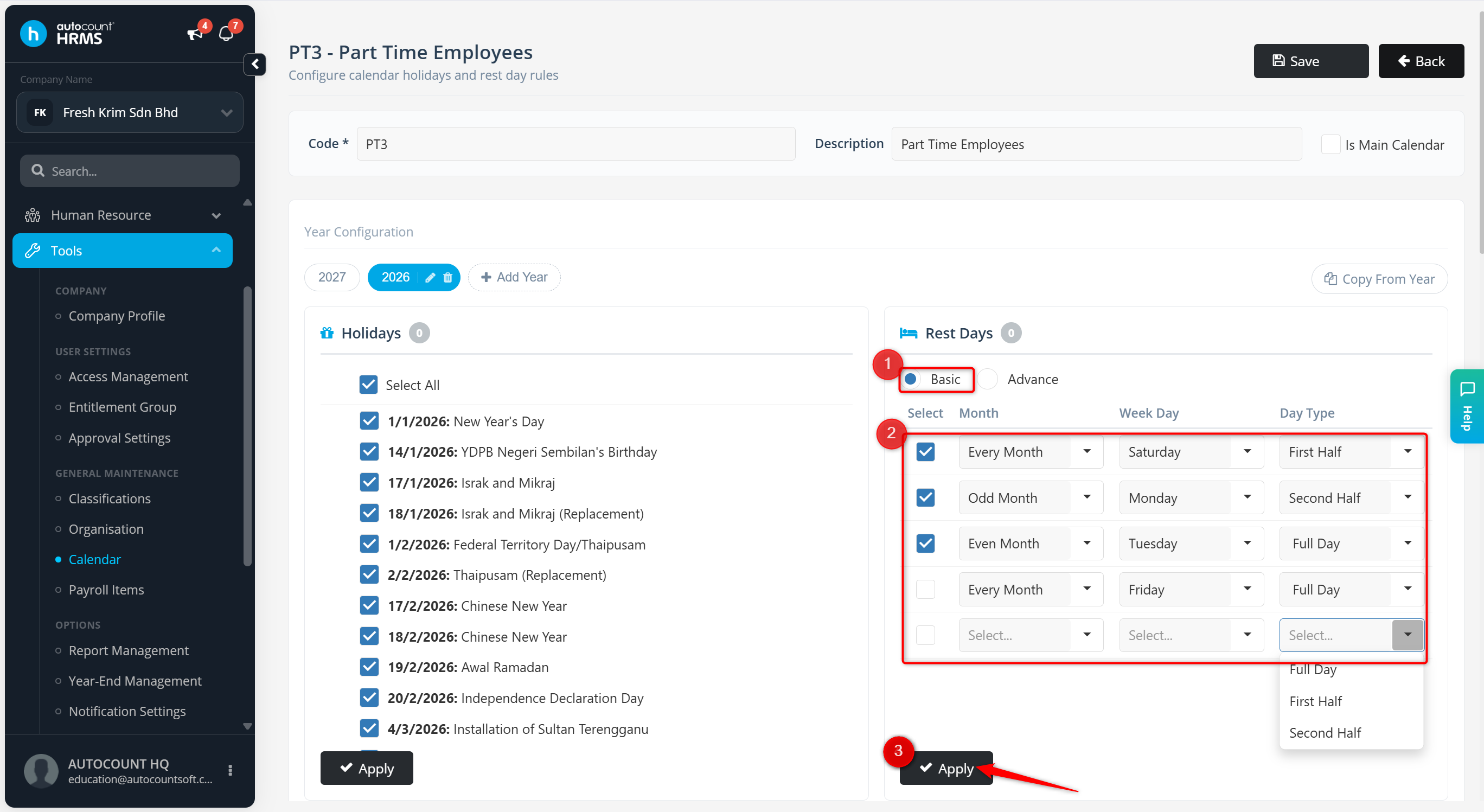
Assign Rest Days:
Basic –
Month – Select Every Month, Odd Month or Even Month.
Week Day – Select the day of the week from the drop down list.
Day Type – Select to apply the rest days as Full Day, First Half or Second Half.
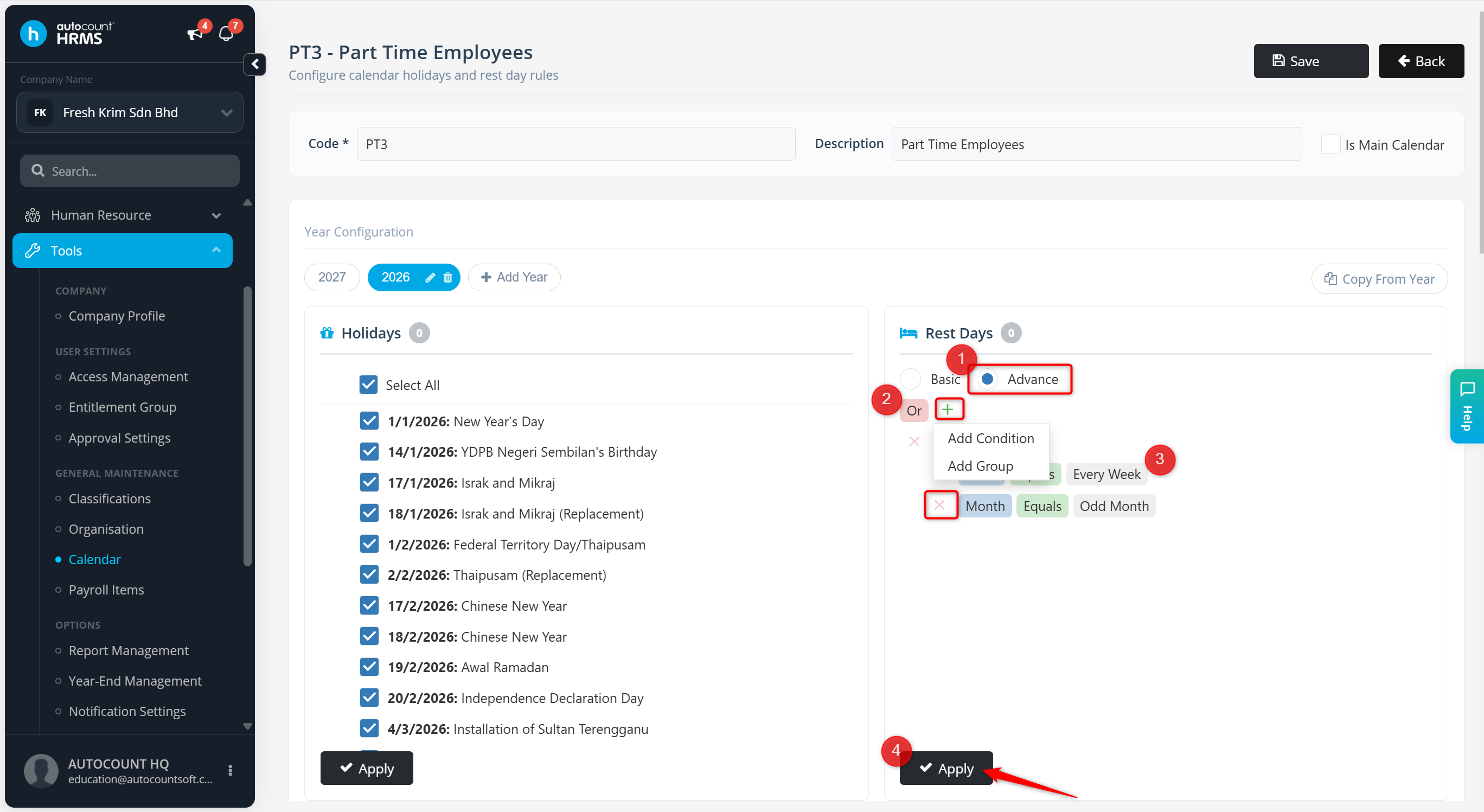
Advance –
+ – Click to add a new group.
x – Click to delete the group.
Month (Blue) – Click to change detail to Month, Week, Week Day, Half Day/Full Day, Selected Weeks, Selected Months or Day.
Equal (Green) – Click to select Equal or Does not equal.
Enter a Value (Grey) – Click to select a value from the drop-down list.
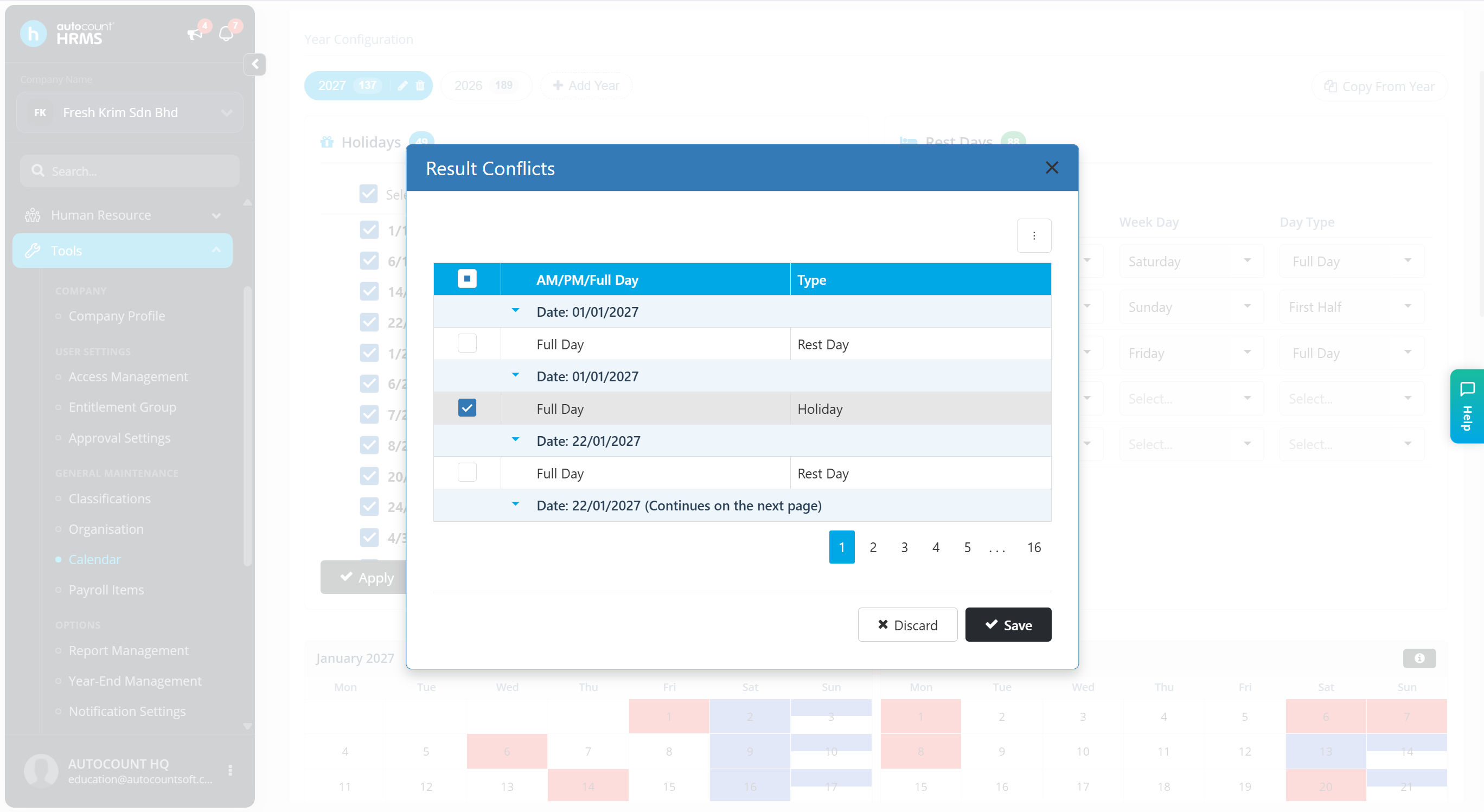
A Result Conflicts panel will appear if a rest day overlaps with a public holiday. Select either the holiday or rest day by ticking or unticking the respective option to determine which applies to that date.
Click Save
Scroll down to view the calendar.
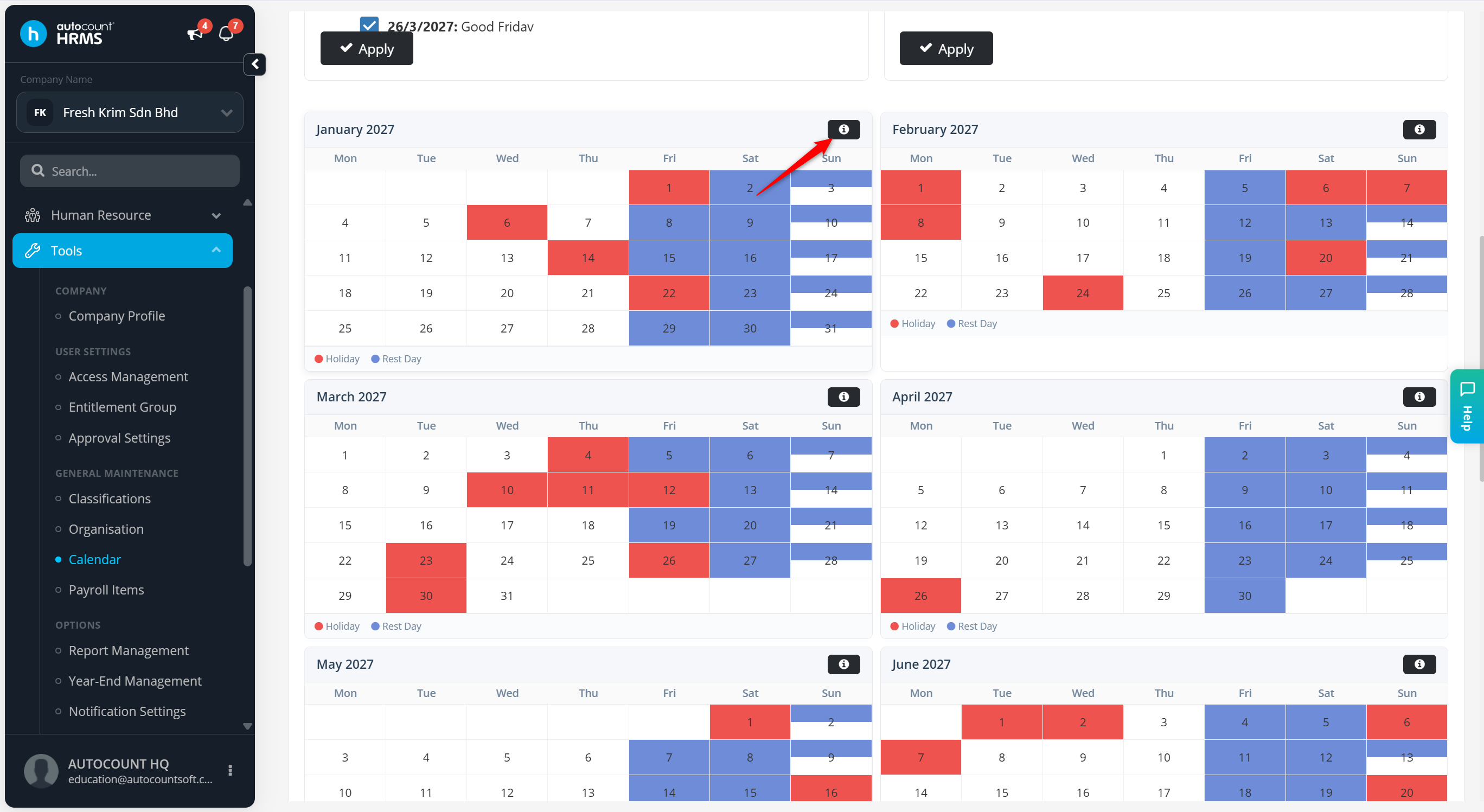
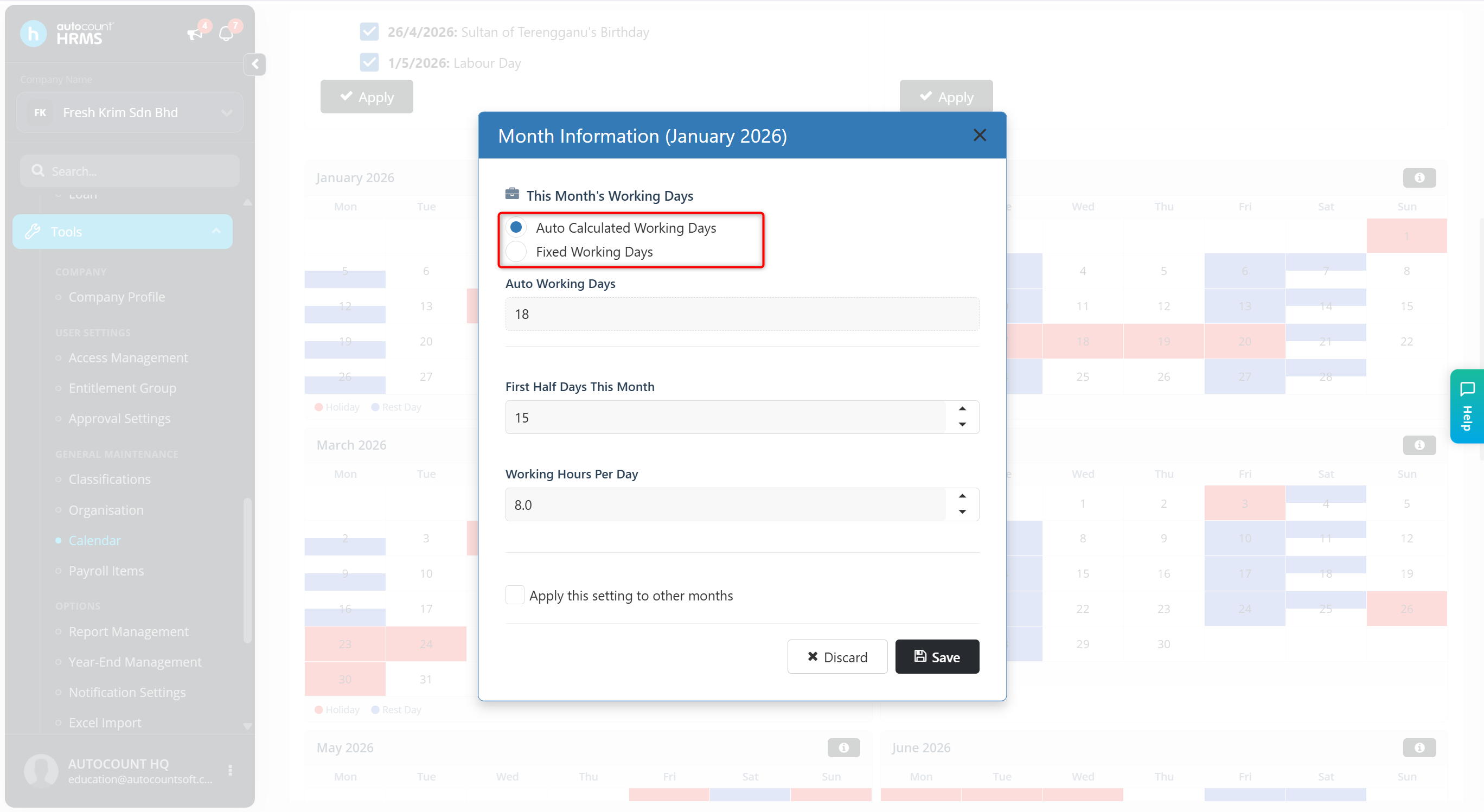
Click the i icon next to a month to view or edit the Month’s holiday information.
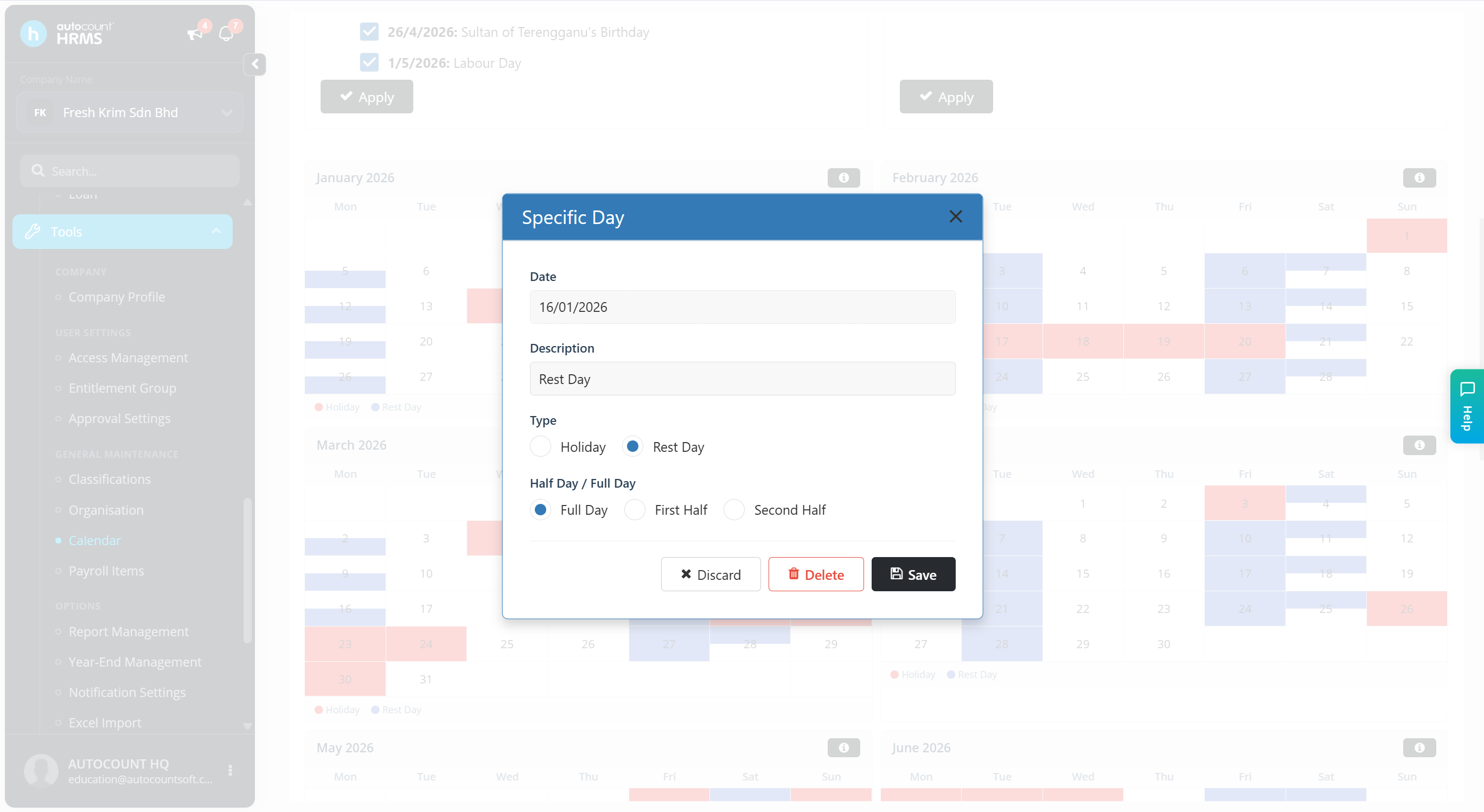
Click on a date to view, delete or edit the holiday or rest days details of the specific day.
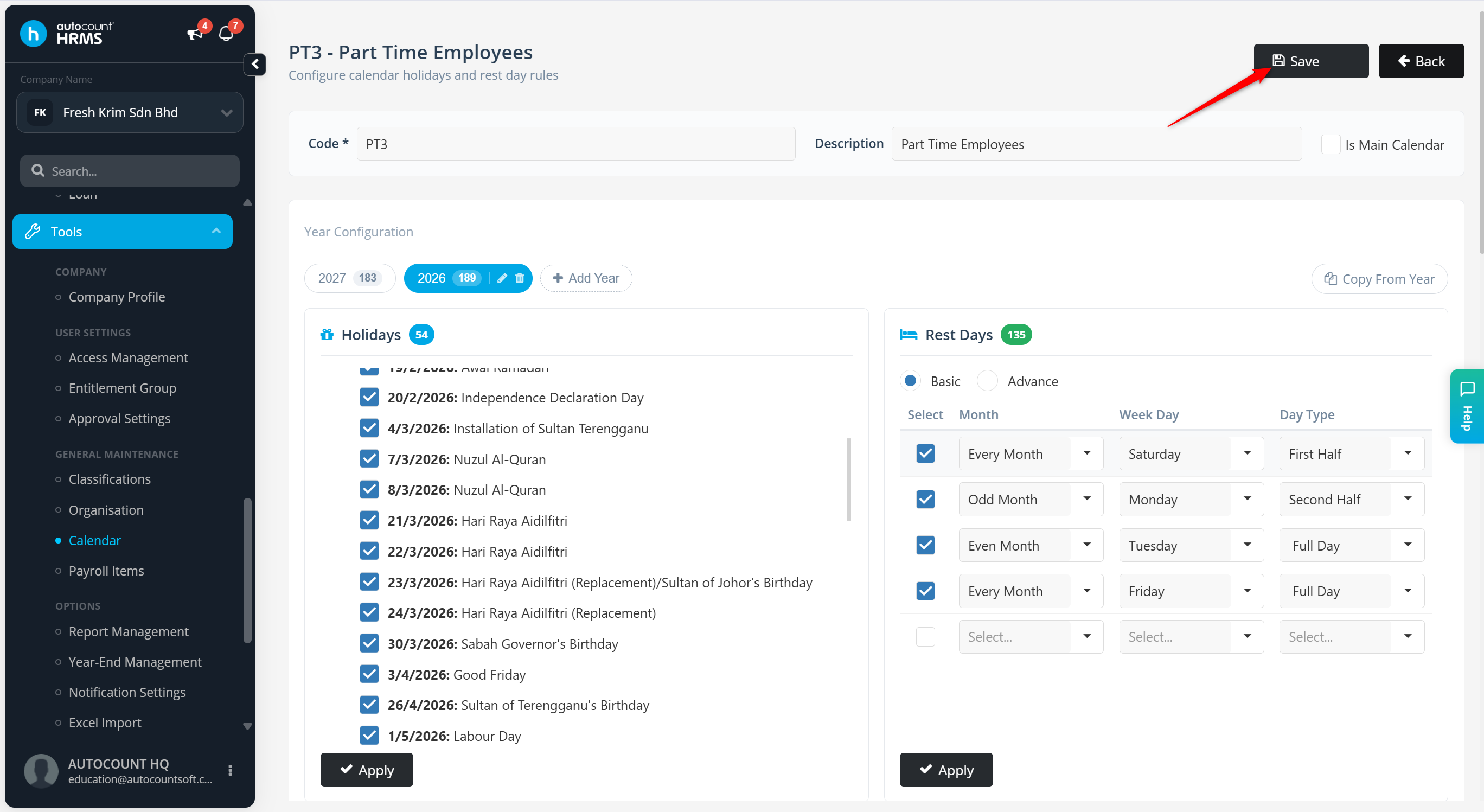
Click Save.
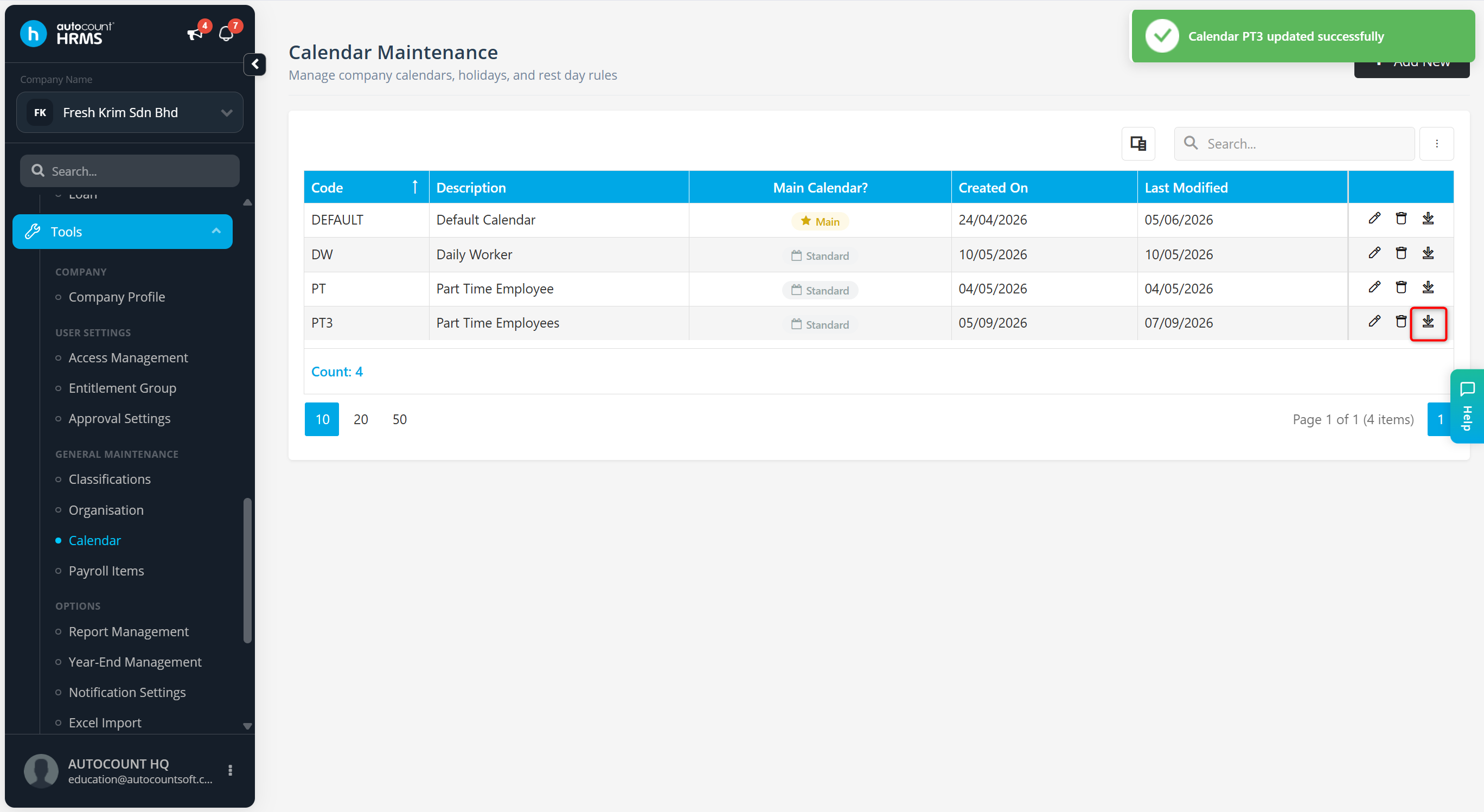
Click the download icon to download the calendar excel file.
Click the pencil icon to edit.
Click the trash bin icon to delete.