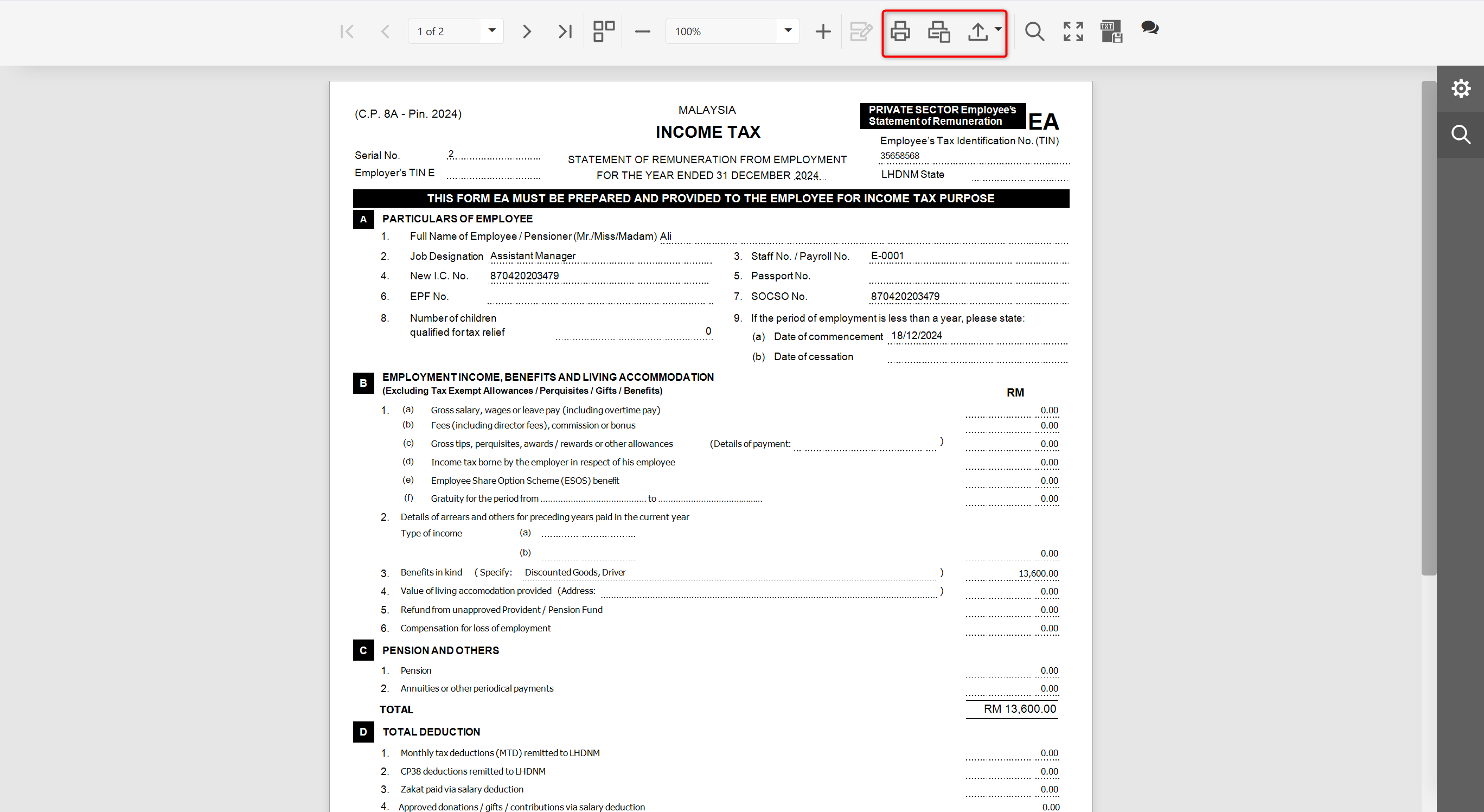
Payroll Closing, also known as Year-End Closing, is used to finalise payroll data for the year. This process is required before generating statutory reports such as CP8D and employees’ EA Forms, ensuring accurate year-end reporting and compliance with regulatory requirements.
Note: Payroll Closing can only be performed when all payroll processes have been committed and all ad-hoc payroll items have been posted or removed.
Steps to Perform Payroll Closing:
Go to Tools > Year-End Management.
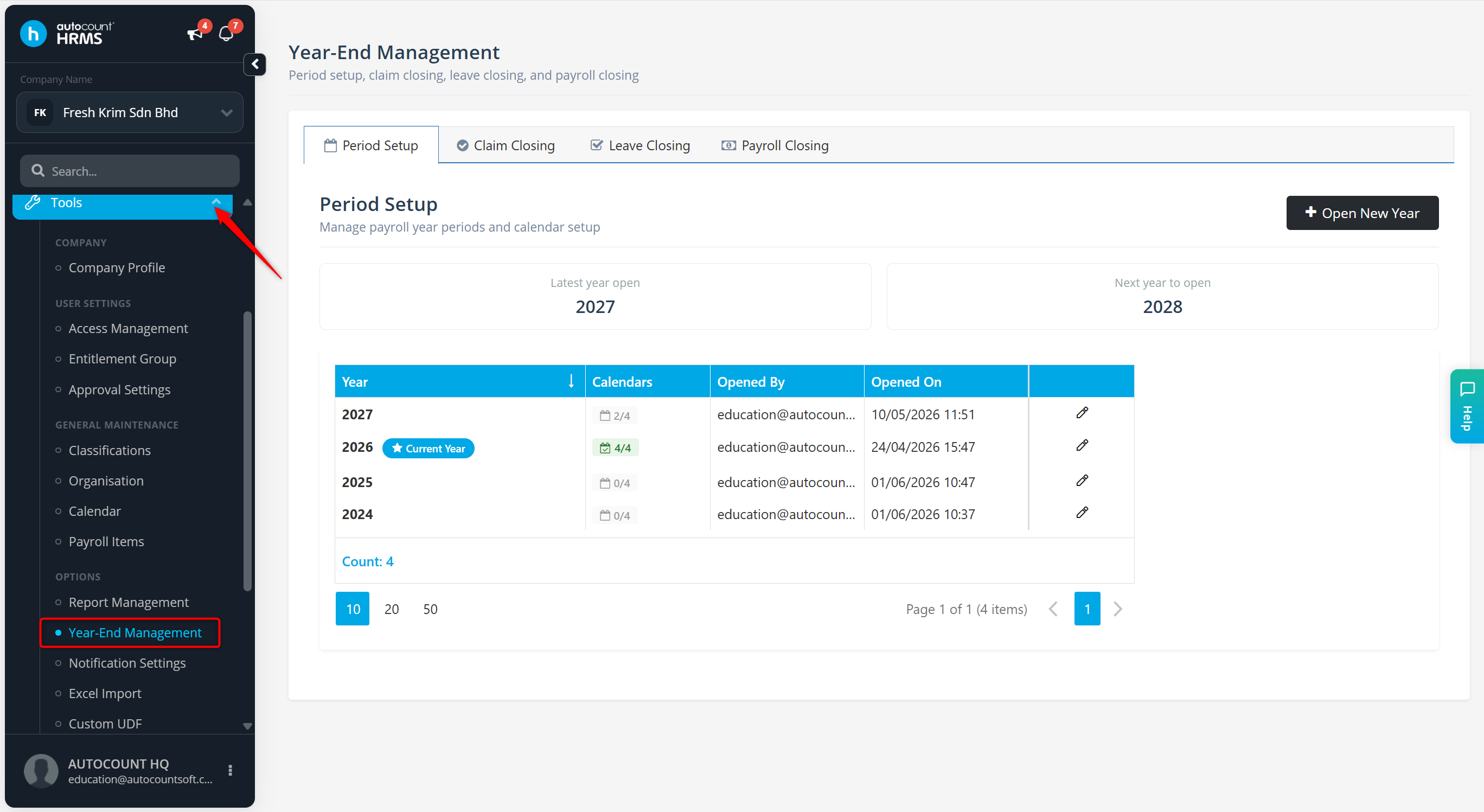
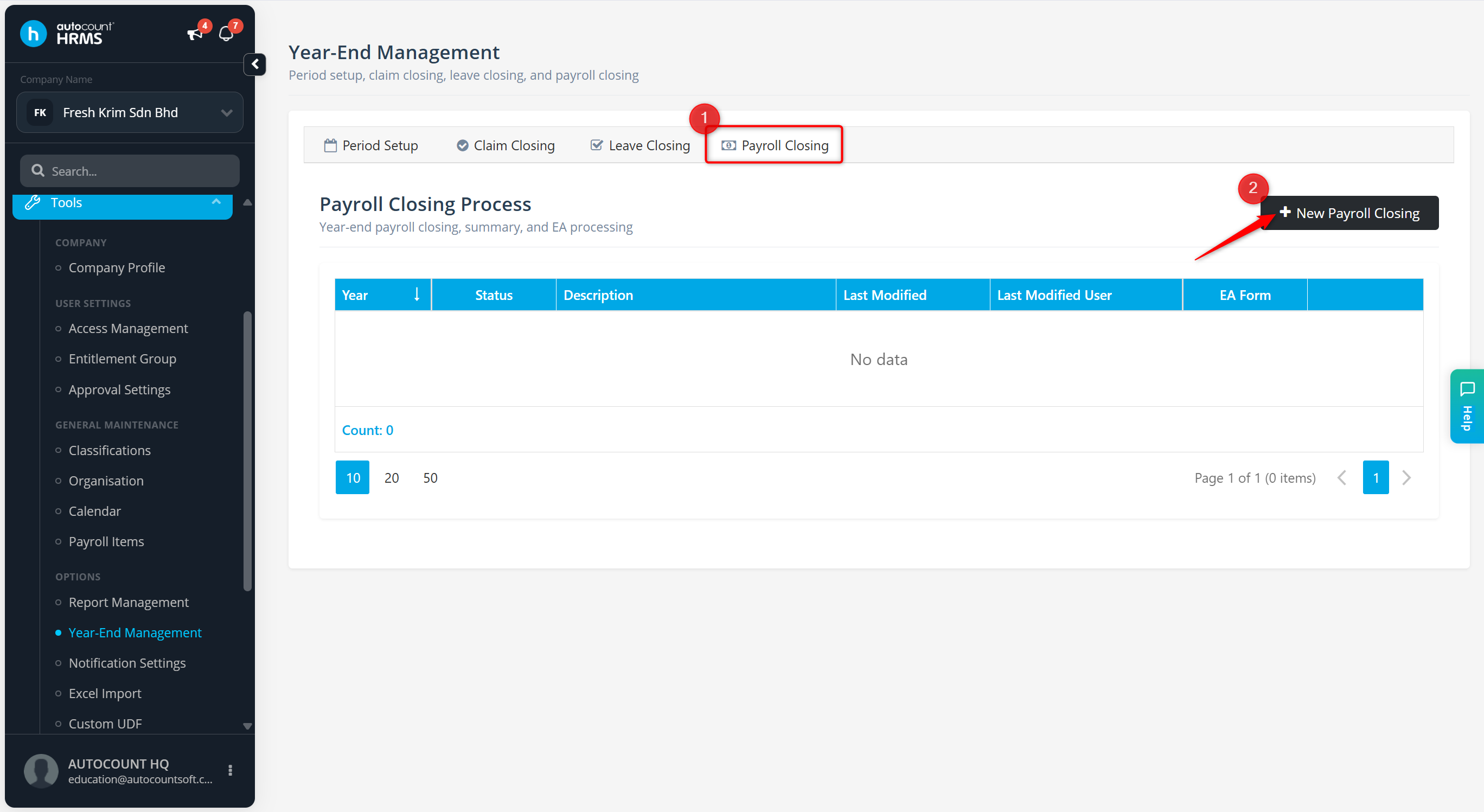
Go to the Payroll Closing tab.
Click + New Payroll Closing.
Enter the Description (optional).
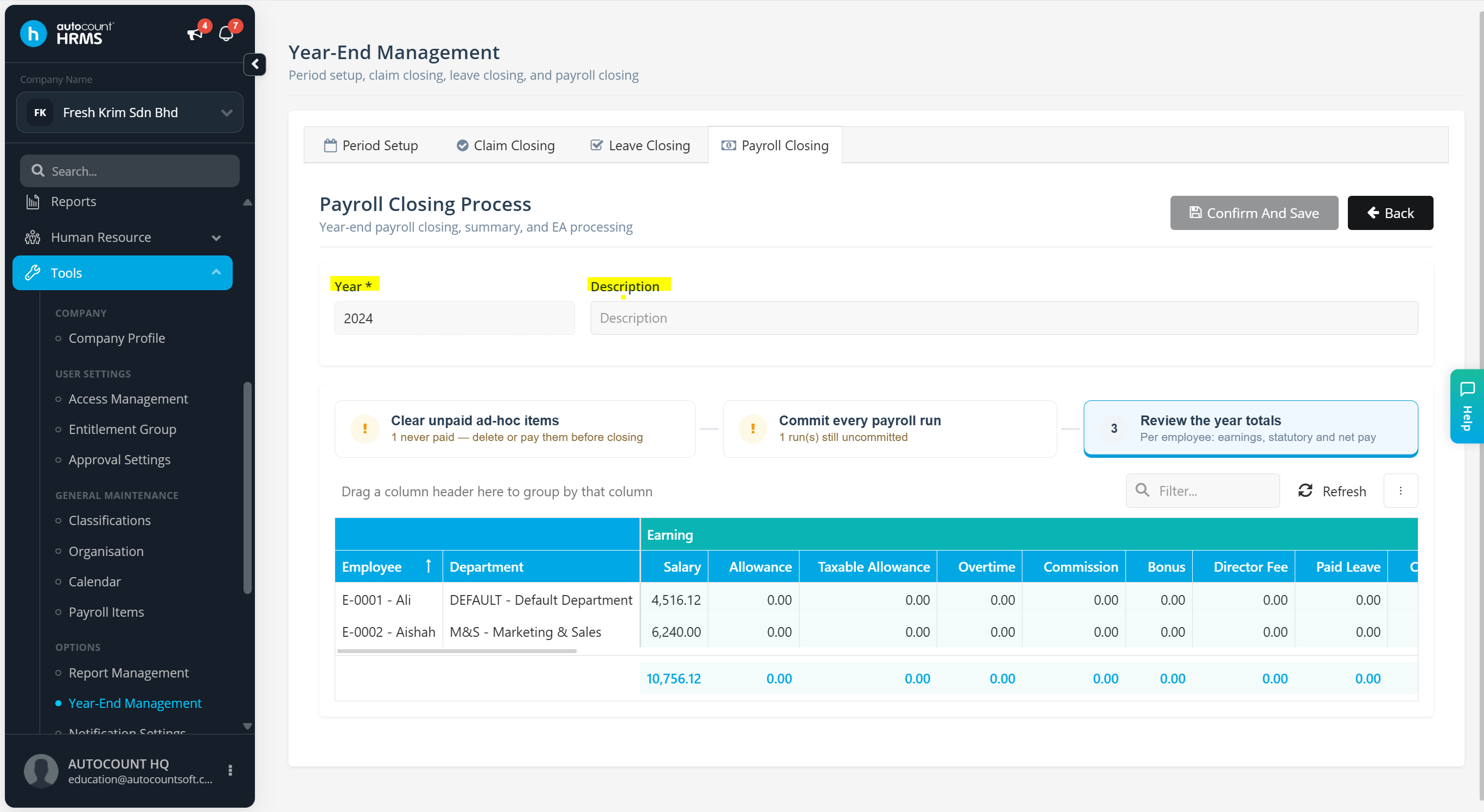
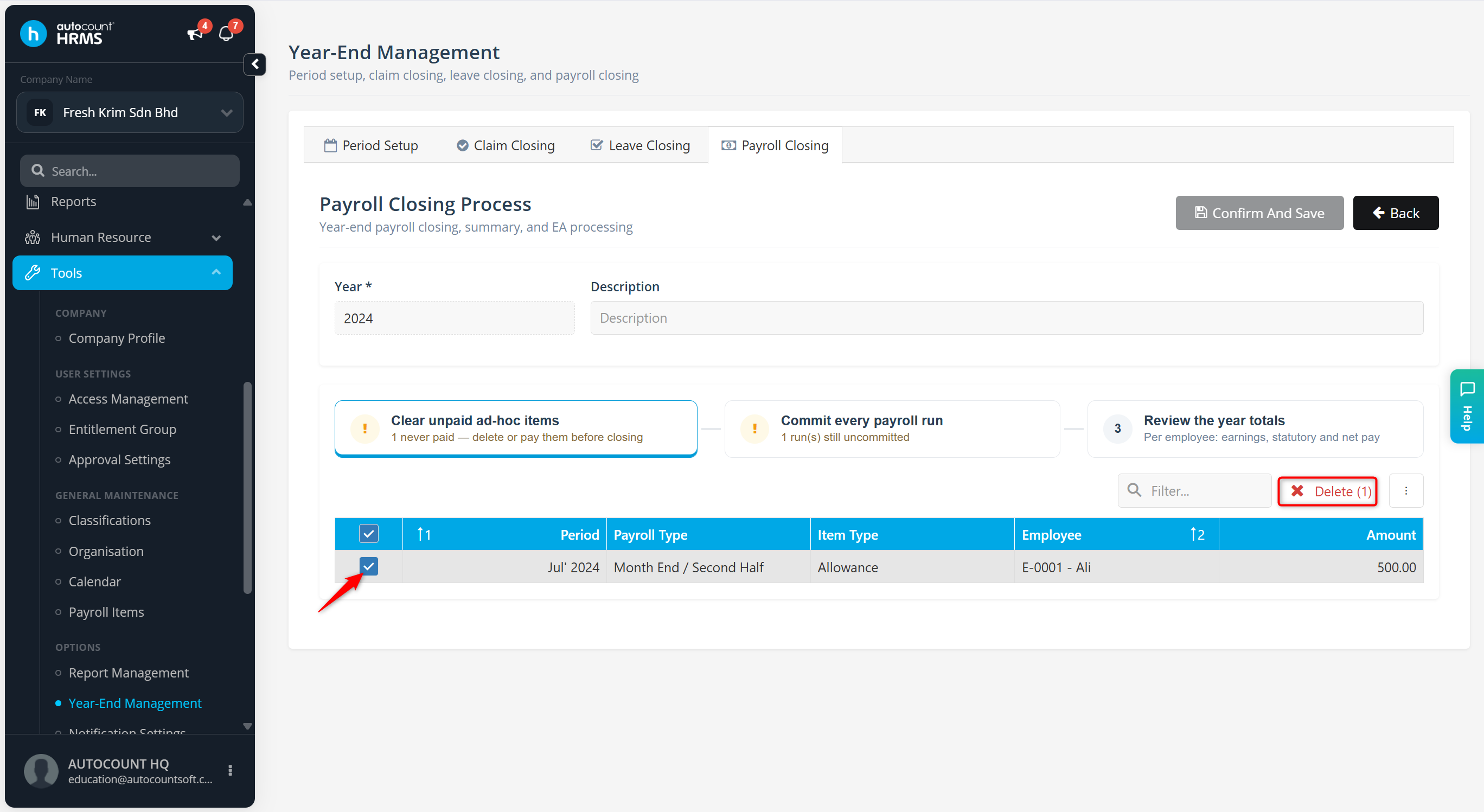
At Clear unpaid ad-hoc items:
Review unposted items.
Tick the items and click Delete.
Click Continue to payroll runs.
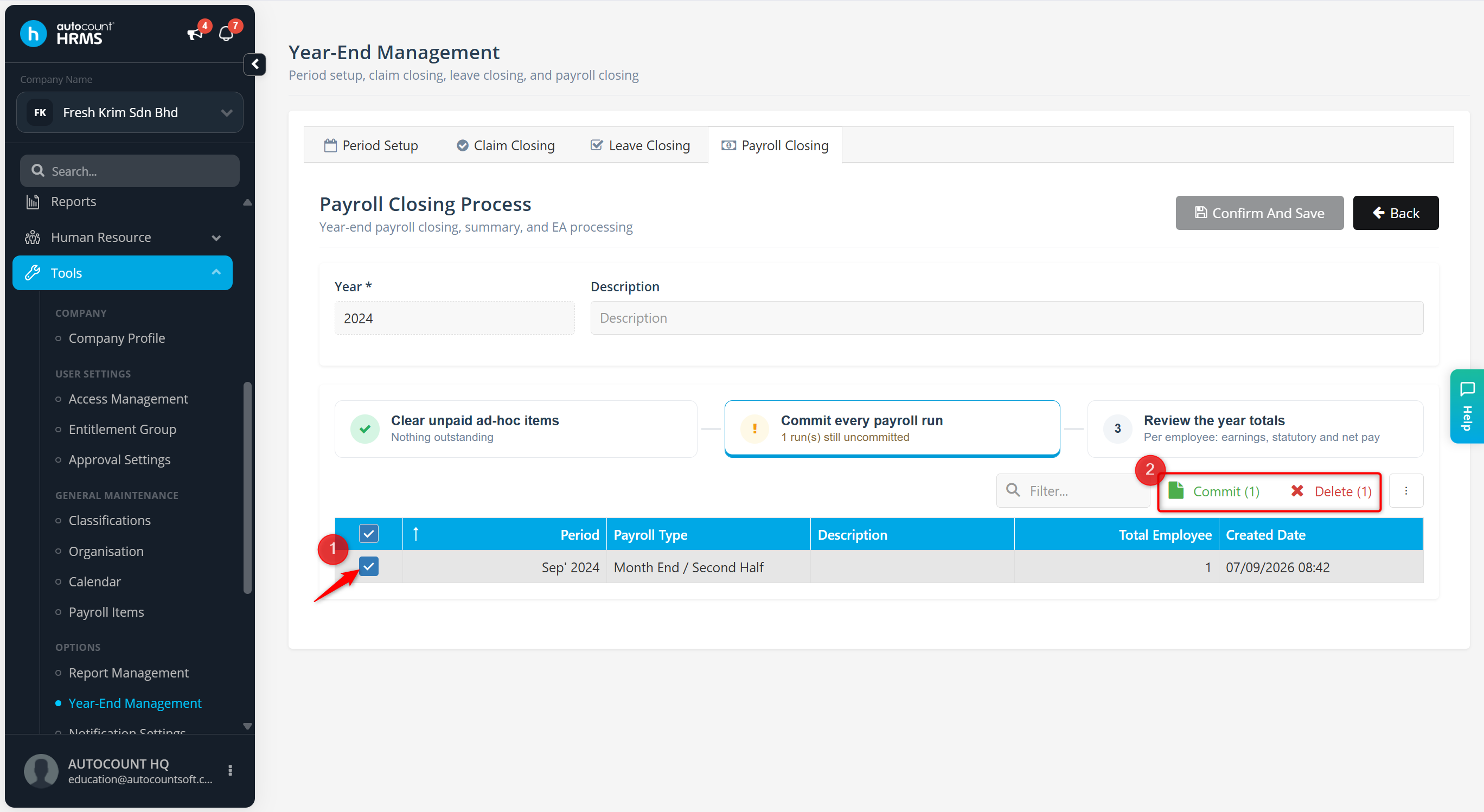
At Commit every payroll run:
Review pending payroll processes.
Tick and click Commit or Delete, then click Yes to confirm.
Click Continue to the year totals.
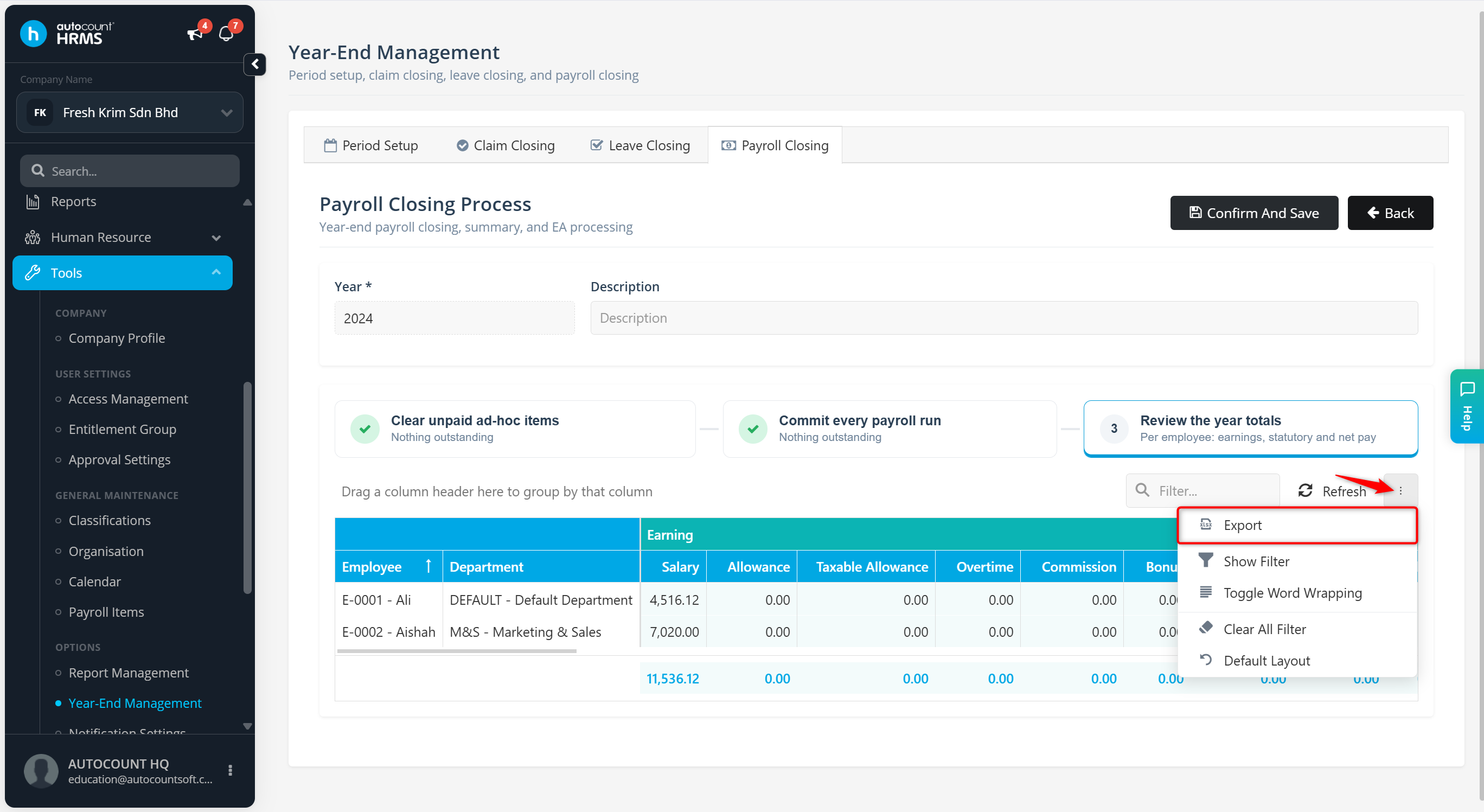
Review all payroll details under Review the year totals.
Click the vertical ellipsis (⋮) icon and select Export to download the data if required.
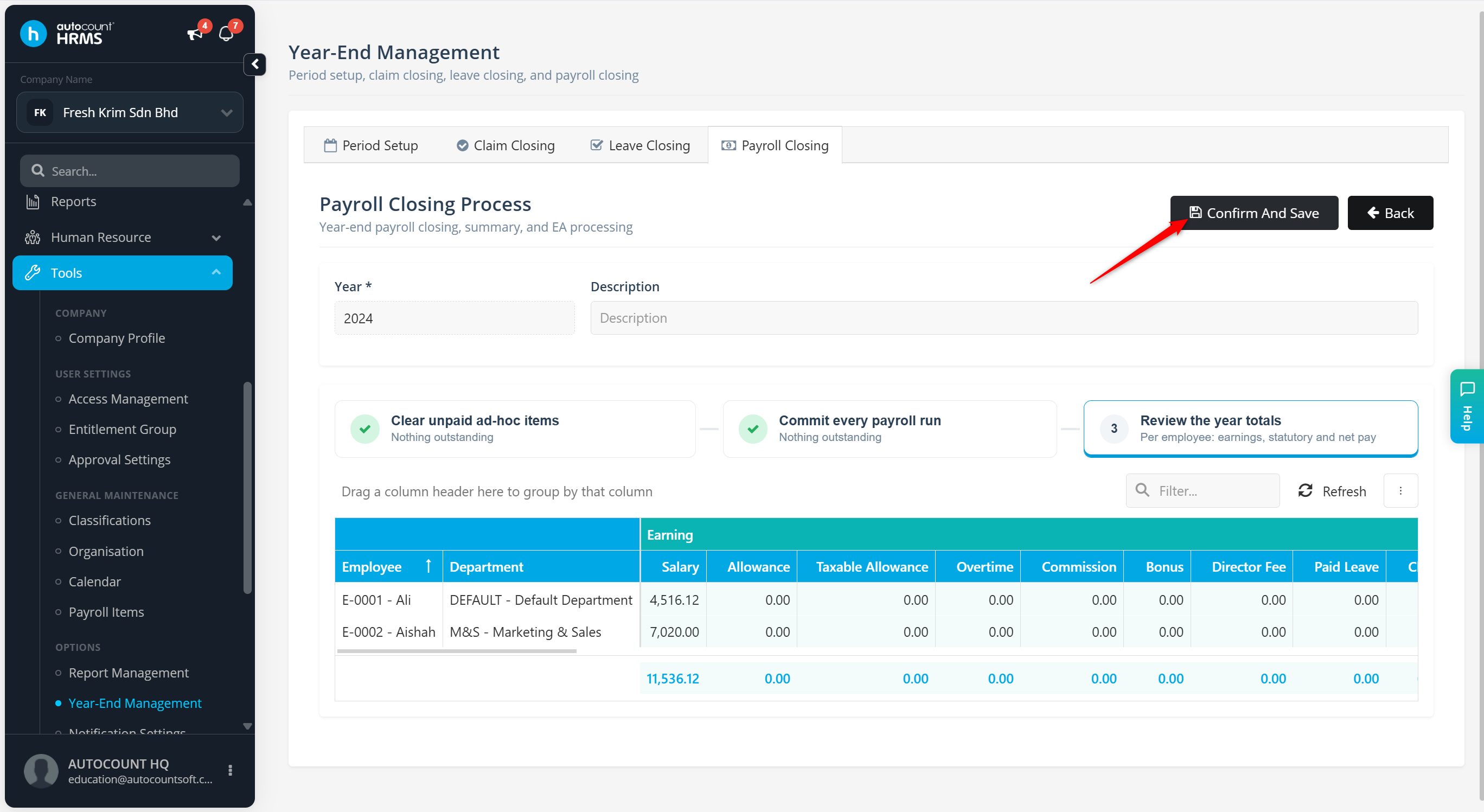
Click Confirm And Save.
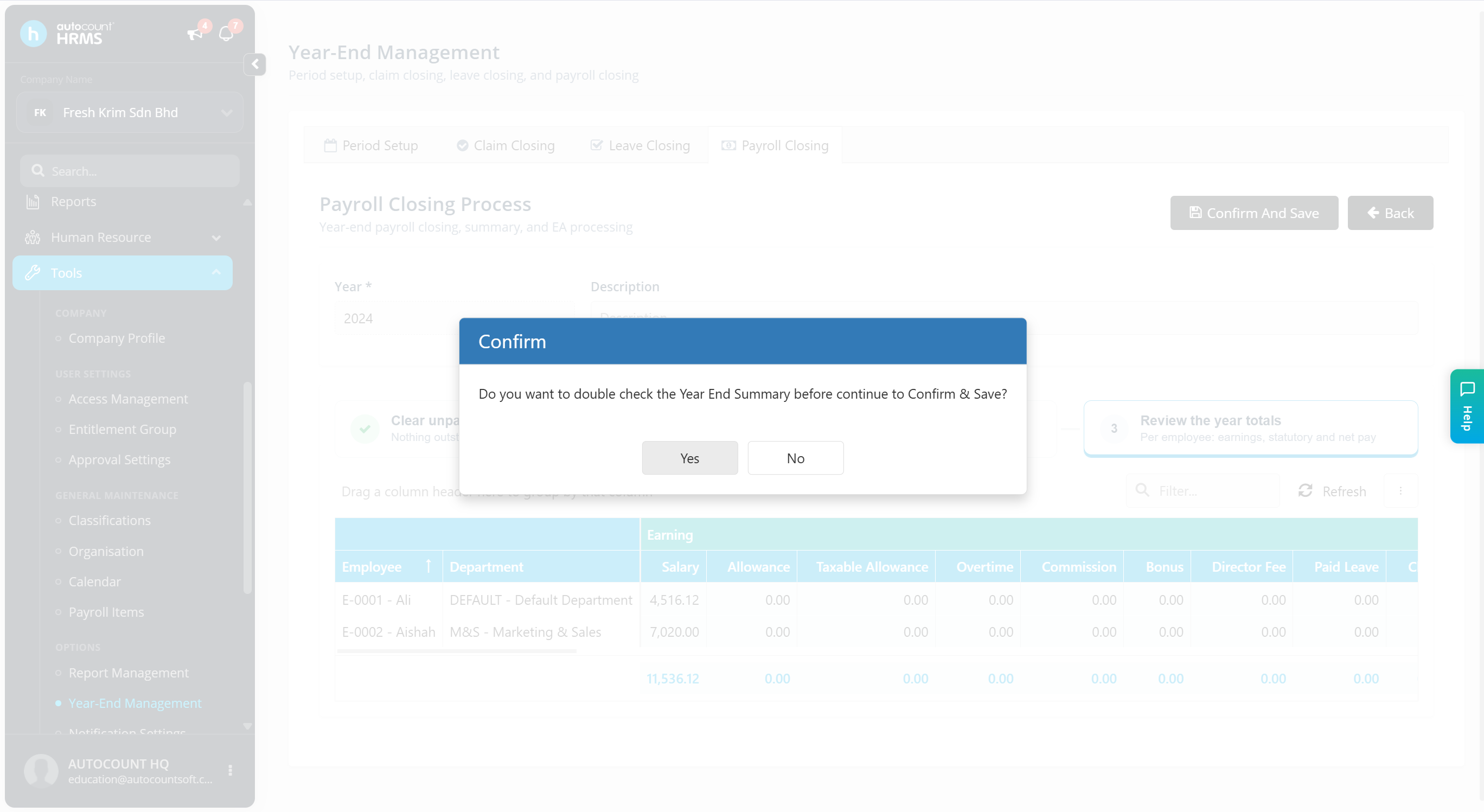
A confirmation message will appear:
Click Yes to review again
Click No to proceed
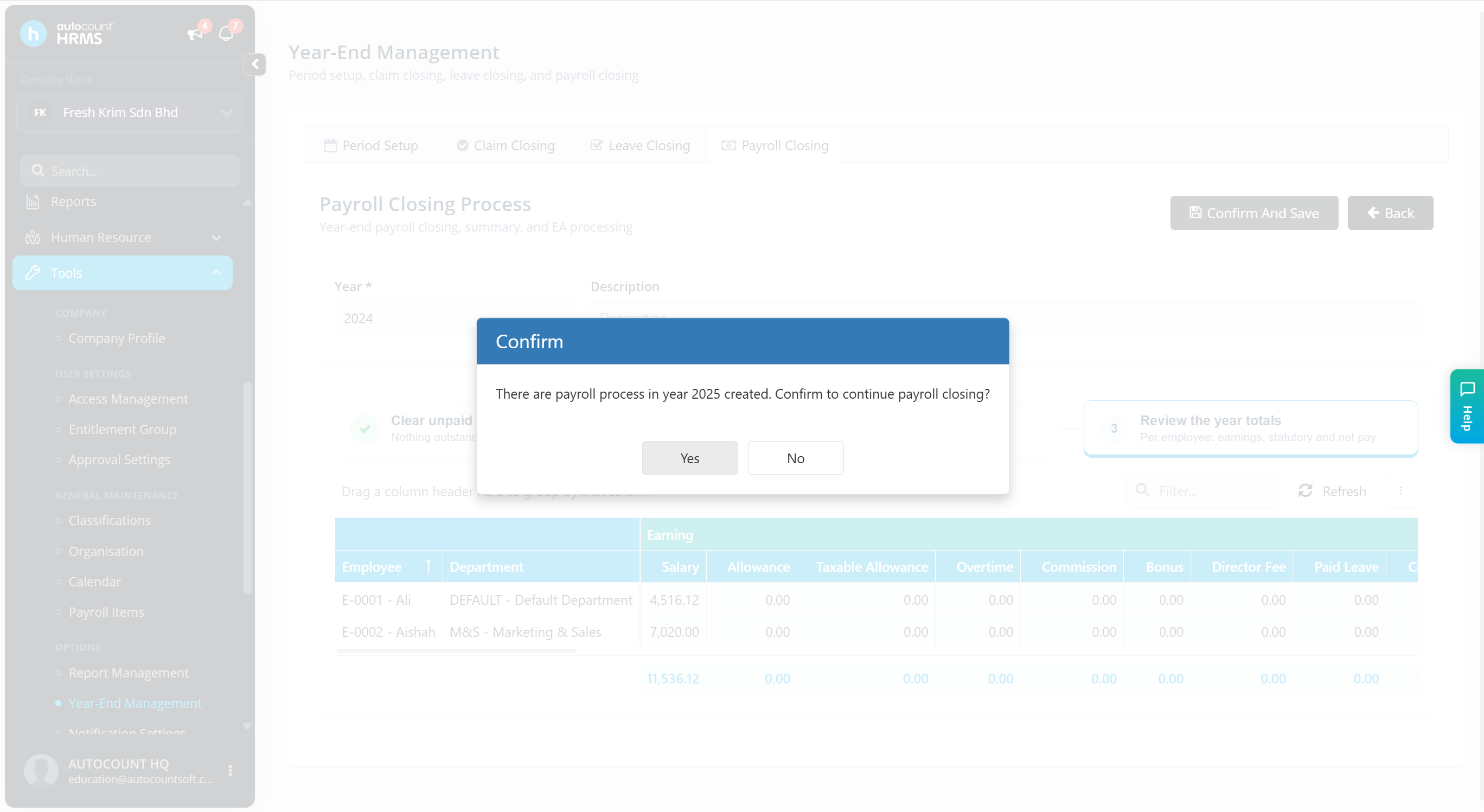
Click Yes to finalise the payroll closing.
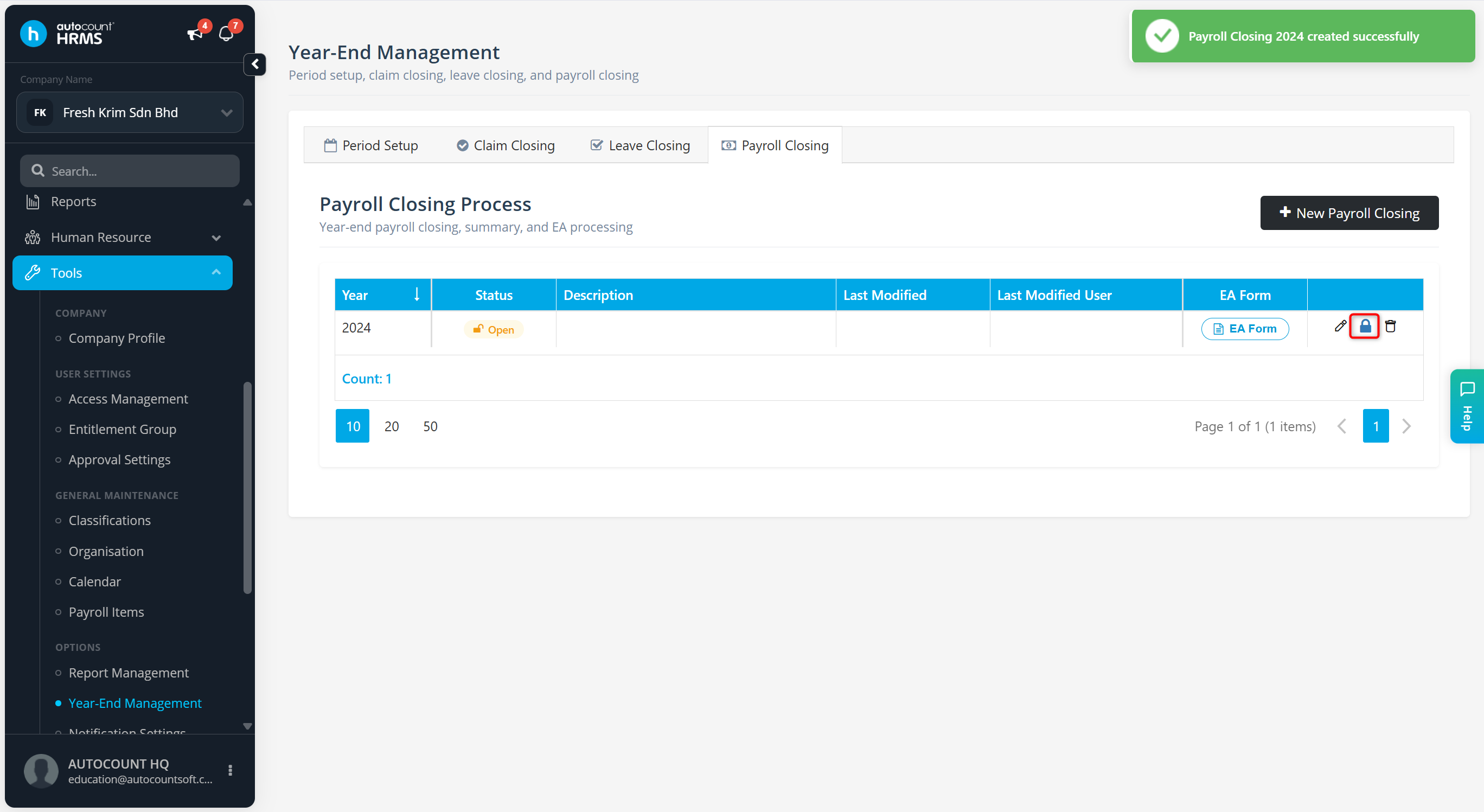
Click the lock icon to commit and release EA Forms to employees via Employee Self Service (ESS).
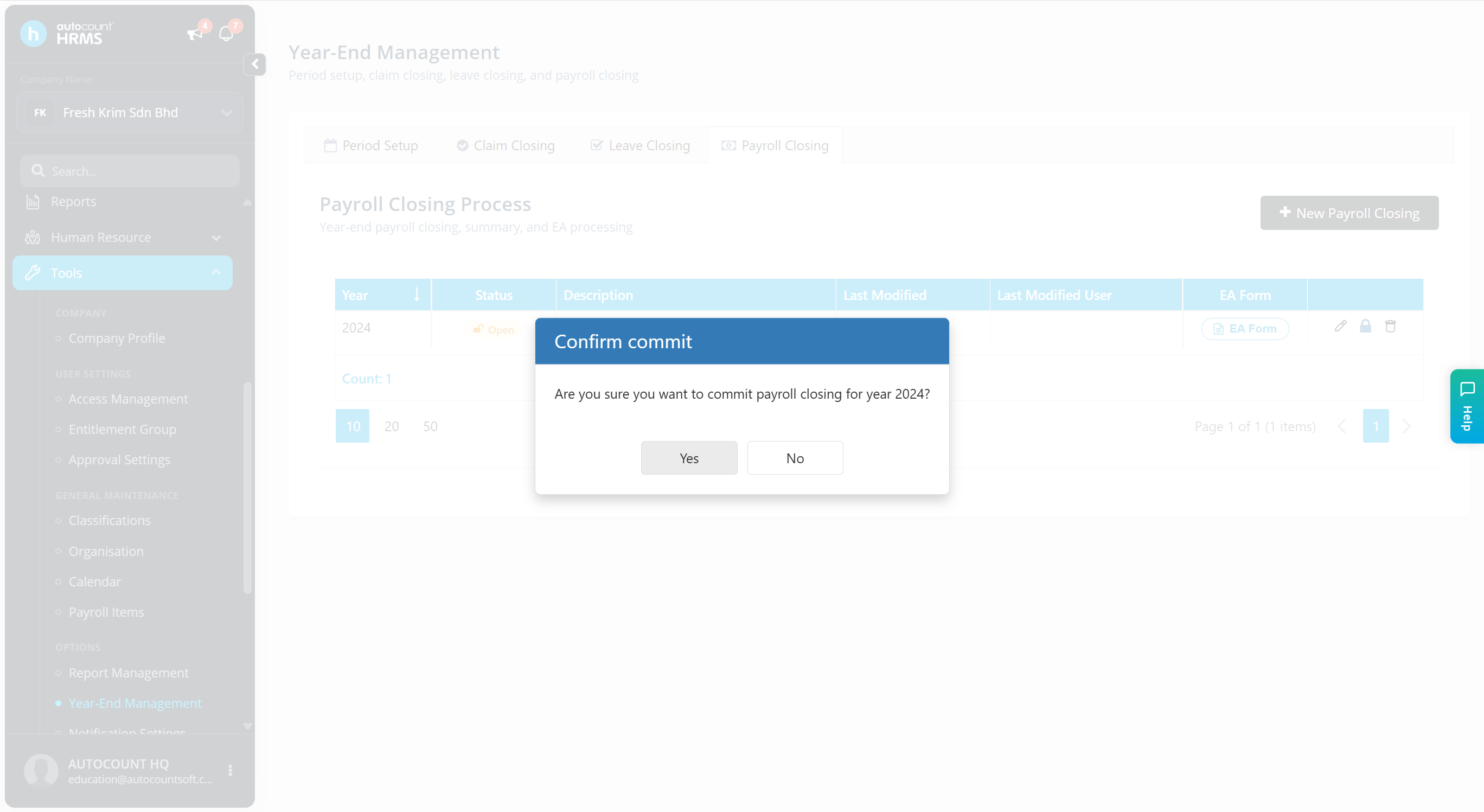
Click Yes to confirm.
Steps to Preview and Print EA Form:
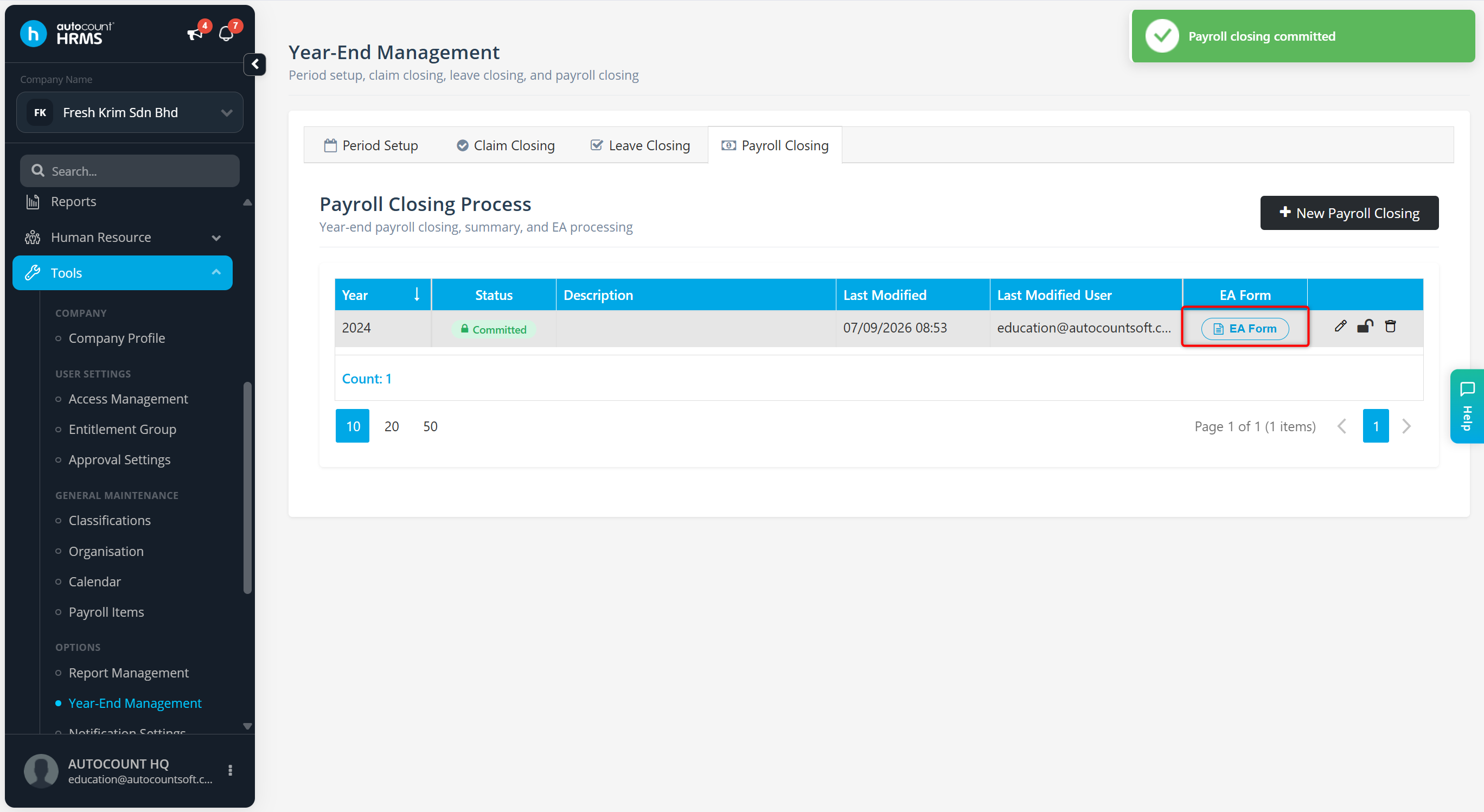
After Payroll Closing, click EA Assistant.
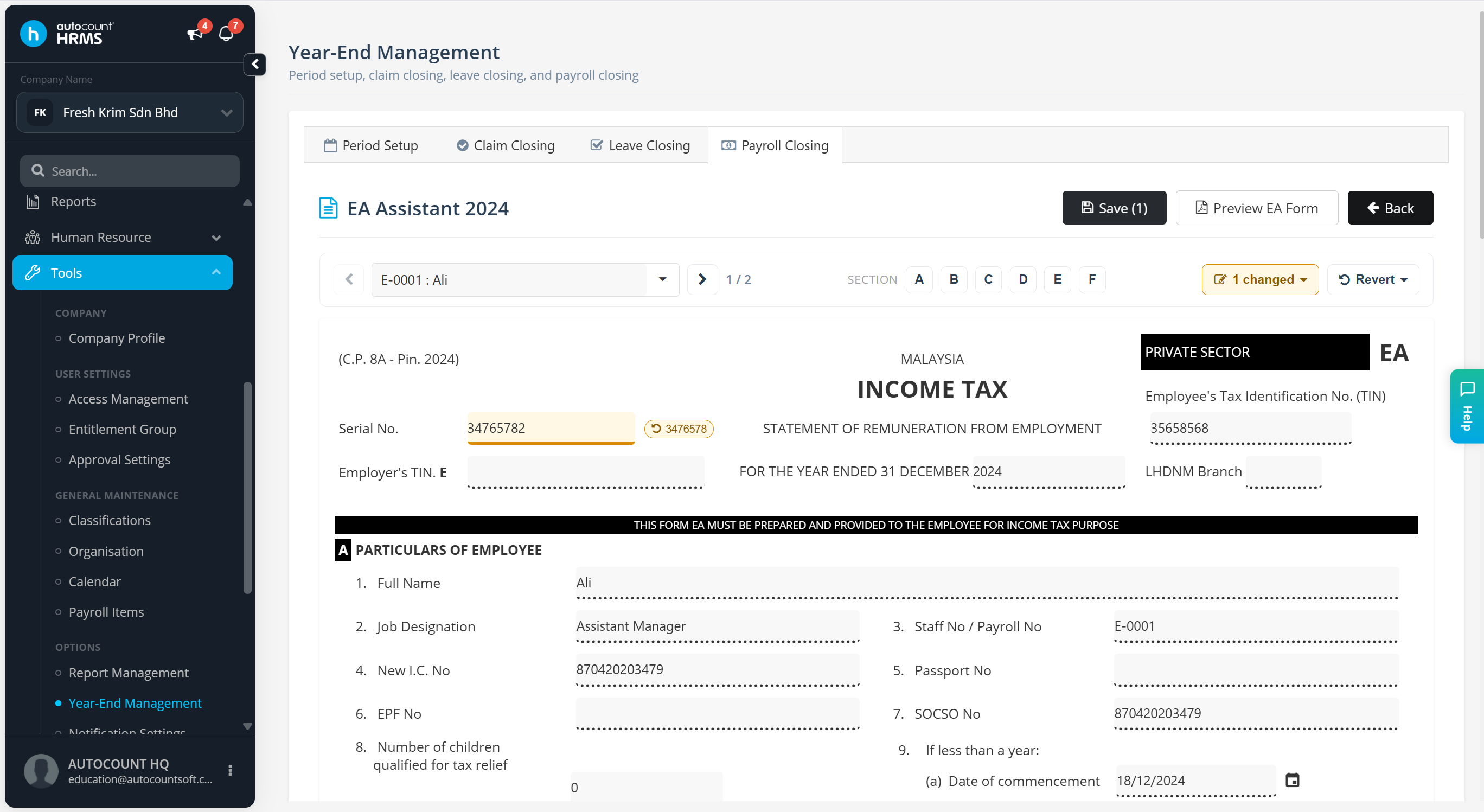
Review or manually edit the EA Form if necessary.
Click Save.
Click Preview EA Form.
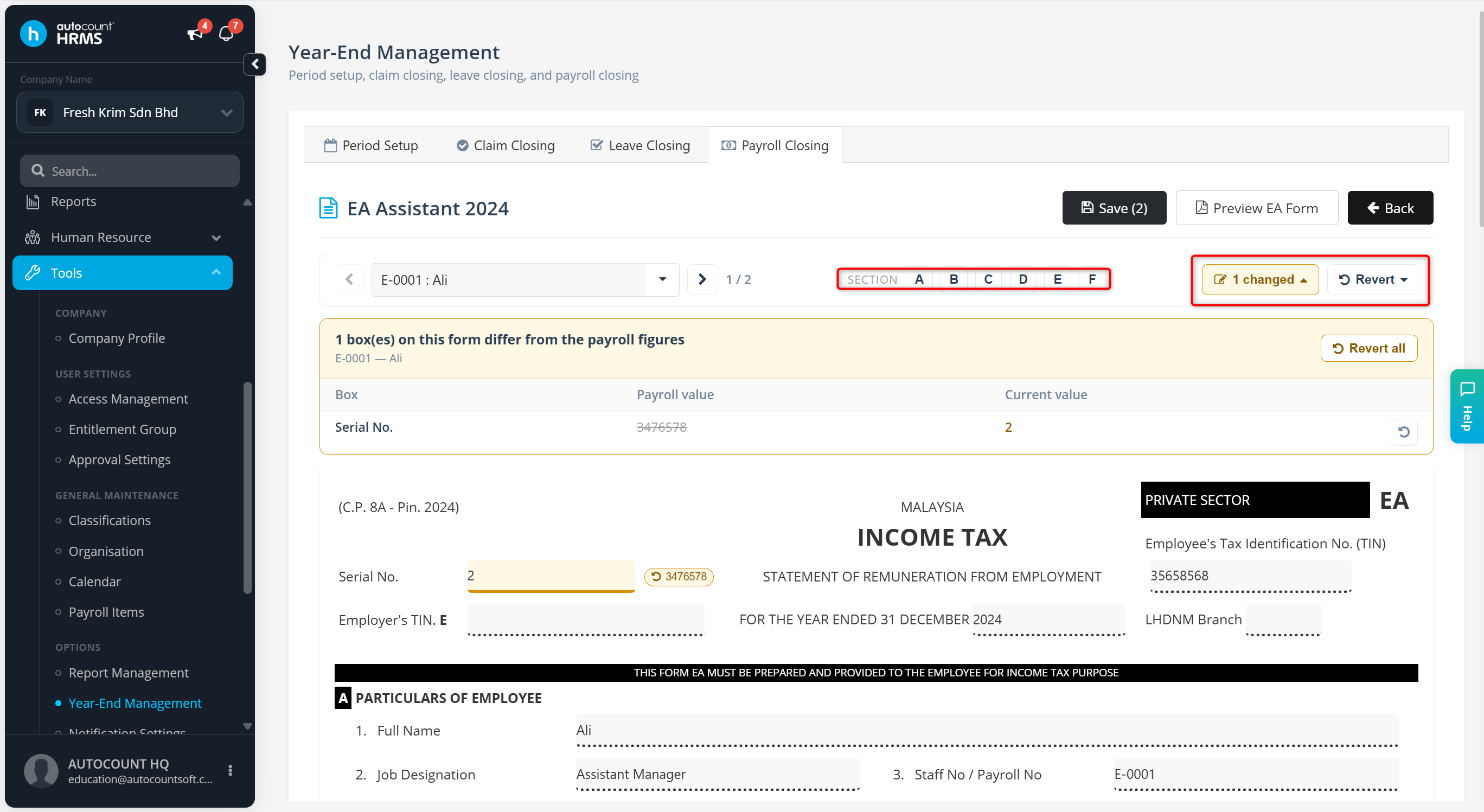
ℹ️ Note:
- Click Section A, B, C, D, E or F to jump to the required section without scrolling.
- Click 1 changed to view the payroll value (old data) and Current Value (new changes).
- Click Revert, select Revert this form or Revert every employees to undo the changes.
5. Click the Print or Download icon to save the EA Form.