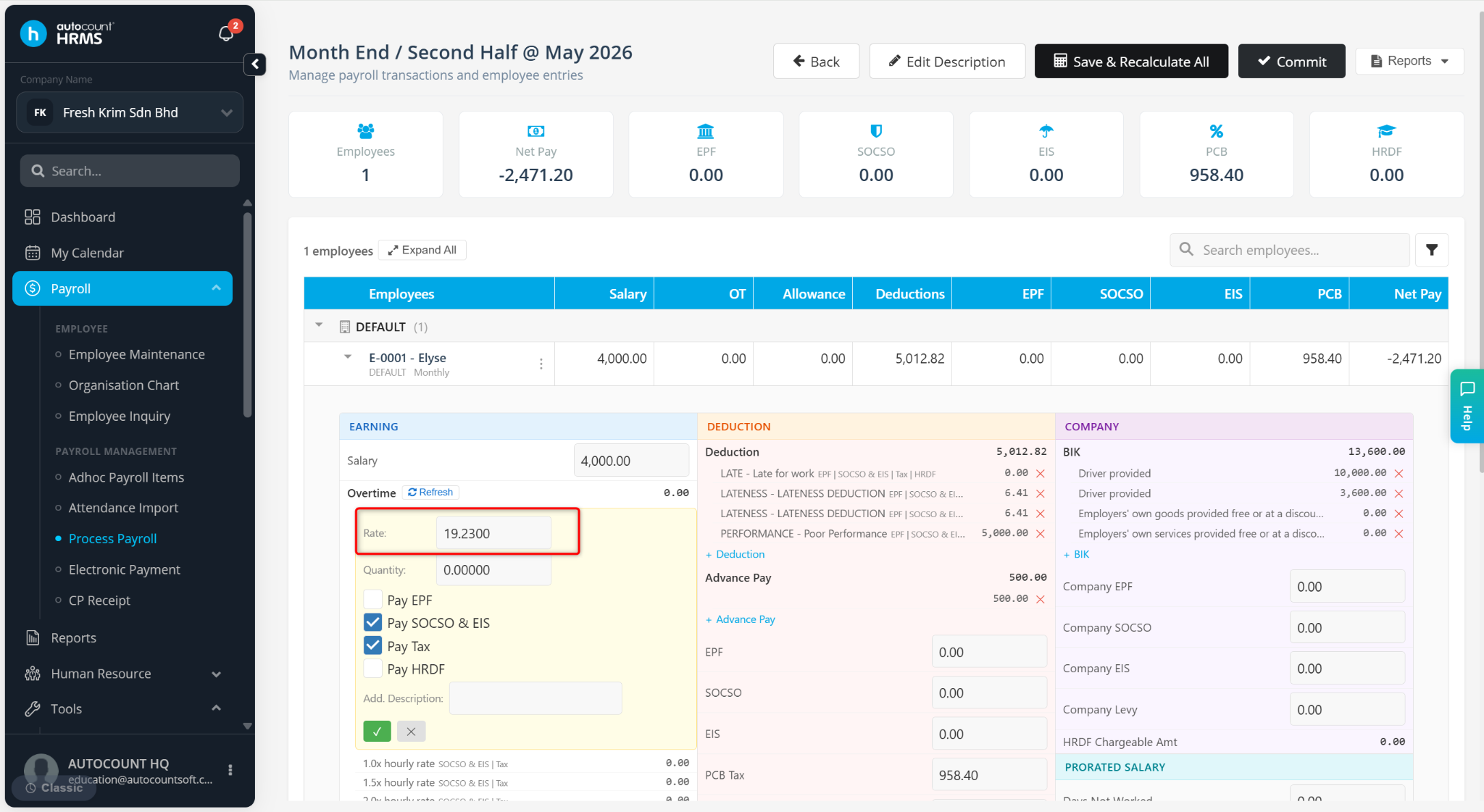
This formula is used to ensure that overtime rates are calculated and displayed with two decimal places.
Steps to Make Overtime Rate Rounding to Two Decimal Points:
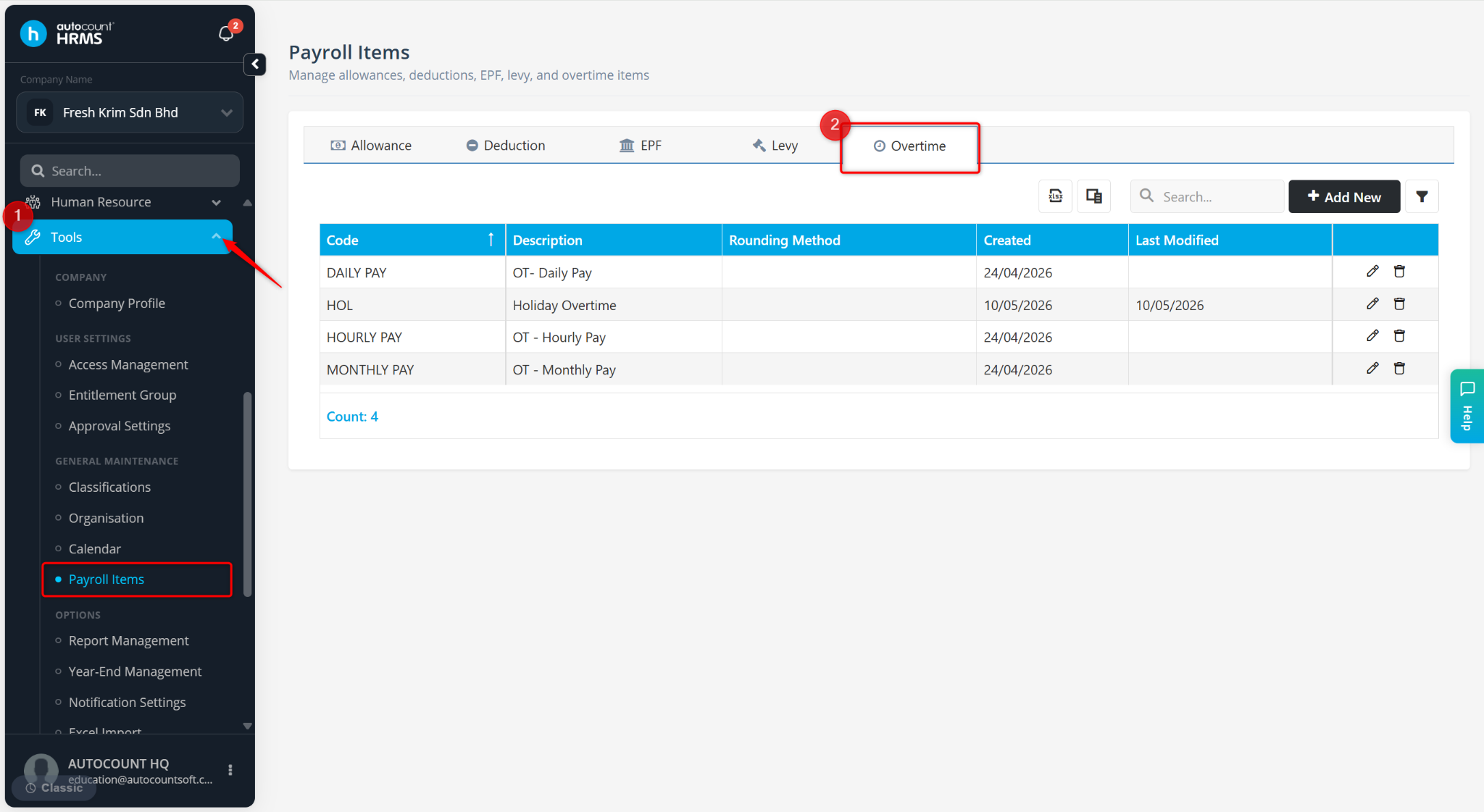
Go to Tools > Payroll Items.
Go to Overtime.
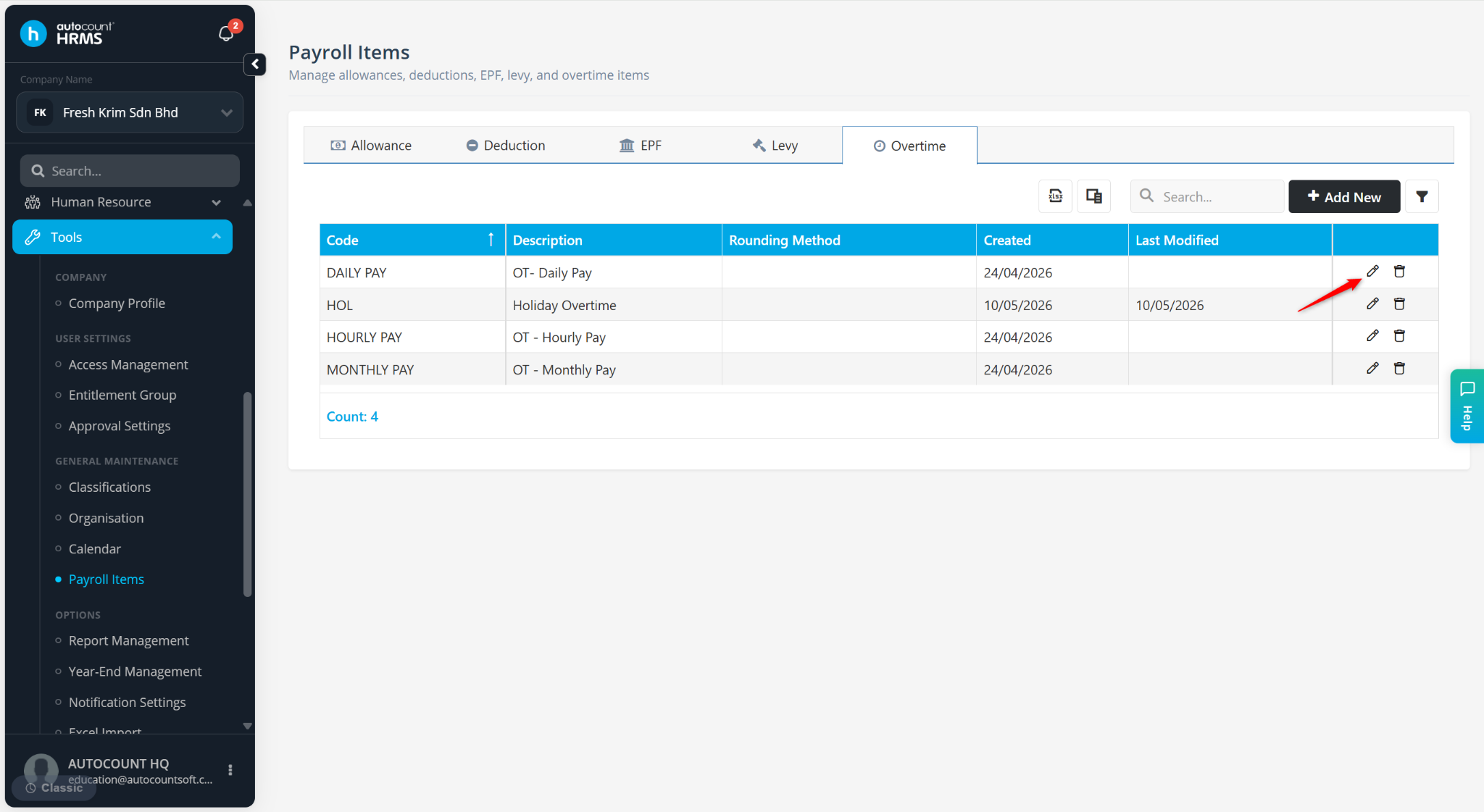
Locate the overtime and click the pencil icon.
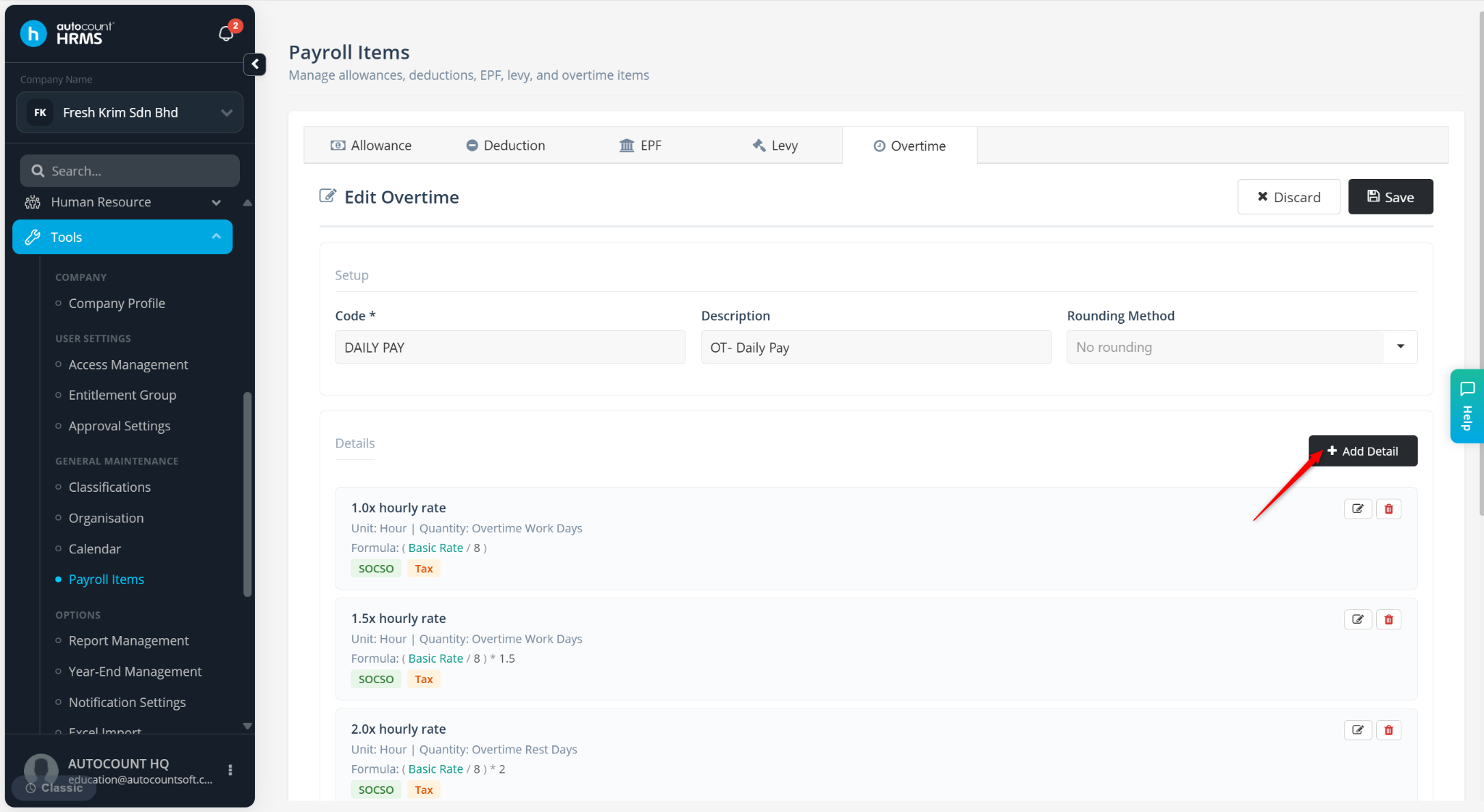
Enter the Code and Description.
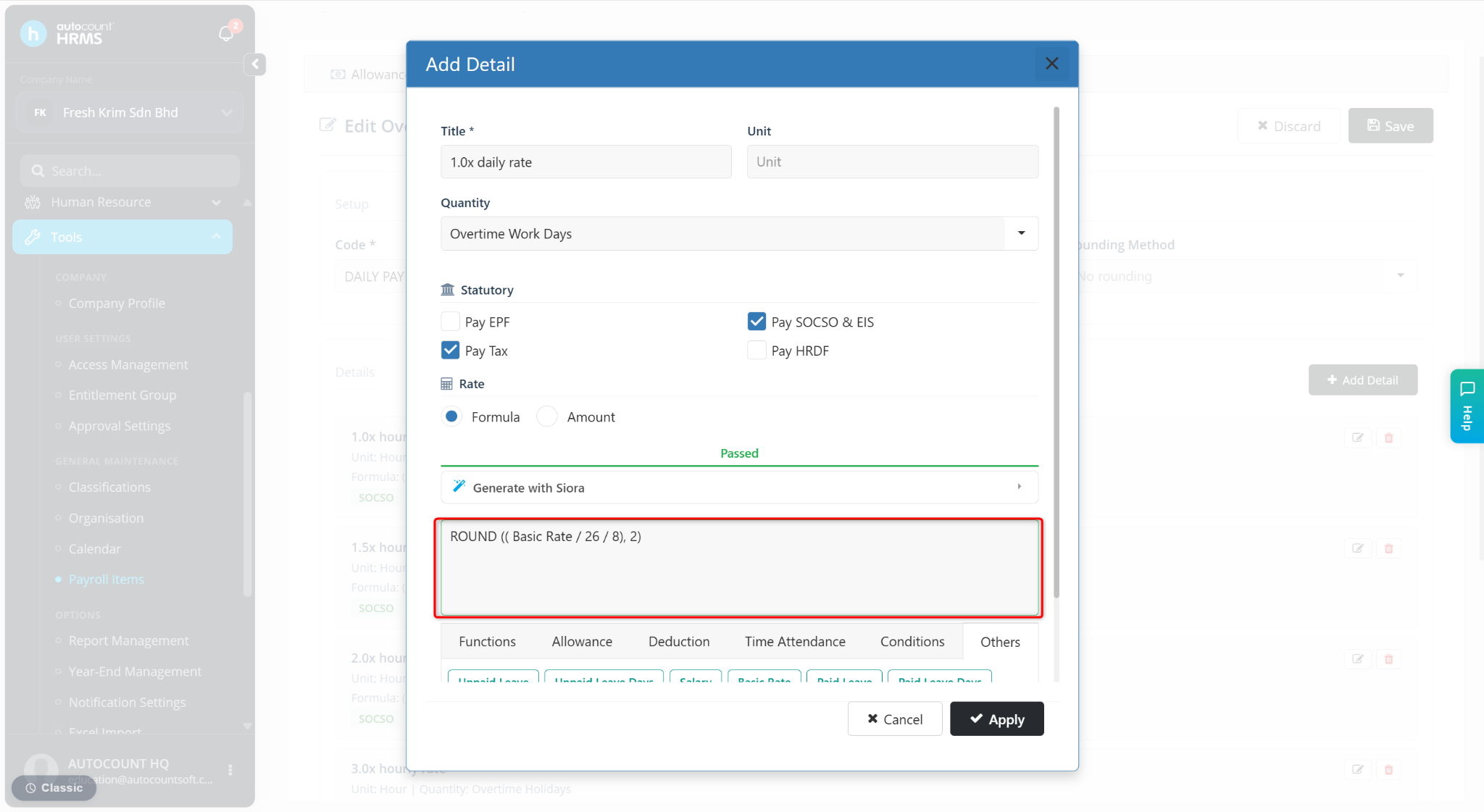
Click + Add Detail.
Enter the Title and define the OT rate formula using rounding:
Apply formula ROUND((...), 2) to ensure two decimal precision.
Example for 1.0x OT rate: ROUND ((Basic Rate / 26 / 8), 2 )
Click Apply.
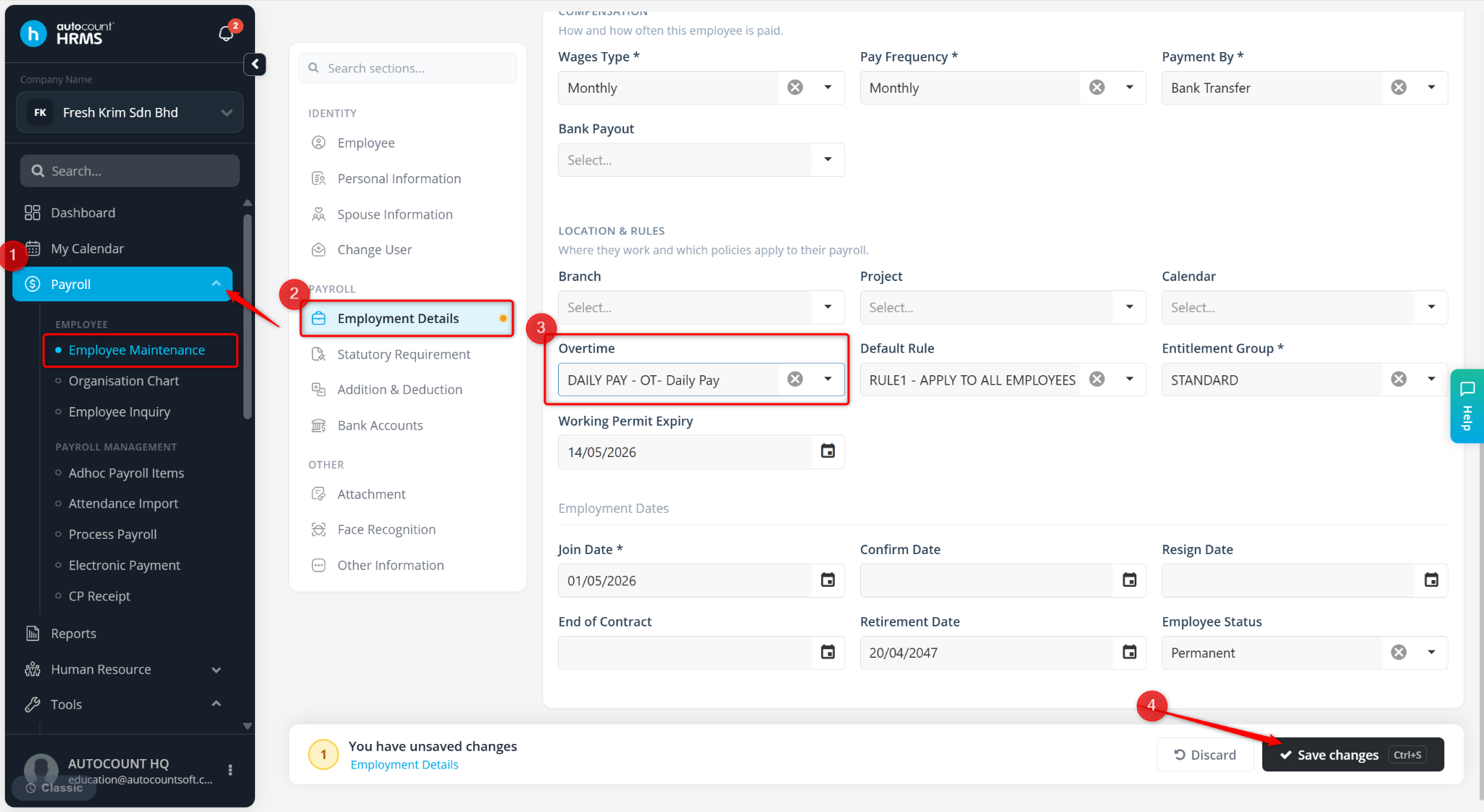
Go to Payroll > Employee Maintenance.
Locate the Employee and click the pencil icon.
Go to Employment Details, select the created overtime rule and click Save changes.
Go to Payroll > Process Payroll. The overtime rate will now be calculated and displayed with two decimal places.