
Creating and maintaining employee records is essential for efficient HR and payroll management. AutoCount HRMS provides two methods to add employees, depending on the amount of information available during setup:
Express Create – Create an employee using only the mandatory information.
New Employee – Create a complete employee profile with access to all employee details and settings.
Steps to Create a New Employee via Express Create:
Go to Payroll > Employee Maintenance.
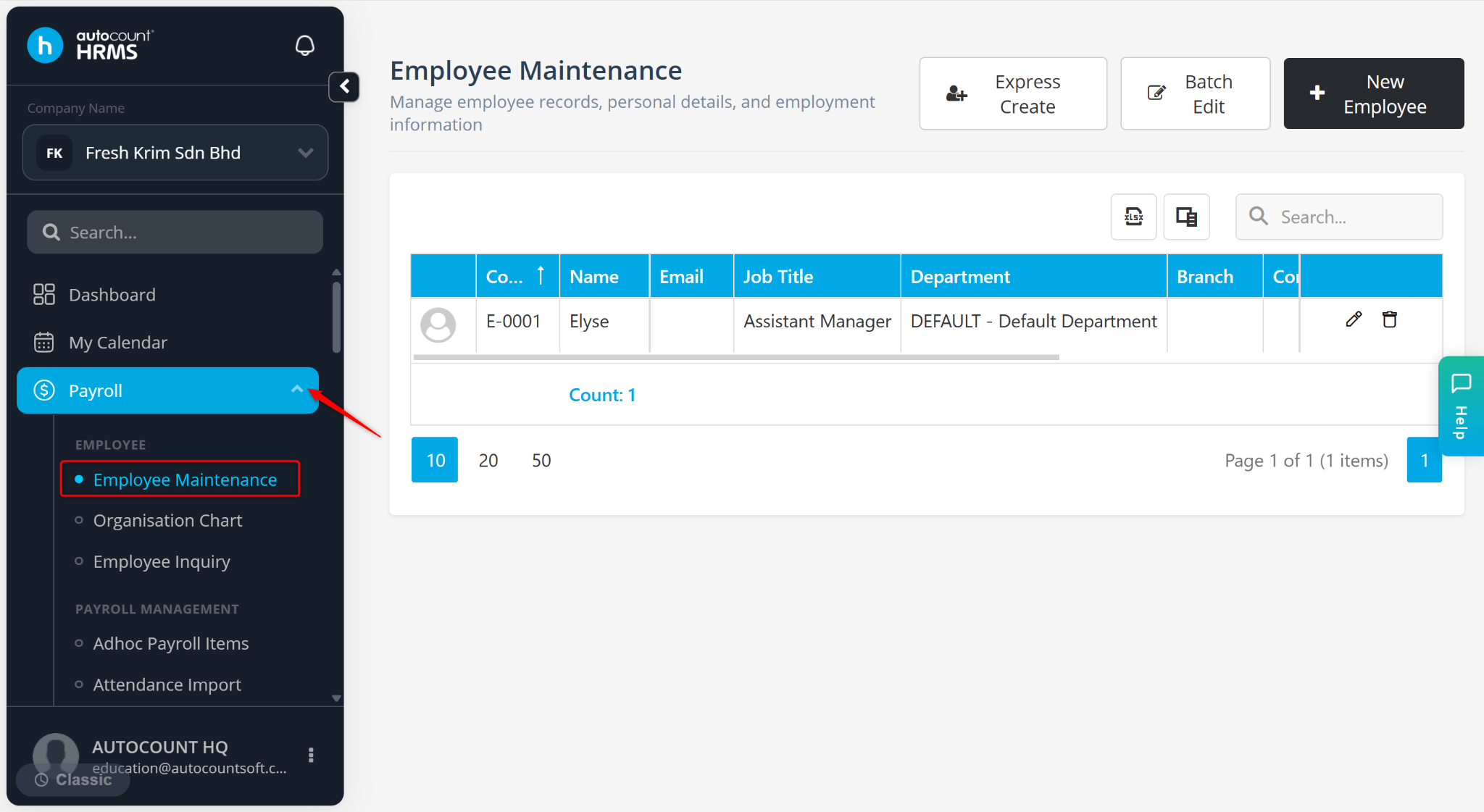
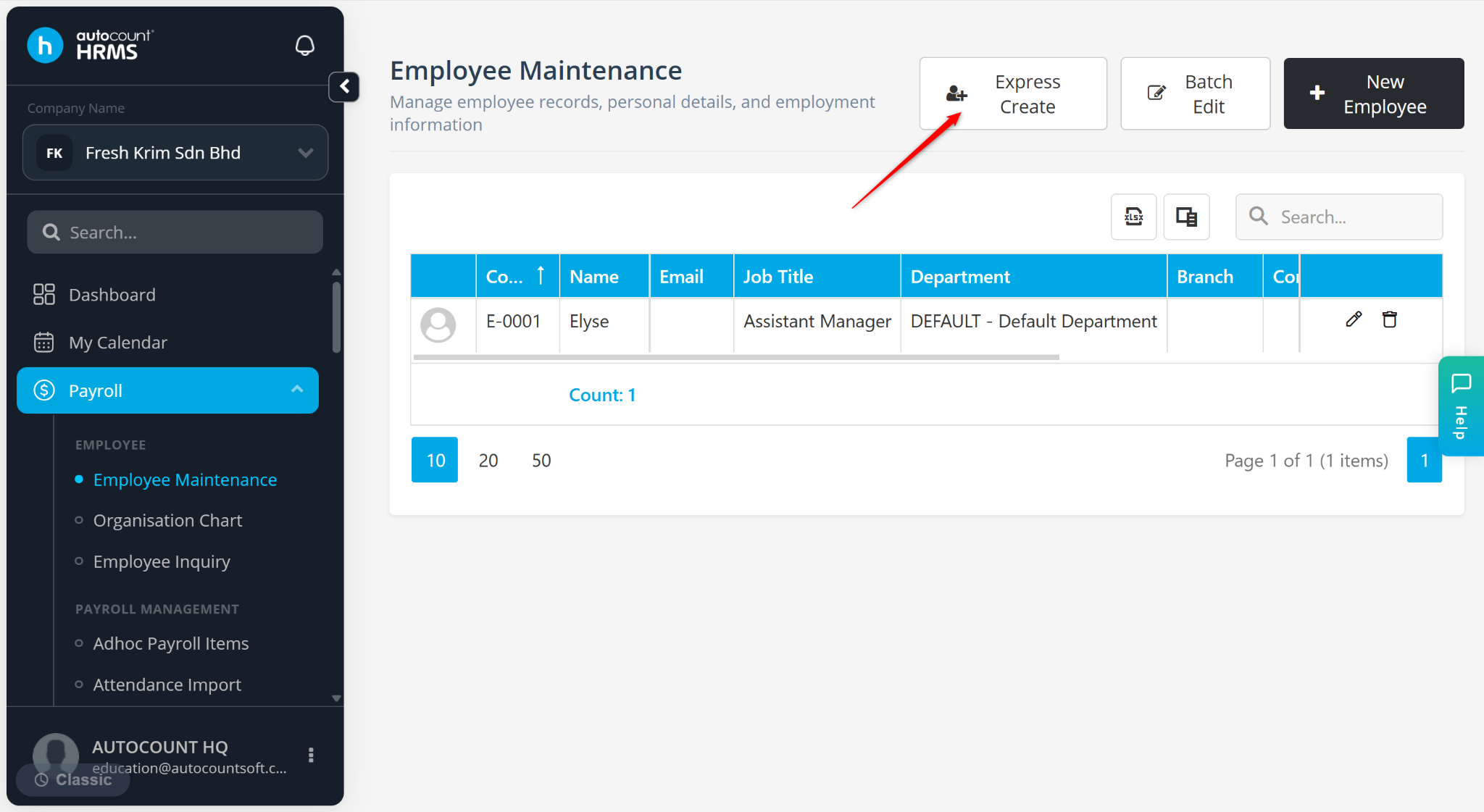
Click Express Create.
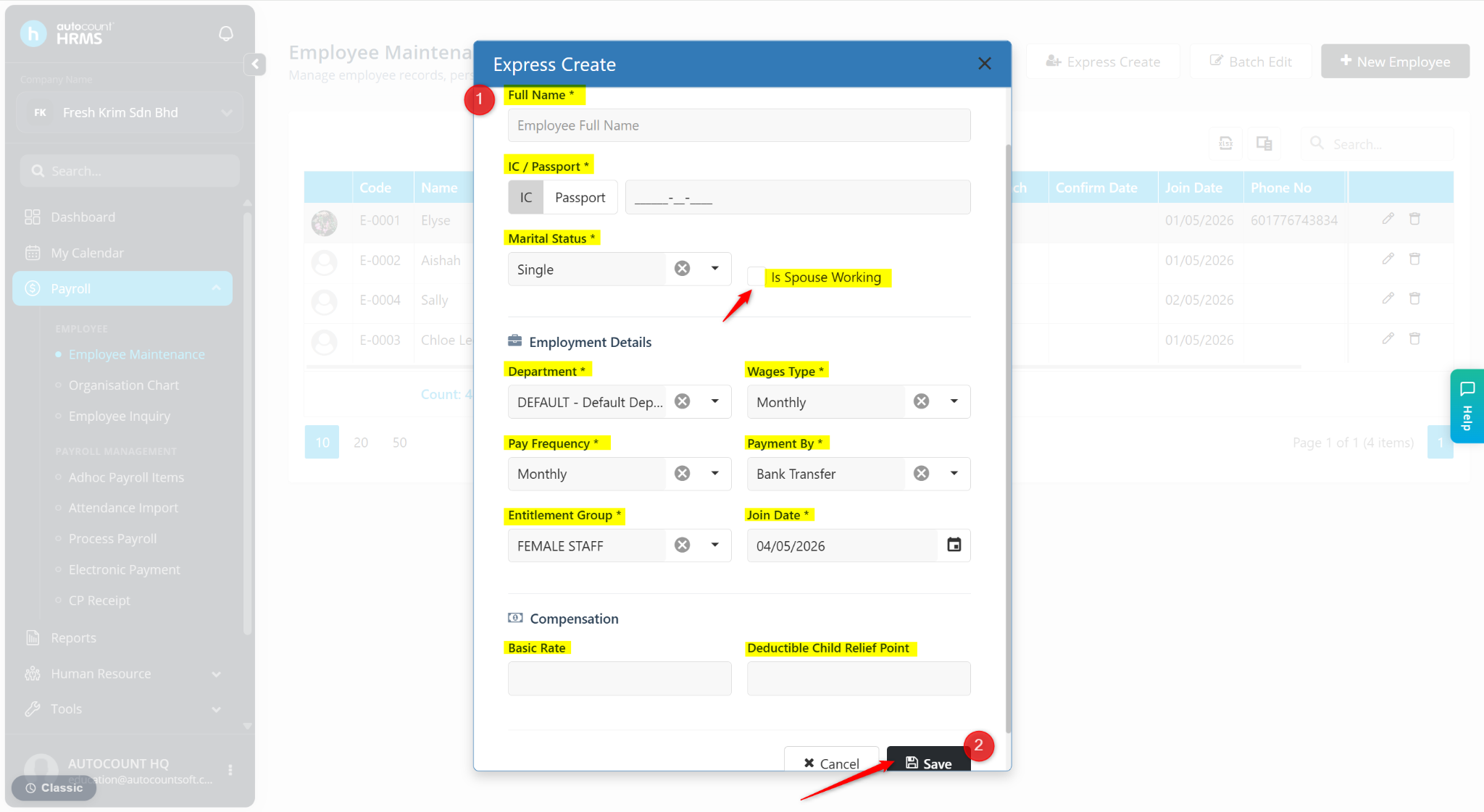
Enter the following details:
Full Name – Enter the employee’s full name as per their IC or passport.
IC / Passport – Enter the IC number (local employee) or passport number (foreign employee).
Marital Status – Select Single, Married, Divorced, or Widowed.
Is Spouse Working – Check this option if the employee’s spouse is currently employed.
Department – Select the assigned department (maintained at Tools > Organisation > Department).
Wages Type – Select Monthly, Daily, Hourly, or Piece Rate based on the employee’s pay structure.
Pay Frequency – Select Monthly or Fortnightly.
Payment By – Select Bank Transfer, Cash, or Cheque.
Entitlement Group – Select the applicable group (maintained at Tools > Entitlement Group, refer to Leave Entitlement and Claim Entitlement).
Join Date – Enter the employee’s start date. This will be auto-filled by default, amend if necessary.
Basic Rate – Enter the employee’s base salary or wage rate.
Deductible Child Relief Point – Enter the applicable child tax relief points for tax calculation.
Click Save.
Steps to Create a New Employee:
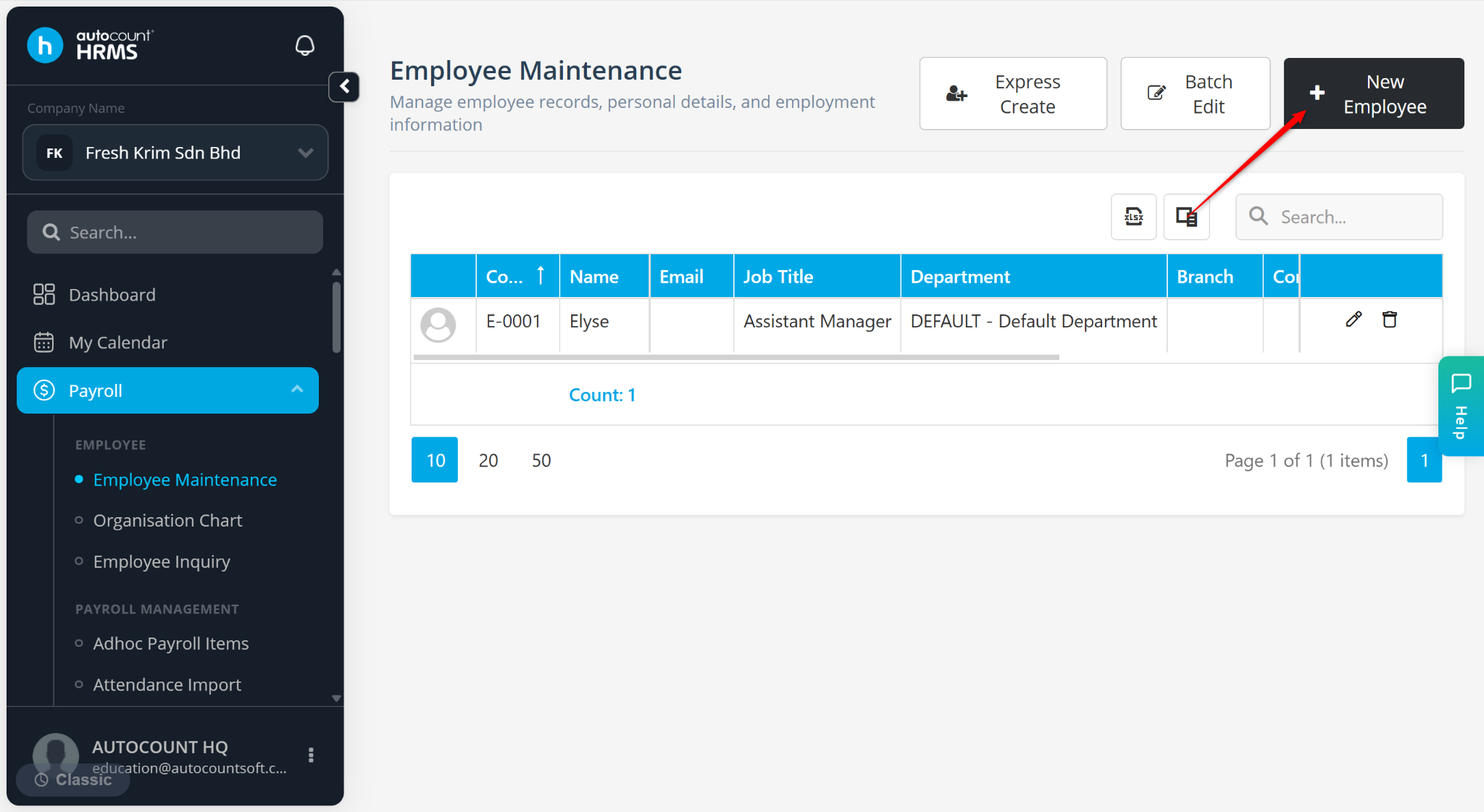
Go to Payroll > Employee Maintenance.
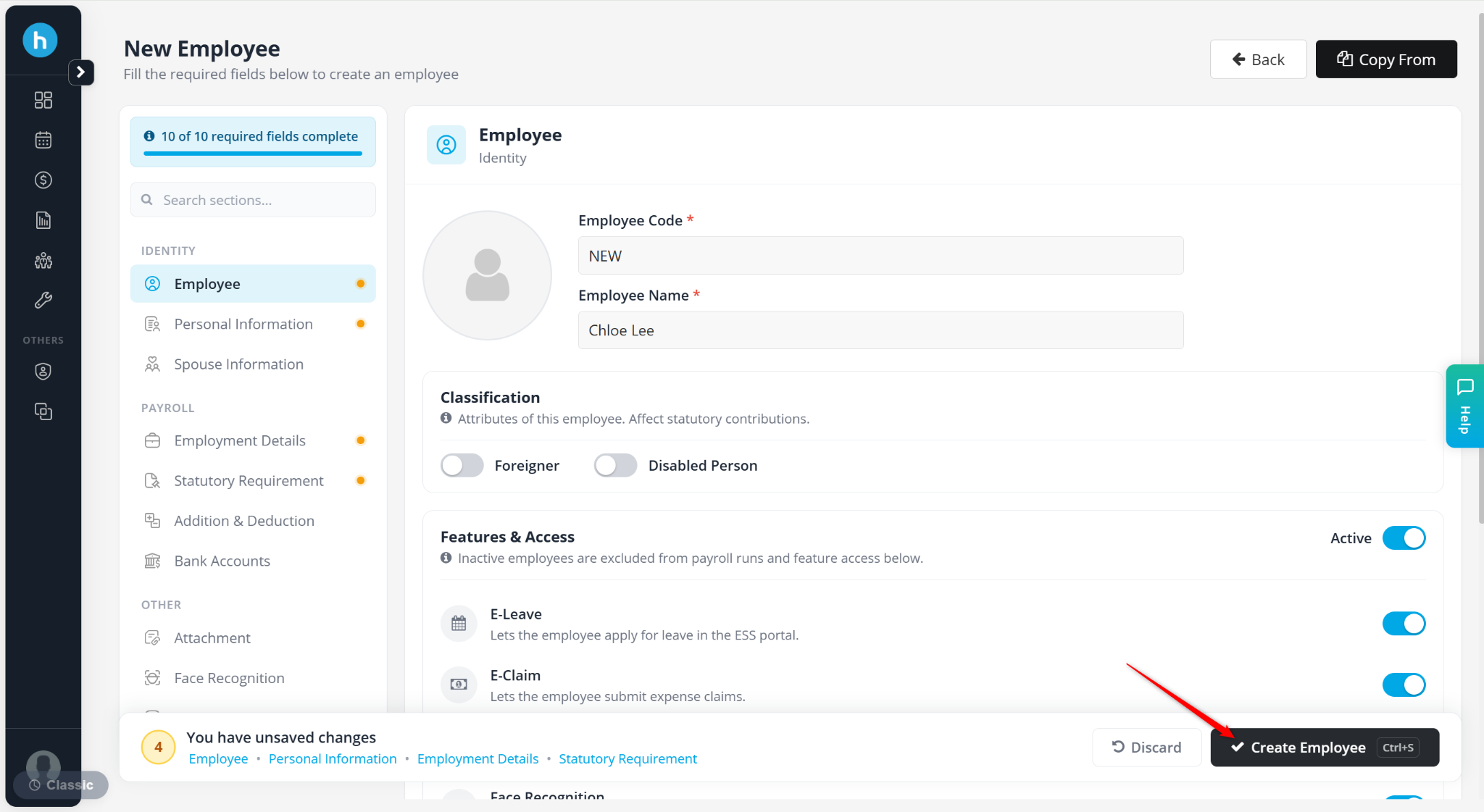
Click New Employee.
Enter the employee’s information. Mandatory information includes:
Employee
Employee Code – Enter the employee’s code. Keep NEW to auto-generate based on the default format
Employee Name – Enter the employee’s full name as per their IC or passport.
Personal Information
IC Number – Enter the IC number of the employee.
Marital Status – Select Single, Married, Divorced, or Widowed.
Employment Details
Department – Select the assigned department (maintained at Tools > Organisation > Department).
Wages Type – Select Monthly, Daily, Hourly, or Piece Rate based on the employee’s pay structure.
Pay Frequency – Select Monthly or Fortnightly.
Payment By – Select Bank Transfer, Cash, or Cheque.
Entitlement Group – Select the applicable group (maintained at Tools > Entitlement Group, refer to Leave Entitlement and Claim Entitlement).
Join Date – Enter the employee’s start date. This will be auto-filled by default, amend if necessary.
Click Create Employee.
ℹ️ Note:
You are required to complete all mandatory fields before saving or proceeding to other tabs (e.g., Addition & Deduction, Bank Accounts) for the employee.
Refer to the articles below for detailed guides on each tab: