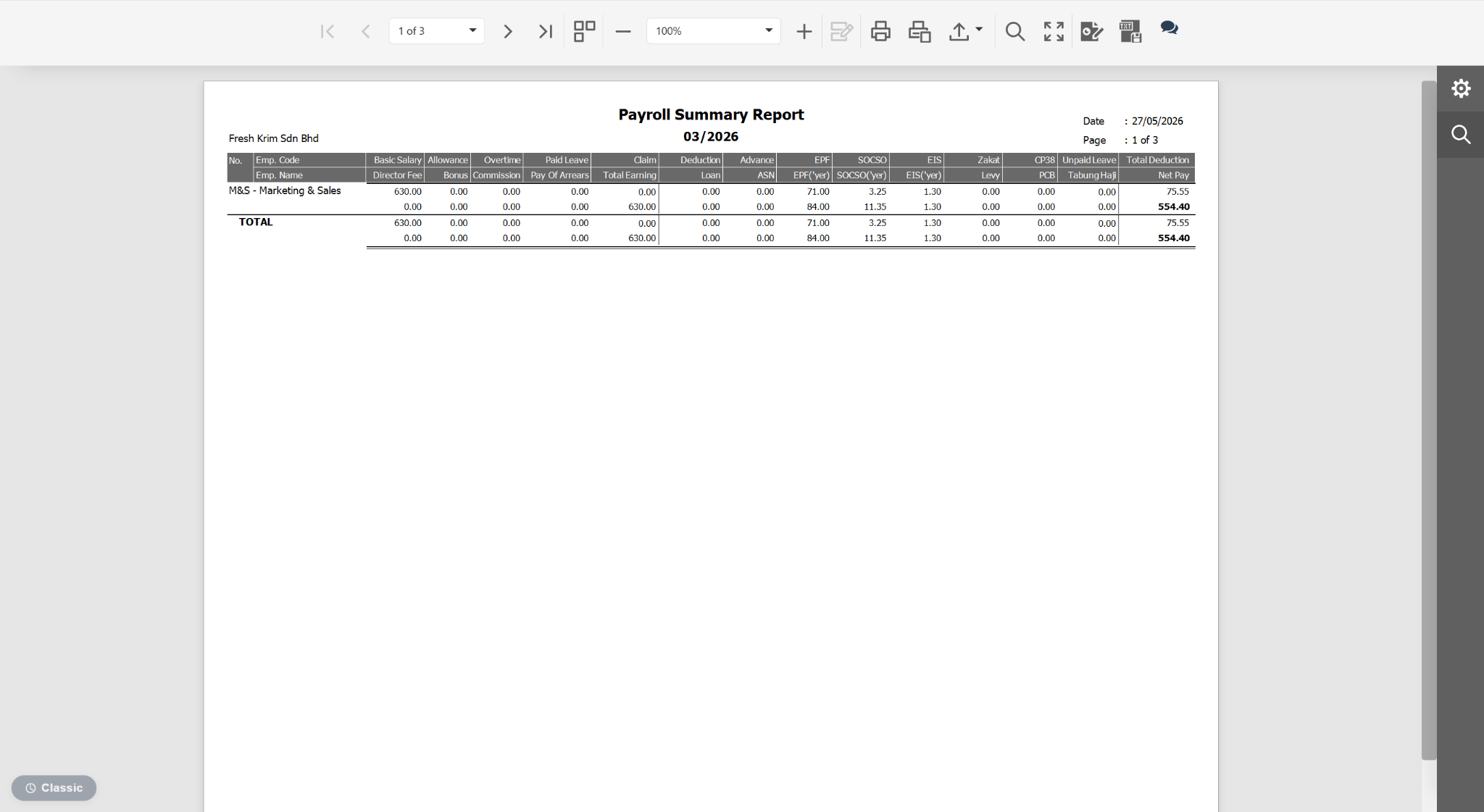
Users can customise the Payroll Summary Report to display payroll information grouped by department only.
Steps to Generate Payroll Report by Department:
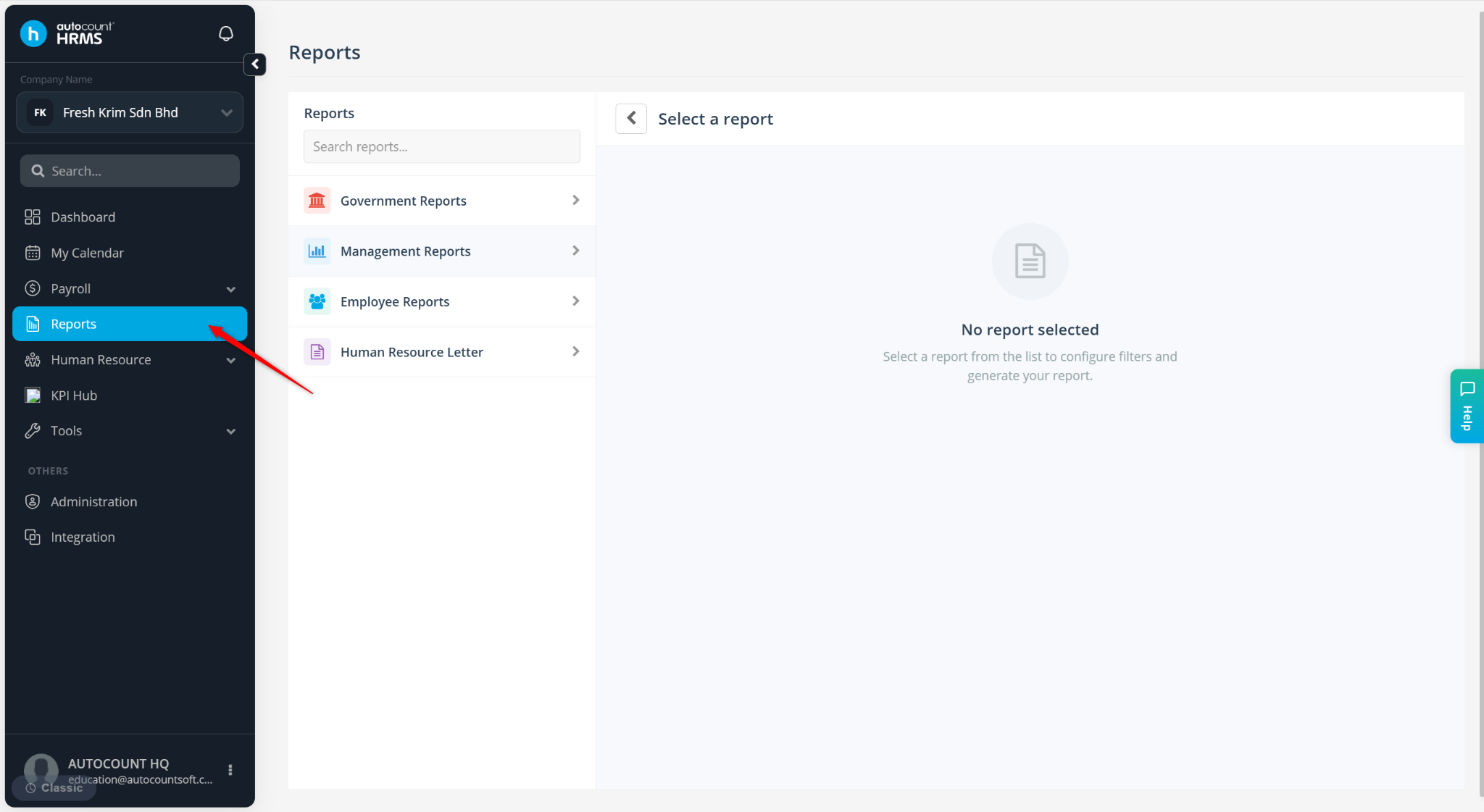
Go to Reports.
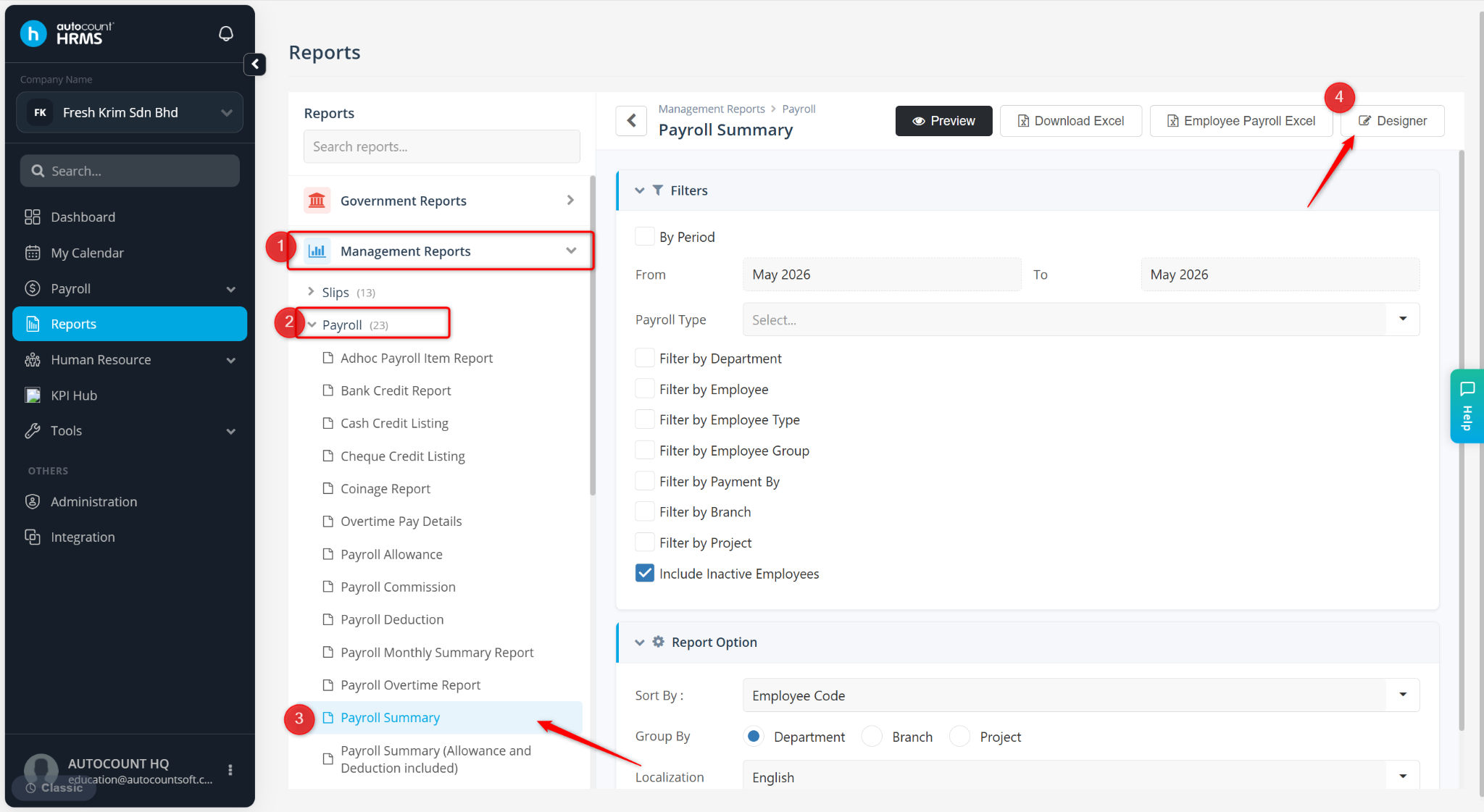
Expand Management Reports > Payroll, click Payroll Summary.
Click Designer.
Click the Detail1 (Detail) column, expand BEHAVIOR and untick the Visible field.
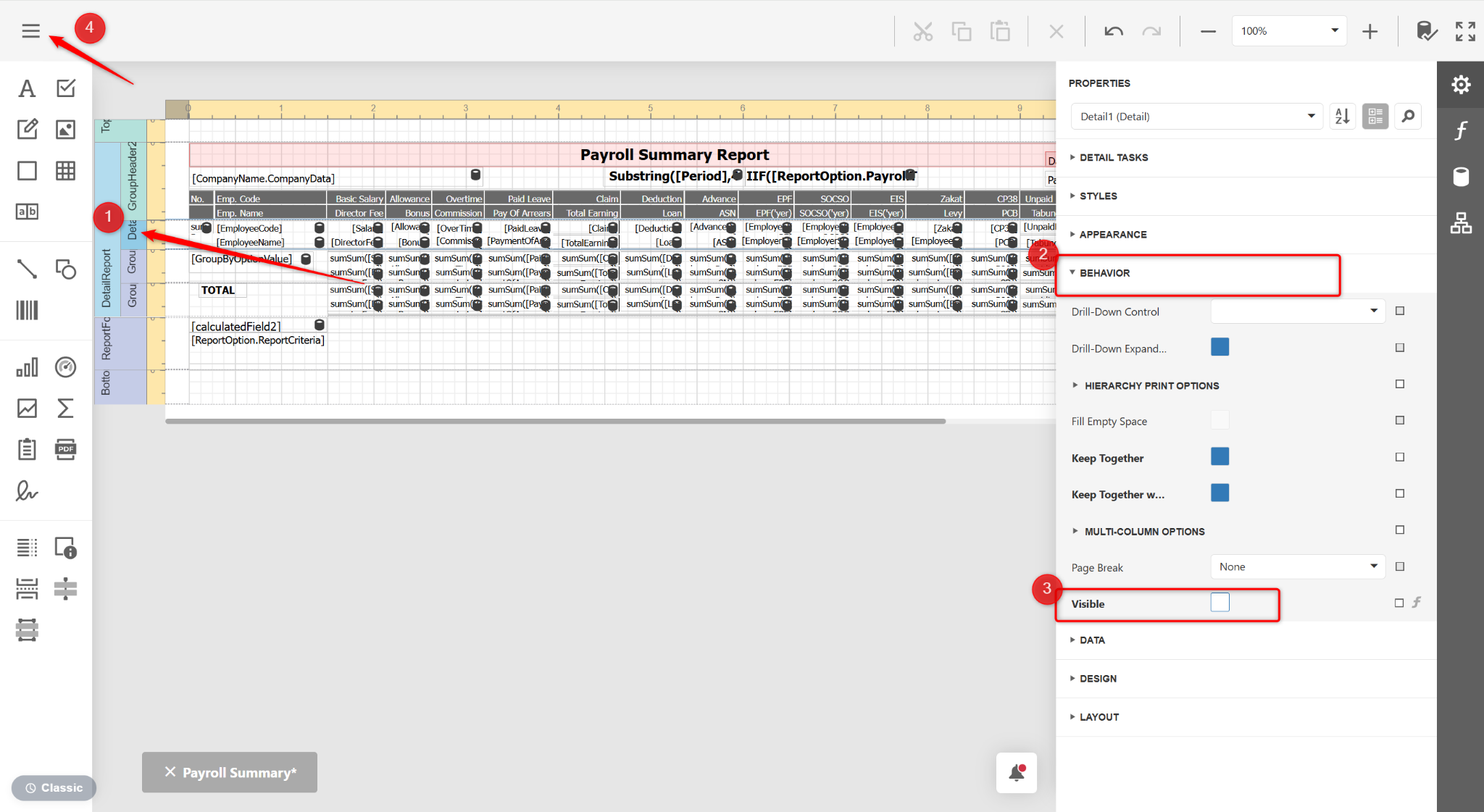
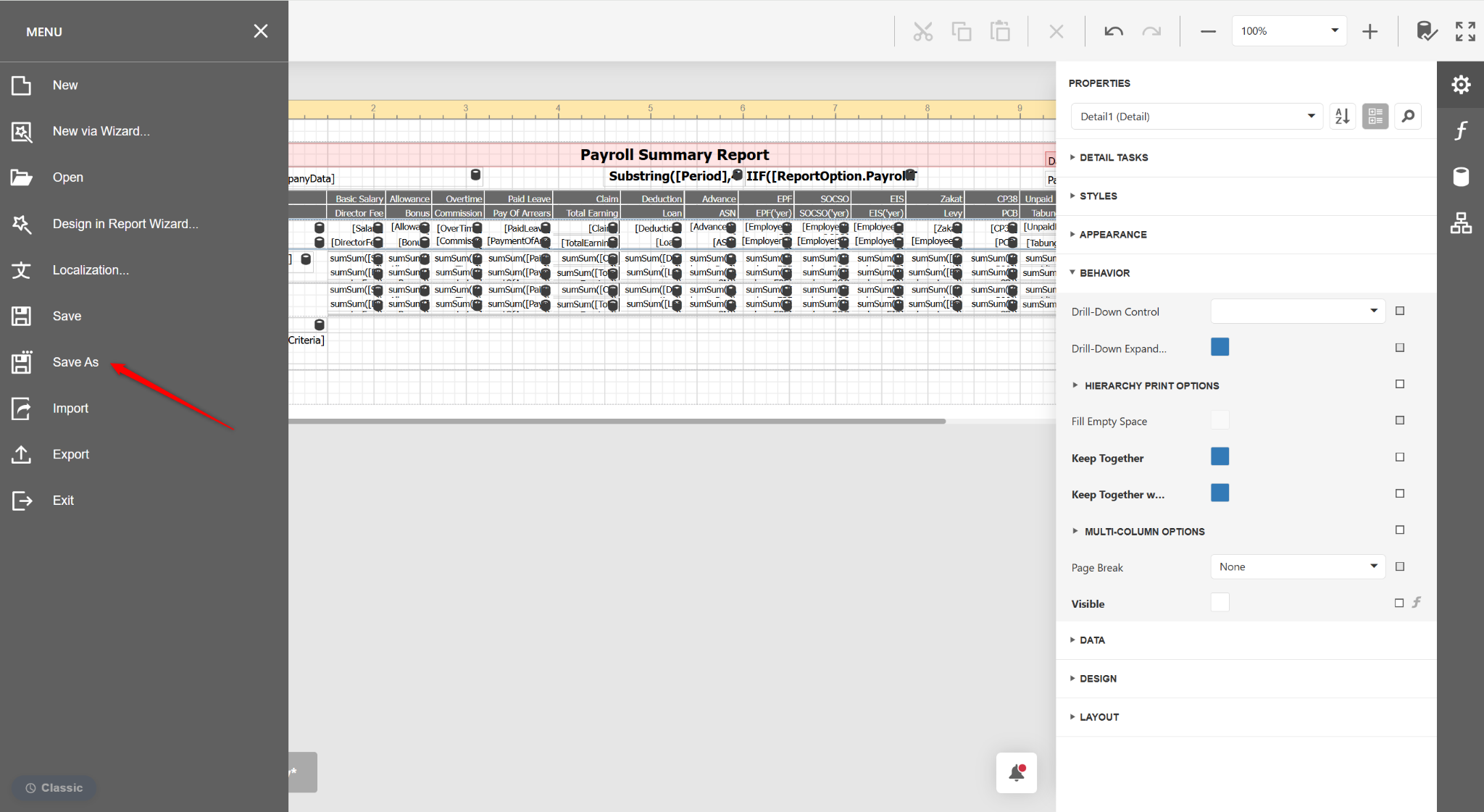
Click the three horizontal lines icon and select Save As.
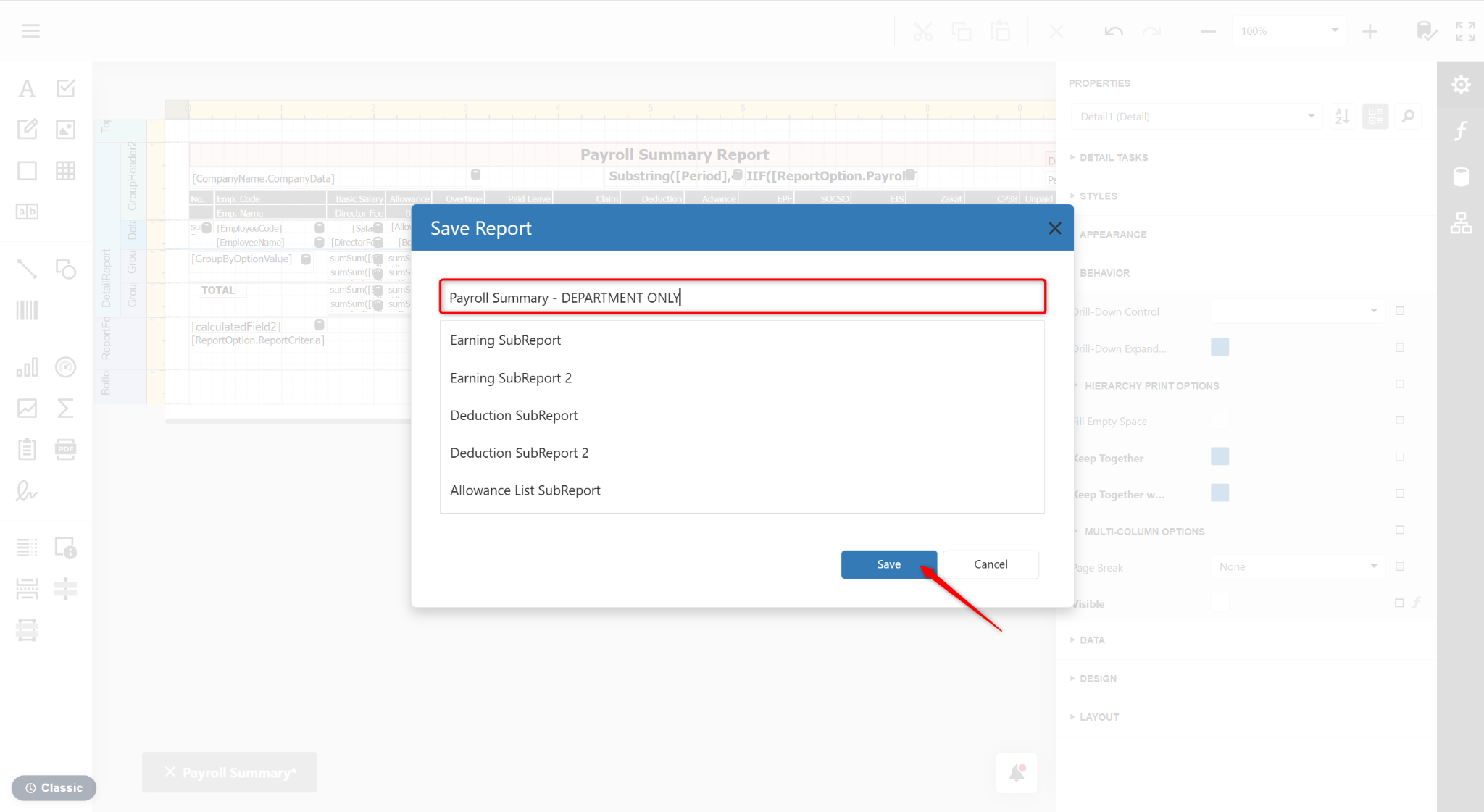
Enter a new report name and click Save.
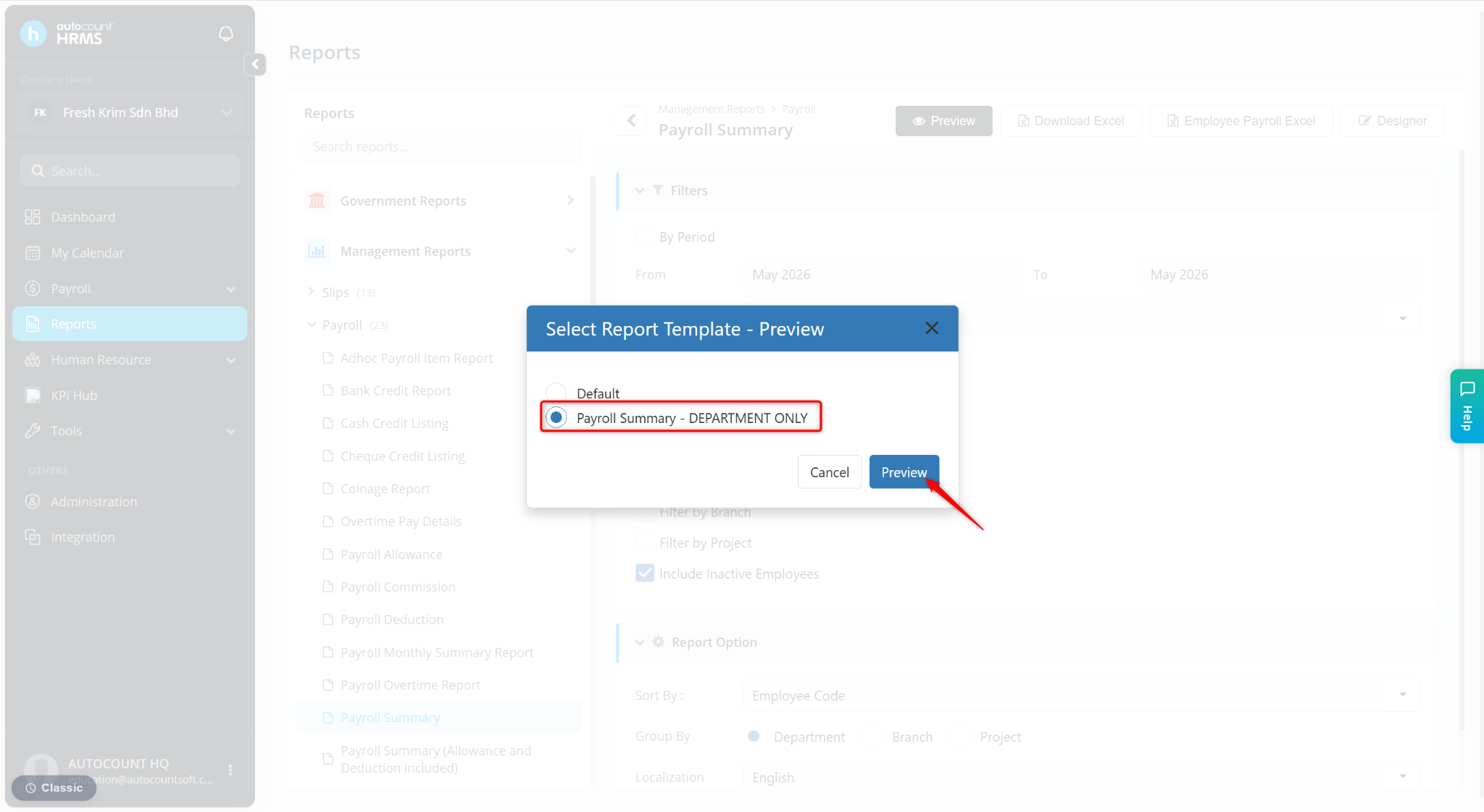
Return to the reports page and click Preview.
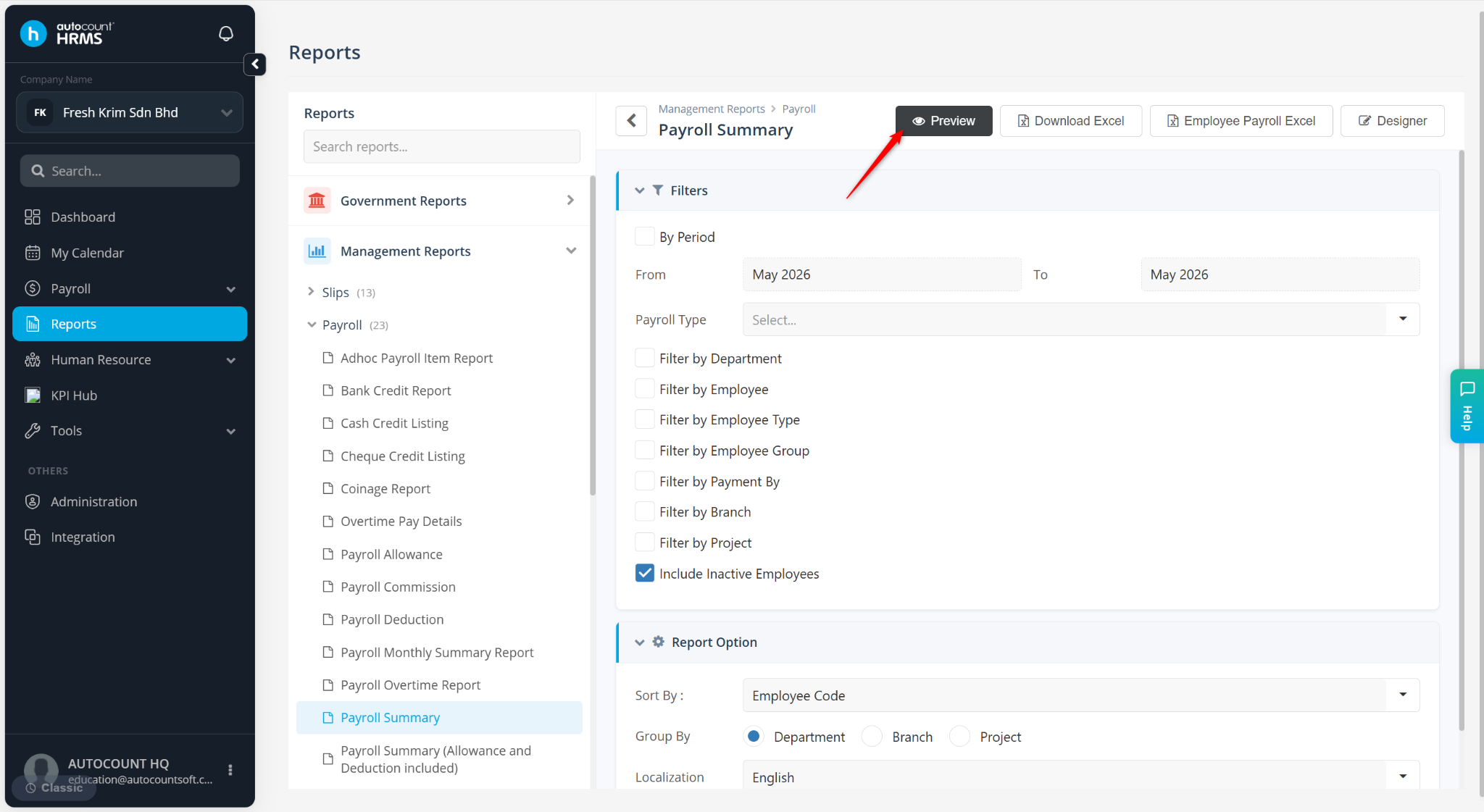
Select the newly customised report and click Preview.