
The HRMS Claim Request feature enables employees to submit personal claim applications electronically through the Employee Self Service (ESS) portal. Employees can submit various claim types, attach supporting documents, and track the approval status of their claims, reducing paperwork and streamlining the reimbursement process.
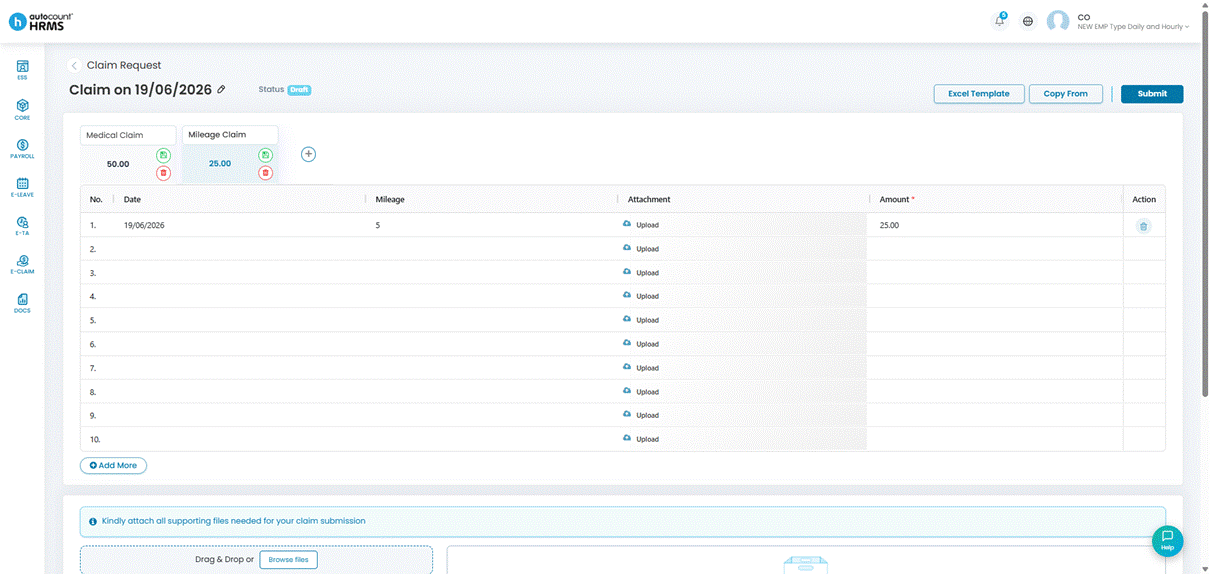
Steps to Submit a Claim Request:
1. Go to ESS > My Claim > Claim Request.
2. Click Add New on the Claim Request page.
3. Enter the Description. By default, this is set to "Claim + Created Date".
4. Add claim entries:
- Select the Claim Type (e.g., Mileage, Parking, Medical).
- Enter the Amount. (mandatory)
- For formula-based claims (e.g., Mileage), enter the Input Value. The system will automatically calculate the Amount based on the configured rate.
- Upload an attachment if required. The maximum total attachment size is 3 MB per claim request.
5. Click Save.
6. Review all entries carefully, then click Submit.
ℹ️ Notes:
- Each Claim Type can only appear once per claim request.
- If entries are in non-sequential rows, the system will automatically reorder them after saving.