
The Announcement feature allows you to share important updates, notices, and information with employees. You can now customize announcements with attachments, priority, scheduling, pinning, and acknowledgement tracking.
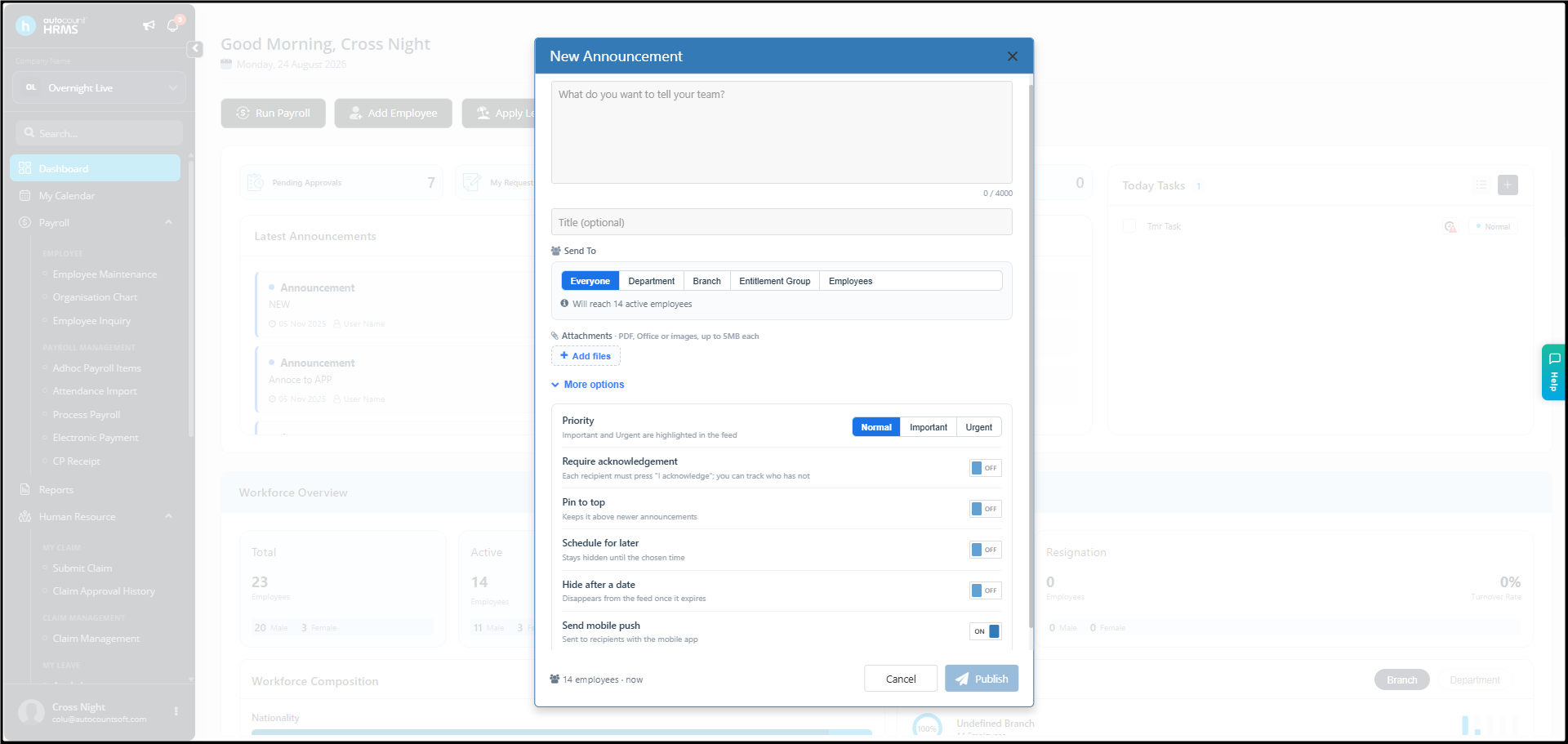
1. Create a New Announcement
Go to Dashboard > Announcement and click Add New Announcement.
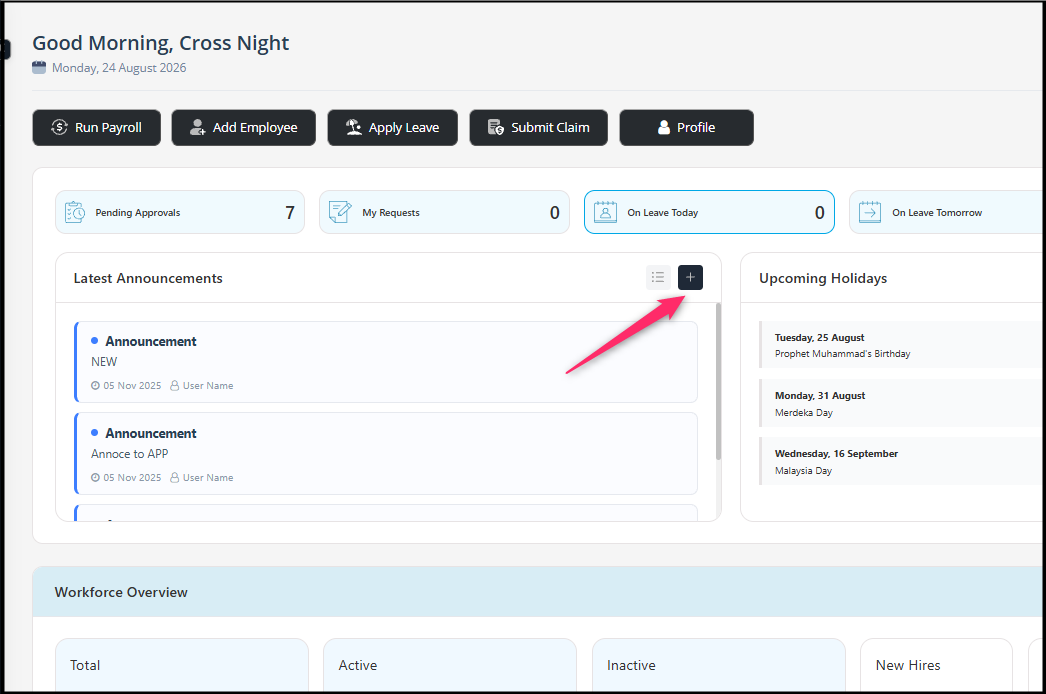
Announcement Details
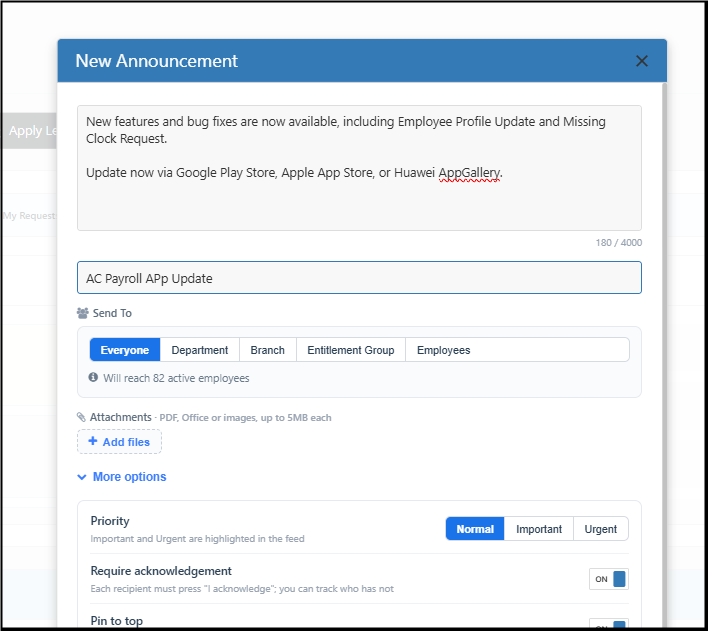
Fill in the following information:
- Message – Enter the announcement content. Maximum 4,000 characters.
- Title – Enter an optional title for the announcement.
- Send To – Select the employees who should receive the announcement.
- Send To Options
You can send the announcement to:
- Everyone – All employees
- Department – Selected department(s)
- Branch – Selected branch(es)
- Entitlement Group – Selected entitlement group(s)
- Employees – Selected individual employees
2. Add Attachments
You can attach supporting documents or images to your announcement. Click “+ Add files” to upload attachments. File size: Up to 5 MB per attachment.
3. More Options
Expand More options to configure additional announcement settings.
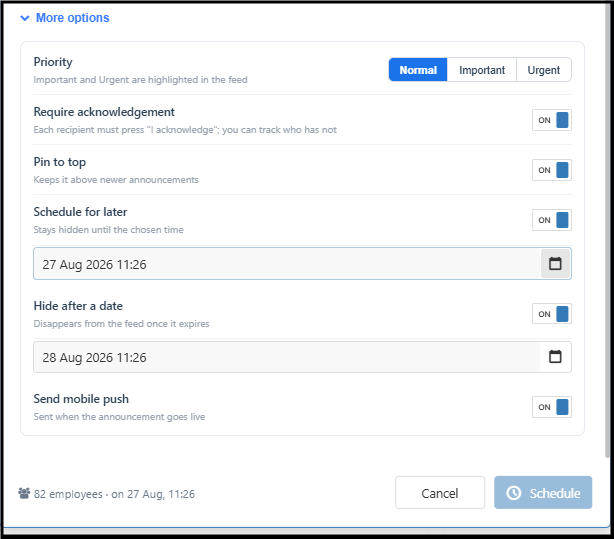
- Priority (Normal / Important / Urgent)
- Require Acknowledgement (Once enabled, recipients will need to click “I acknowledge”)
- Pin to Top (Enable Pin to top to keep the announcement at the top of the announcement feed)
- Schedule for Later (Enable Schedule for later when you want to publish the announcement later)
- Hide After a Date (After the selected date, the announcement will automatically disappear from the feed)
- Send Mobile Push (When enabled, mobile app will receive a mobile push notification when the announcement is published)
4. Track Announcement Status
After publishing an announcement, you can check employee engagement and read status.
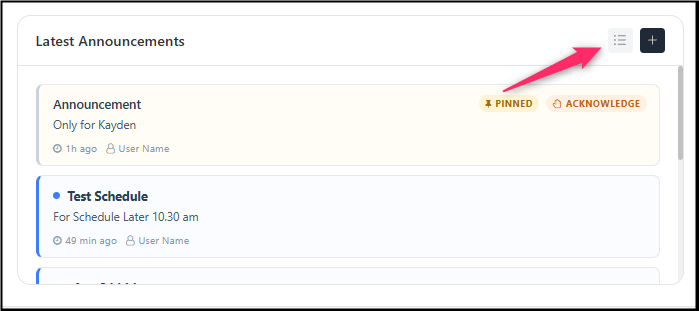
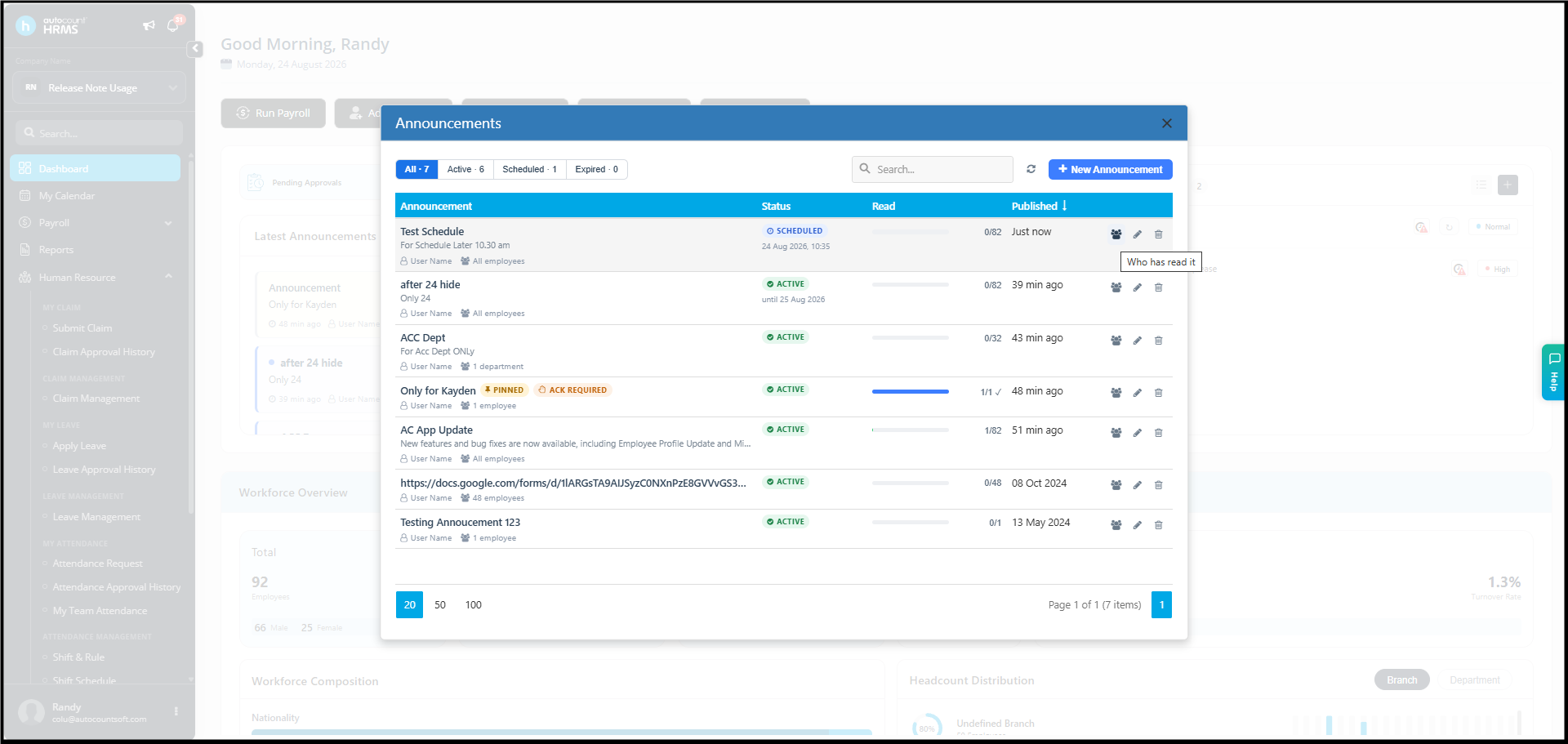
You can view:
- Who has read/viewed the announcement
- Who has not viewed it
- Who has acknowledged it, when acknowledgement is required
- Who has not acknowledged it
This makes it easier to follow up on important announcements and ensure that employees have received and read the information.
By ChenOng 260824