
The Approvers feature allows employers to assign designated approvers—such as managers or supervisors—to review and approve specific employees’ leave requests.
Steps to Assign Leave Approver(s) to an Employee:
1. Go to Core > Employee.
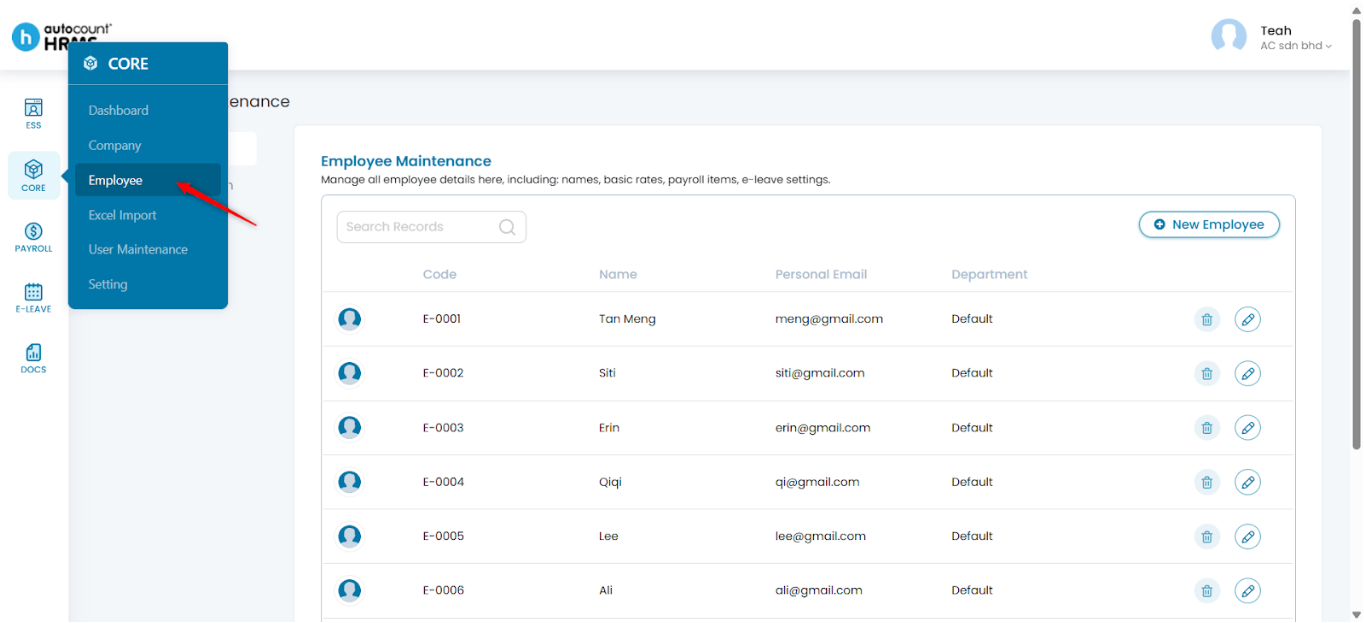
2. Under Employee Maintenance, click Employee.
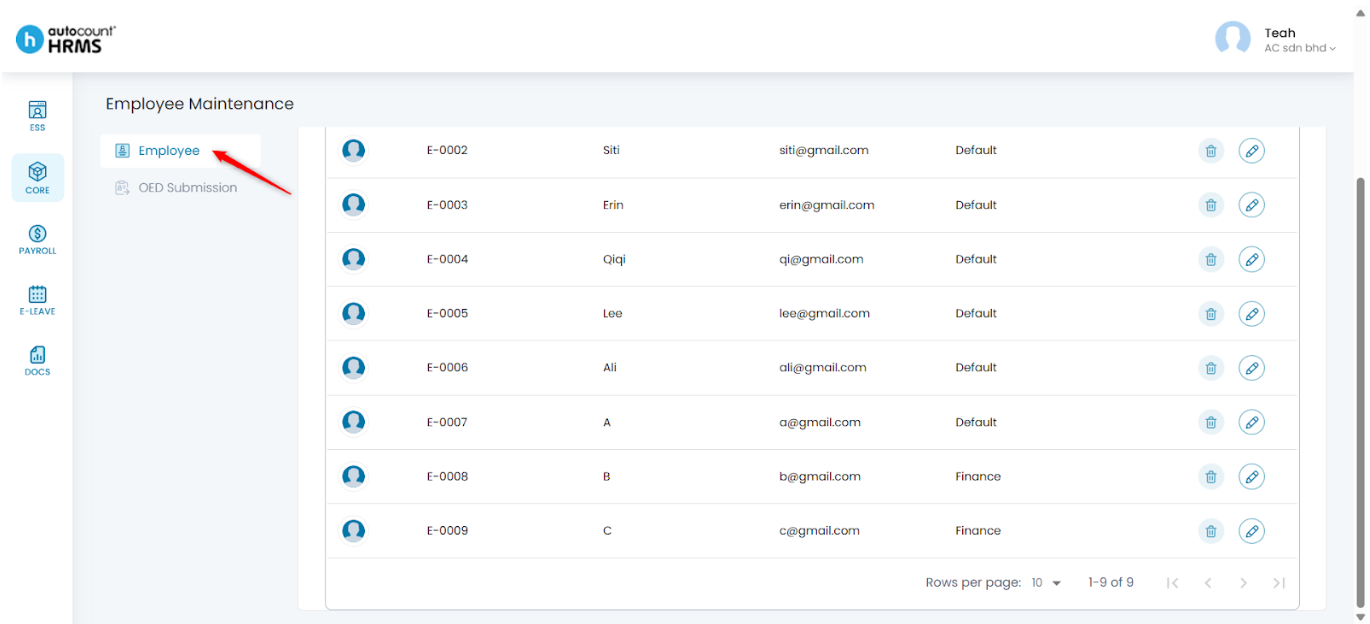
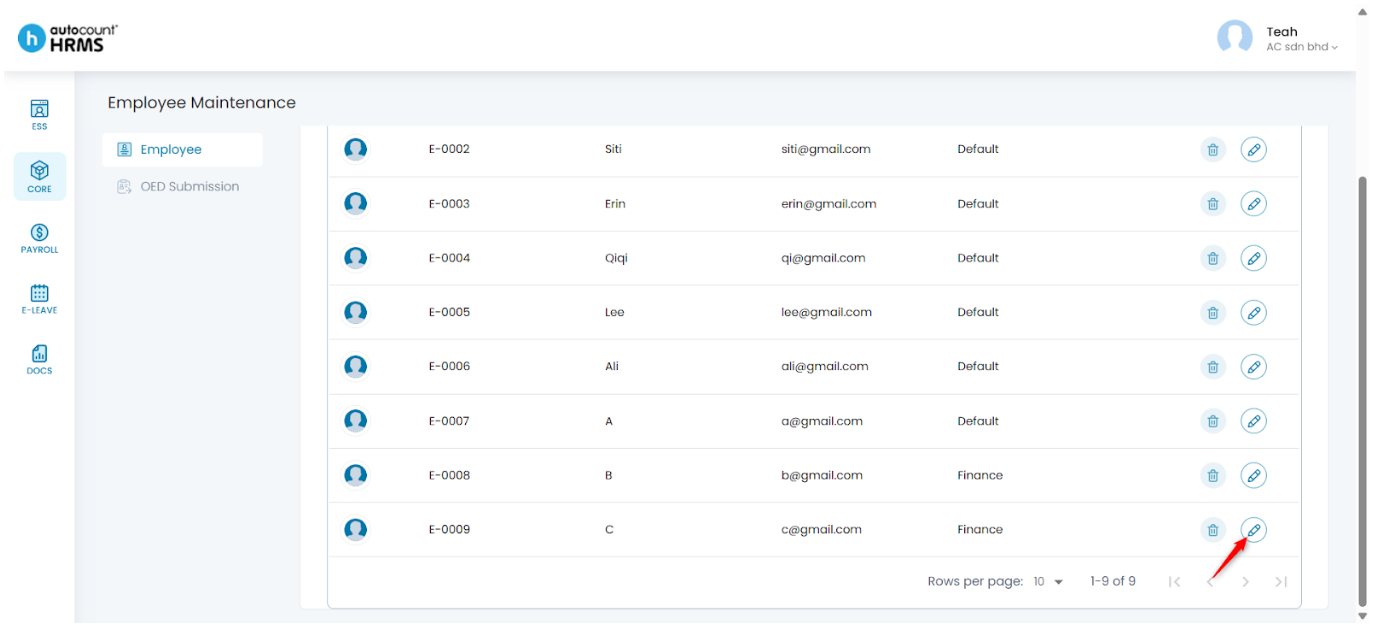
3. Locate the employee you want to update and click the pencil icon beside the employee’s name.
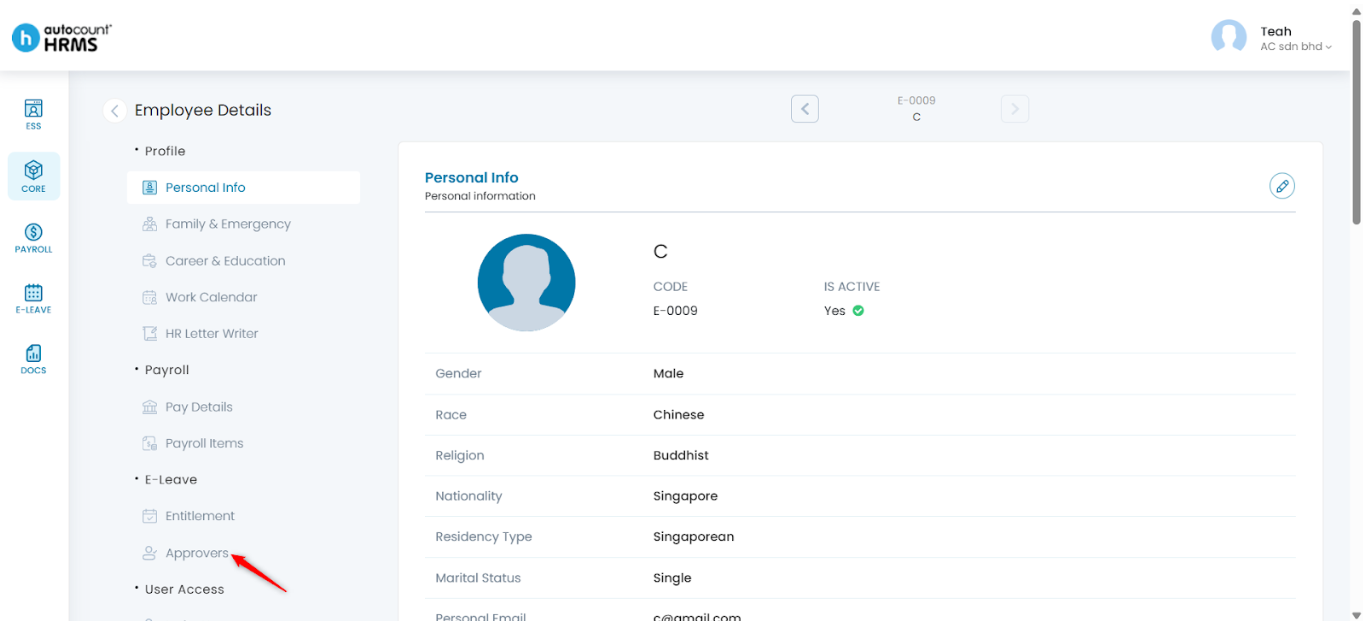
4. Under Employee Details, select Approvers.
5. Click the pencil icon to edit approver settings.
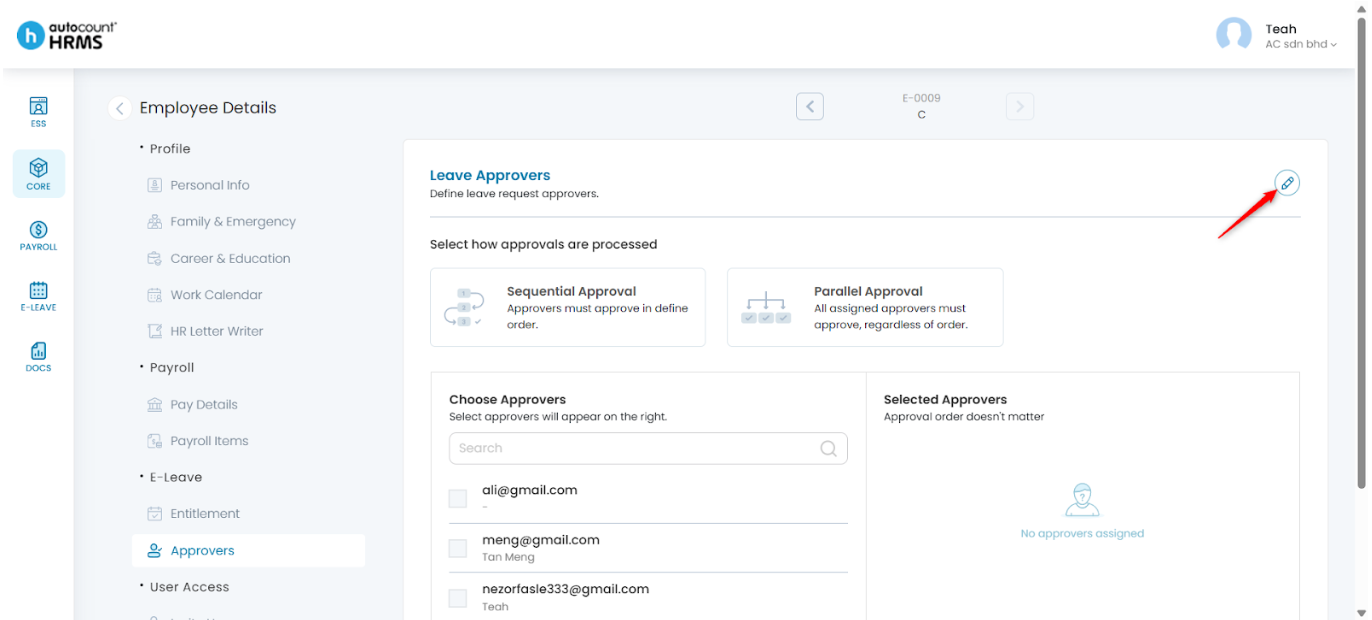
6. Select the Approval Method:
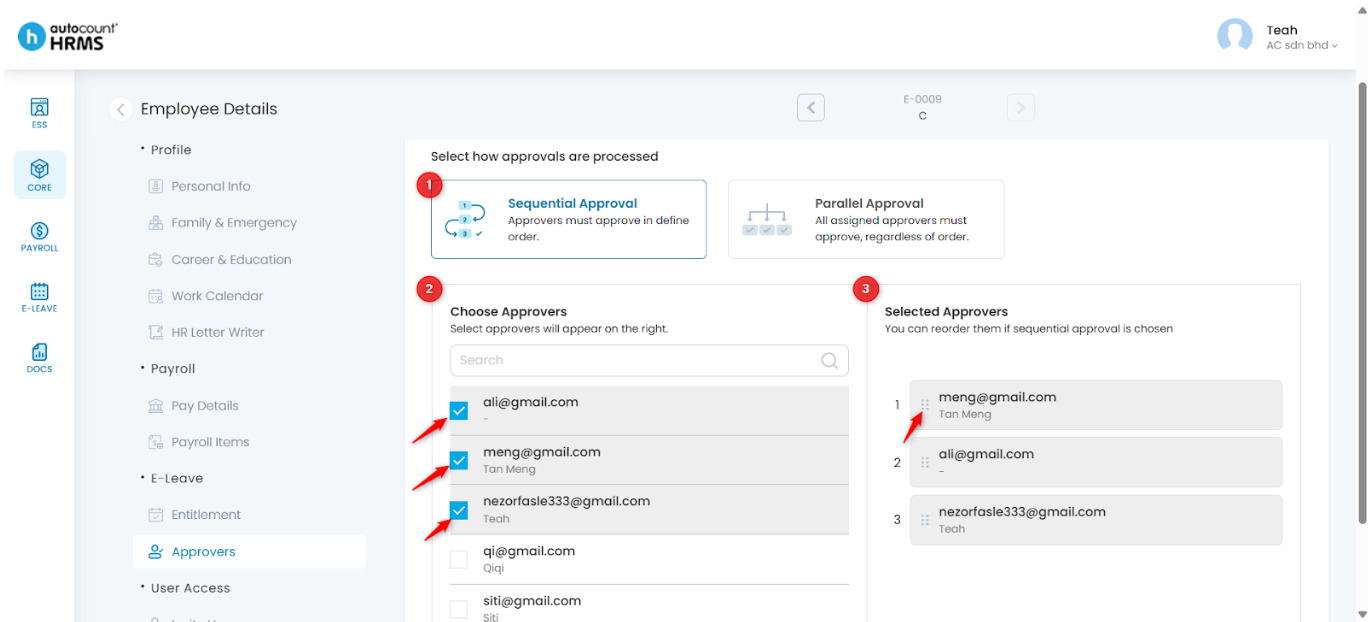
- Sequential Approval – Assign two or more approvers to review the leave request in a defined order. If the first approver rejects the request, it will not proceed to subsequent approvers.
i. Select Sequential Approval.
ii. Tick the approvers to include.
iii. Drag and rearrange approvers to set the approval sequence.
- Parallel Approval – Assign one or more approvers to review the leave request simultaneously. All assigned approvers must approve the leave request for it to be fully approved. If any approver rejects, the leave request will be declined.
i. Select Parallel Approval.
ii. Tick the approvers to include.
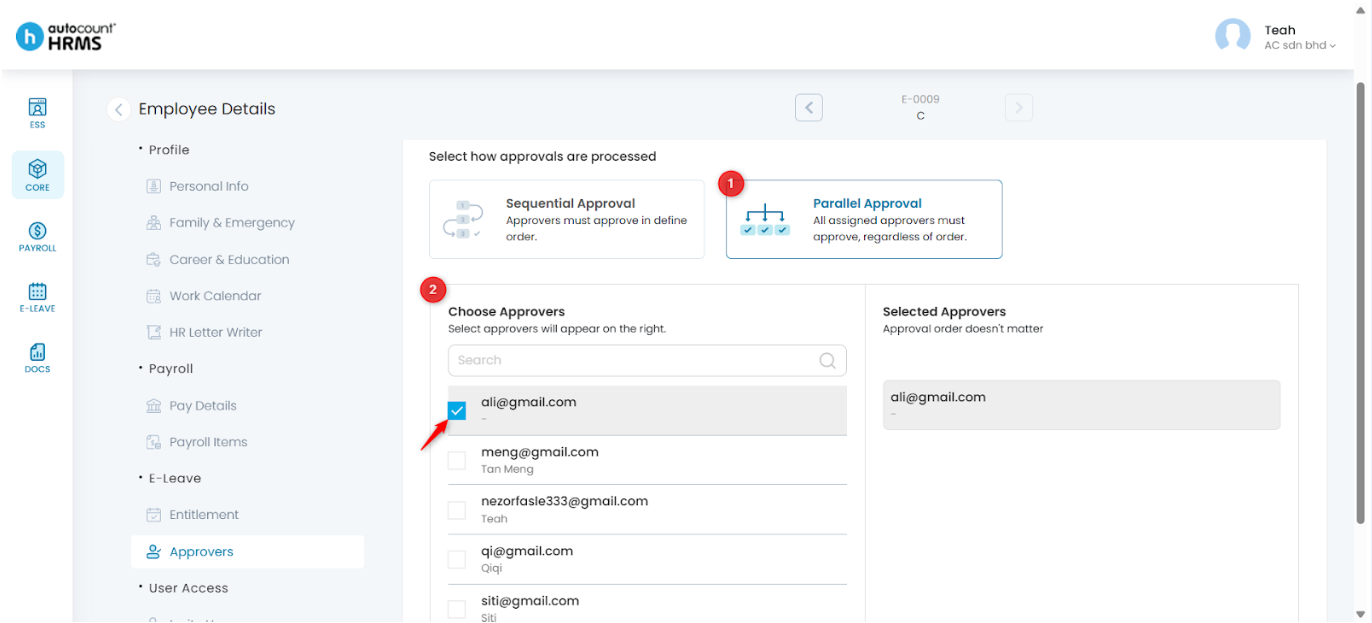
Note: If only one approver is assigned, the system will automatically apply Parallel Approval.
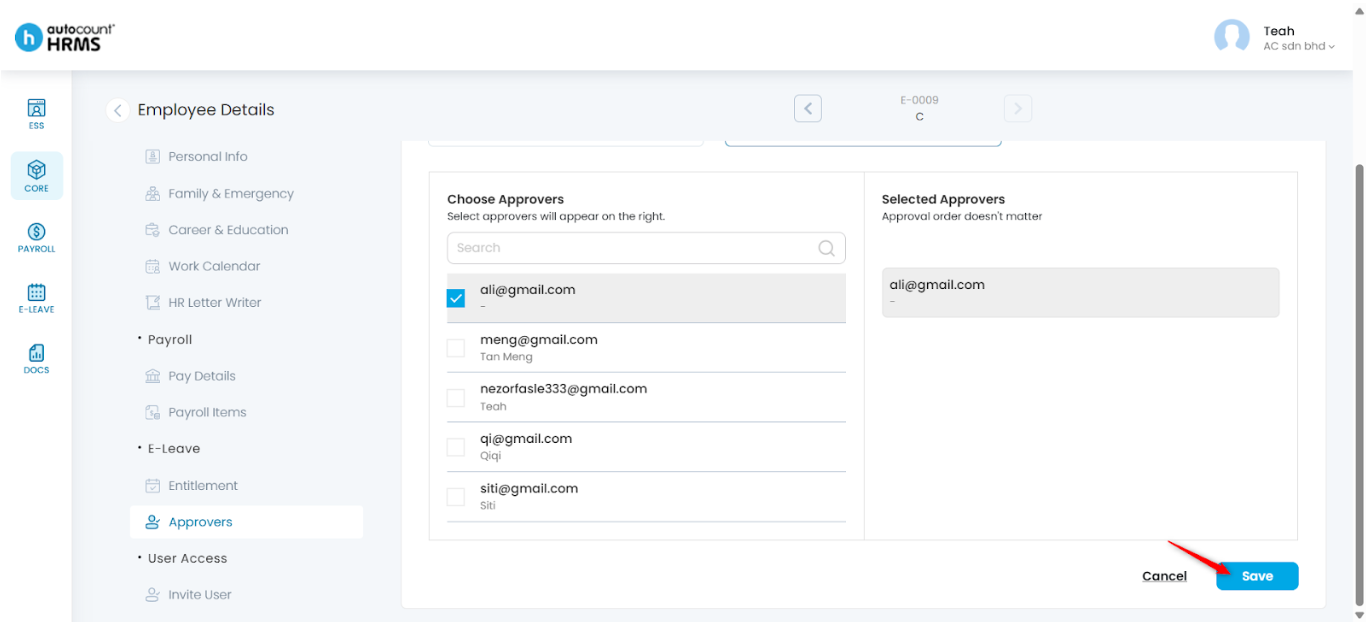
7. Click Save to apply the approver settings.
Written by: Teah Rui Harn (20251226)
Reviewed by: Tek Ee Lin (20260107)