
You are able to add payroll items after a payroll run has been created, whether you are using Payroll Profile or Adhoc Payroll.
Steps to Add a Payroll Detail:
1. Ensure that you are on the Payroll Process details page.
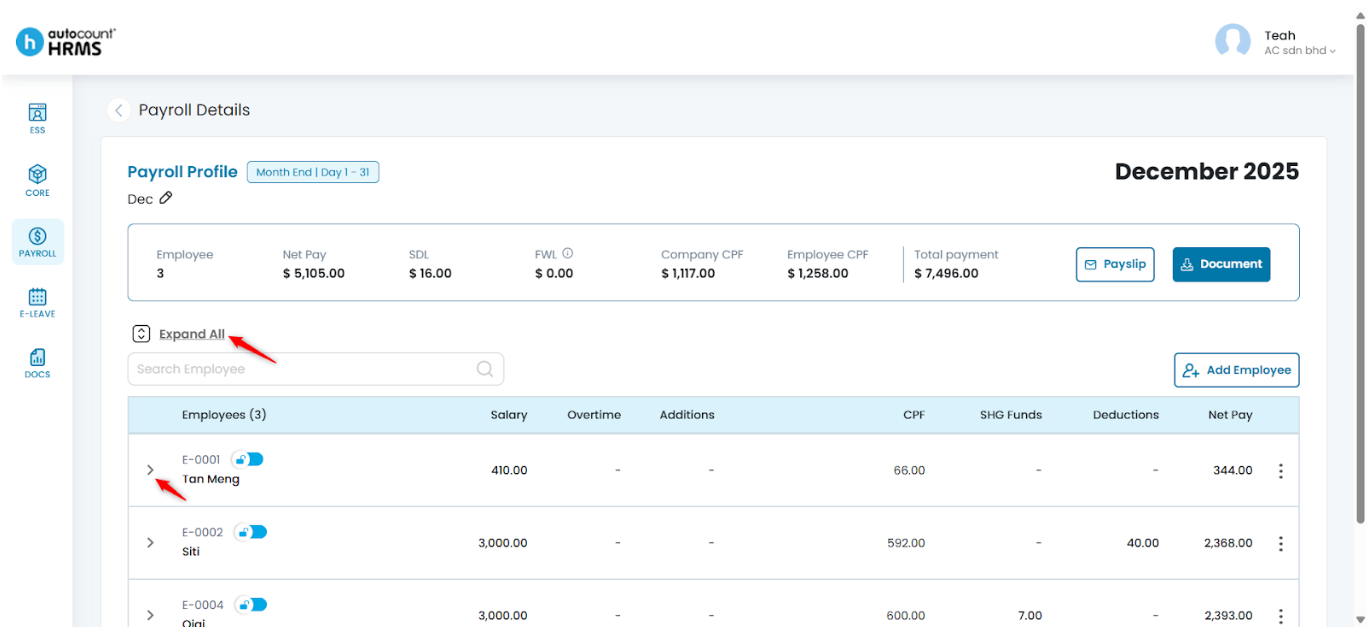
2. Click Expand All or click the > icon next to the employee’s name to reveal payroll item options.
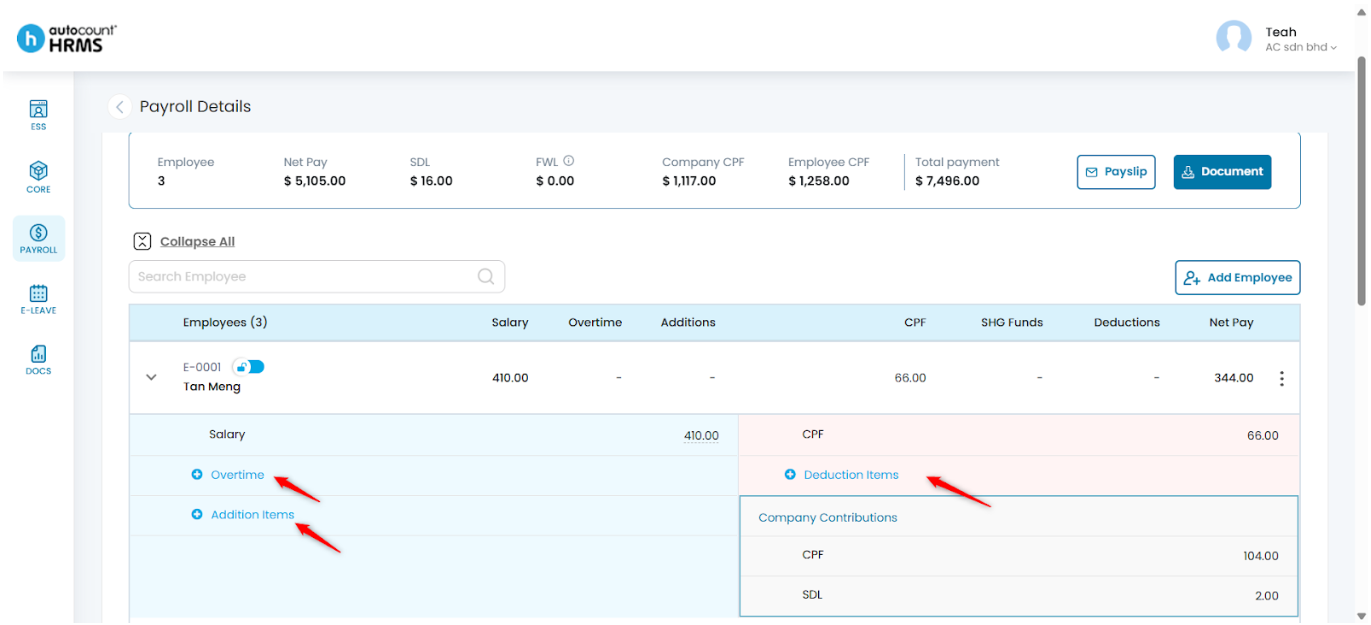
3. Click the Add (+) icon to insert a new payroll item.
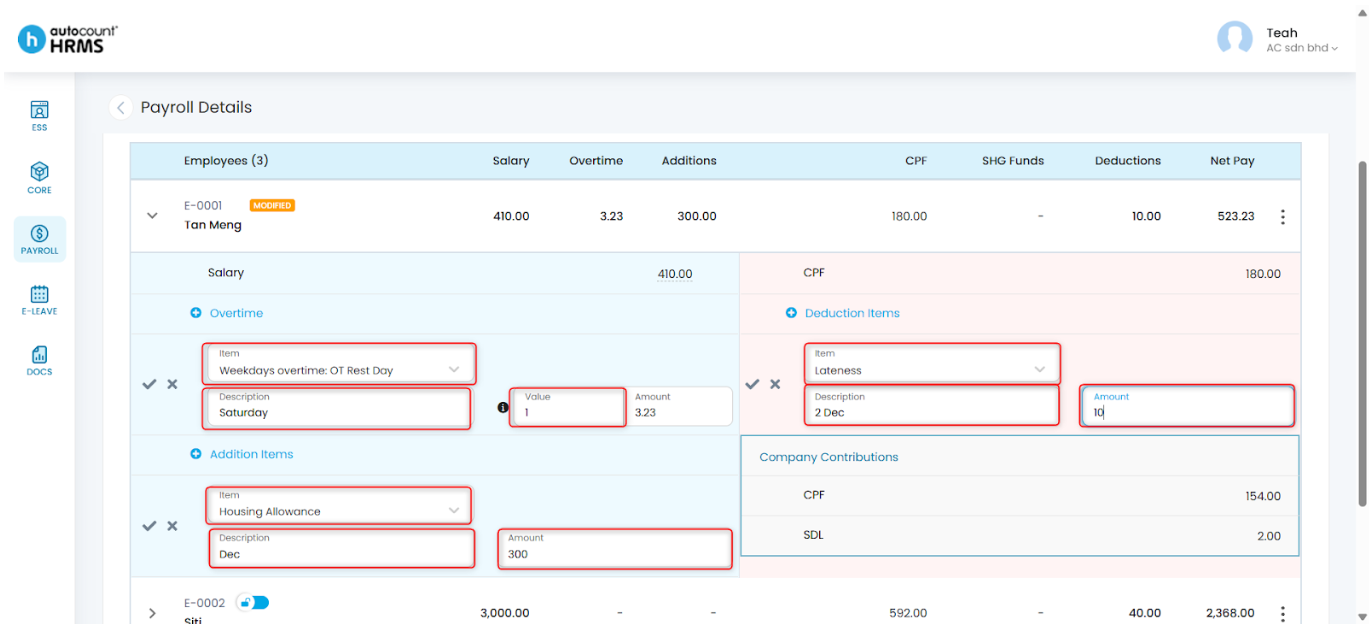
4. Complete the following fields:
- Item Type – Select the item type (e.g., Fixed Bonus, Transport Allowance).
- Description – Enter a clear description that will appear on the payslip.
- Amount – Enter the amount. For allowances or overtime with automated calculations, enter the Value; the system will compute the amount automatically.
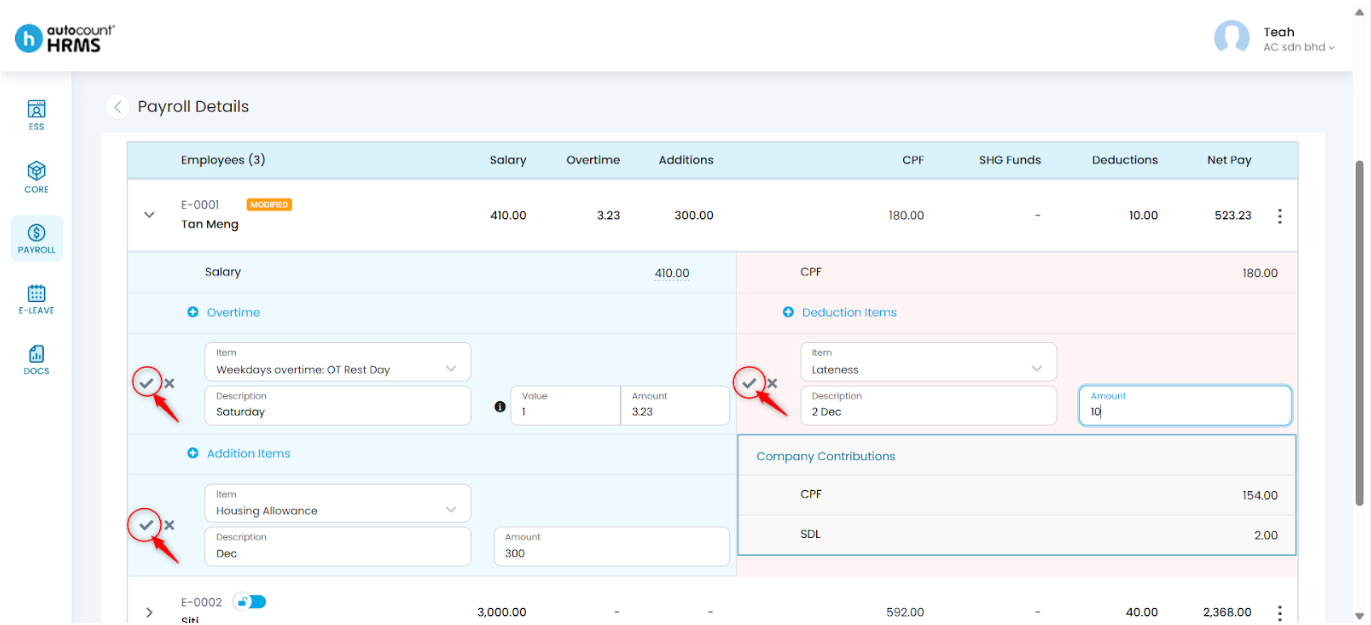
5. Click the Tick icon to confirm the entry.
Tip: Click on the i icon to view the formula used for automated entries.
6. After adding all required payroll items, click Recalculate All.
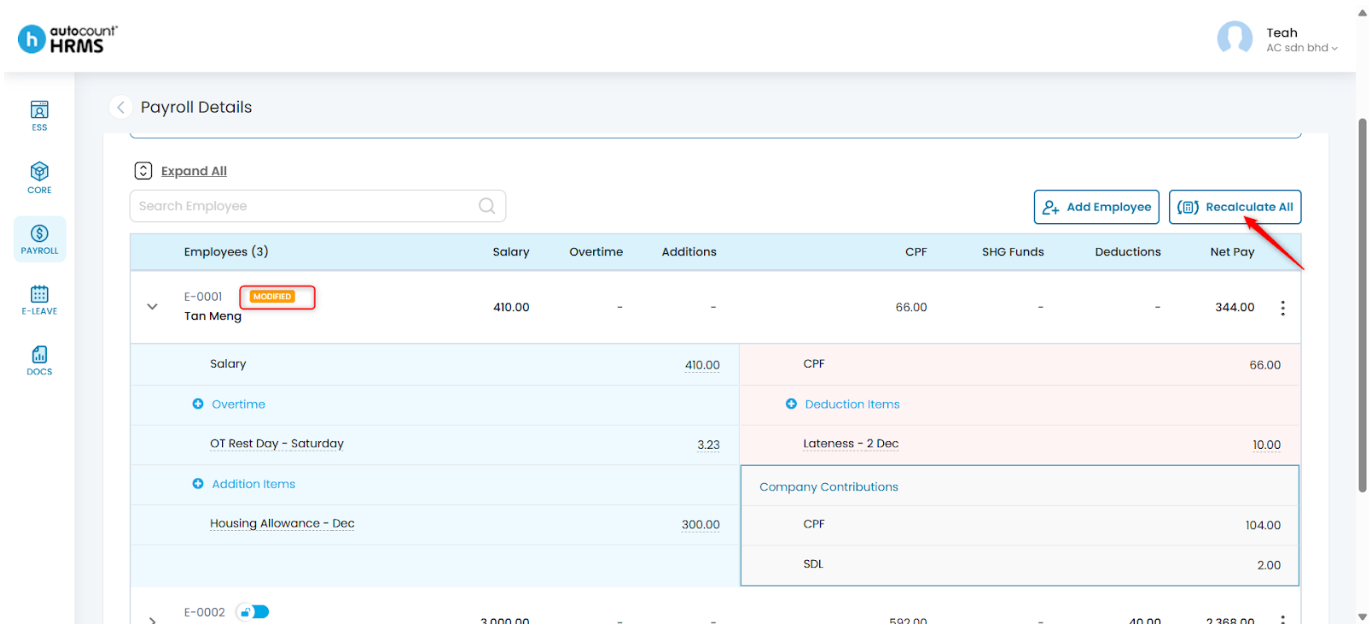
7. Click Recalculate to update totals.
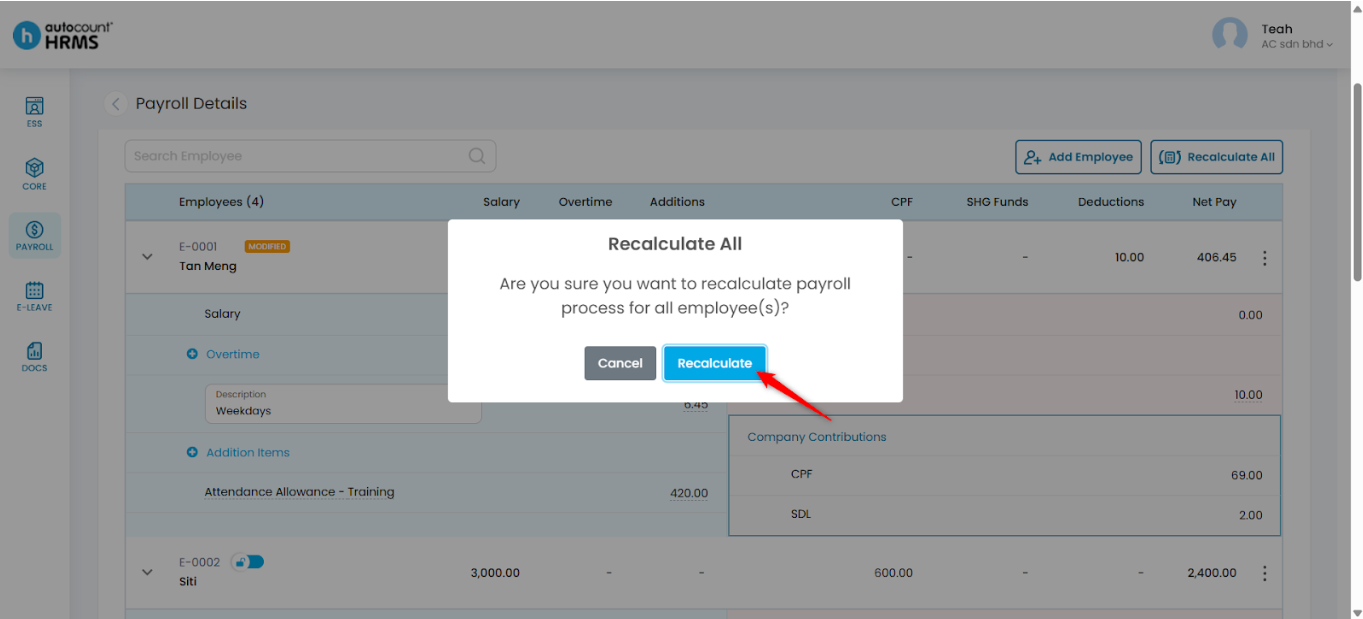
8. Review the recalculated amounts to ensure accuracy.
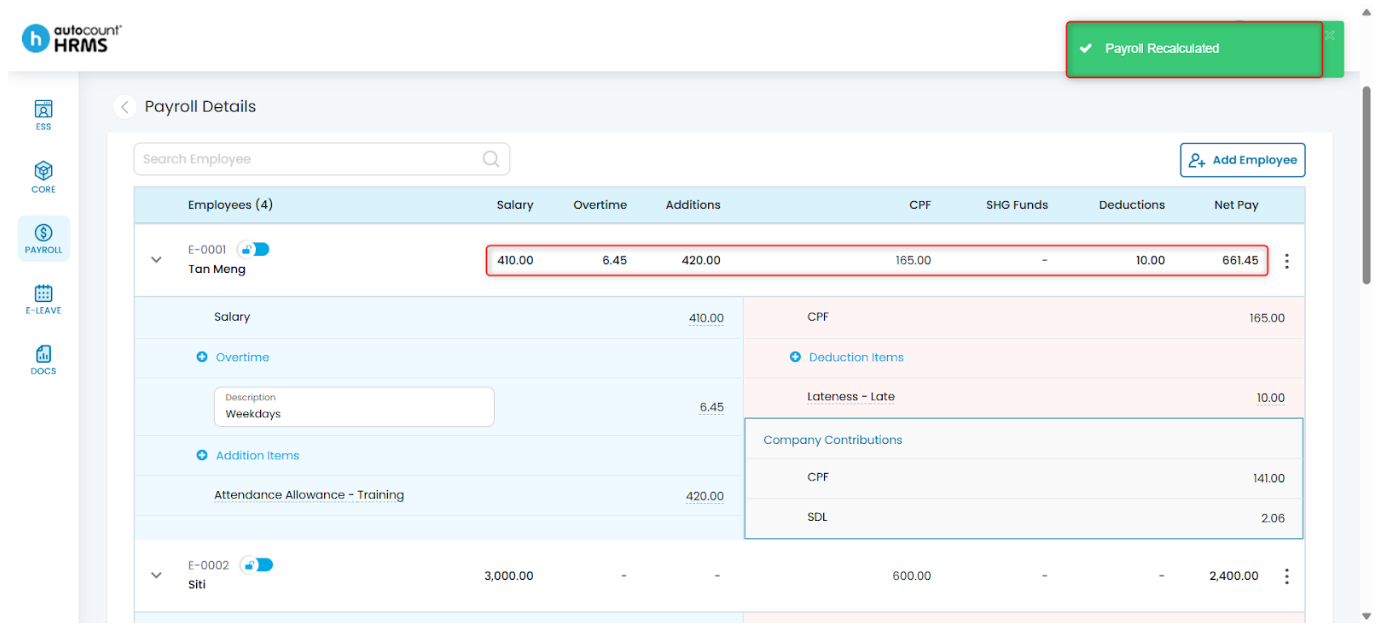
Tip 1: Click the Lock icon to prevent further edits once payroll details are finalised.
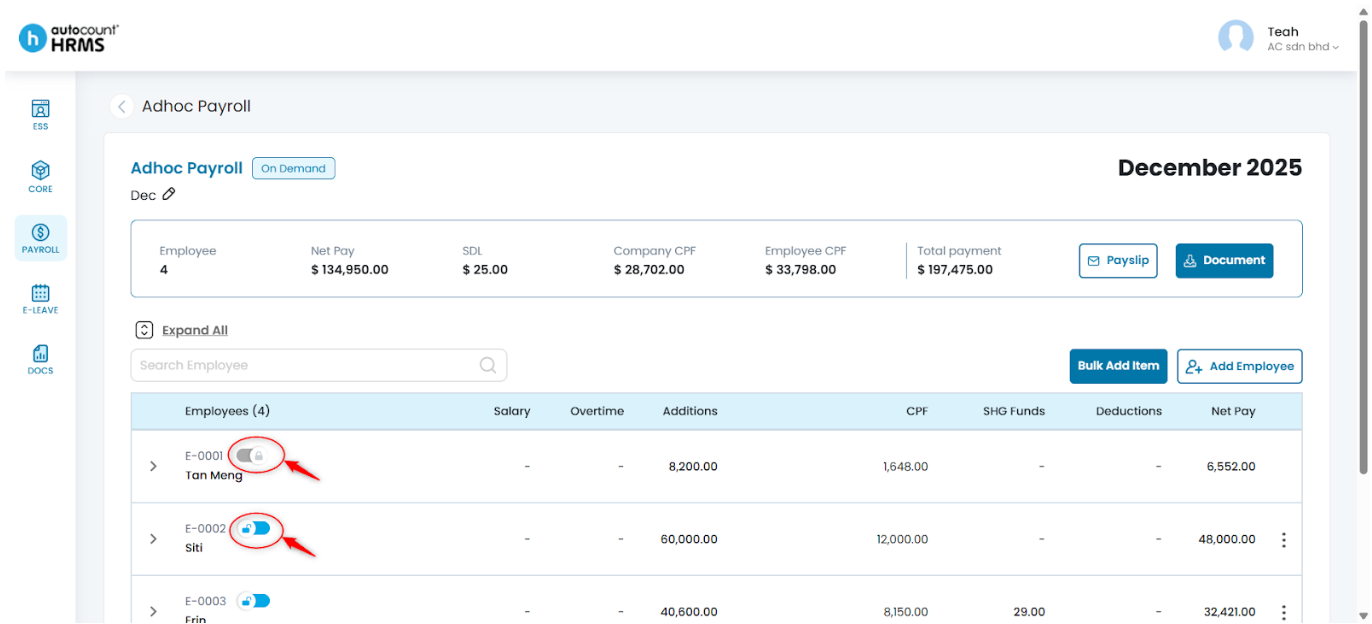
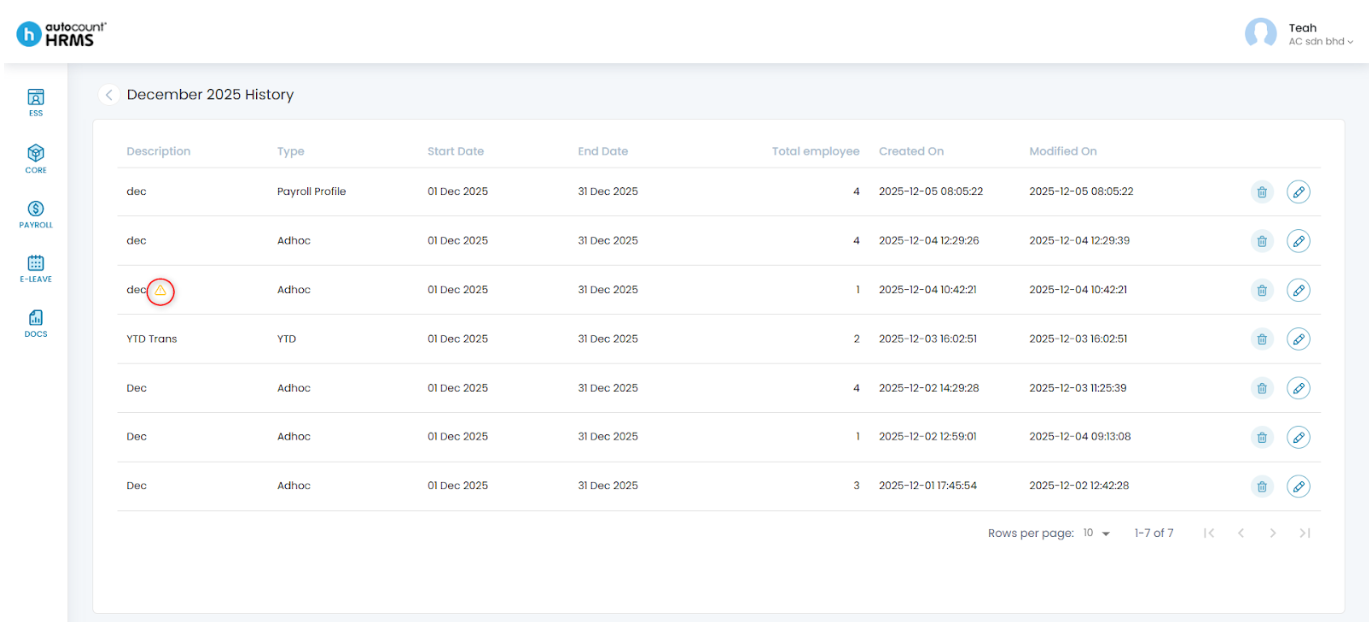
Tip 2: If a payroll modification has not been recalculated, a yellow warning icon will appear. Click the Pencil Icon, then click Recalculate All to update the payroll.
Written by: Teah Rui Harn (20251202)
Reviewed by: Tek Ee Lin (20251205)