
Creating an employee record in HRMS is essential if you plan to process payroll, manage leave, claims, or attendance.
When adding a new employee, several key details must be provided to ensure accurate setup and system calculations.
Steps to Create a New Employee:
1. Go to Core > Employee.
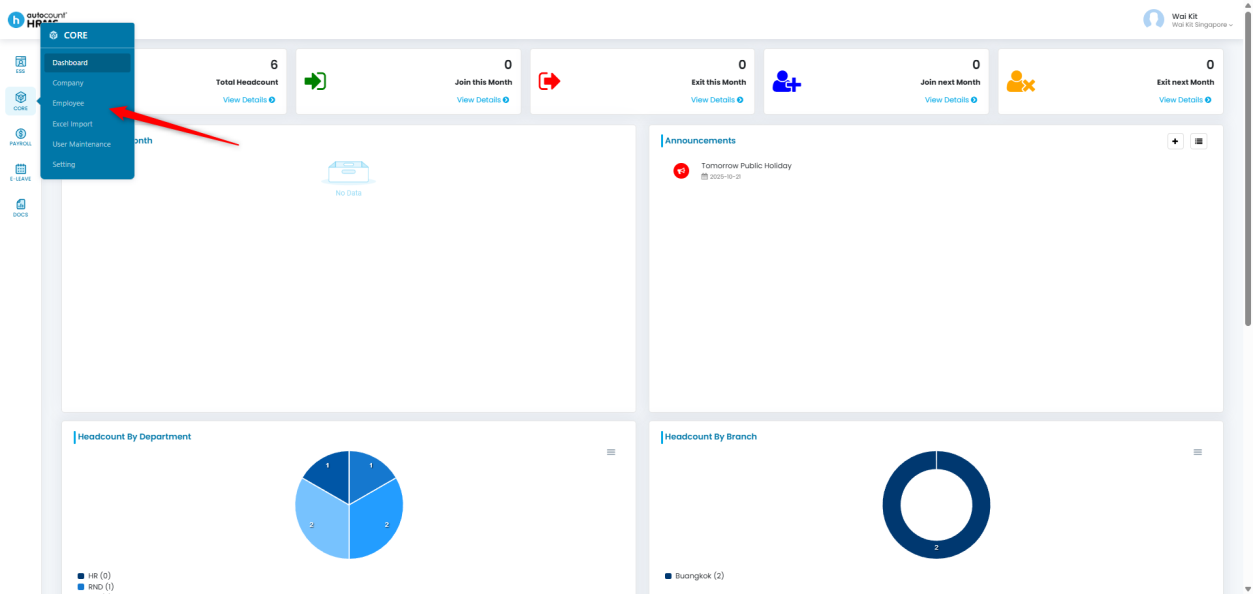
2. Click New Employee at the top right corner.
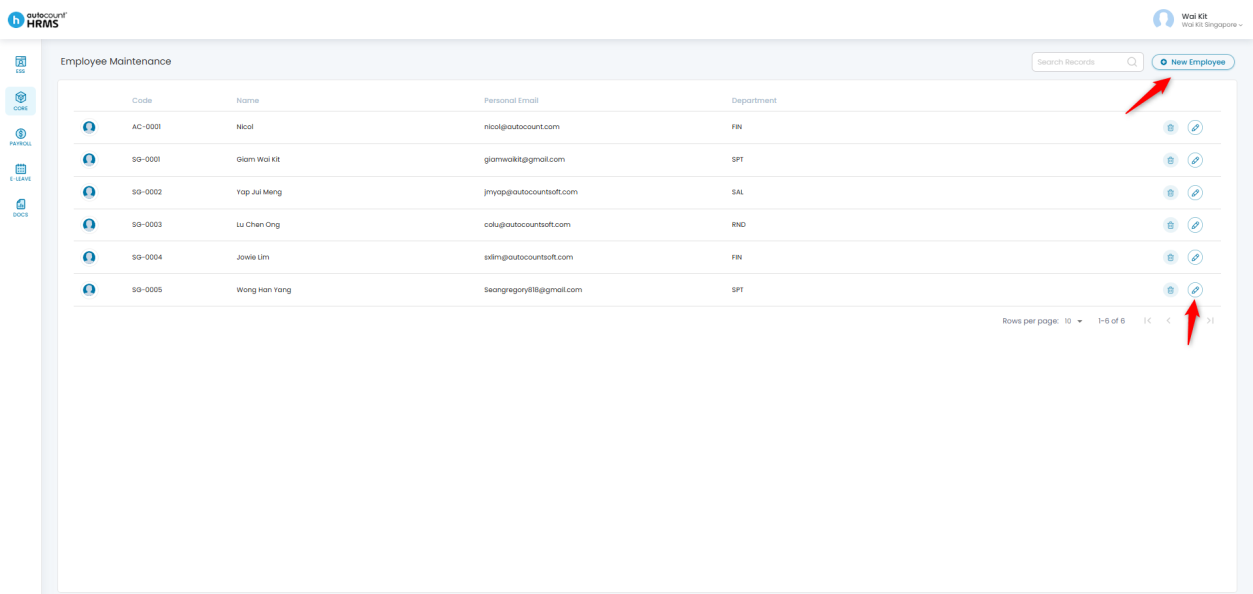
3. A New Employee window will appear. Fill in the required details as follows:
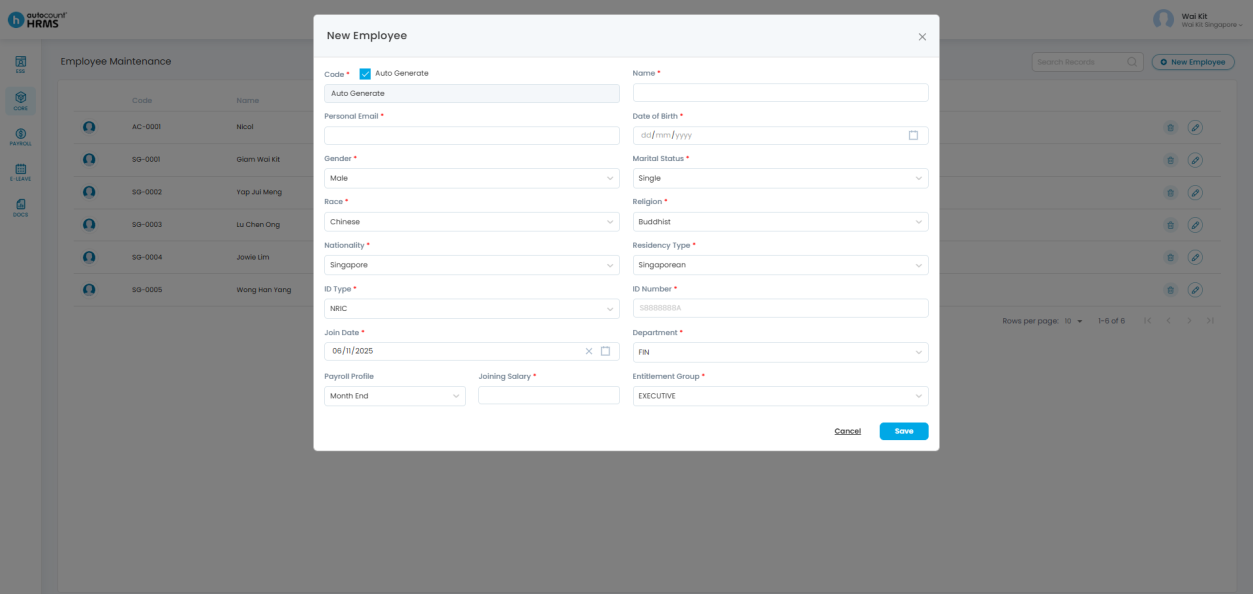
- Code –A unique system-generated code is automatically assigned. Untick Auto Generate if you wish to use your own format.
Name – Employee’s full name as per NRIC.
Personal Email – Employee’s personal email address (for record purposes).
Date of Birth – Employee’s date of birth.
Gender – Select the employee’s gender (this may affect leave eligibility).
Marital Status – Select from Single, Married, Divorced, or Widowed.
Race – Select from Chinese, Malay, Indian, Eurasian, or Others.
Religion – Select from Buddhist, Christian, Catholic, Hindu, Muslim, Sikh, Taoist, or Others.
Nationality – Employee’s nationality.
Residency Type – Select Singaporean, Singapore PR, or Foreigner (S Pass, EP, PEP, Work Permit).
This selection affects CPF calculation.
If Singapore PR is selected, enter the PR Start Date.
ID Type – Type of identification document.
ID Number – Employee’s identification number.
Join Date – Employee’s commencement date.
Department – Used for organisational reporting and filtering.
Payroll Profile – Determines the employee’s payroll processing frequency.
Joining Salary – Employee’s starting salary (excluding allowances or bonuses).
Entitlement Group – Determines the employee’s leave entitlement settings.
4. Click Save to finalise and create the employee record.
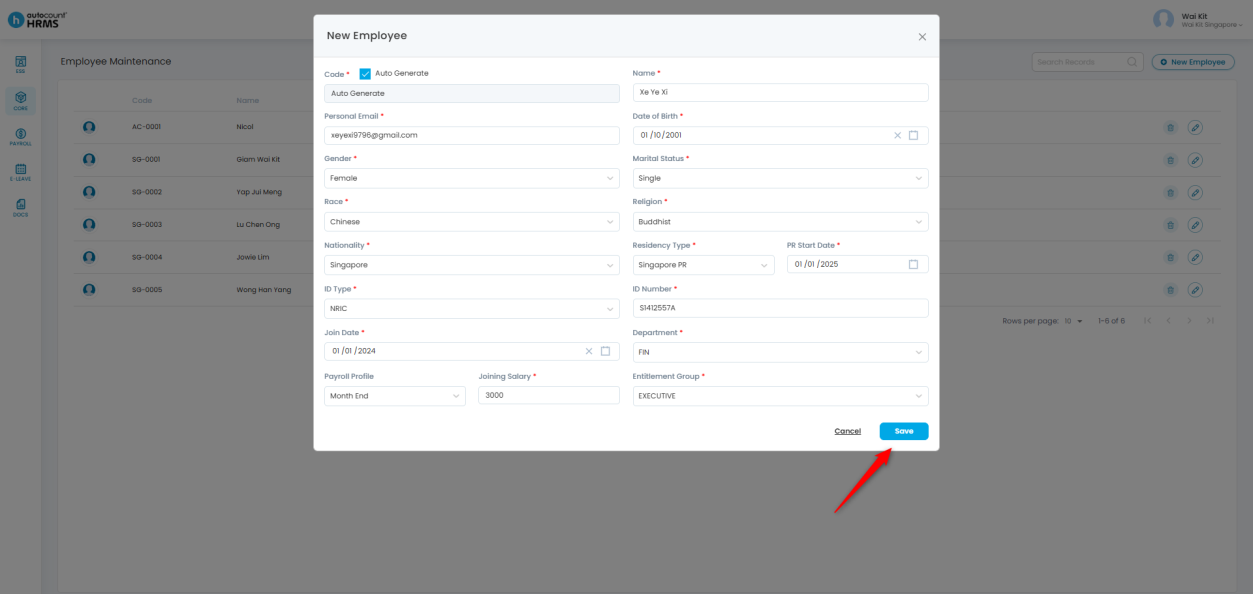
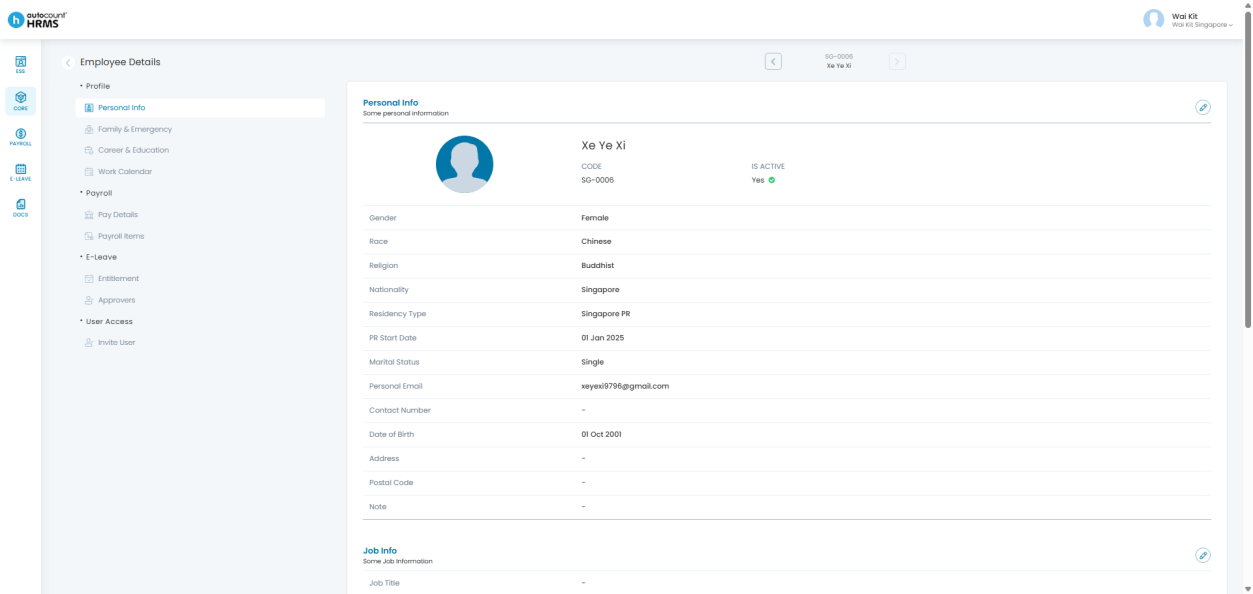
5. Once saved, you will be redirected to the Employee Details page, where you can further maintain information such as Personal Profile, Payroll, e-Leave, and more.
Written by: Giam Wai Kit (20251114)
Reviewed by: Tek Ee Lin (20251119)