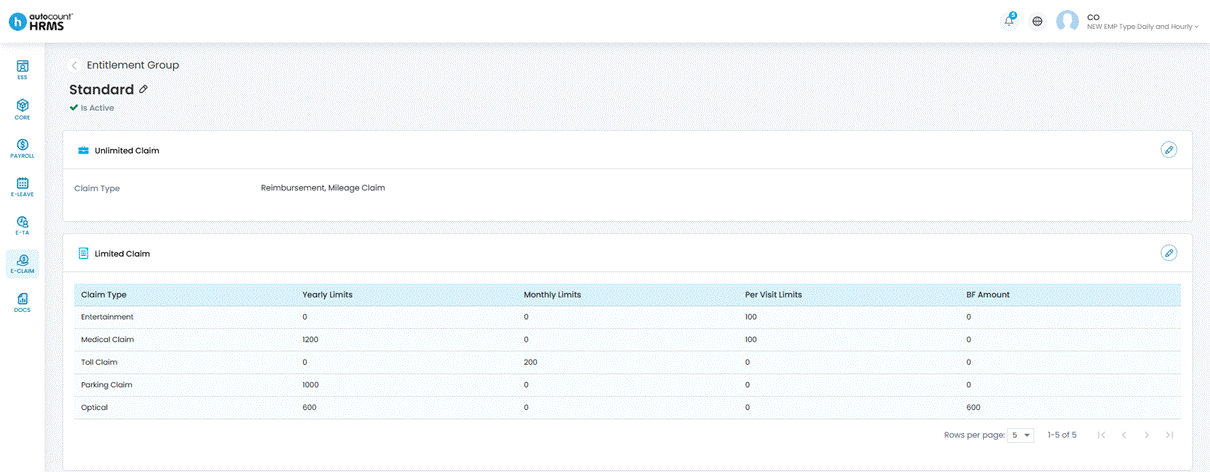
Claim entitlements determine the spending limits for each employee or employee group. There are two types of claim groups:
Unlimited Claim Group:
- No cap on the claim amount.
- Only claim types with Limit Amountdisabled are shown.
Limited Claim Group:
- Only claim types with Limit Amount enabled are shown.
- Supported limit types: Yearly Limit, Monthly Limit, Per Visit Limit, Brought Forward (BF) Amount.
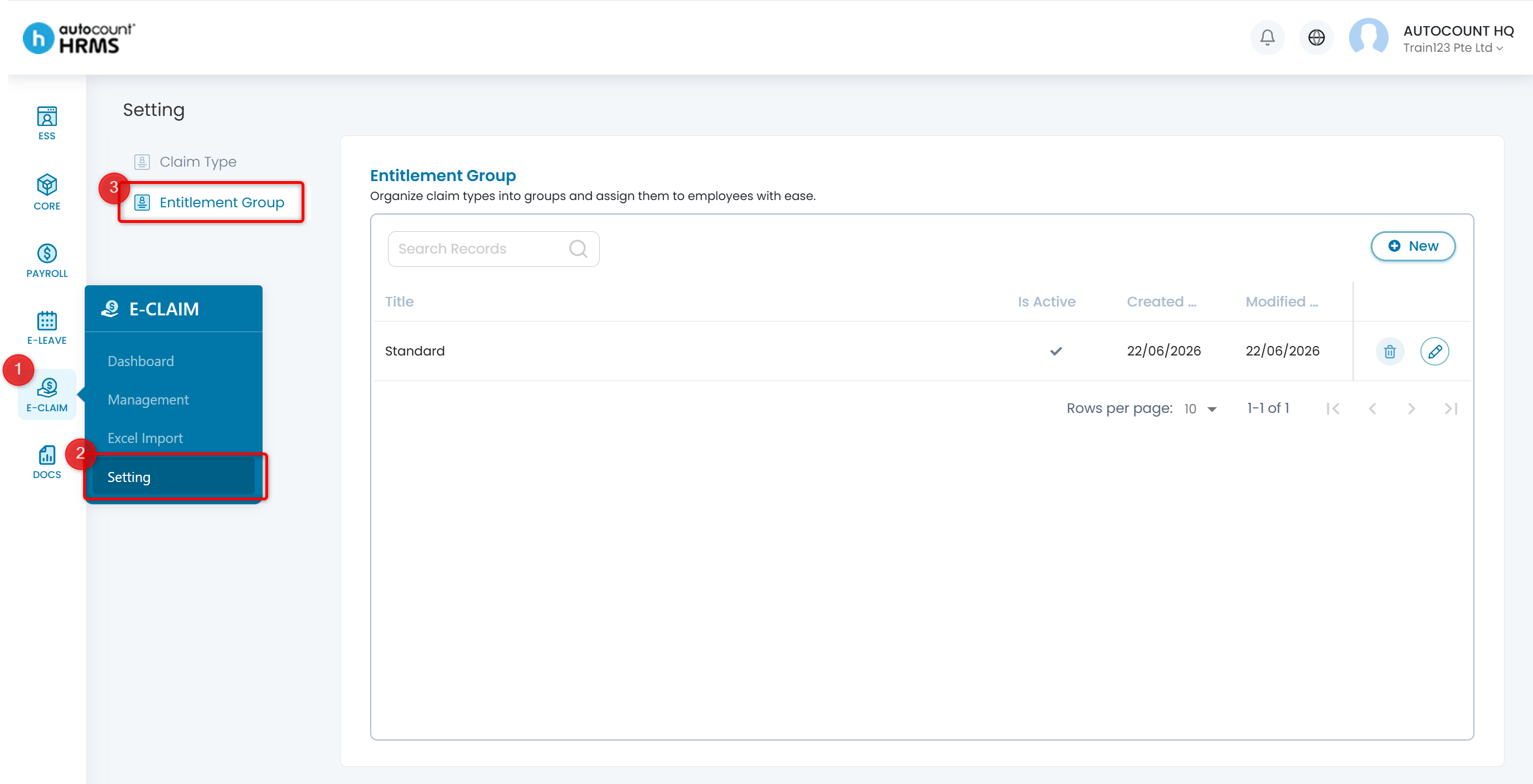
Steps to Create a New Claim Entitlement Group:
1. Go to E-Claim > Setting > Entitlement Group.
2. Go to Claim Management > Claim Entitlement.
3. Click Add New to create a claim entitlement group.
4. Select the claim group type (Unlimited or Limited).
5. Add the applicable claim types and set limits where required.
6. Assign the entitlement group to employees via their Employee Profile.
7. Click Save.
Steps to Assign an Entitlement Group to an Employee:
1. Go to Core > Employee > Employee Details.
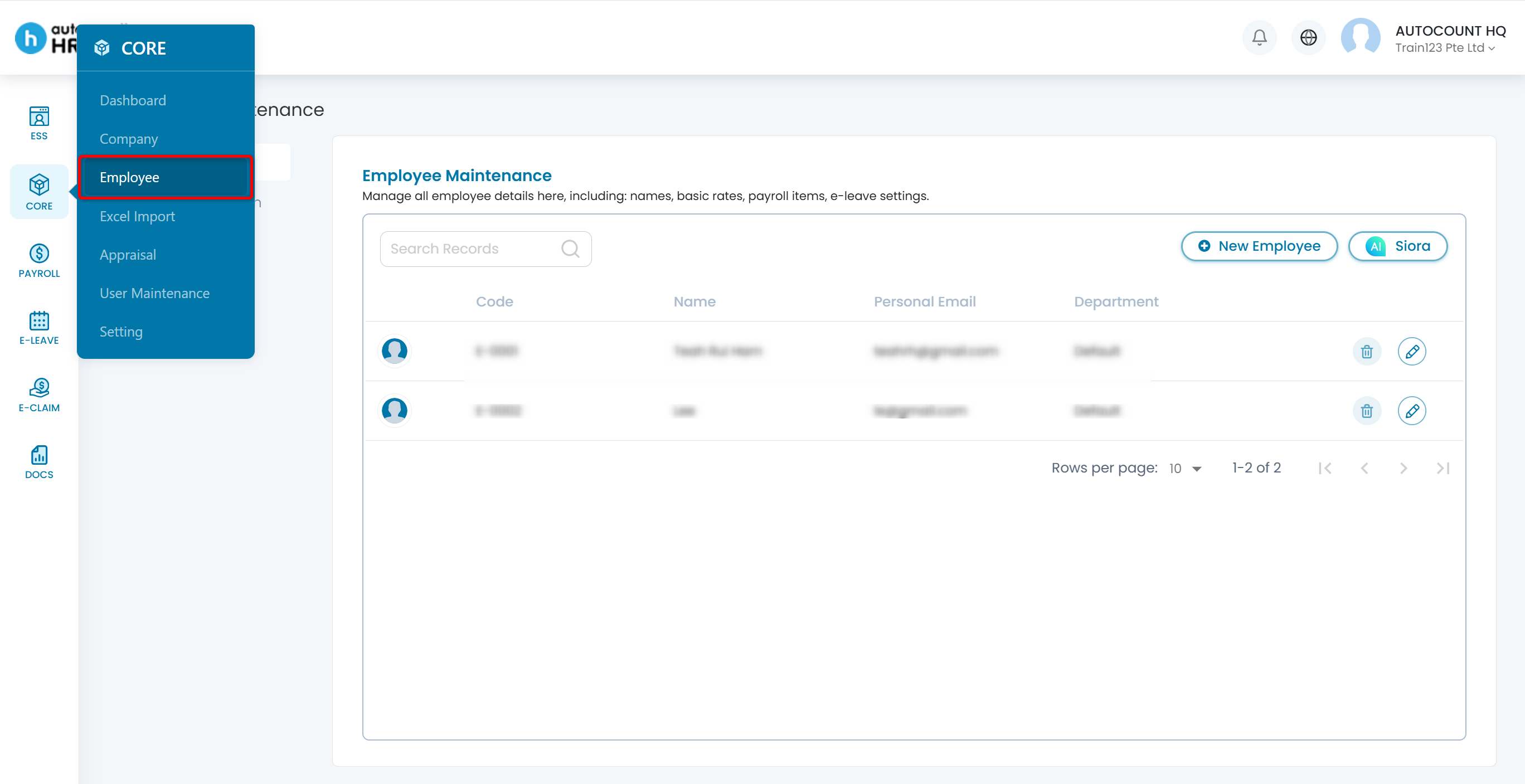
2. Open the employee's profile.
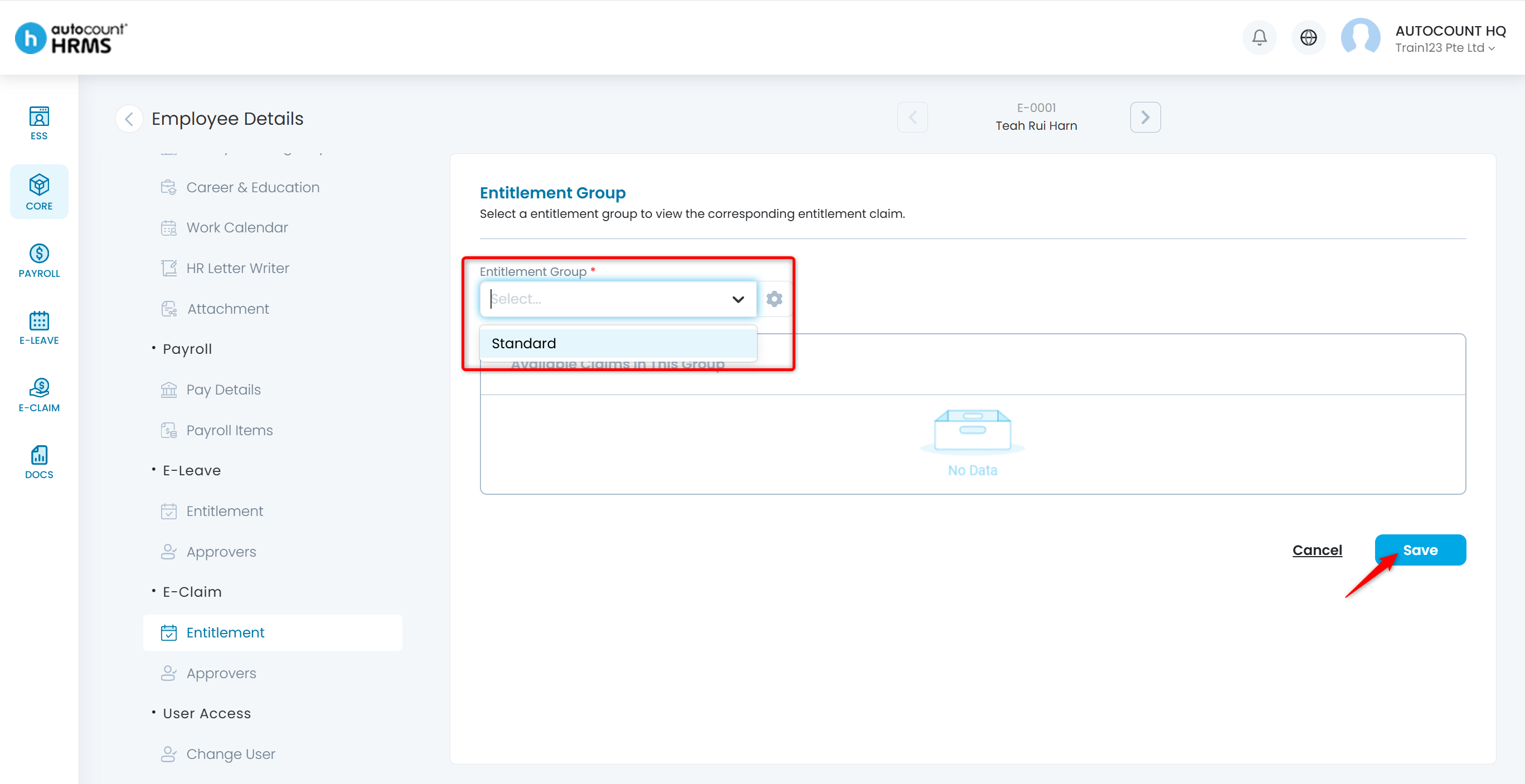
3. In the left menu, under E-Claim, click Entitlement.
4. Click the edit icon on the top right of the Entitlement Group panel.
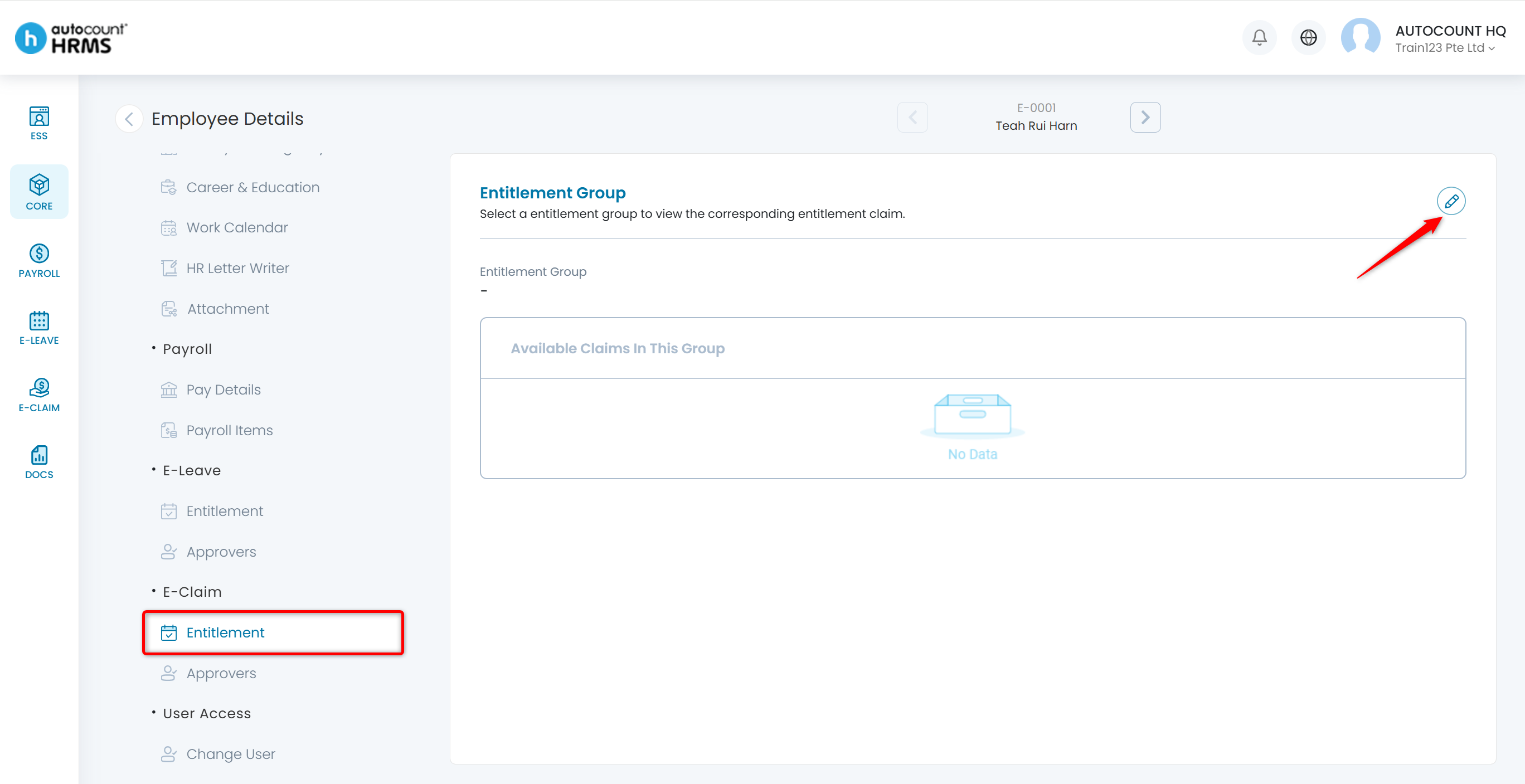
5. Select the appropriate Entitlement Group from the dropdown.
6. Click Save. The available claim types for that employee will be shown under this group.