
Approved claims are automatically queued under Pre-Planned Items for payroll processing. The payroll profile type defaults to Month End based on payroll item setting.
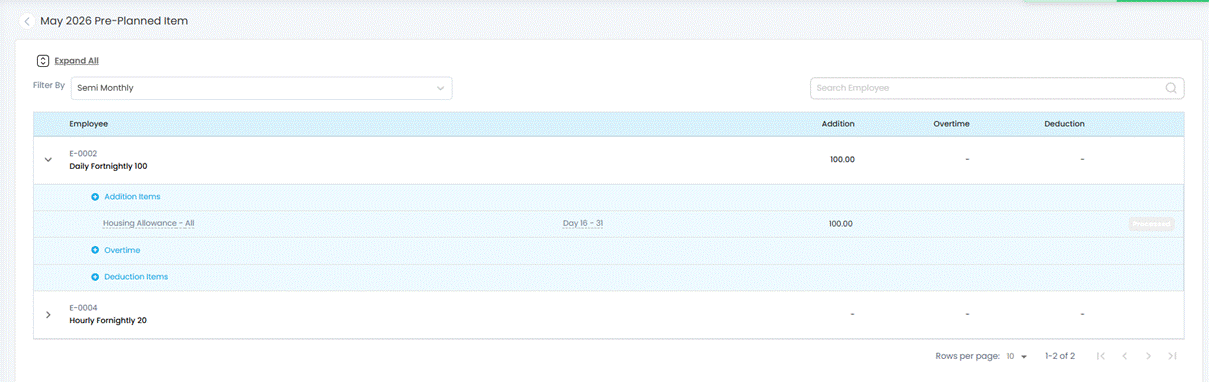
Steps to Process Approved Claims in Payroll:
1. Go to Payroll > Payroll Process > Create Pre-Planned Items.
2. Go to Payroll Process > Pre-Planned Items. Approved claims will appear automatically.
3. The Claim items will appear under Addition Items. The Amount field cannot be edited. Only the Payroll Profile selection and description is editable.
4. Select the appropriate Payroll Profile and process payroll.
5. After processing:
- The Paid Period appears in Claim Transaction.
- The Pre-Planned item status changes to Processed.
⚠️ Warning: If HR removes a claim from Pre-Planned Items, the claim status will be changed to Rejected. This action cannot be undone. The rejection will be visible in Claim Transaction.