
This guide explains how to configure a Distance Claim Type and how employees can use it to calculate mileage from Point A to Point B to automatically calculate the claim amount based on the configured formula.
Note: The Distance Claim feature is currently available on the Web version only. It is not yet available on the mobile App.
1. Set Up the Distance Claim Type
Tools > Classifications > Claim Type
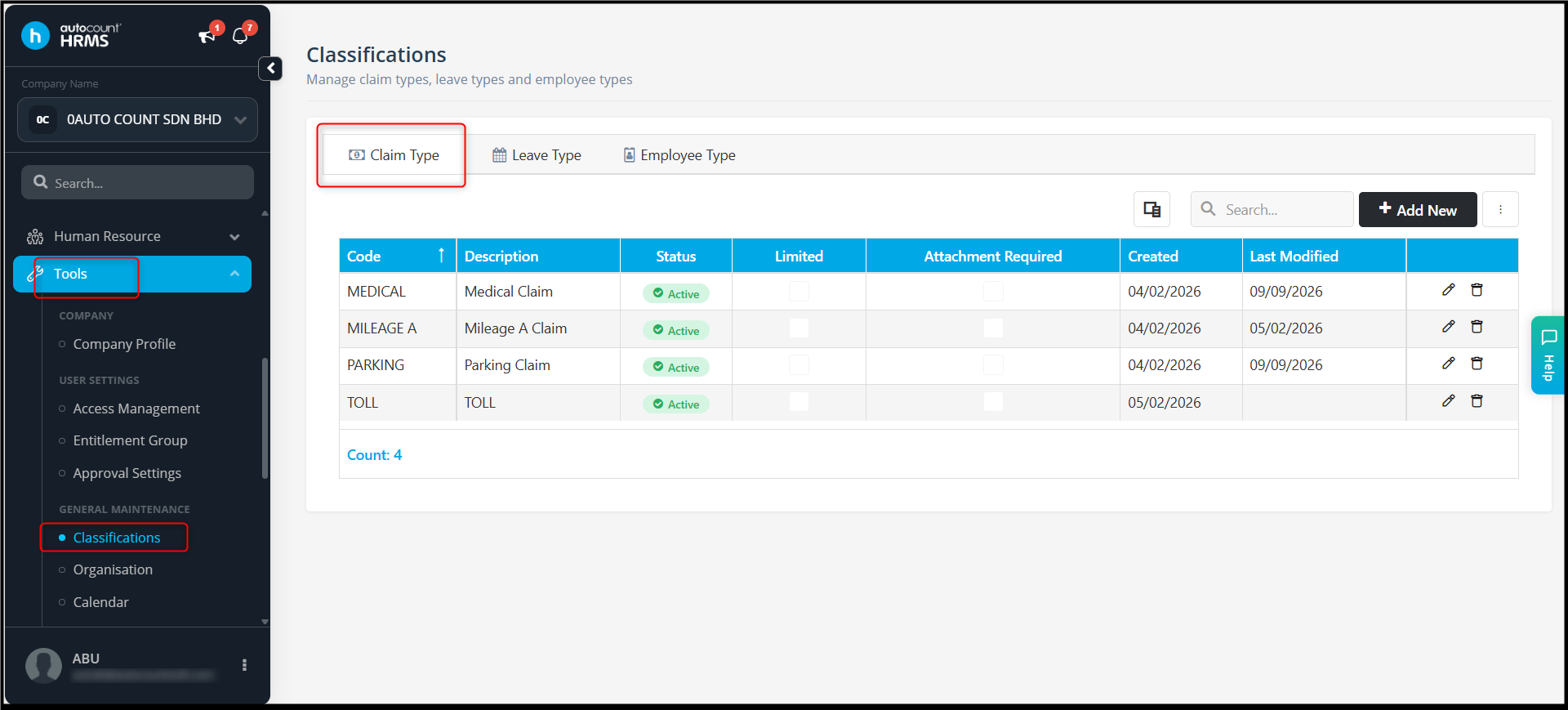
Click Add New or edit an existing claim type.
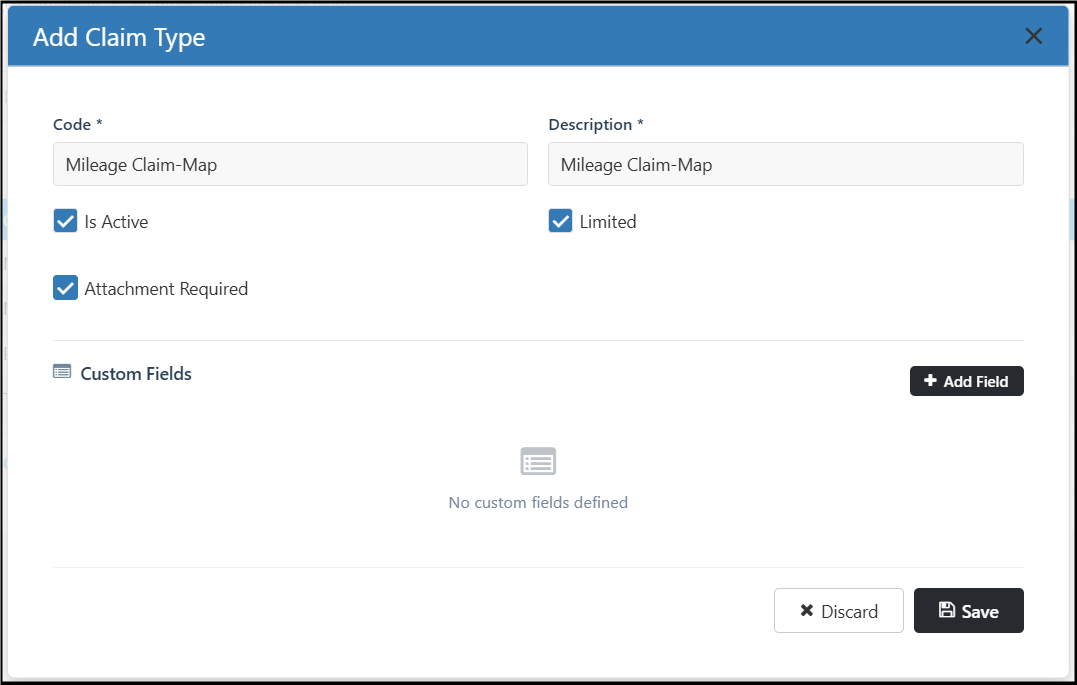
Claim Type Details
Configure the claim type as follows:
| Field | Description |
| Code | Enter the claim code, e.g. Mileage Claim-Map |
| Description | Enter the claim description, e.g. Mileage Claim-Map |
| Is Active | Enable to make the claim type available |
| Limited | Enable if the claim is subject to a limit |
| Attachment Required | Enable if supporting documents are required |
2. Add Distance Custom Field
Under Custom Fields, click Add Field.
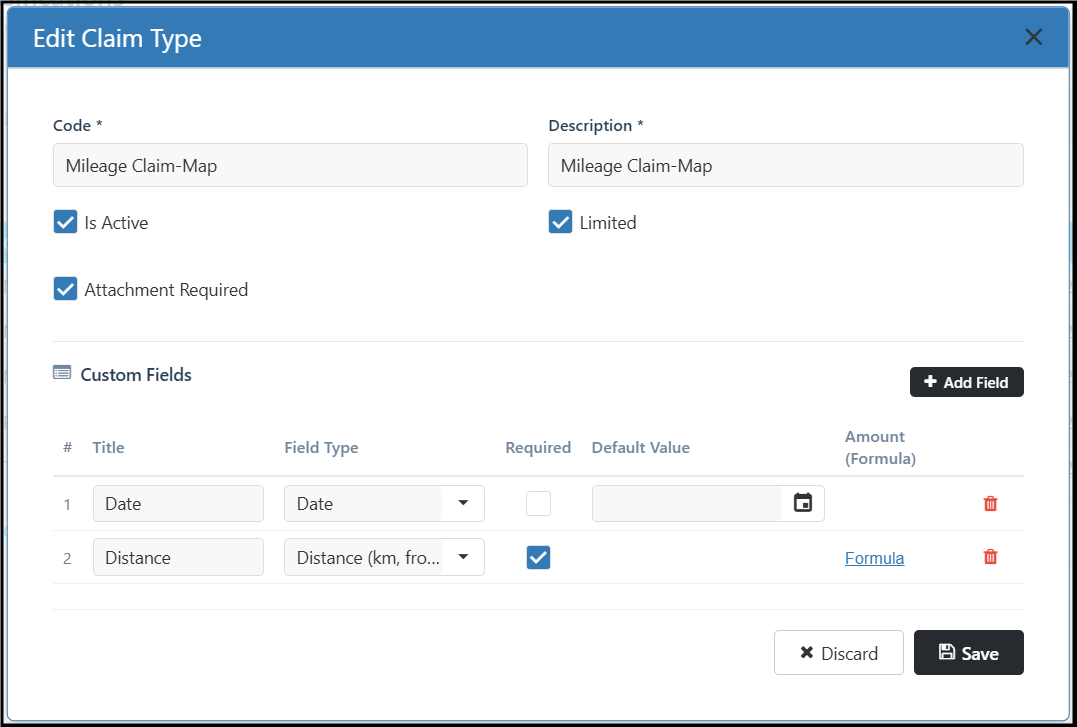
Create the following fields:
i. Date
- Title: Date
- Field Type: Date
- Required: Enable if the date is mandatory
ii. Distance
- Title: Distance
- Field Type: Distance (km, from …)
- Required: Enable if the mileage is mandatory
The Distance field allows the employee to select two locations and automatically calculate the distance between them.
The distance is calculated based on Point A and Point B selected by the employee.
3. Configure the Claim Amount Formula
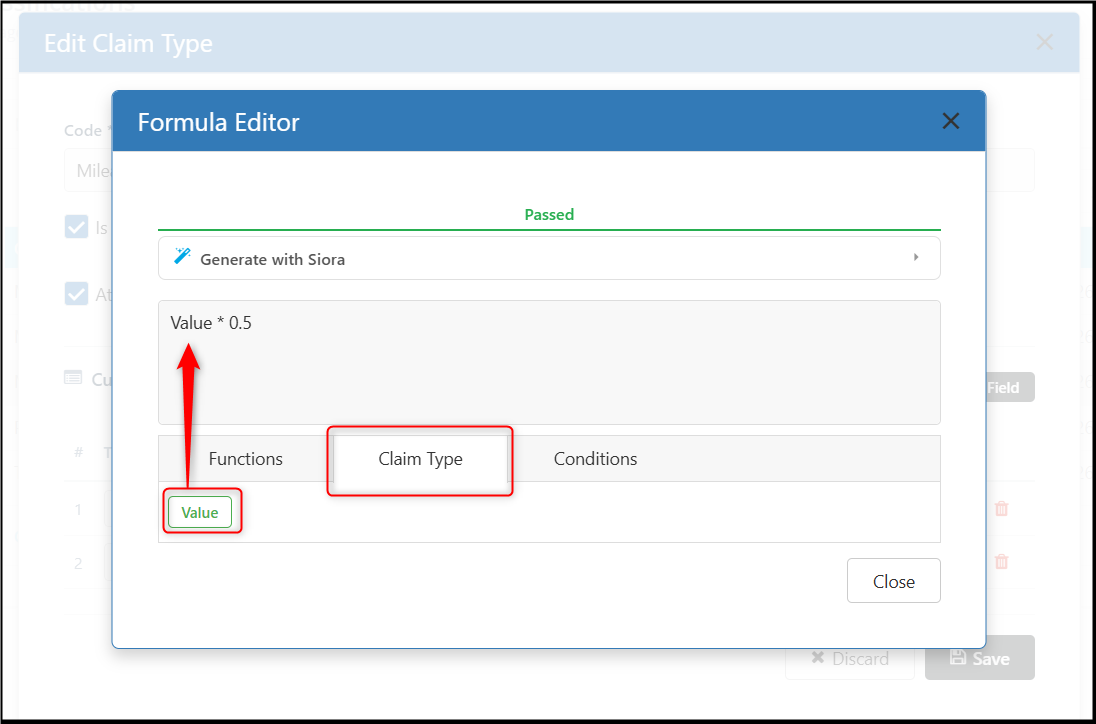
Under Amount (Formula), click Edit Formula to open the Formula Editor.
Enter the formula to determine the claim amount based on the mileage.
For example, if the reimbursement rate is RM0.50 per km, configure the formula as:
For example:
Value (Claim Type) × 0.50
4. Assign the Distance Claim to the Entitlement Group
Before employees can submit a Distance Claim, the claim type must first be added to the employee's Entitlement Group.
Tools > Entitlement Group
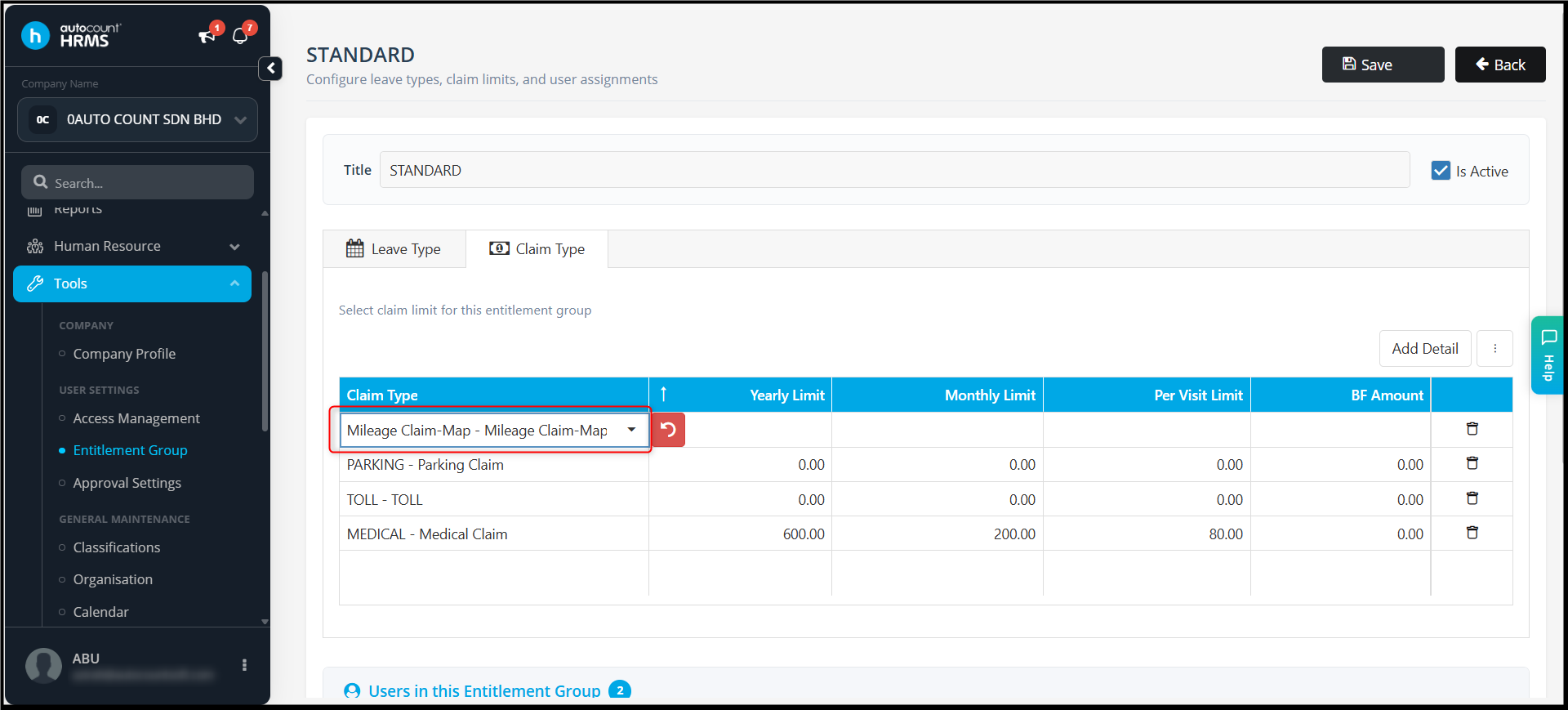
Select the relevant Entitlement Group.
Go to the Claim Type tab.
Click Add Detail.
Select the Mileage Claim Map – Distance claim type.
Configure the applicable claim limits (if applicable)
Ensure the relevant employees are assigned to this Entitlement Group.
Click Save.
5. Employee – Submit a Distance Claim
After the Distance Claim Type has been configured, employees can submit a claim through the Submit Claim page.
Step 1 – Select the Distance Claim Type
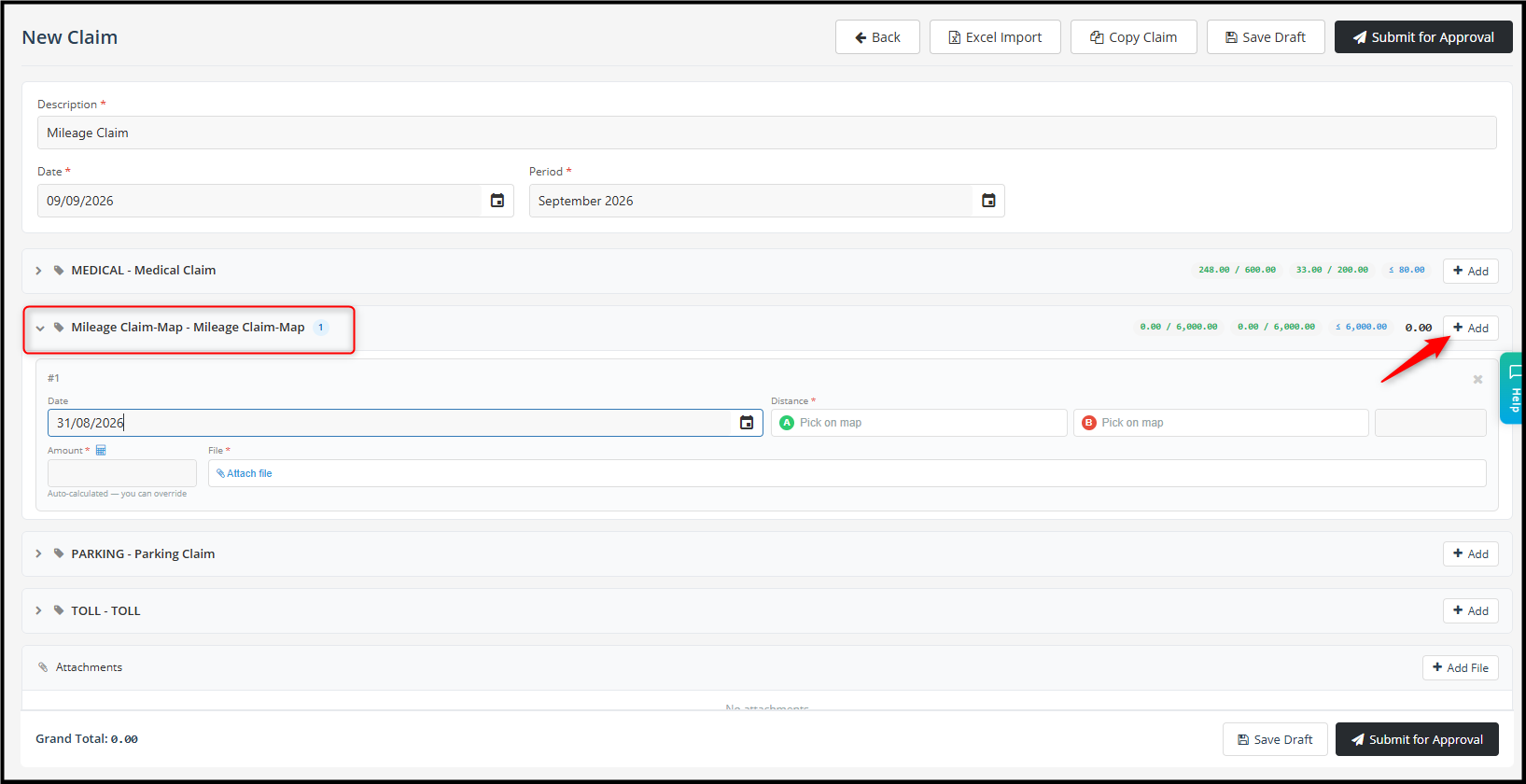
Add a new claim and select:
Mileage Claim-Map – Mileage Claim-Map
Enter the required claim information, such as the Date.
Step 2 – Select Point A and Point B
Click the Mileage Claim-Map field and employee can select the locations using the following options:
Pick on map – Select the location directly from the map
Search for a place – Search for an address or location
Use my location – Use the employee's current location

Click Pick on map for Point A and select the starting location.
Click Pick on map for Point B and select the destination.
For example:
Point A: Office
Point B: Customer's Office
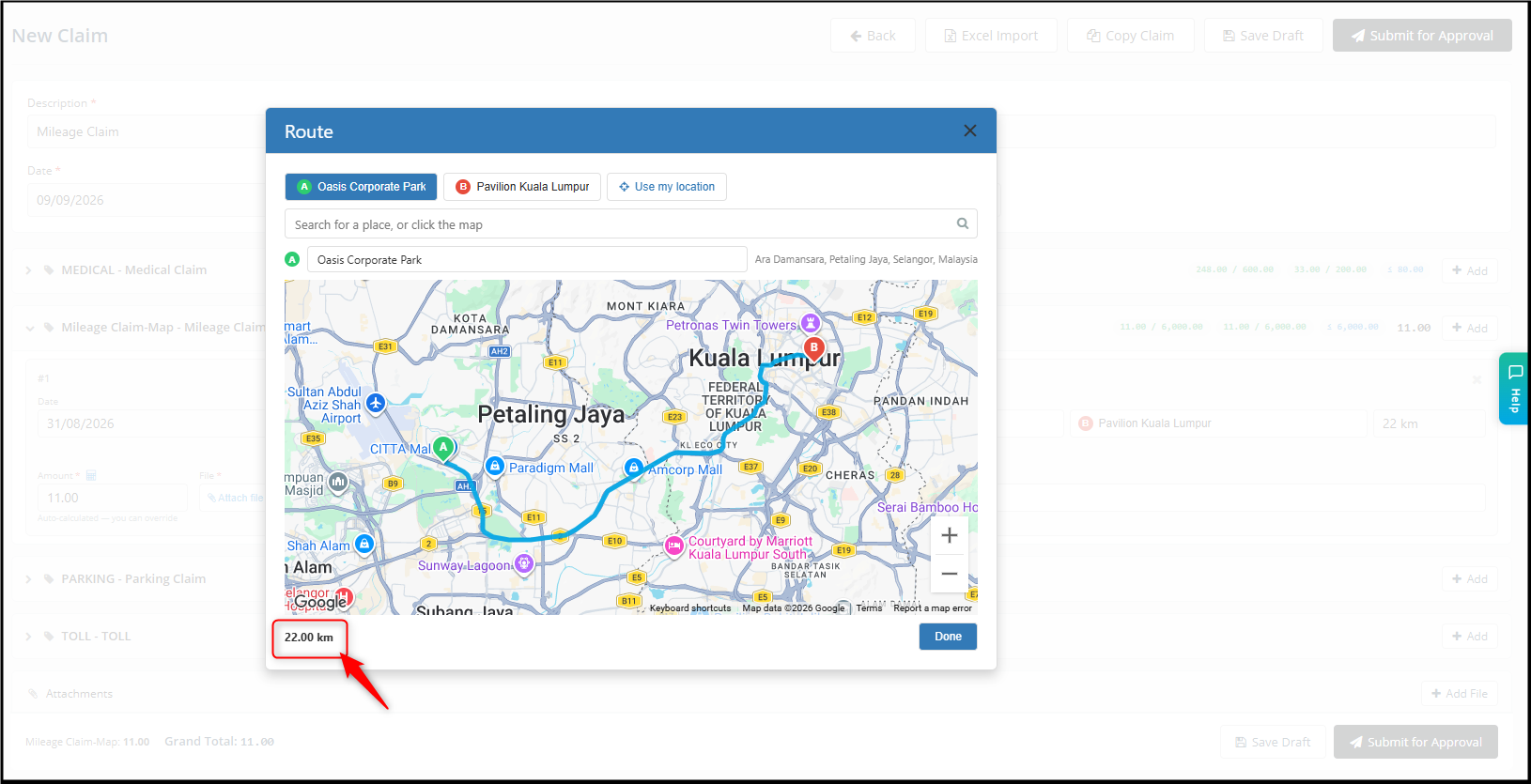
The system will calculate the distance between the two selected locations.
Step 3 - Review the Calculated Mileage
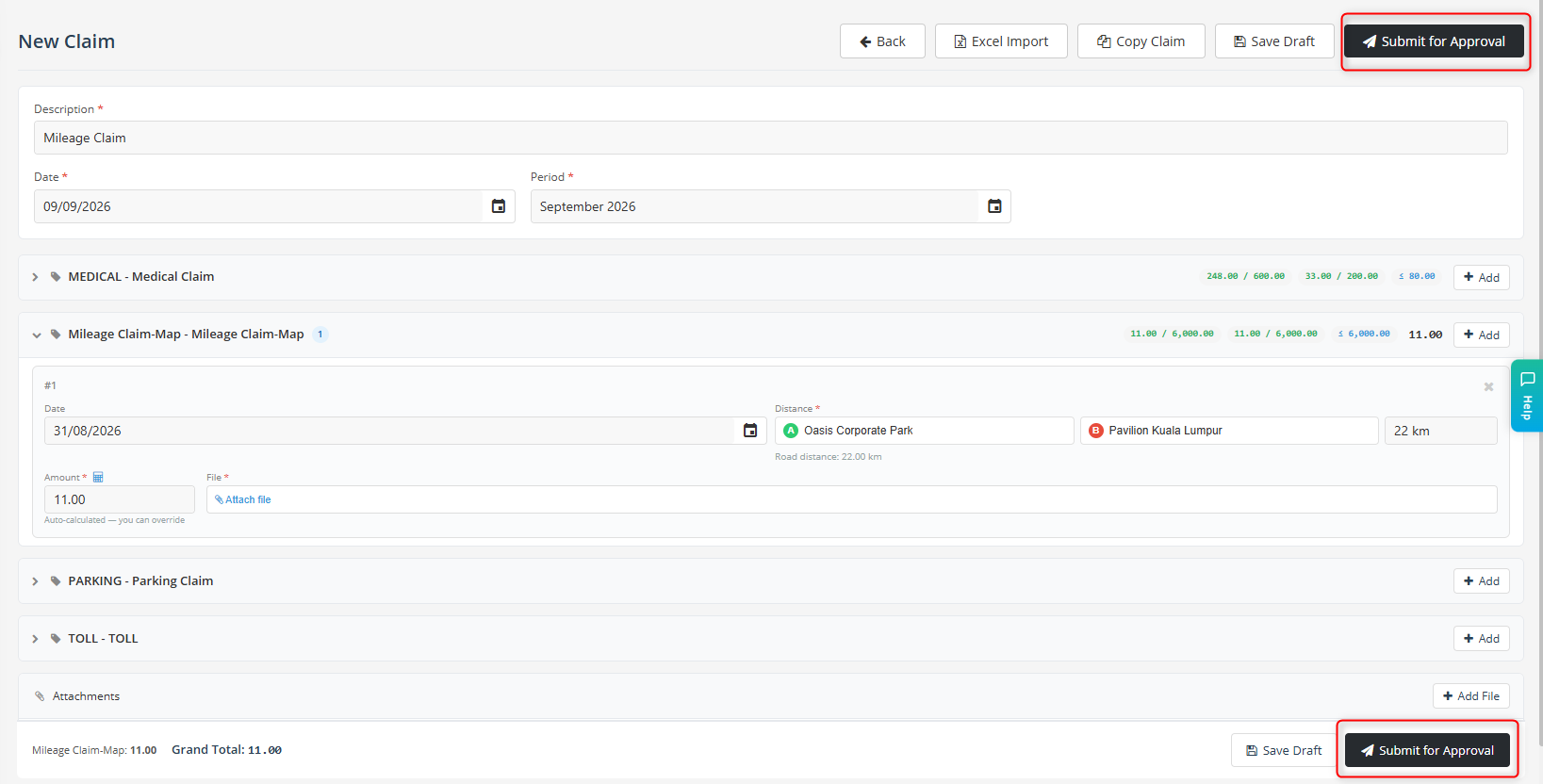
Once both locations have been selected, the system calculates the distance automatically.
For example:
Point A → Point B = 22.00 km
Click Done to return to the claim.
The calculated mileage will be populated into the Distance field.
The claim amount will be calculated automatically using the formula configured in the Distance Claim Type.
For example:
Mileage: 22.00 km
Mileage Rate: RM0.50/km
Claim Amount: 22.00 × RM0.50 = RM11.00
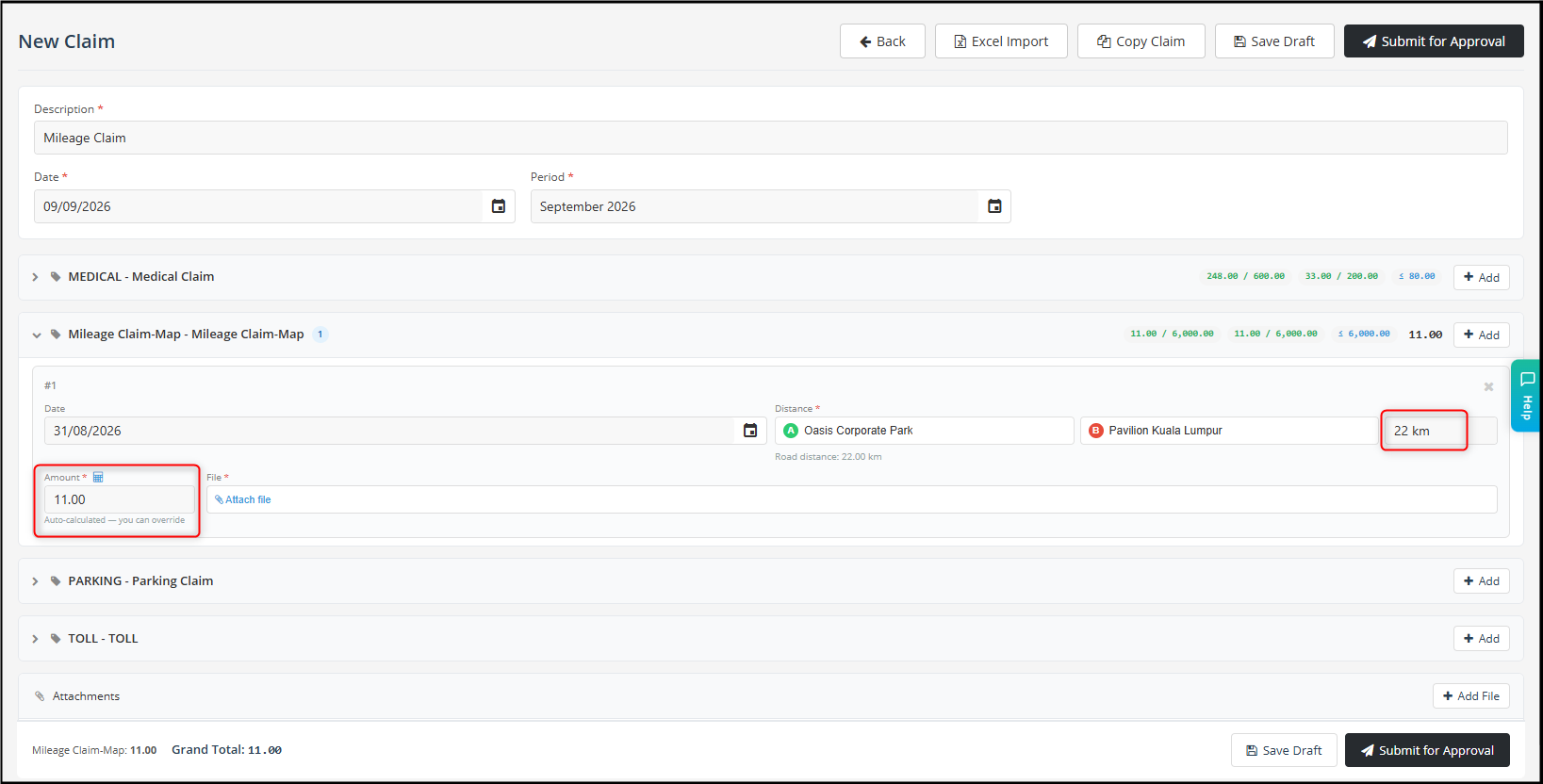
Note:
Employees can manually modify the calculated mileage if the actual travel distance differs from the system-calculated distance. The approver will be able to review the adjusted mileage before approval.
Step 4 – Submit the Claim
After completing the claim details and verifying the mileage and calculated claim amount, click Submit for Approval. The claim will then be submitted and proceed through the configured approval workflow.
By ChenOng 260908